Sign-in & password
Signing in to the admin, setting your password the first time, resetting a forgotten password, and the account menu and My account page after you sign in
Only admin accounts can sign in to the admin. Accounts are created by an Owner on the Admin accounts page. This page covers the three ways in from the sign-in page, and where to change your own name and password once you are signed in.
Three situations, three ways in
- You already have a password — sign in on the sign-in page
- Your account is new and you have never set a password — click "First time here? Set your password" and use the link in the email
- You forgot your password — click "Forgot password?" and use the link in the email
Sign-in page
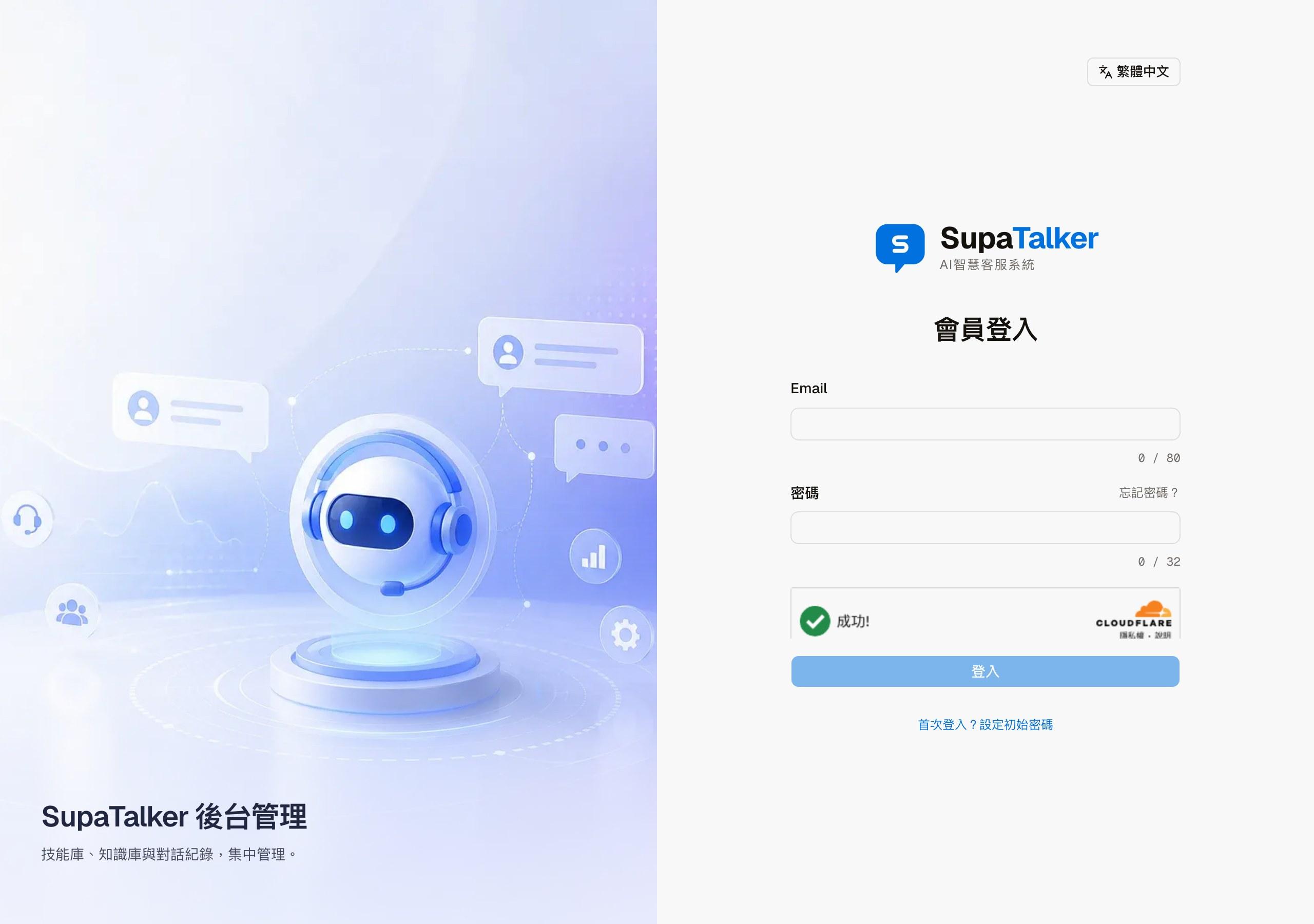
Enter your email and password and click "Sign in". After signing in you land on the Dashboard.
Below the password field is a Cloudflare human verification check. It runs on its own; you do not need to click it. Wait until it shows "Success!" before you click "Sign in". If you click too early you will see "Human verification failed. Please try again in a moment."; wait a moment and click again.
Other buttons on the sign-in page:
| Button | What it does |
|---|---|
| Forgot password? | Switches to the forgot password screen, where you request a reset link (see "Forgot password" below) |
| First time here? Set your password | Switches to the set your password screen, where you request a setup link (see "First sign-in" below) |
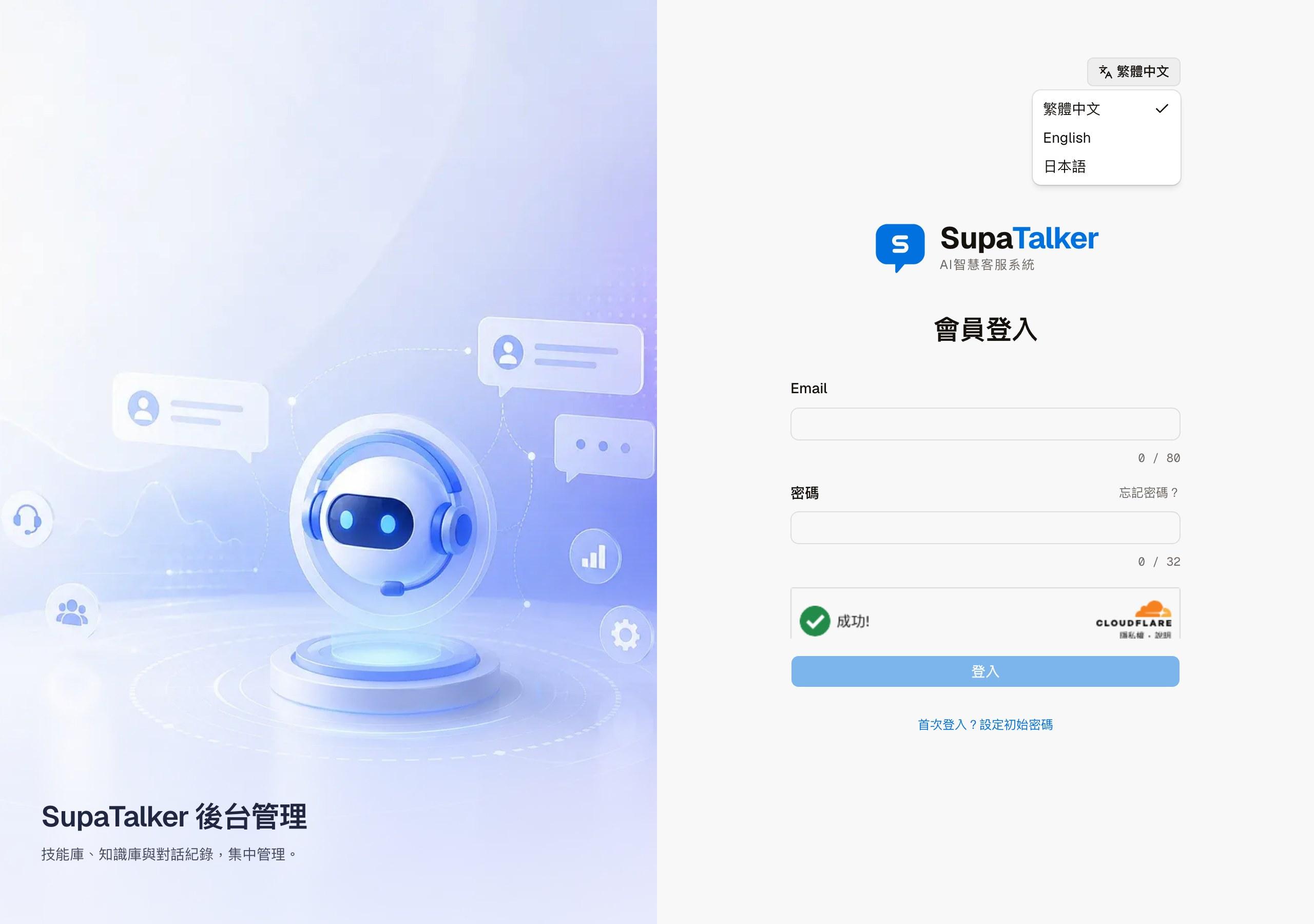
| Language (top right) | Switches the admin interface language: 繁體中文, English, 日本語 |
First sign-in: set your password
If the Owner did not enter an initial password when creating your account, you receive a site activation notice but have no password to sign in with yet. In that case, click "First time here? Set your password" on the sign-in page:
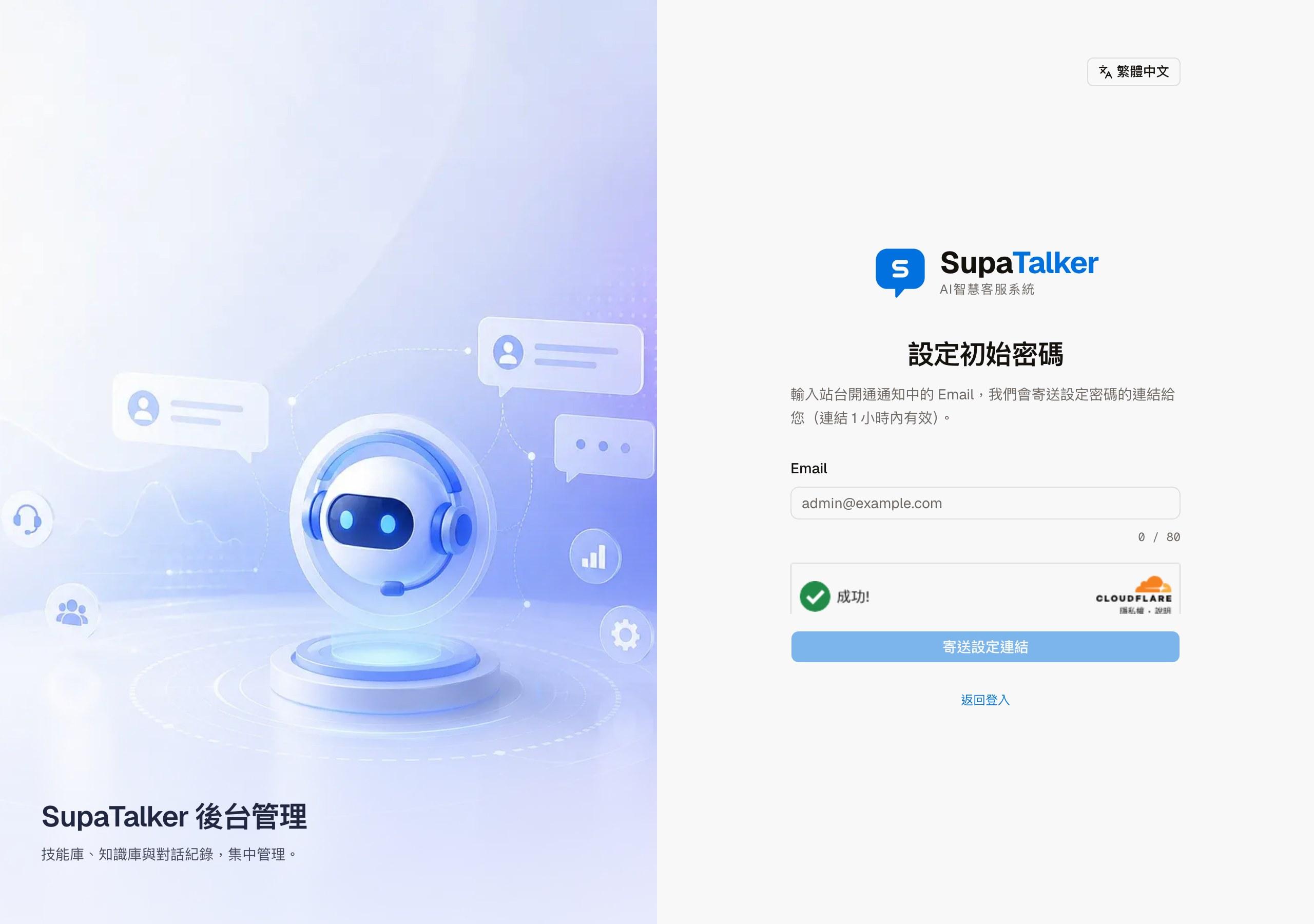
Enter the email address from the activation notice and click "Send setup link". The system sends you an email; click the link in it to set your own password. The link is valid for 1 hour. If it expires, come back here and request a new one.
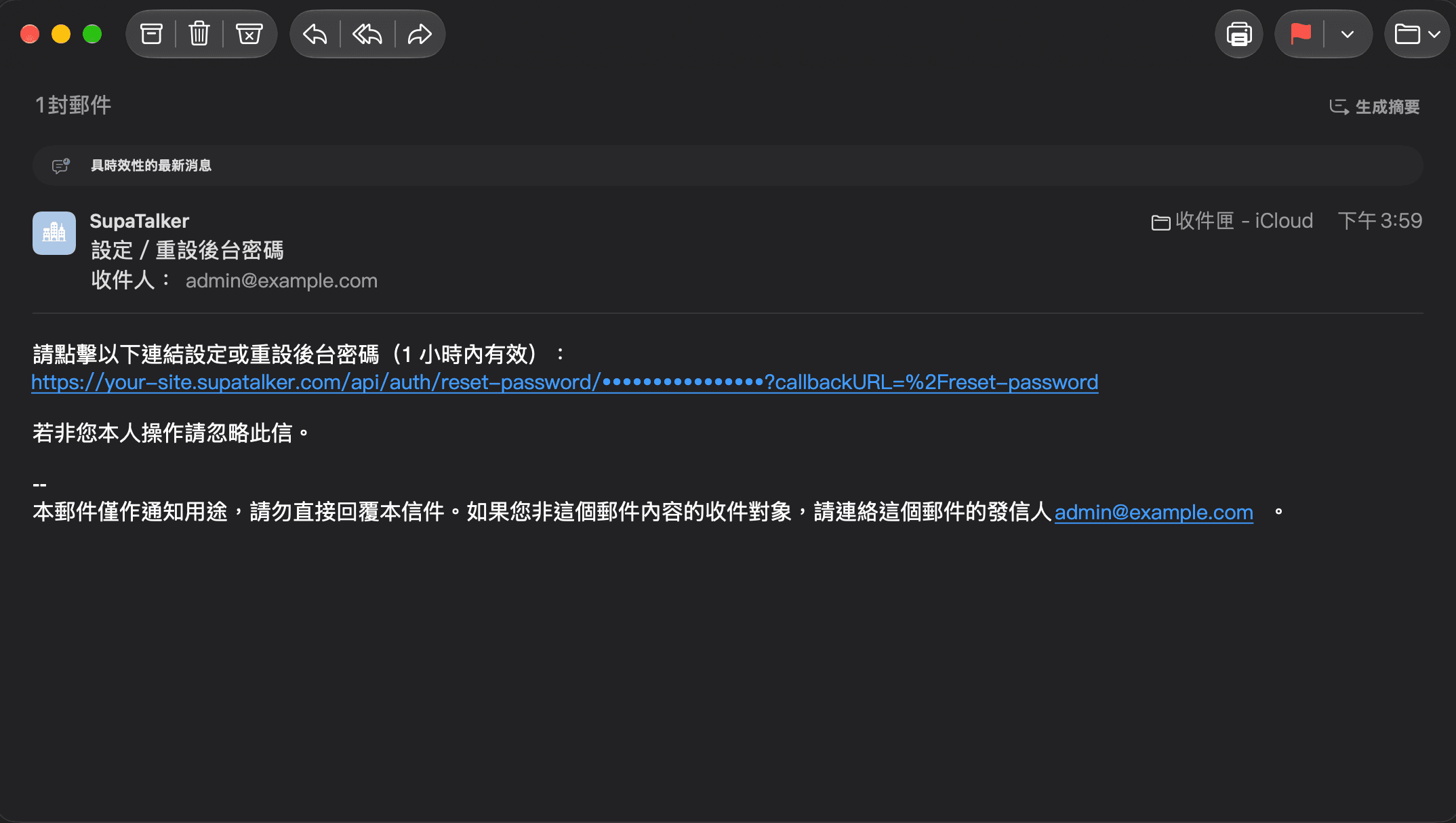
After you open the link
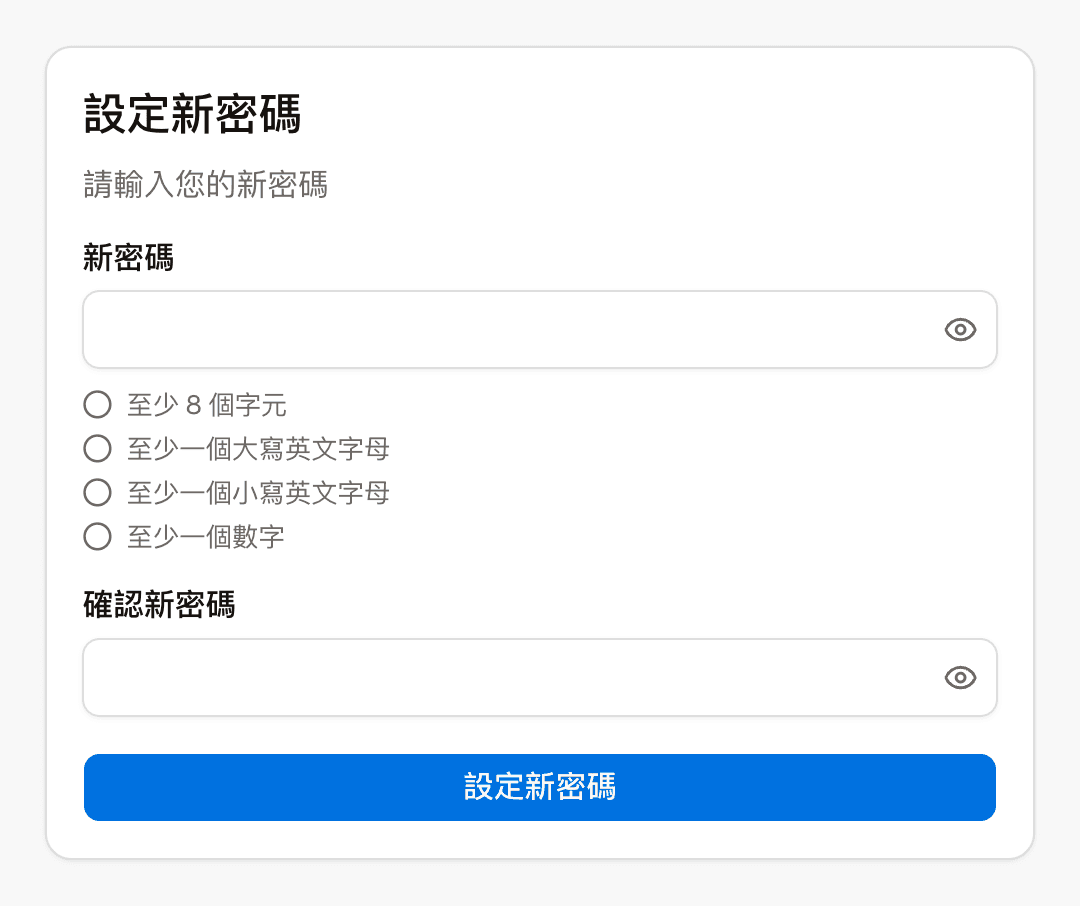
The link in the email opens the "Set new password" screen. Enter your new password twice and click "Set new password". The new password needs at least 8 characters, including an uppercase letter, a lowercase letter and a digit; each requirement is checked off below the field as you type. The eye icon on the right of a field shows the password so you can check it.
If the Owner already entered an initial password for you when creating the account, you can skip this step and sign in with that password.
Forgot password
Click "Forgot password?" on the sign-in page:
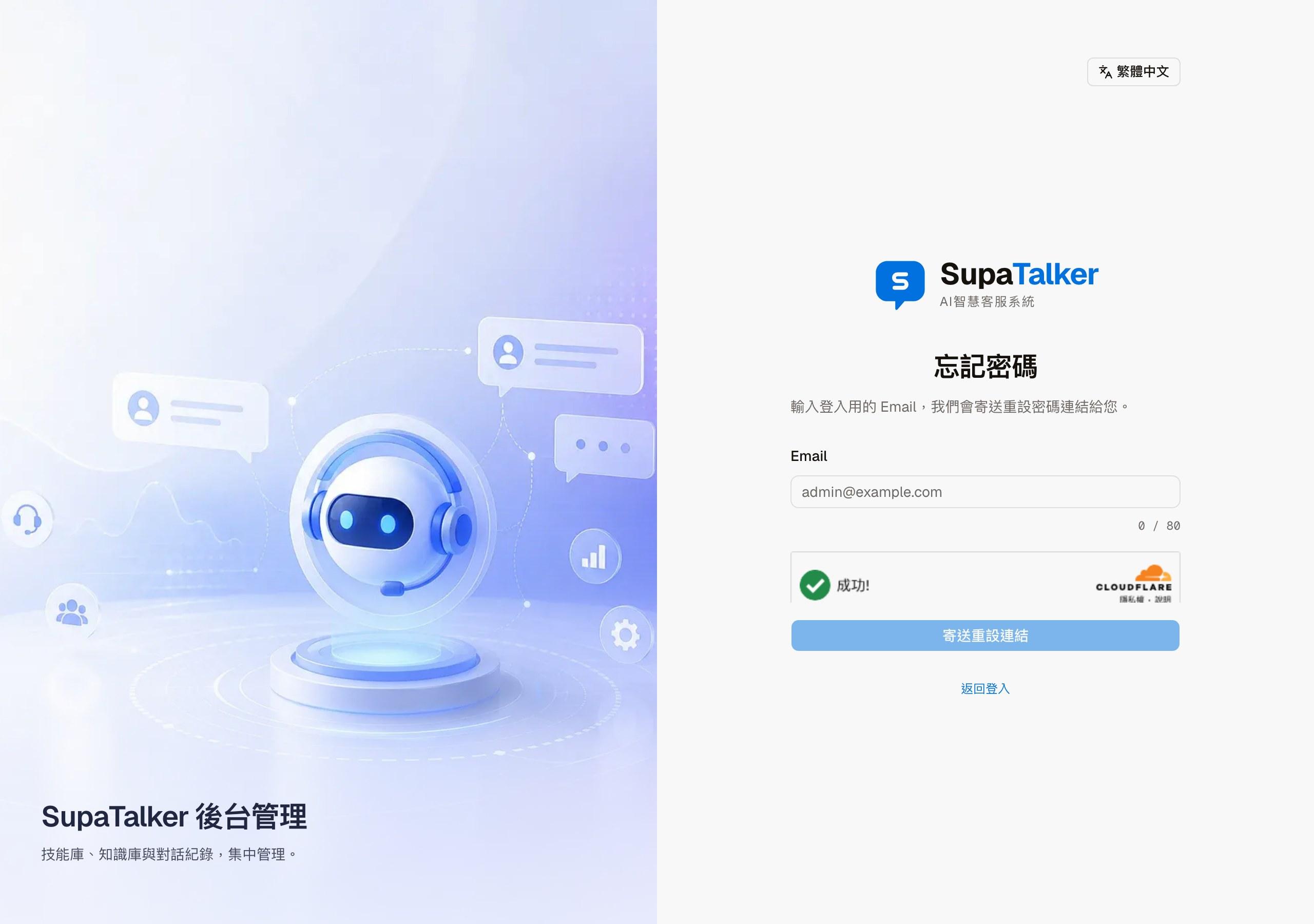
Enter the email address you use to sign in and click "Send reset link". You receive the same kind of email as for a first sign-in. Click the link in it to set a new password. This link is also valid for 1 hour, and it opens the same "Set new password" screen (see above).
"Back to sign-in" at the bottom of both screens returns you to the sign-in page.
You can also ask an Owner for help: on the Admin accounts page, an Owner can send you a password reset email or set a password for you directly.
When the link has expired
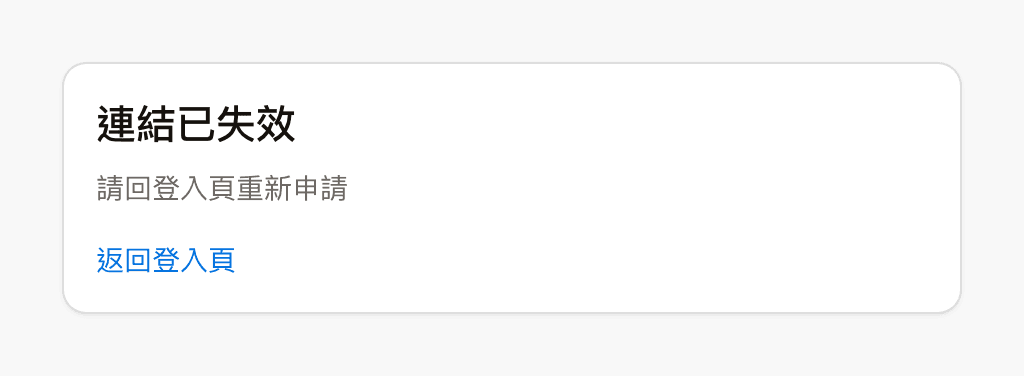
If the link in the email no longer works (for example, it is past its valid time), opening it shows this screen. Click "Back to sign-in page" and request a new link.
After signing in: the account menu
The avatar at the top right of the admin opens the account menu. The top of the menu shows the name and email you are signed in with.
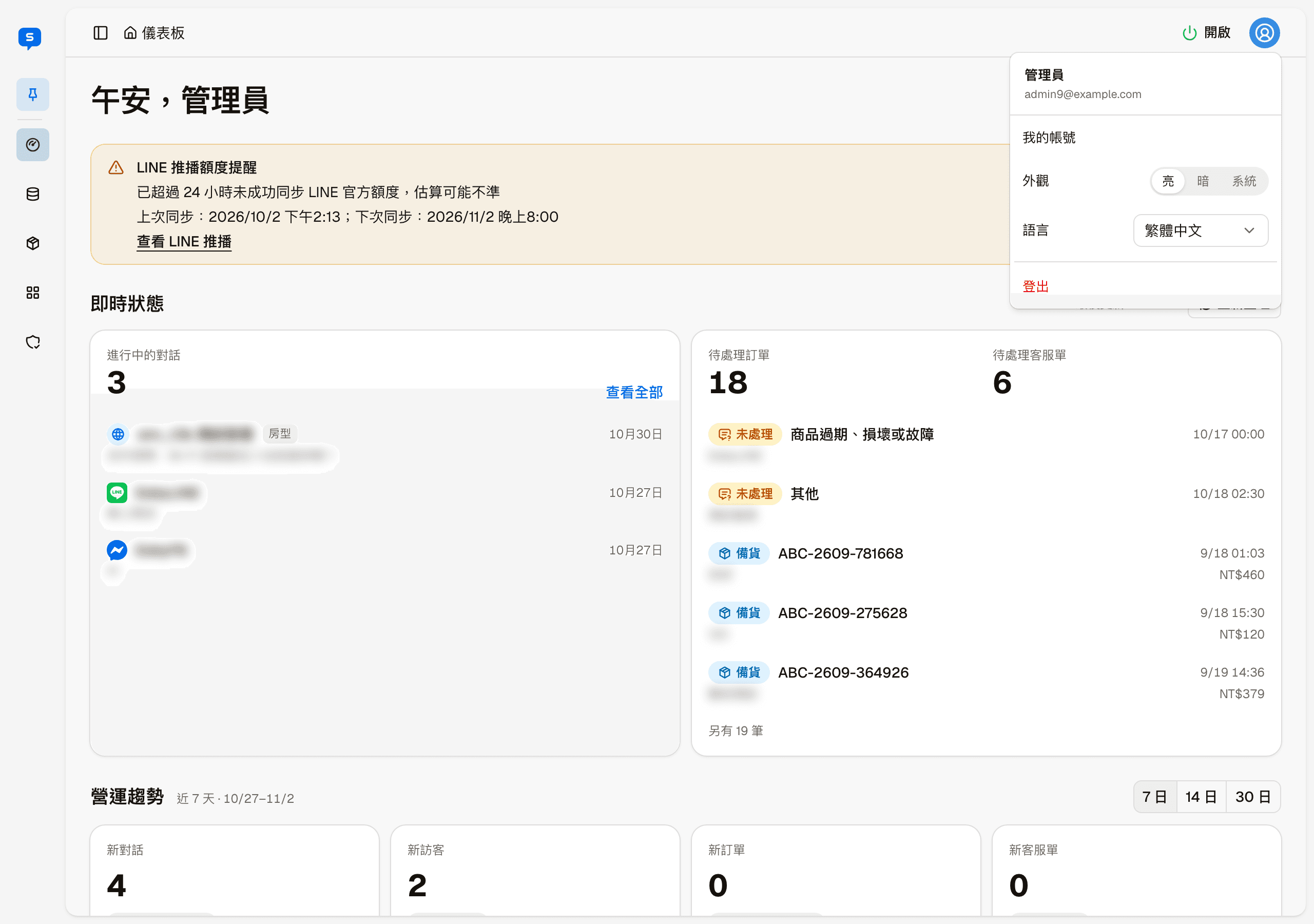
| Item | What it does |
|---|---|
| My account | View your account details and change your name or password (see below) |
| Appearance | Light or dark admin theme, or follow your system setting |
| Language | Switches the admin interface language |
| Sign out | Signs this browser out of the admin |
My account
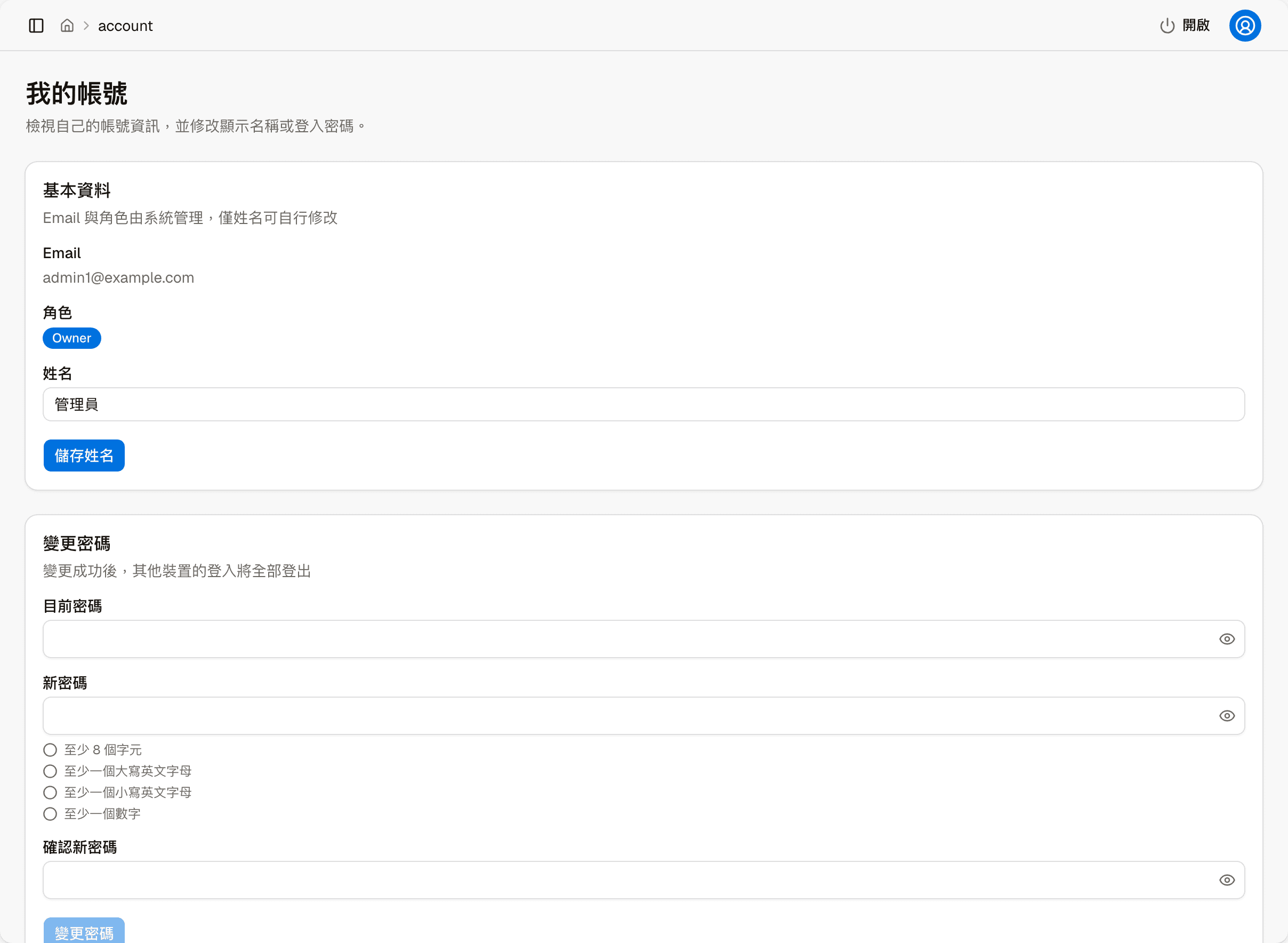
Basic information: your email and role cannot be changed here; only your name can. After changing it, click "Save name". The role is Owner or Admin; for the difference, see Admin accounts.
Change password: enter your current password and your new password twice, then click "Change password". The eye icon on the right of each field shows the password so you can check it. The new password needs at least 8 characters, including an uppercase letter, a lowercase letter and a digit; each requirement is checked off below the field as you type.
Changing your password signs out your other devices
Once the change succeeds, you are signed out on all other devices and need to sign in again with the new password.