Dashboard
The home page after you sign in to the admin — the conversations, orders and support requests that need attention now, and trends over a period
The dashboard is the first screen you see after signing in to the admin. This page is view-only; clicking an item takes you to the page where you handle it.
What the two halves show
- Live status — what is happening now: open conversations, pending orders and support requests
- Trends — changes over a period: new conversations, new visitors, new orders and new support requests, for the last 7, 14 or 30 days
Header and system notices
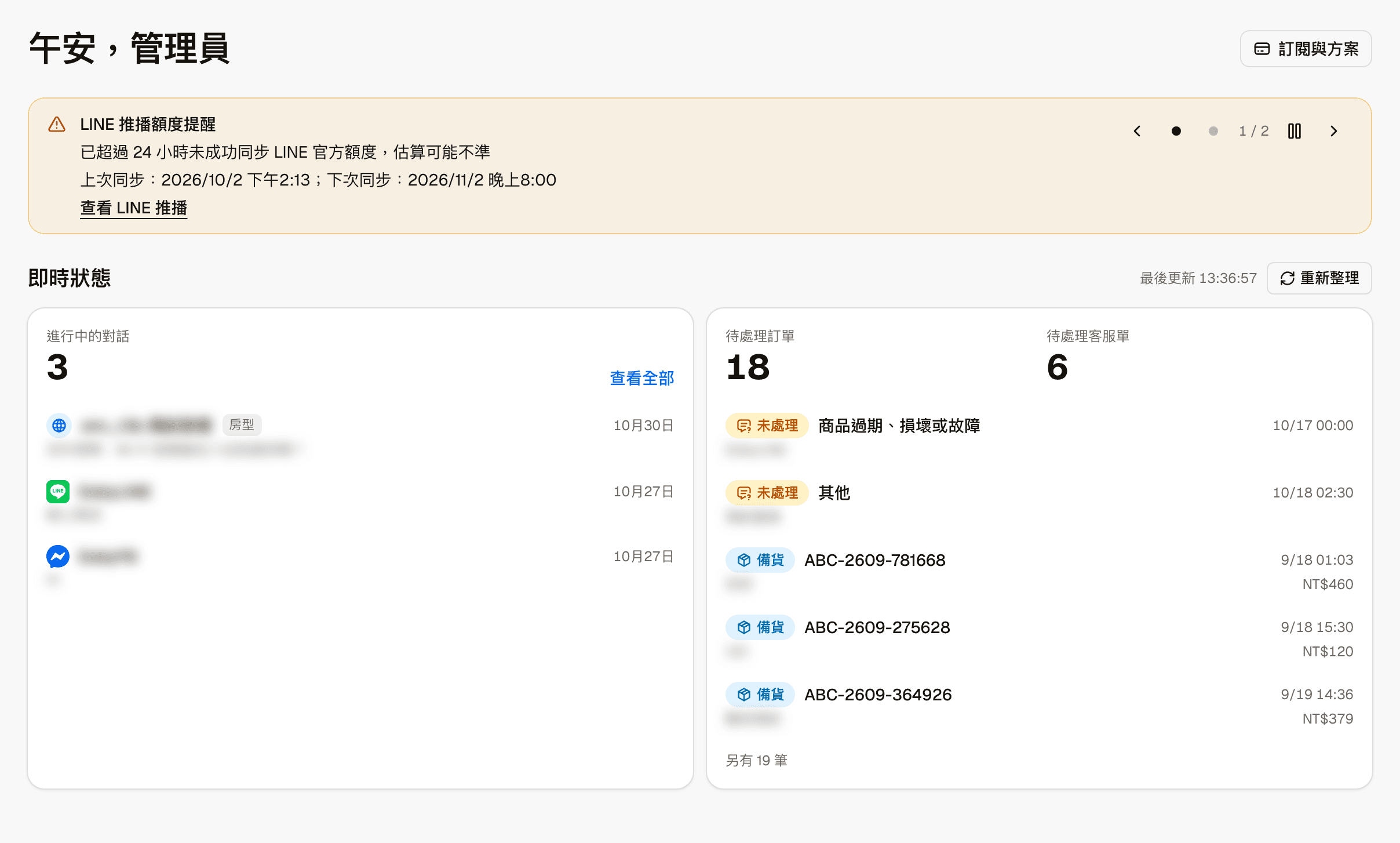
The header shows a greeting with your name. The "Subscription" button on the right goes to Subscription, where you can see your plan, usage this period, and each limit.
The system notices below the greeting appear only when something needs your attention. When there are several, they rotate automatically: the left and right arrows go to the previous and next notice, the dots and "1 / 2" show which notice you are on, and the pause button stops the rotation.
There are currently two kinds of notices:
| Notice | When it appears | Buttons |
|---|---|---|
| LINE push quota alert | When your LINE Official Account's message quota is almost used up, LINE has rejected pushes, or the system has not been able to fetch the latest quota for a while | "View LINE push" goes to the LINE broadcast page |
| Old records reminder | When there are old conversations, visitors and other data that can be cleaned up; shows how many records can be cleaned up | "Go to Cleanup & backup" goes to the Cleanup & backup page; "Dismiss reminder" hides this notice |
The LINE push quota belongs to your LINE Official Account, not to this platform
Pushing messages on LINE uses your LINE Official Account's monthly message quota. The size of the quota depends on the plan you signed up for with LINE; for example, the free plan includes a fixed number of free messages each month. See LINE Official Account pricing plans (LINE Taiwan, in Traditional Chinese) for details. This platform simply checks the remaining quota with LINE twice a day (LINE updates it once a day) and reminds you here when it is running low.
Live status
The time next to the title shows when the data was last updated. Click "Refresh" to load the latest numbers.
| Block | Shows | Click to |
|---|---|---|
| Open conversations | The number of conversations that have not ended yet, and the most recent few: the icon of the channel they came from, the visitor name, the date and the last message | Click a conversation to see it in full in Conversations; "View all" goes to the Conversations page |
| Pending orders | The number of store orders not yet completed | Click the number to go to the Store orders page |
| Pending support requests | The number of support requests not yet completed | Click the number to go to the Support requests page |
Below pending orders and support requests is a combined list of pending items:
- Support requests: status (for example "Open"), issue category, created time and visitor name
- Orders: status (for example "Ship"), order number, created time, visitor name and amount
Click an item to open that support request or order. Items that do not fit are counted at the bottom as "N more".
The small gray tag next to a visitor name (Product, Service, Room type) is the conversation's context: the kind of content the visitor started asking about.
Trends
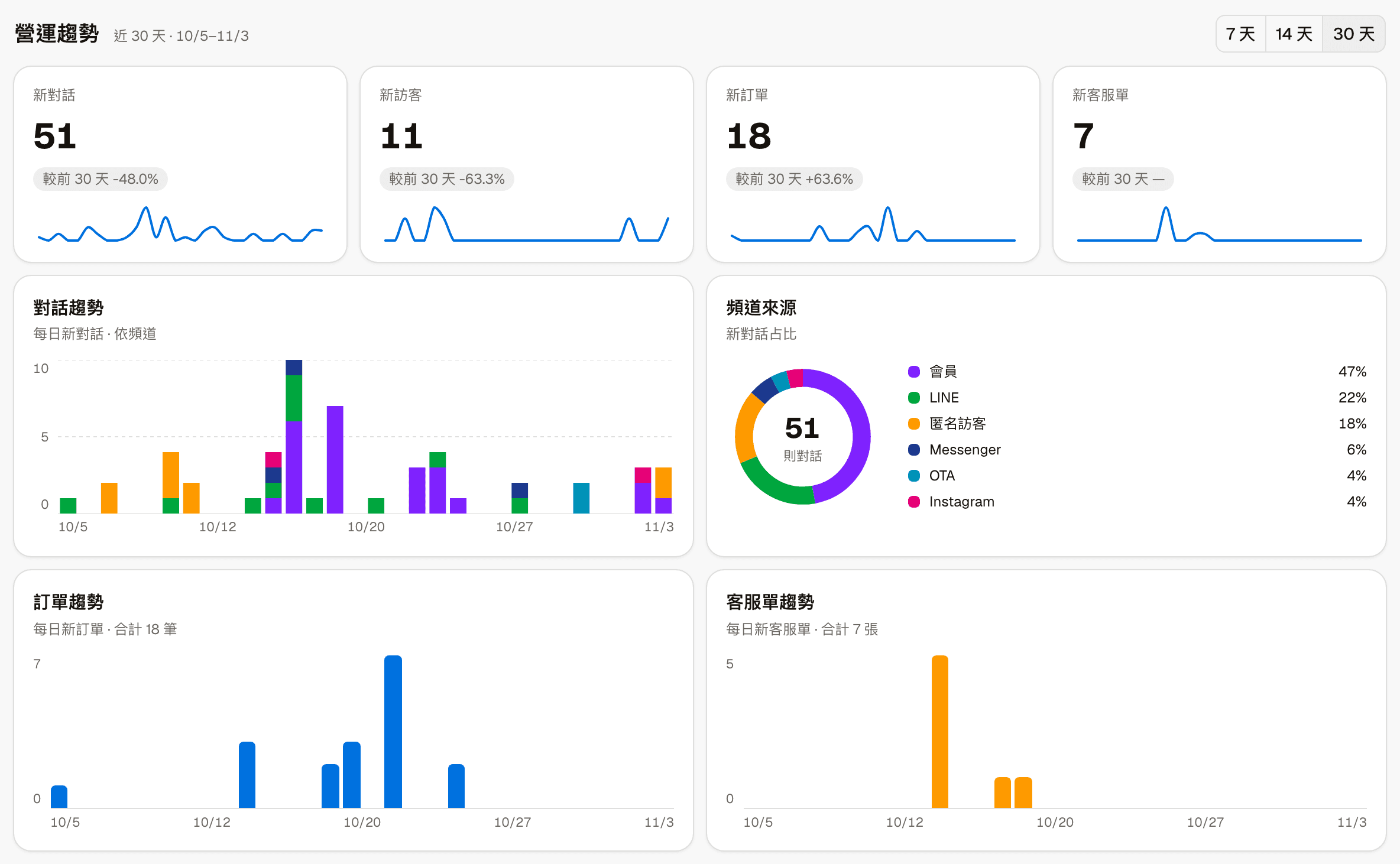
"7 days", "14 days" and "30 days" at the top right change the period. The start and end dates of the current period are shown next to the title.
The four boxes at the top are the new counts for the period: new conversations, new visitors, new orders and new support requests. Below each, "vs previous N days" is the change compared with the previous period of the same length; it shows "—" when there is no data for that period. The line at the bottom shows the daily trend.
| Chart | Shows |
|---|---|
| Conversation trend | New conversations per day, stacked by channel |
| Channel sources | The share of each channel among new conversations in the period |
| Order trend | New orders per day, with the total below the title |
| Support request trend | New support requests per day, with the total below the title |
Hovering over a bar shows that day's date and count.
There are six channels: Member, LINE, Anonymous, Messenger, Instagram and OTA. OTA is an external channel that requires integration with a separate PMS (property management system) and receives messages from booking platforms such as Airbnb and Booking.com. Only sites using a related industry template have conversations on this channel.