Conversations
View the full content of every conversation, filter conversations, and close, archive, delete or export them
Conversations holds every conversation visitors have had with the AI across all chat channels. You can go through it message by message to see what the visitor asked, how the AI replied, and which skills or rules it used.
A conversation ends on its own after 30 minutes idle or after 3 days
When a visitor has not sent a message for more than 30 minutes, or the conversation is more than 3 days old, the system ends it automatically and the status shows "Timed out". This is the most common reason a conversation ends, so seeing a lot of "Timed out" is normal.
To move between one visitor's earlier and later conversations, use "Previous conversation" above the conversation content.
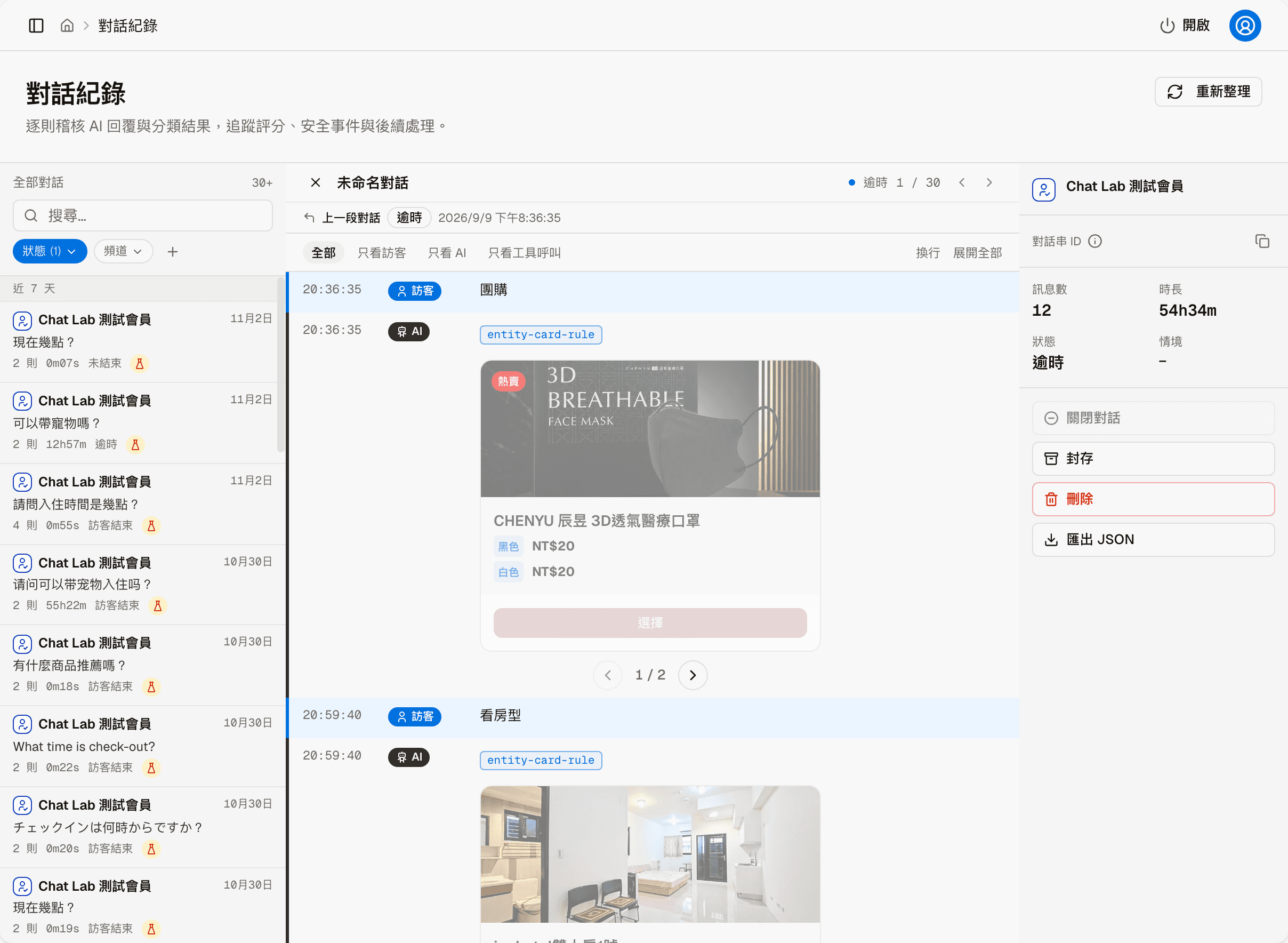
The screen has three columns: the conversation list on the left, the full content of the selected conversation in the middle, and that conversation's details and actions on the right. "Refresh" at the top right reloads the list.
Conversation list
The list is grouped by date into Today, Yesterday, Last 7 days and Older, with the number of conversations matching the current filters at the top. Each item shows the visitor name with the icon of the channel it came from, the date, the first message, and the number of messages, duration and status. Statuses include Unended, Ended, Timed out, Visitor ended, Admin closed, Order confirmed and others.
Some conversations carry a small icon:
| Icon | Meaning |
|---|---|
| Flask | A test conversation |
| Shield | The conversation has security alerts; hover over it to see how many |
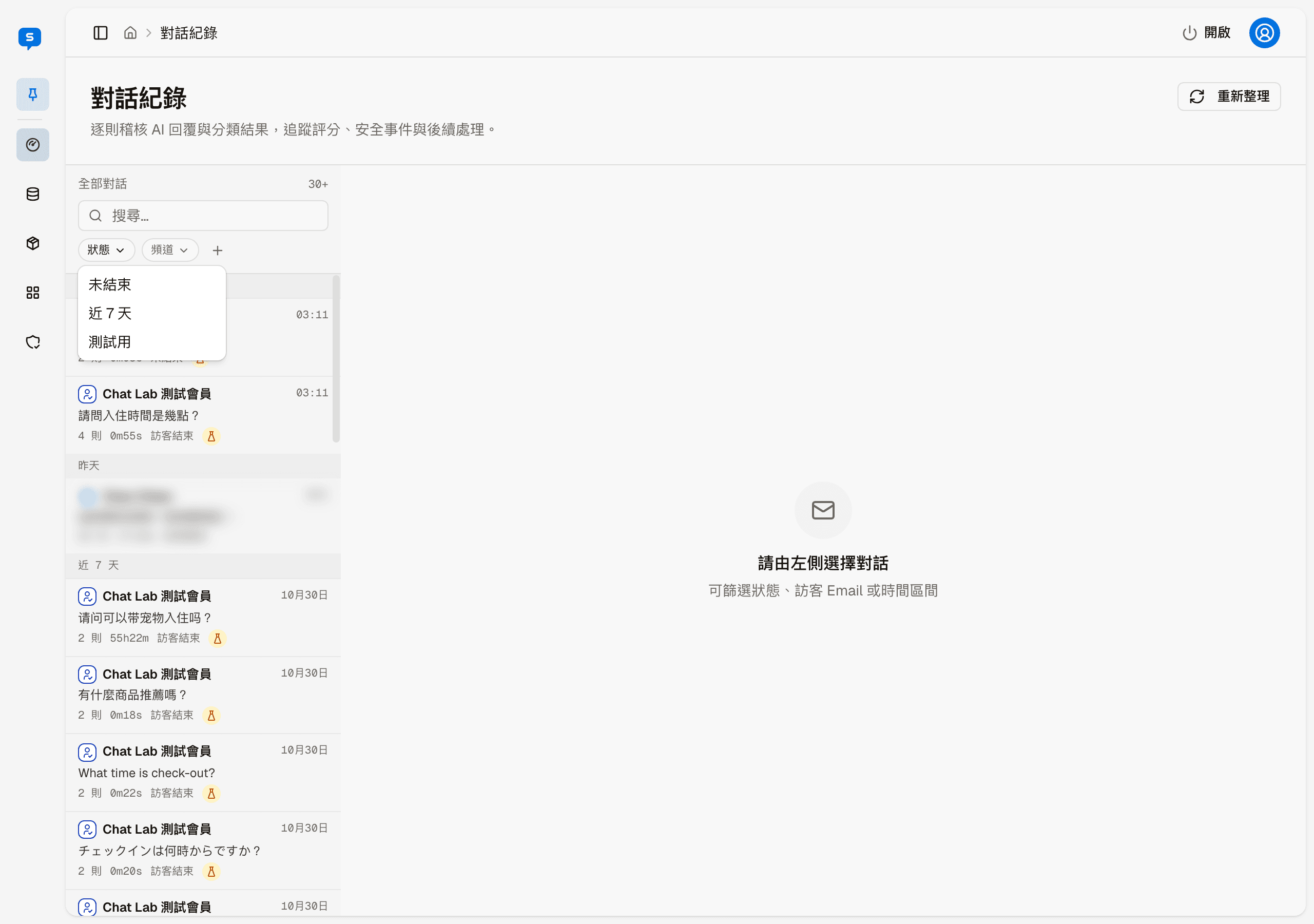
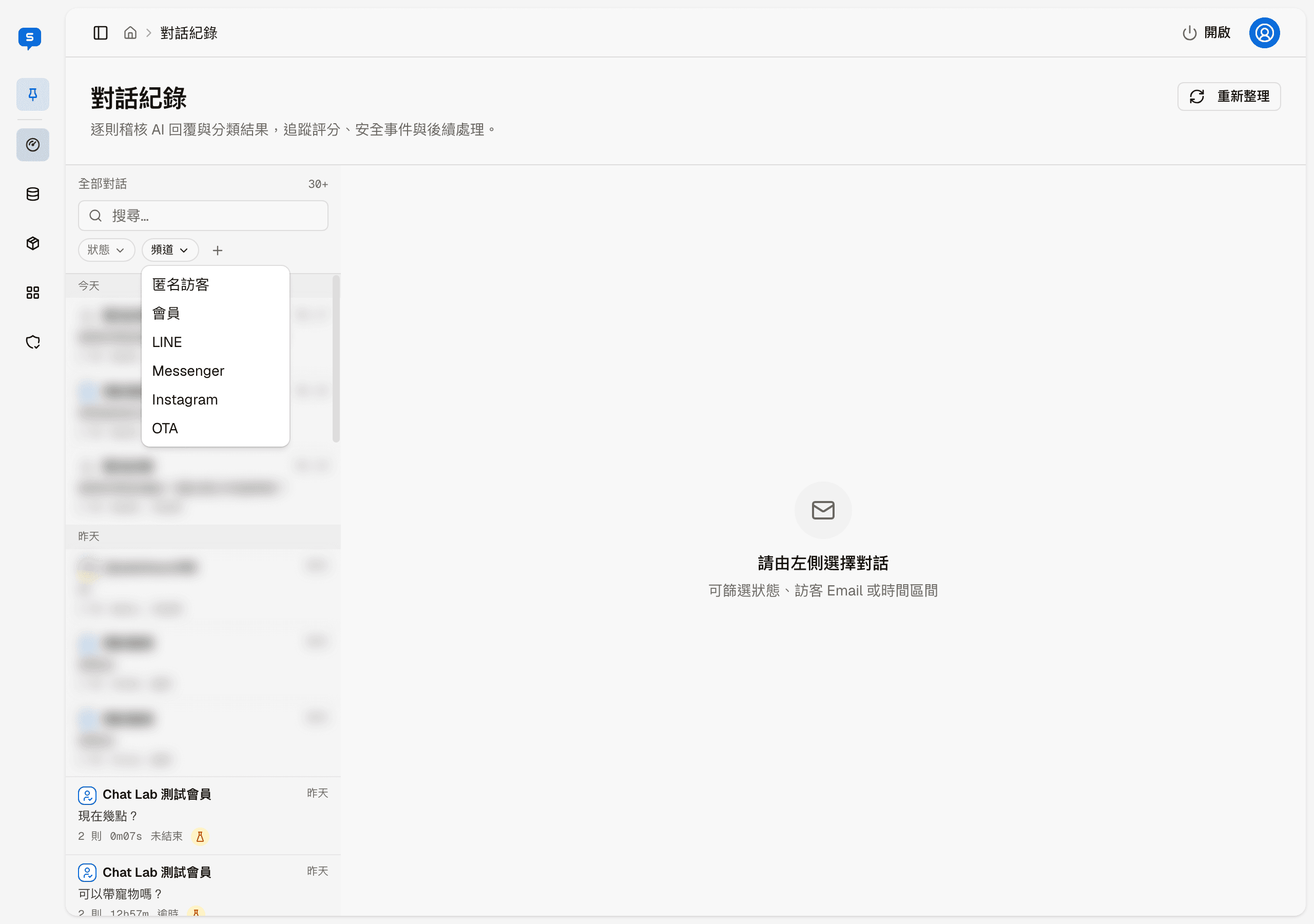
You can search above the list, and there are three filters:
- Status: Unended, Last 7 days, Test only; you can pick more than one
- Channel: Anonymous visitor, Member, LINE, Messenger, Instagram, OTA
- +: opens "Filter conversations" for more conditions
OTA is an external channel that works with a PMS (property management system) to receive messages from booking platforms such as Airbnb and Booking.com. Only sites using a related industry template have it.
"Load more" at the bottom of the list shows earlier conversations.
Filter conversations
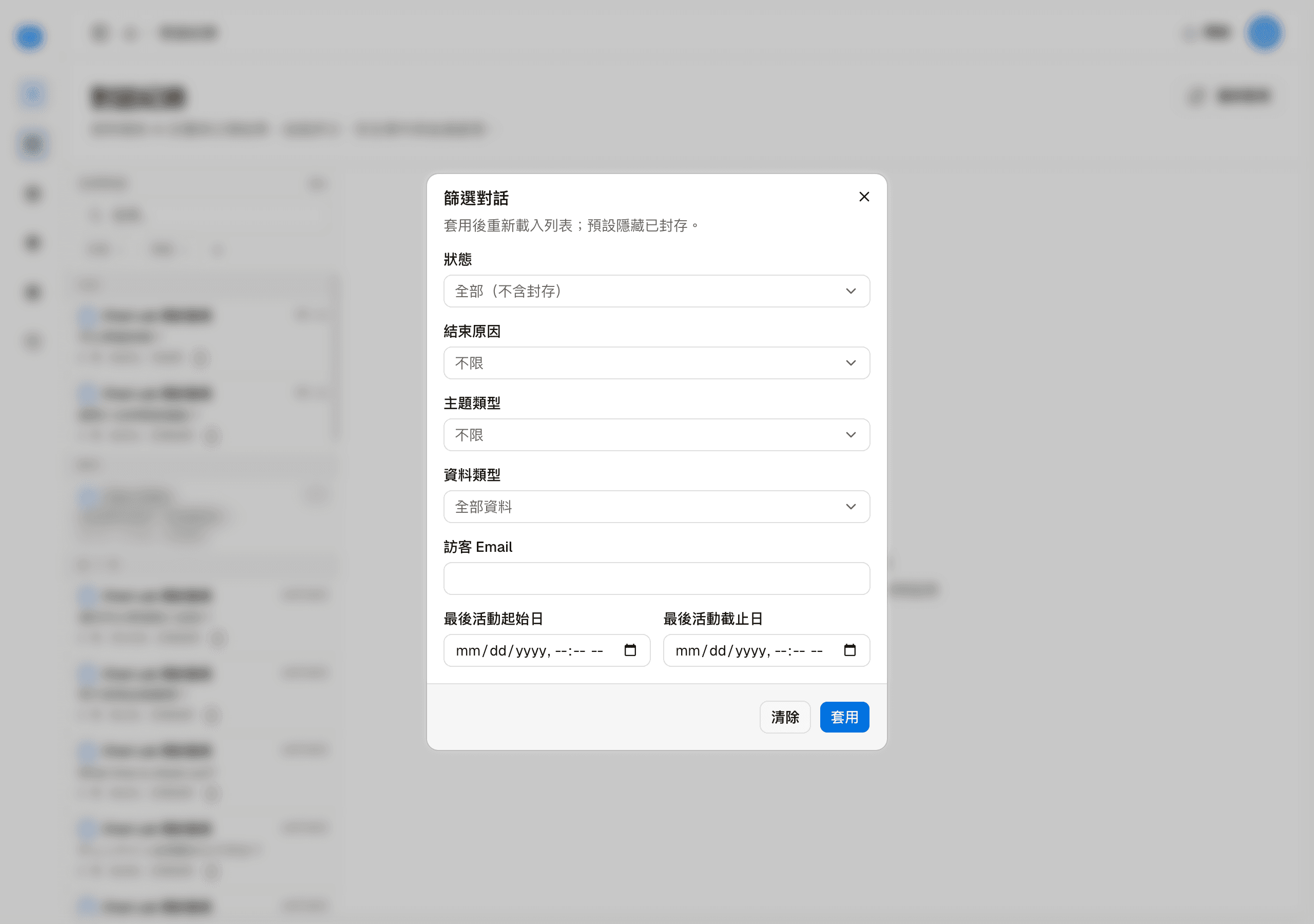
| Condition | Options |
|---|---|
| Status | All (excluding archived), In progress, Ended, Archived |
| End reason | Timed out, Visitor rated, Visitor ended, Admin closed, Admin archived, Order confirmed, Visitor deleted |
| Context type | product, service |
| Data type | All data, Production only, Test only |
| Visitor email | Find conversations by the visitor's email |
| Last activity from, Last activity to | Find conversations by the time range of their last message |
Click "Apply" to reload the list, or "Clear" to remove all conditions.
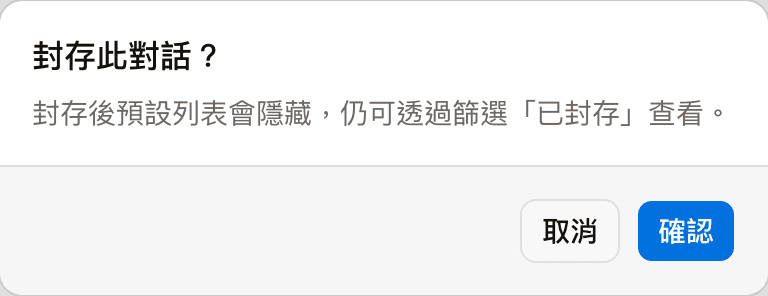
Archived conversations are hidden from the list by default
To see archived conversations, choose "Archived" under Status in "Filter conversations".
Conversation content
Selecting a conversation in the list shows its full message history in the middle:
- Top: the conversation title, its status, and its position in the list. The arrows go to the previous or next conversation in the list, and × closes the conversation content
- Previous conversation: the status and time of the same visitor's previous conversation; click it to switch to that conversation
- All, Visitor only, Assistant only, Tool calls only: show only one kind of message
- Wrap, Expand all: change how messages are displayed
The tag with a blue border above an AI reply is the name or code of the skill or rule used for that reply. Product cards, images and links in a reply are shown the way the visitor saw them at the time.
Conversation details and actions
The top right shows the visitor name and the channel they came from. If the visitor has left an email address, it is shown too, along with "View all conversations →": clicking it leaves only this visitor's conversations in the list on the left, and "Filtered by visitor" appears above the list; click the × next to it to go back to all conversations.
Below that are the thread ID (hover over ⓘ to see the full ID; the button on the right copies it), messages, duration, status and context, and four actions:
| Action | Description |
|---|---|
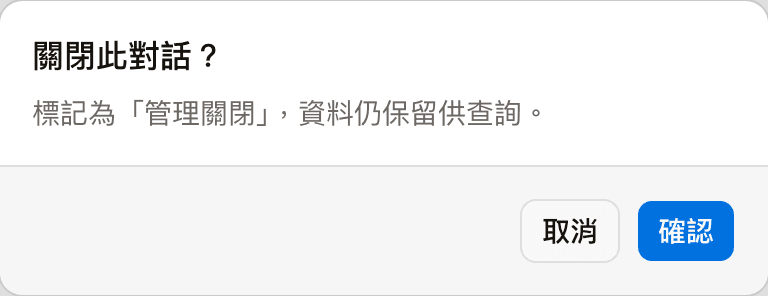
| Close conversation | Ends the conversation and sets its status to "Admin closed"; the data is kept. Not available for a conversation that has already ended |
| Archive | Hides the conversation from the list by default; the data is kept |
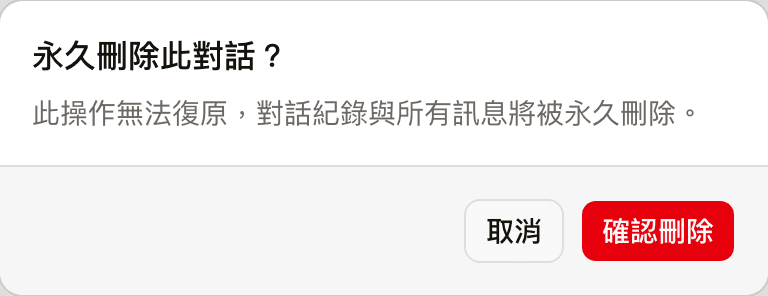
| Delete | Permanently deletes the conversation and all its messages. This cannot be undone |
| Export JSON | Exports the conversation as a JSON file |
Close conversation, Archive and Delete all ask for confirmation first: