Overview
Register which websites can embed the chat widget — anonymous embed, member embed with a secret per site, code snippets and default language, and the chat widget visitors see
"Host sites" are the websites you embed the chat widget into. This page only manages which websites can embed it and how; the chat widget's appearance settings, such as colors, the bubble button and links, are in Settings.
Two ways to embed
- Anonymous embed — visitors do not need to sign in, and can only use the knowledge base. Just register the URL and paste an embed code
- Member embed — after a member signs in on your website, the website's backend uses a secret to issue an entry ticket, and the visitor chats as a member, with more skills available than anonymous visitors. This needs your website's developer to integrate it
For how to put the embed code and code snippets into your website, see Code integration.
For which features each kind of visitor can use, see the Platform overview.
Embed allowlist
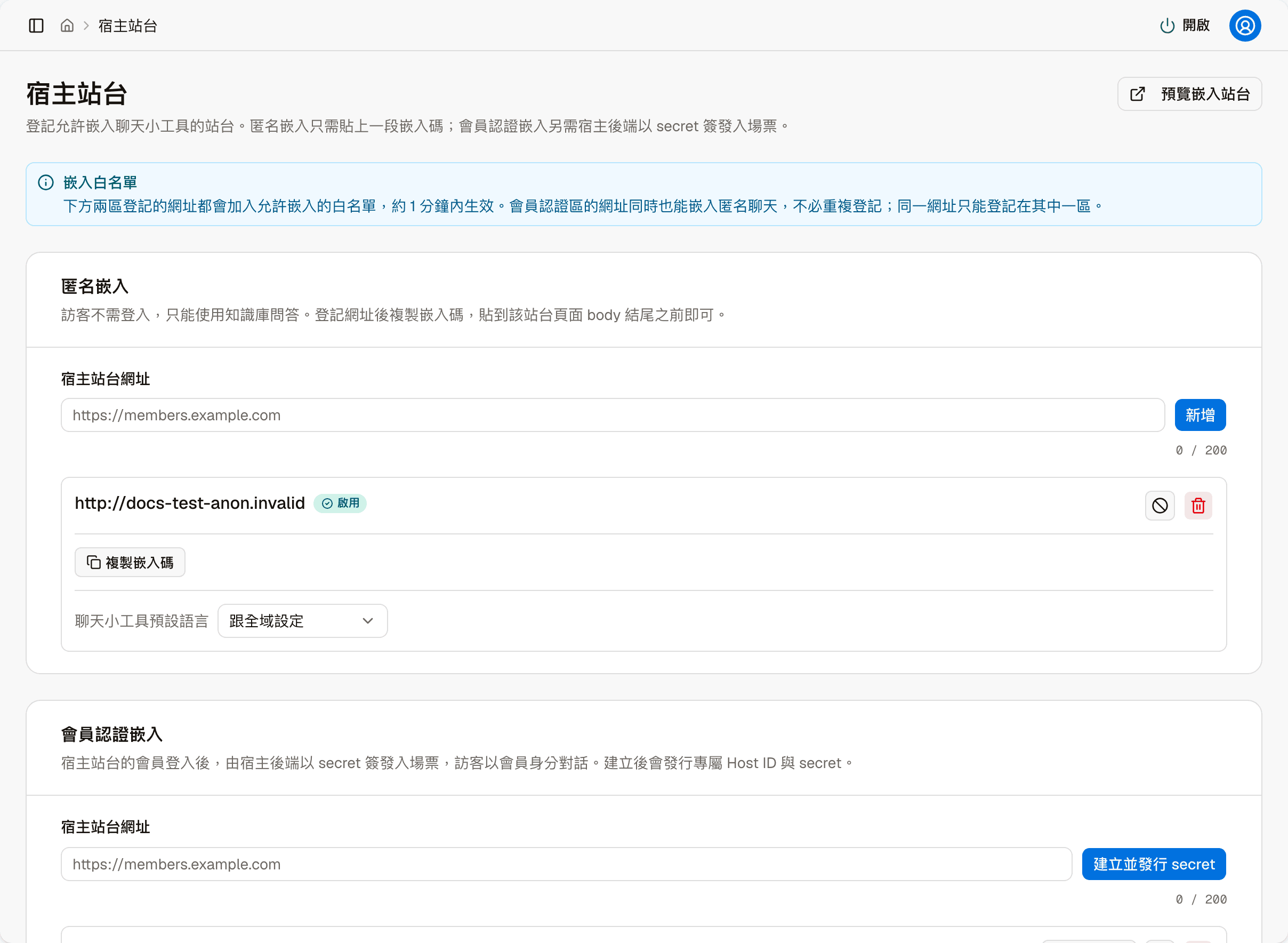
The note below the header: URLs registered in either section are added to the allowlist of sites allowed to embed, taking effect within about a minute.
- URLs in the member section can also embed the anonymous chat, so you do not need to register them in both
- The same URL can only be registered in one of the two sections
Anonymous embed
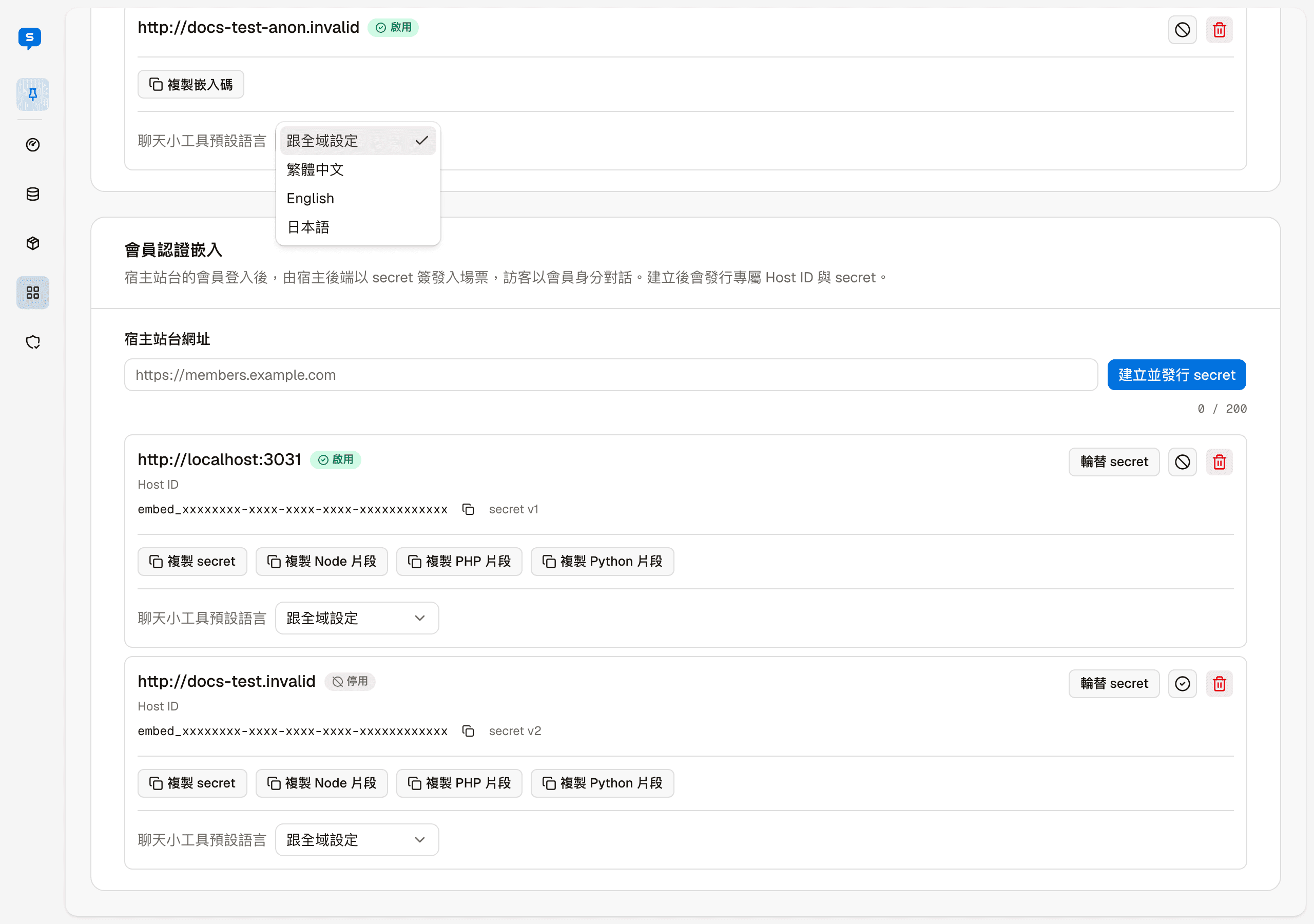
Enter the website URL in "Host site URL" (up to 200 characters) and click "Add".
Once registered, the site appears below. Click "Copy embed code" and paste the code before the end of the website page's body (see the first screenshot on this page).
The tag next to the site name is its current status (enabled / disabled). Disable and delete at the top right, and "Chat widget default language", work the same as for member host sites below.
Member embed
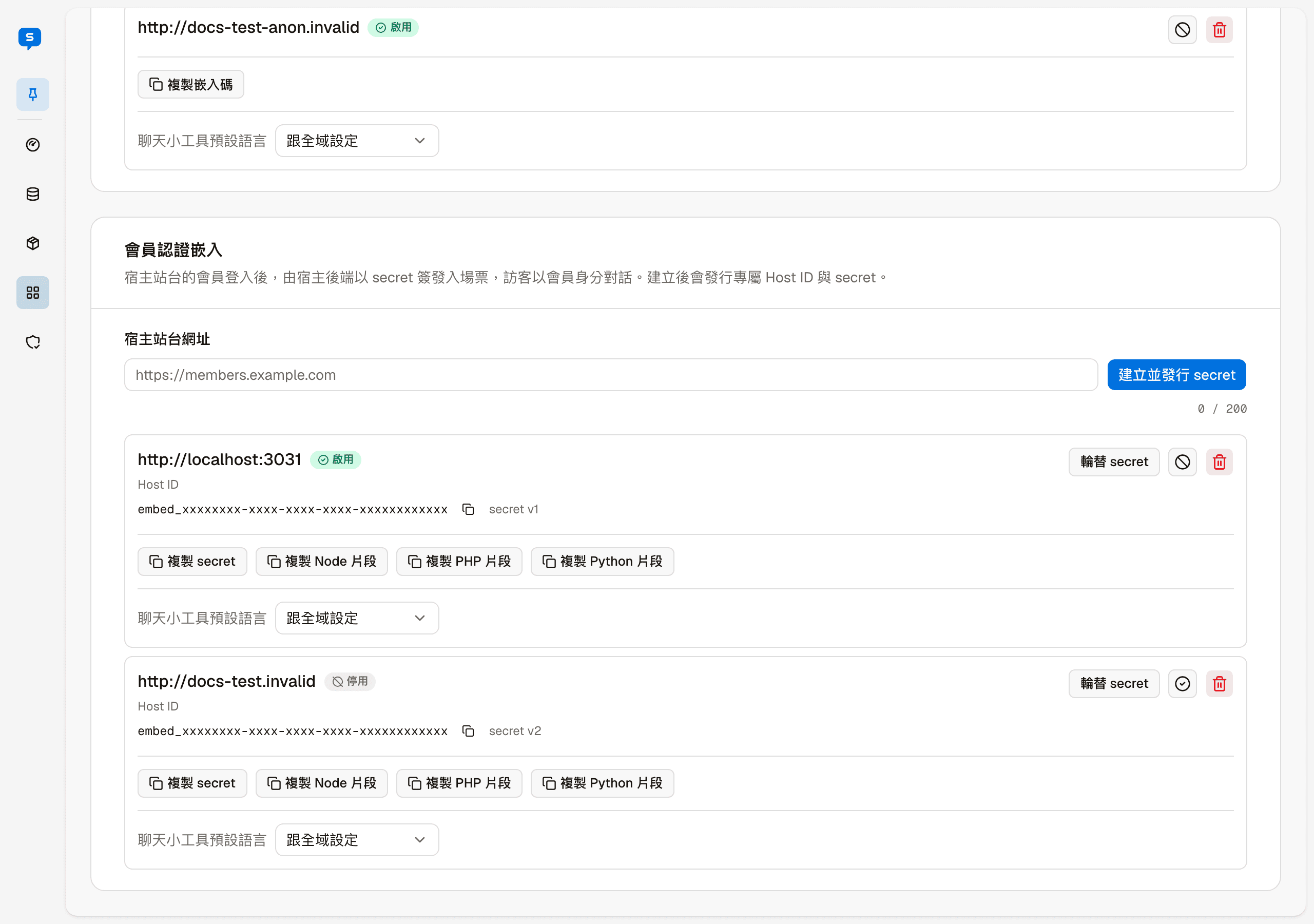
Enter the website URL and click "Create and issue secret". Once created, the site gets two things: a Host ID and a secret, which the website's backend uses to issue entry tickets.
The tag next to the site name is its current status (enabled / disabled). The Host ID is shown on the screen; the secret is not shown and can only be copied. "secret v1" next to it is the secret's version, which goes up by one each time it is rotated.
| Button | Description |
|---|---|
| Copy Host ID | The small icon next to the Host ID; copies the Host ID to the clipboard |
| Copy secret | Copies the secret to the clipboard, to hand to the person doing the integration |
| Copy Node / PHP / Python snippet | Copies a code snippet for the website backend integration; pick one of the three languages |
| Rotate secret | Issues a new secret |
| Disable (⊘ icon) | Temporarily stops this site from embedding. Once disabled, the icon becomes ✓; click it to enable the site again |
| Delete (trash icon) | Permanently deletes this site |
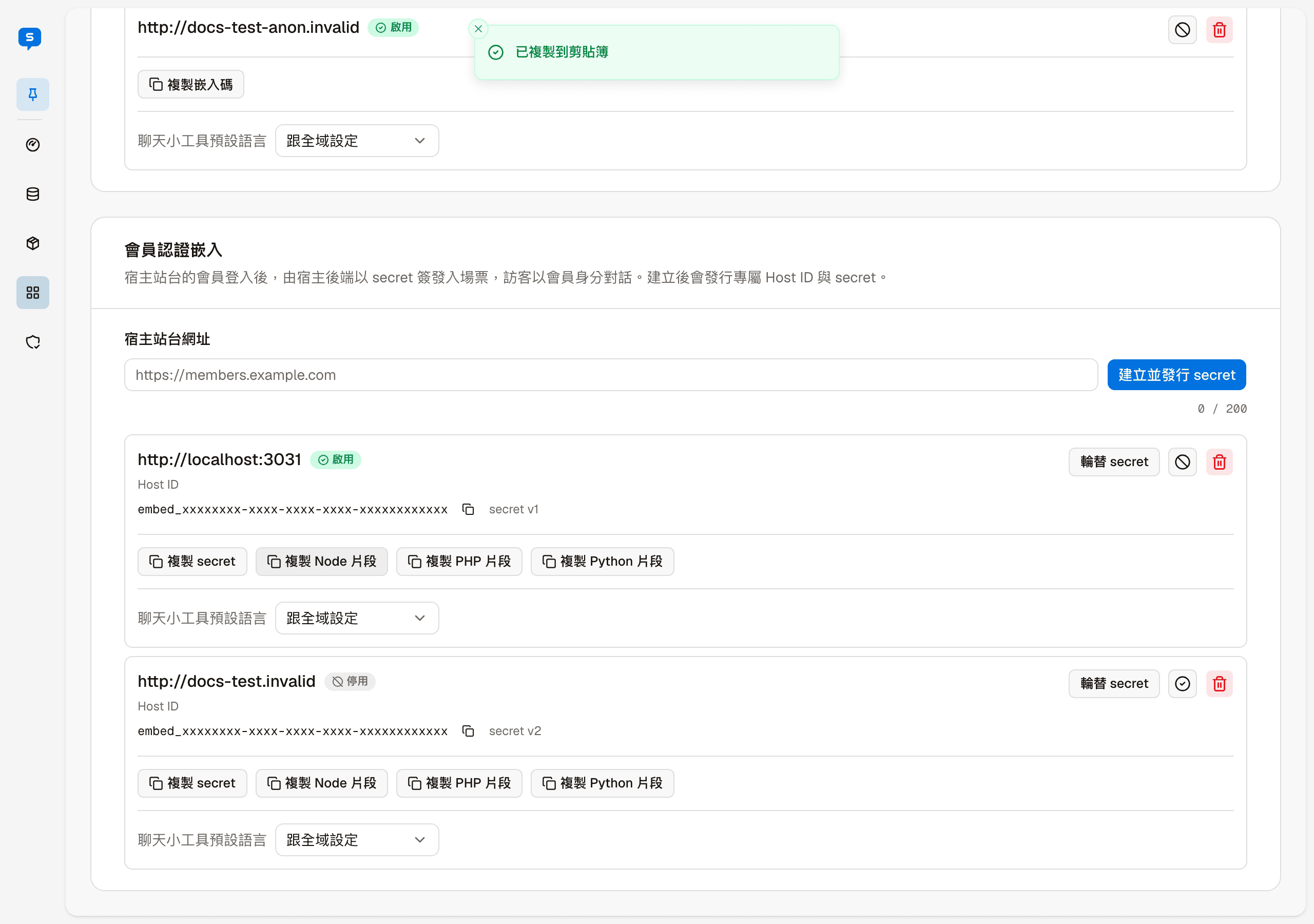
After clicking a copy button, "Copied to clipboard" appears at the top of the screen:
Rotate, disable, enable and delete all open a confirmation dialog first that explains the effect of the action, and only run after you confirm.
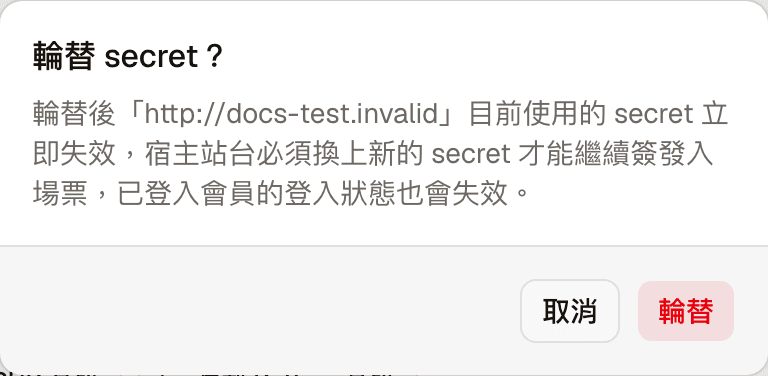
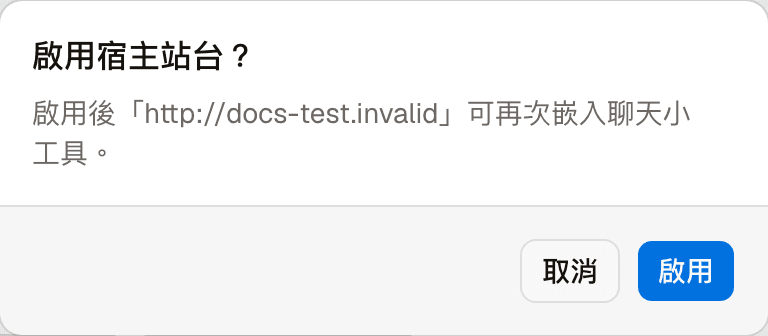
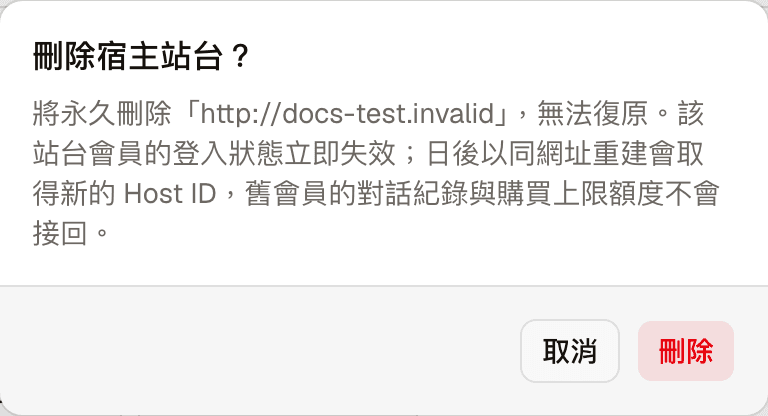
Rotating and deleting disconnect the website immediately
After you rotate the secret, the old secret stops working immediately; the website backend must switch to the new secret to keep issuing entry tickets, and signed-in members need to sign in again. Deleting cannot be undone; if you recreate the site with the same URL later, it gets a new Host ID, and existing members' conversation history cannot be reconnected. Make sure the person responsible for the website is ready before you click.
Chat widget default language
Each site can set its own default language for the chat widget: Follow global setting, 繁體中文, English or 日本語. The default is "Follow global setting", which uses the site default language in Settings.
Preview embed site
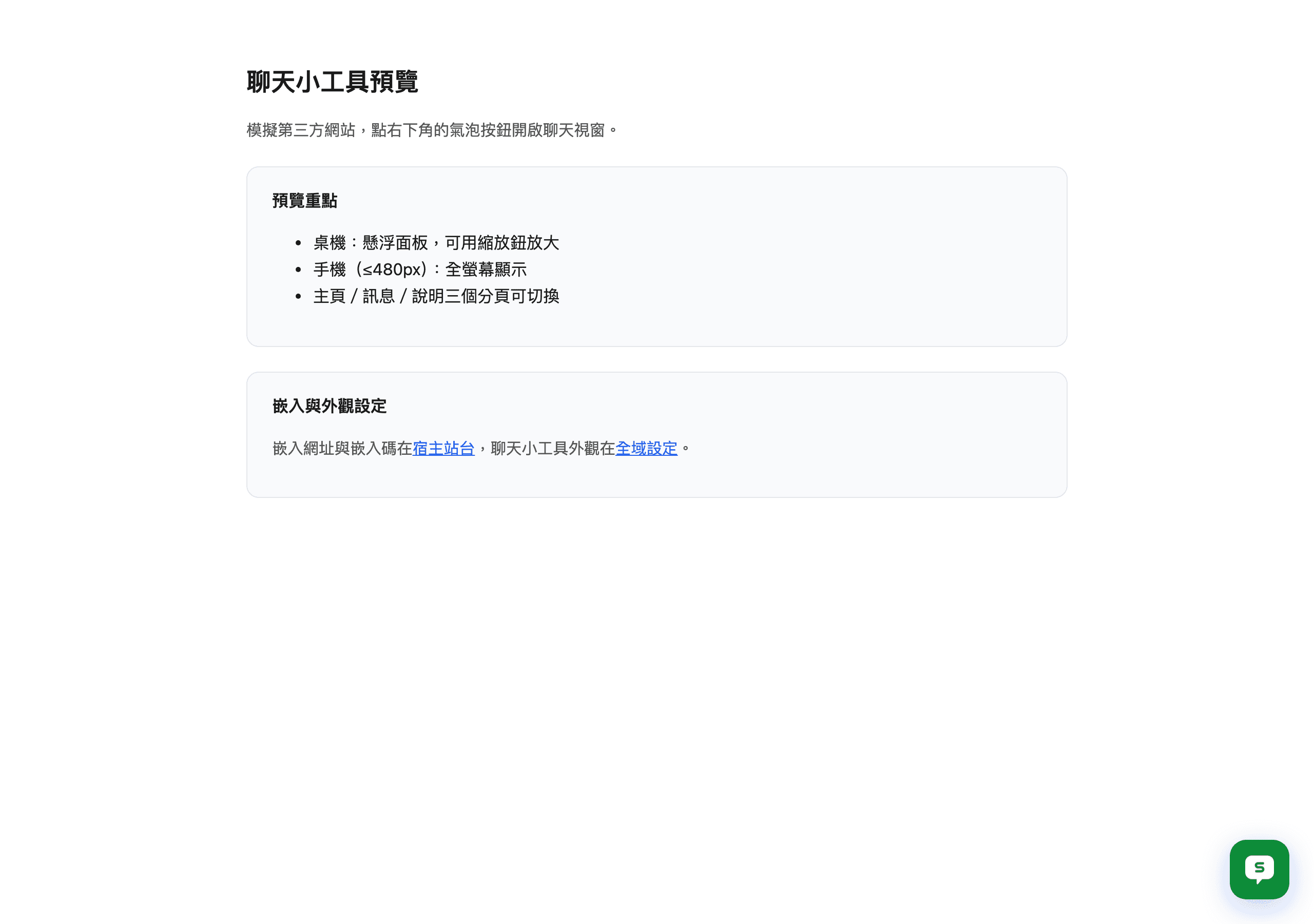
"Preview embed site" at the top right of the header opens a test page in a new tab that simulates a third-party website. Click the bubble button at the bottom right to open the chat widget and see what it looks like once embedded. The test page has links to Host sites and Settings.
The chat widget: what visitors see
Once embedded, a bubble button appears at the bottom right of the website, and visitors click it to open the chat widget. Anonymous embed and member embed look the same; the screens below are for a member, and the differences are at the end of this section.
The bottom of the widget has three tabs: Home, Messages and Help. The two buttons at the top right are on every tab: expand shows the widget larger, and "×" closes it (click the bubble button again to reopen it).
Colors, the bubble button's style, the name and links are adjusted in Settings.
Home
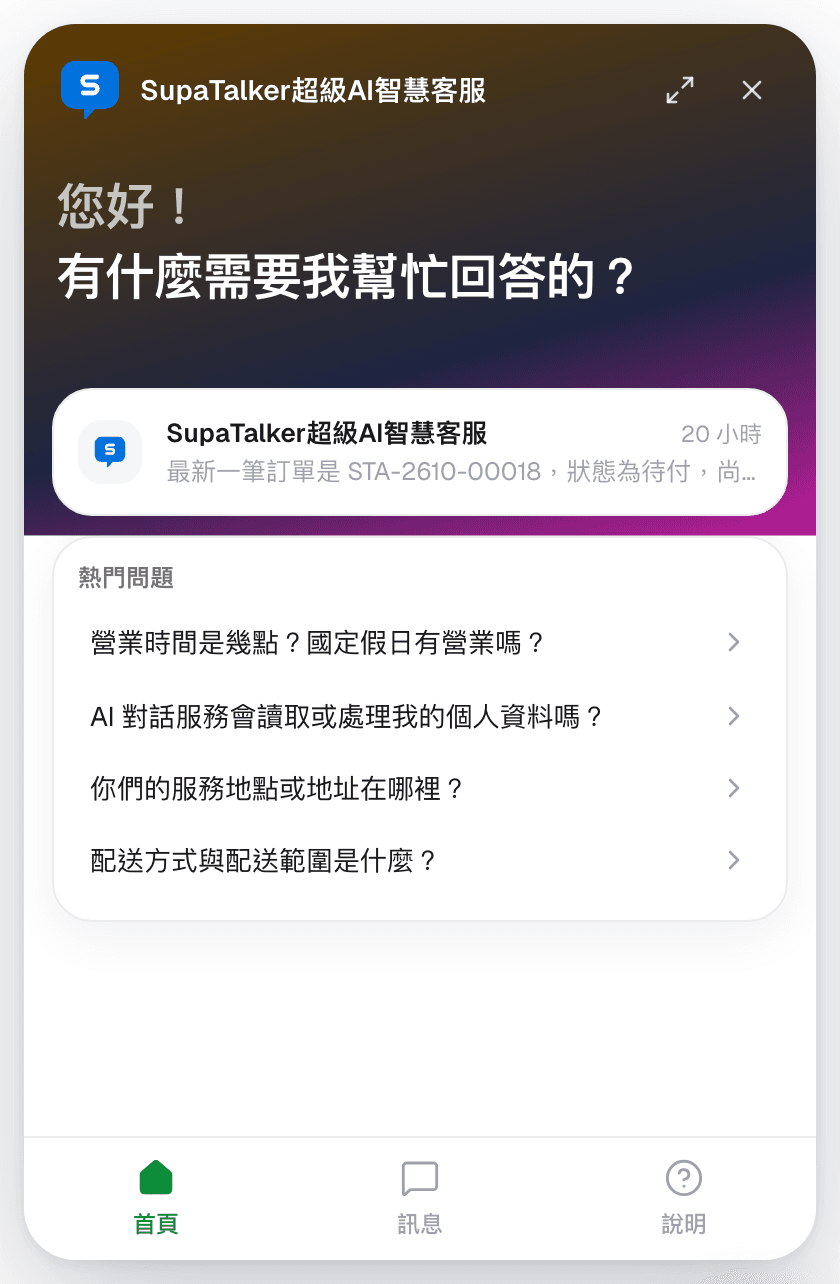
The first screen when the widget opens:
- The greeting and the brand name
- The latest conversation — a card for the member's most recent conversation; tap it to continue
- Popular questions — common questions picked from the knowledge base; tap one to ask the AI that question directly
Messages
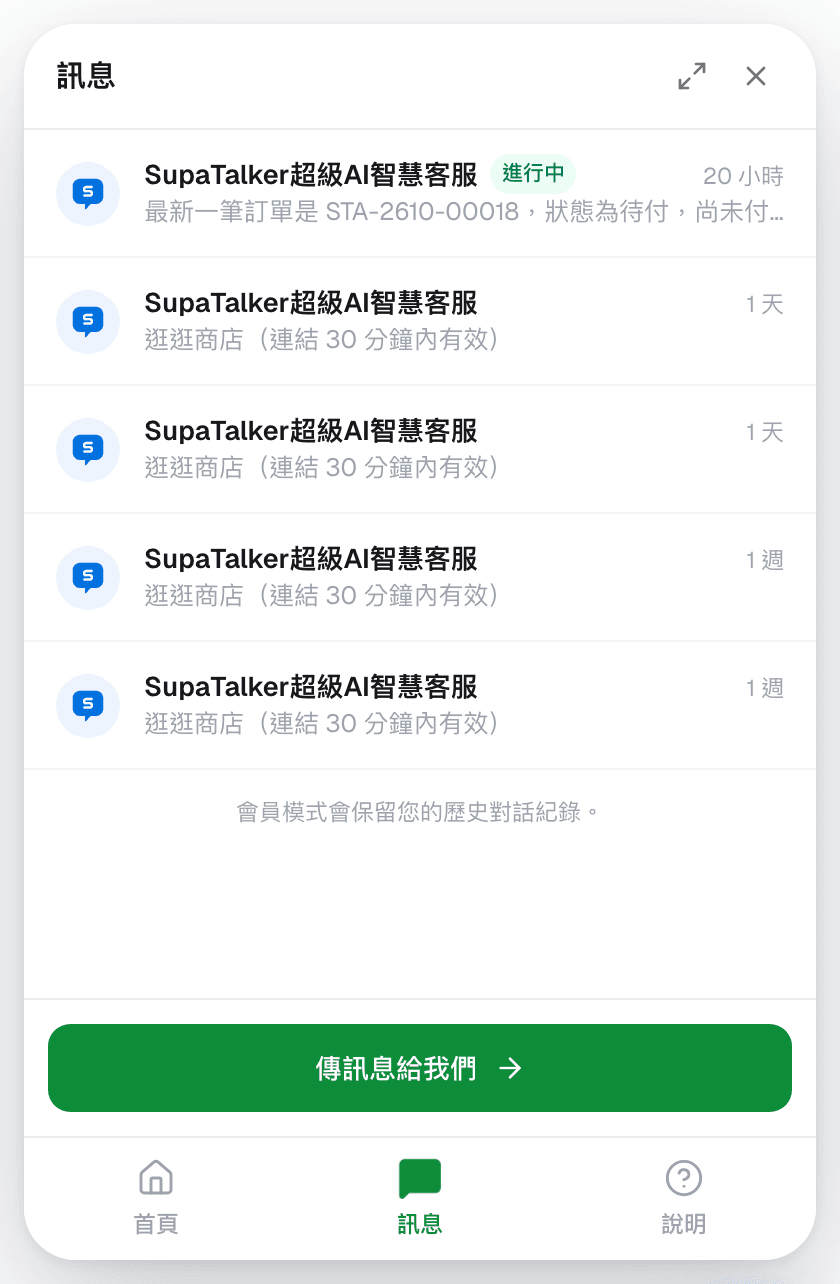
The visitor's past conversations, each showing the last message and its time; the one in progress is marked "Ongoing". Tap any of them to see its content. "Send us a message" at the bottom starts a new conversation.
Help
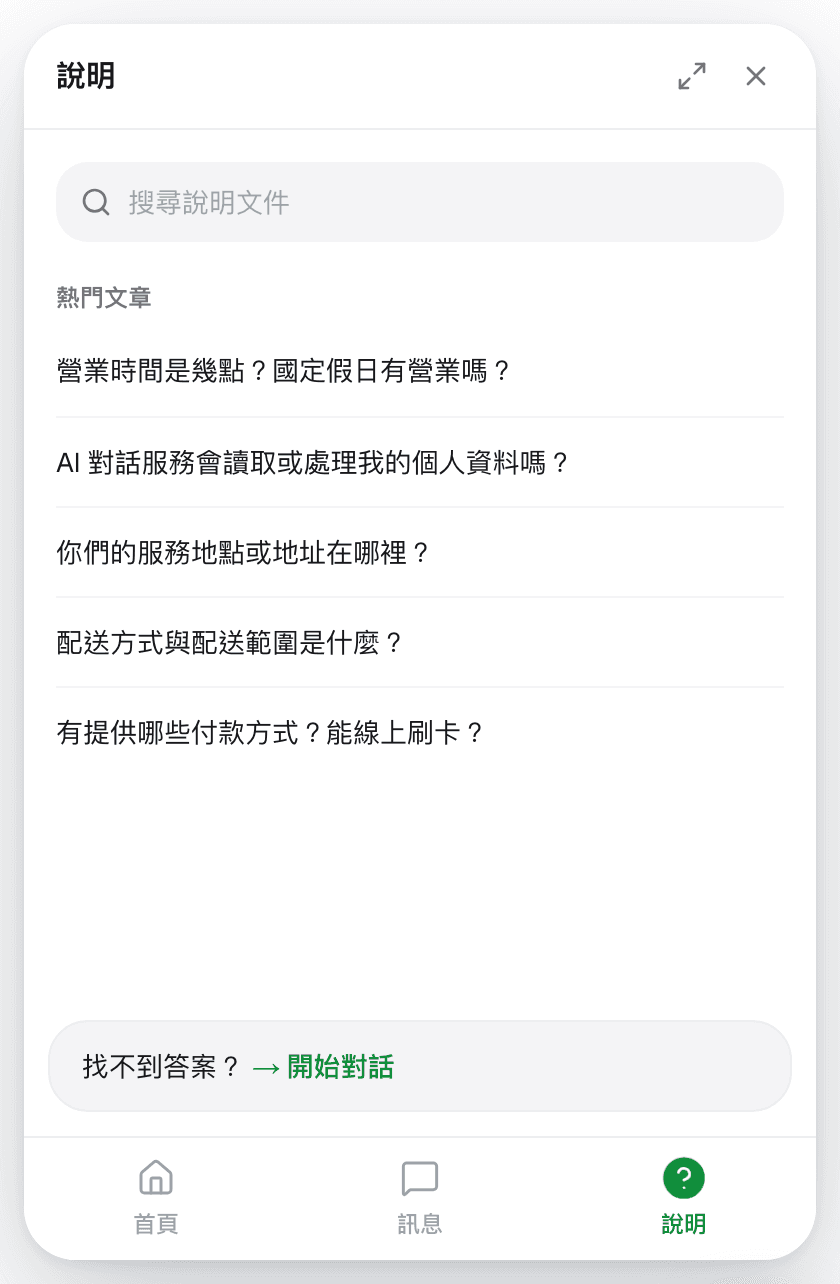
Visitors can browse the knowledge base themselves without waiting for the AI:
- Search help articles — find knowledge base content by keyword
- Popular articles — tap one and the answer expands right below
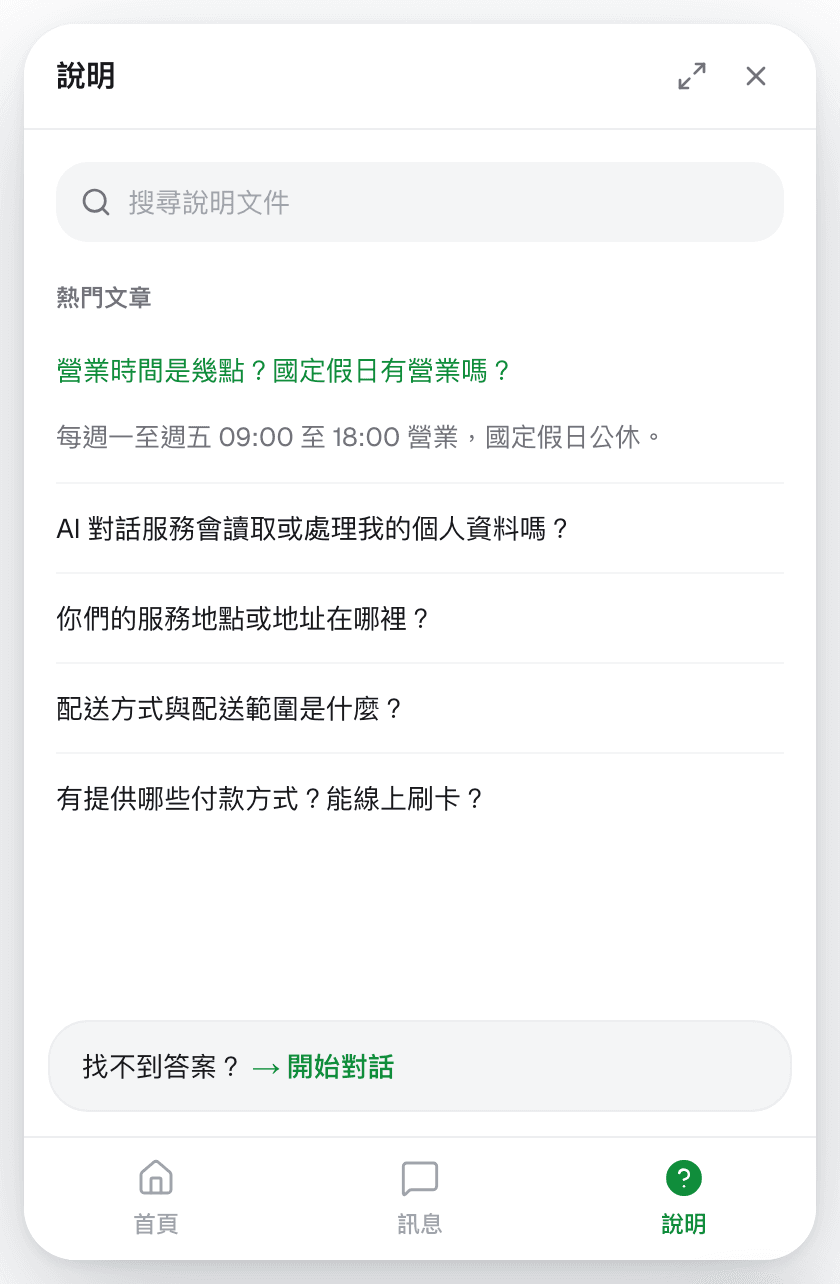
What appears here (and in the popular questions on Home) is the knowledge base categories checked in Settings. "Cannot find an answer? → Start a conversation" at the bottom switches to a conversation.
The conversation screen
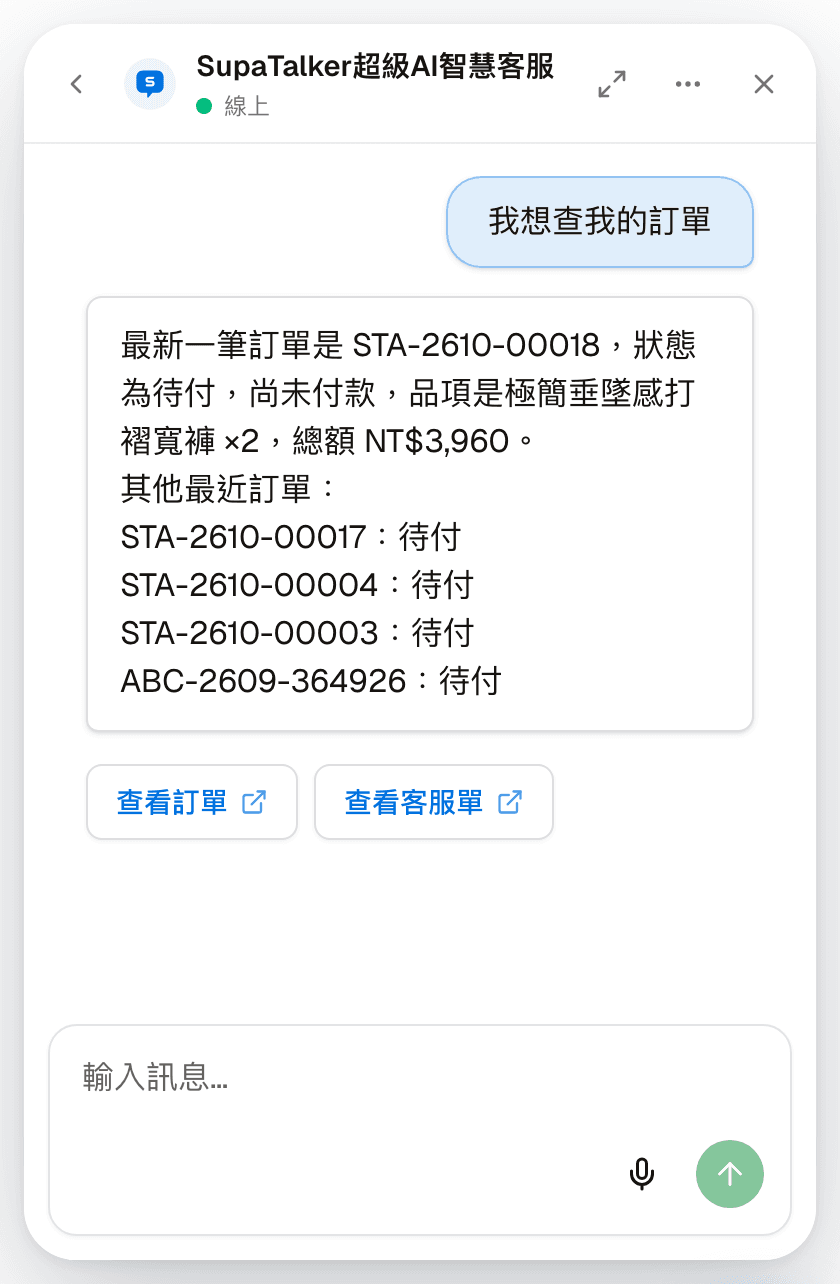
The visitor types in the input box at the bottom and sends (or presses Enter). The AI's reply may include buttons, such as the ones for looking up orders and support requests in the screenshot above. The microphone next to the input box is voice input; speech is converted to text before it goes to the AI.
"‹" at the top left goes back to the previous screen. "⋯" on the right has two options:
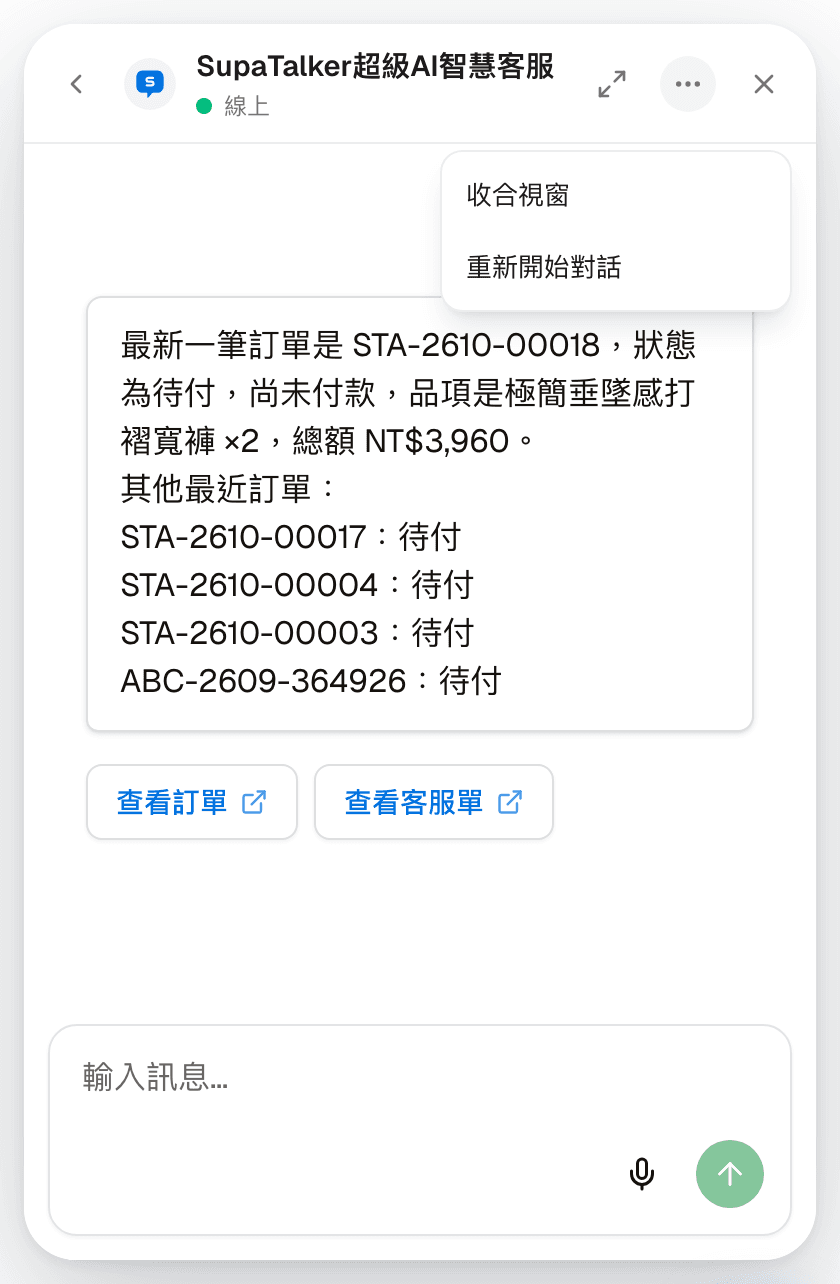
| Option | Description |
|---|---|
| Minimize window | Folds the widget away |
| Restart conversation | Asks for confirmation first; after confirming, the current conversation ends and a new one starts |
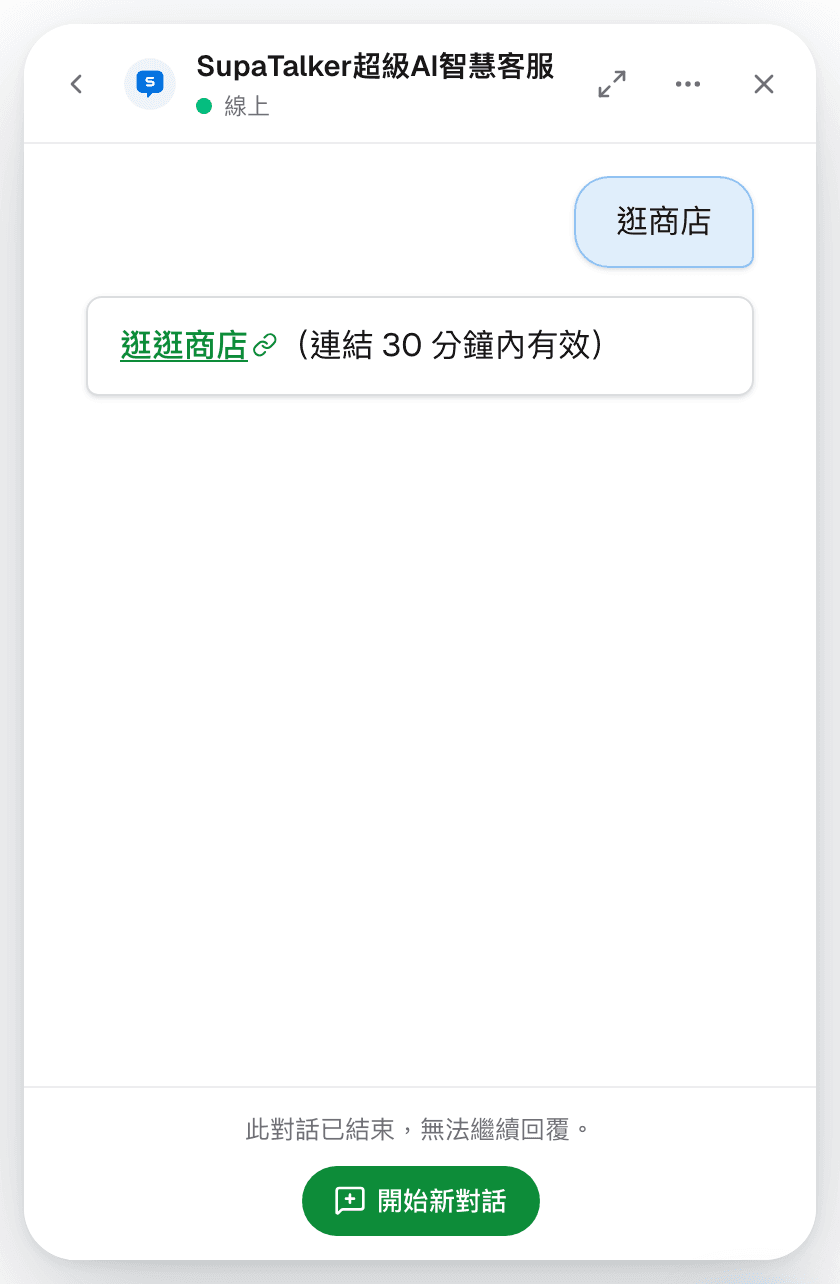
After a conversation has ended, opening it again only shows it; replying is not possible, and "This conversation has ended and can no longer be replied to." appears below. Click "Start a new conversation" to ask more.
Differences between anonymous and member embed
The two kinds of embed look the same; the difference is what they can do and whether conversations are remembered:
| Anonymous embed | Member embed | |
|---|---|---|
| What can be asked | Knowledge base only | The knowledge base, plus skills open to members (such as looking up orders or browsing the store in the screenshot above) |
| Conversation history | Kept only for this browsing session; the "Messages" tab says "Anonymous chats are only kept for this browsing session; sign in to save history." | Kept with the member account, still visible next time they sign in; the "Messages" tab says "Signed-in mode keeps your conversation history." |
| Latest conversation on Home | No | Yes |
| Voice input | No microphone button | Depends on the "Voice input" switch in Settings |
| Bot protection | A human verification check runs before chatting, to guard against bots and malicious attacks; if it fails, visitors are asked to refresh the page and try again | None; identity is already confirmed by the website's member sign-in |
For anonymous visitors to chat, "Web anonymous chat channel" must also be turned on in Settings. Which skills members can use depends on each skill's channel restriction and minimum authentication level.
LINE broadcast
Send text, an image or cards to every visitor with a LINE conversation history — content, cards, the quota and recipients before sending, and broadcast history and drafts
Code integration
For website developers — the one-line script for anonymous embed, the entry ticket and member data for member embed, the widget's language, and automatic translation of help articles