LINE broadcast
Send text, an image or cards to every visitor with a LINE conversation history — content, cards, the quota and recipients before sending, and broadcast history and drafts
Use your LINE Official Account to proactively send one message to visitors who have chatted with the Official Account, for example a new product launch or an event notice. The message is sent in batches one after another, not all at once.
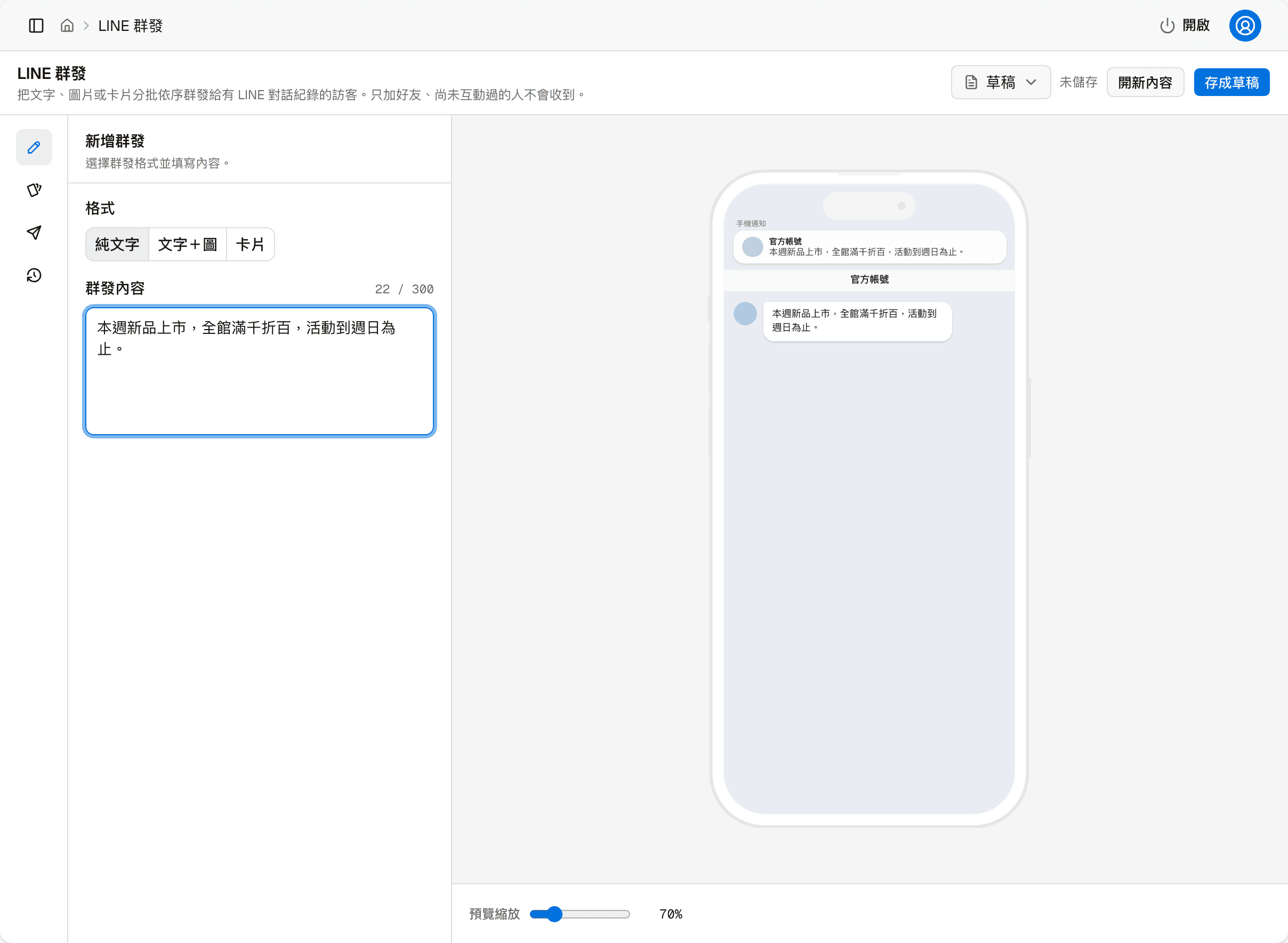
Four buttons on the left, for four steps
- Content (pencil) — choose a format and write the text
- Cards (card) — when the format is "Cards", lay out the cards here
- Send (paper plane) — check this month's quota and the number of recipients, make sure no fields need fixing, then send
- History (clock) — the results of the last 20 broadcasts
The four buttons only switch the editing area on the left, and you can move back and forth freely. The right side is a preview of the LINE chat screen that updates as you edit; "Preview zoom" changes the size of the preview.
Before you start
Broadcasting requires a connected LINE Official Account first; see LINE.
Recipients are "visitors with a LINE conversation history"
Not every friend of the Official Account, but the visitors who have chatted with the AI on LINE and have a record in the system. So people who only added the account as a friend and never sent a message do not receive it.
Content
First choose a format. There are three:
| Format | Content |
|---|---|
| Text | One block of text, up to 300 characters |
| Text + image | One block of text followed by an image |
| Cards | One or more image cards, laid out in the "Cards" step |
Text + image
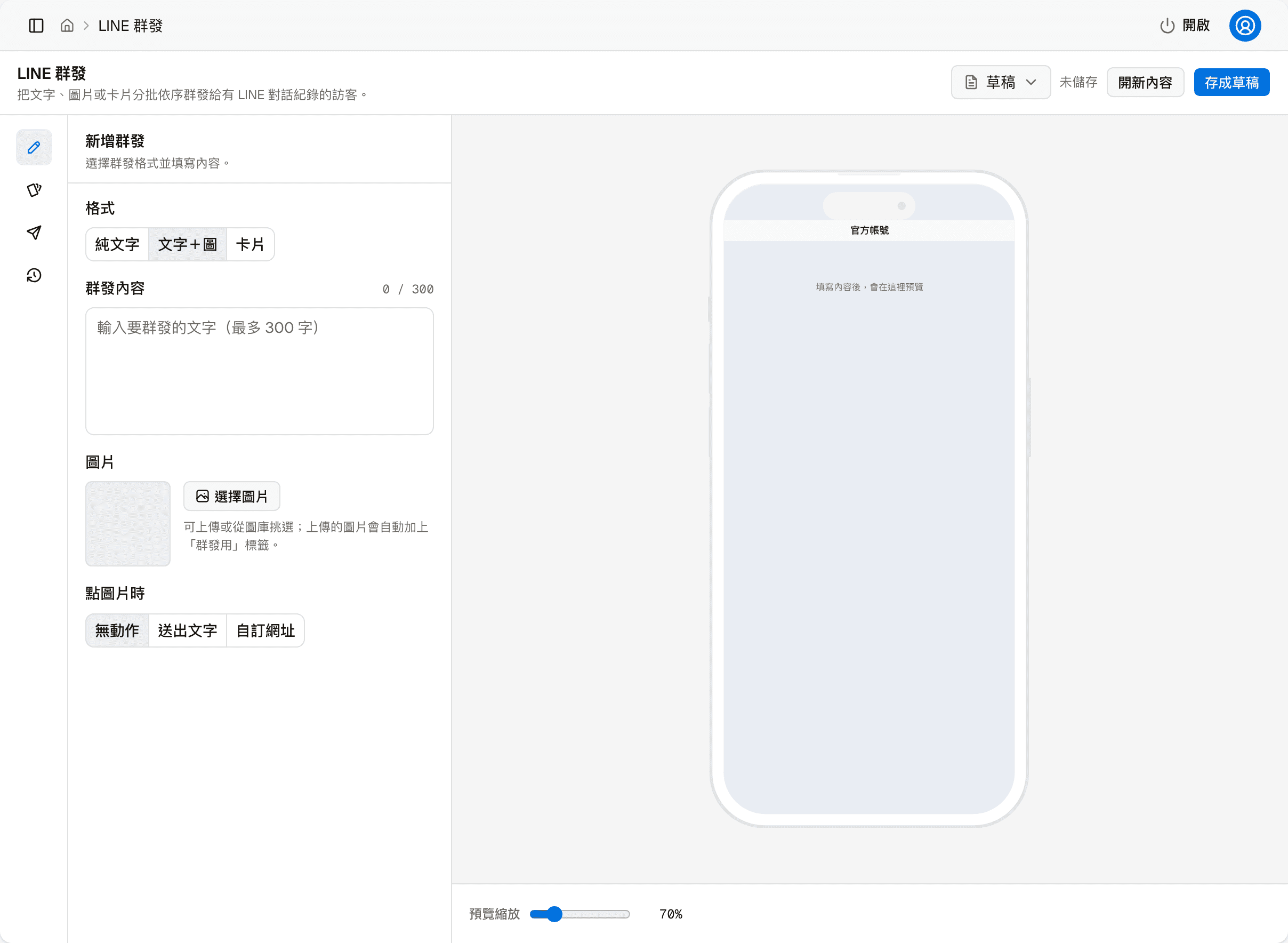
Besides the text, there are two more settings:
- Image — click "Choose image" to upload a new image or pick one from the Image management library. Uploaded images are tagged automatically for broadcasts, so they are easy to find later in Image management
- When the image is tapped — what happens when a visitor taps the image:
- No action
- Send text: sends the sentence you entered on the visitor's behalf, as if the visitor typed it, and the AI replies to it
- Custom link: opens the URL you entered (must start with
https://)
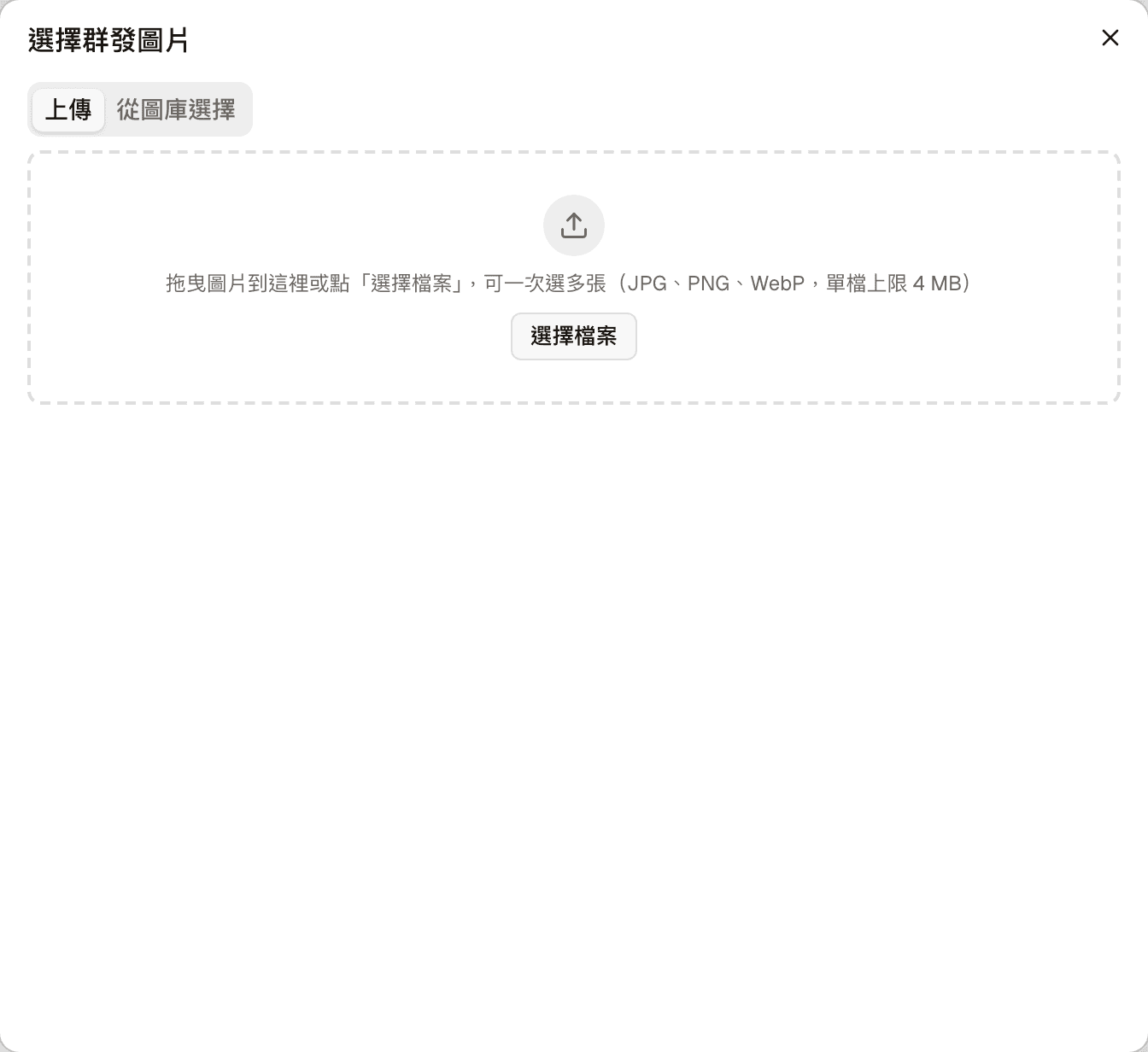
The "Choose campaign image" dialog has two tabs: one to upload, where you can drag images in or pick several at once (JPG, PNG, WebP, up to 4 MB each), and one to pick an image that has already been uploaded from the library.
Cards
After choosing "Cards" as the format, lay out the cards in this step. When the format is not "Cards", this step only tells you to go back to "Content" and change the format.
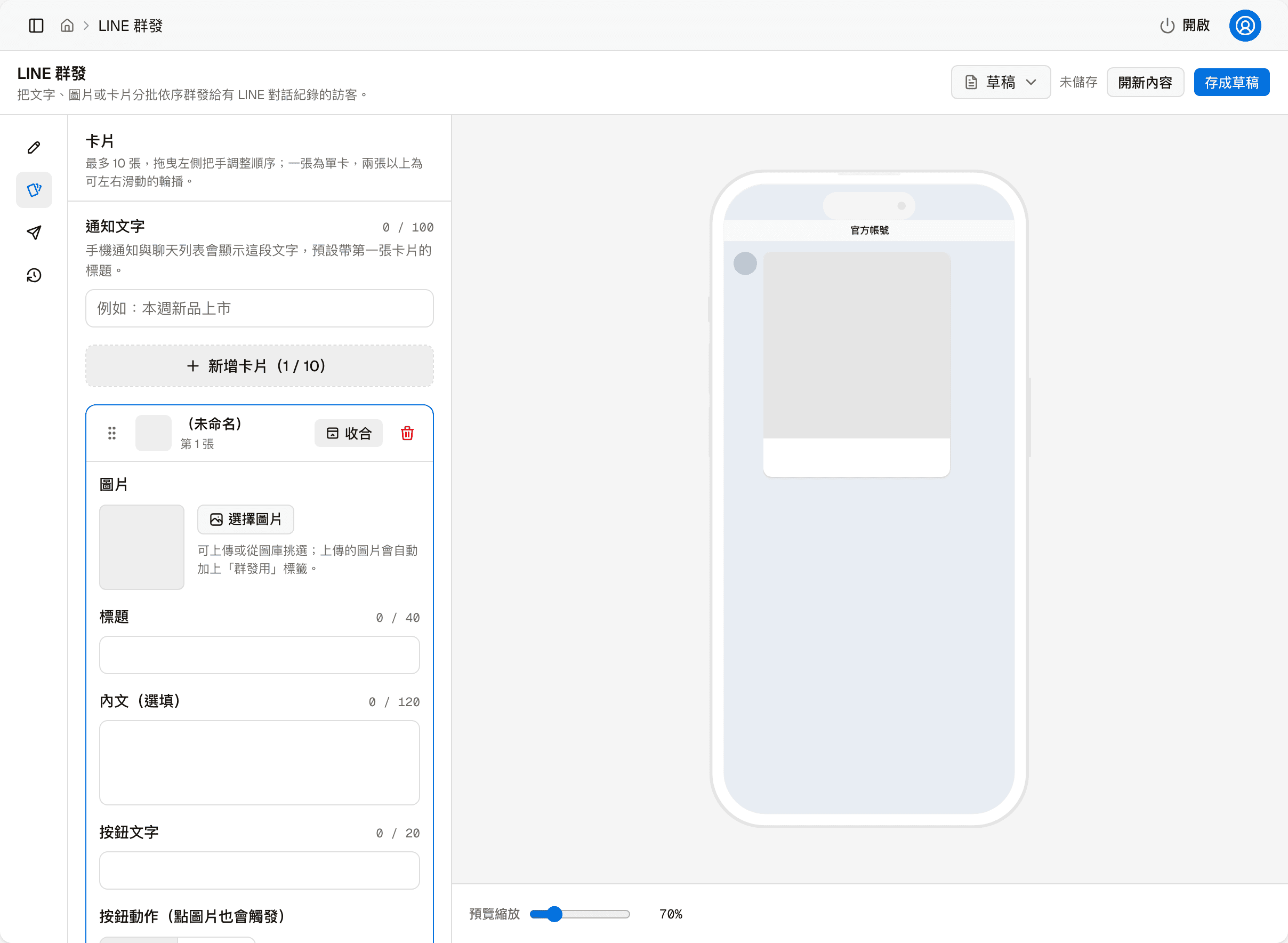
- Notification text — the line shown in the notification on the visitor's phone and in the LINE chat list, up to 100 characters. Defaults to the first card's title
- Add card — up to 10 cards. One card is shown on its own; with two or more, visitors see a carousel they can swipe left and right
- The handle on the left of each card lets you drag to reorder; "Collapse" folds that card, and the trash icon deletes it
Fields on each card:
| Field | Description |
|---|---|
| Image | Same as in "Text + image": upload or pick from the library |
| Title | Up to 40 characters |
| Body (optional) | Up to 120 characters |
| Button label | The text on the button below the card, up to 20 characters |
| Button action | Send text, or open a custom link. Tapping the image on the card triggers the same action |
Send
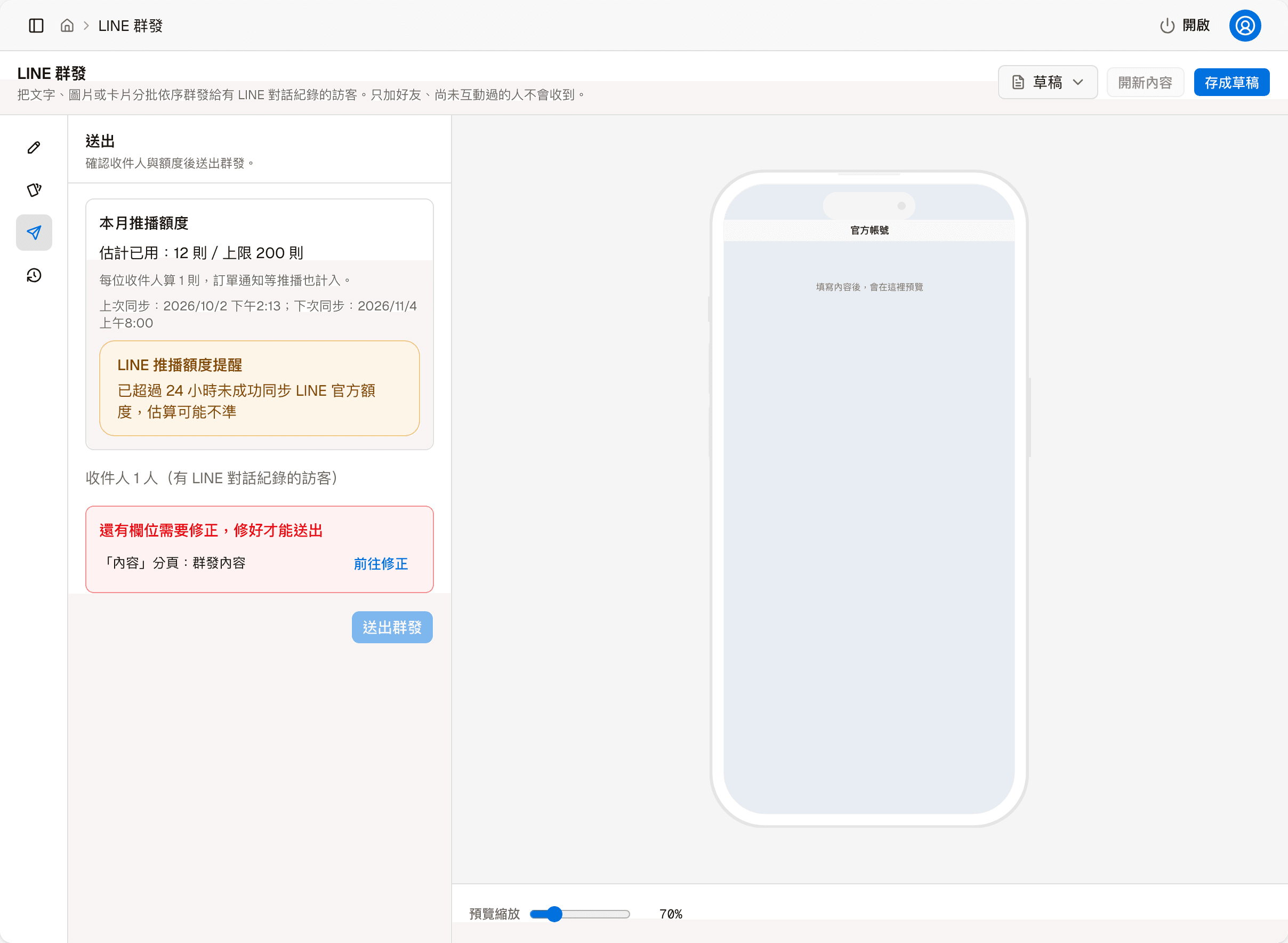
Before sending, check three things here:
Monthly push quota — how many messages have been used this month and the limit. Each recipient counts as 1 message, and other pushes such as order notifications also count toward this quota. The figure comes from your LINE Official Account and is synced regularly, so it is labeled as an estimate, with the last and next sync times below. If it has not synced successfully for more than 24 hours, a "LINE push quota alert" appears, meaning the estimate may be inaccurate.
Number of recipients — how many visitors with a LINE conversation history will receive this broadcast.
Fields to fix — when required fields are missing, each one is listed with the step it is in; "Go fix" jumps straight there. "Send broadcast" can only be clicked once everything is fixed.
Clicking "Send broadcast" first opens a confirmation dialog listing the number of recipients, how many batches it will be sent in, and the estimated time; anything to watch out for is also mentioned, but these reminders do not block sending.
Broadcasts use your LINE Official Account's message count
How many messages your LINE Official Account can send each month depends on its plan, and broadcasts are counted by the number of recipients; ordinary one-to-one chat replies do not count. When the quota runs out, the broadcast stops partway. For plans and message counts, see LINE's official information: LINE Official Account, pricing plans (LINE Taiwan, in Traditional Chinese).
History
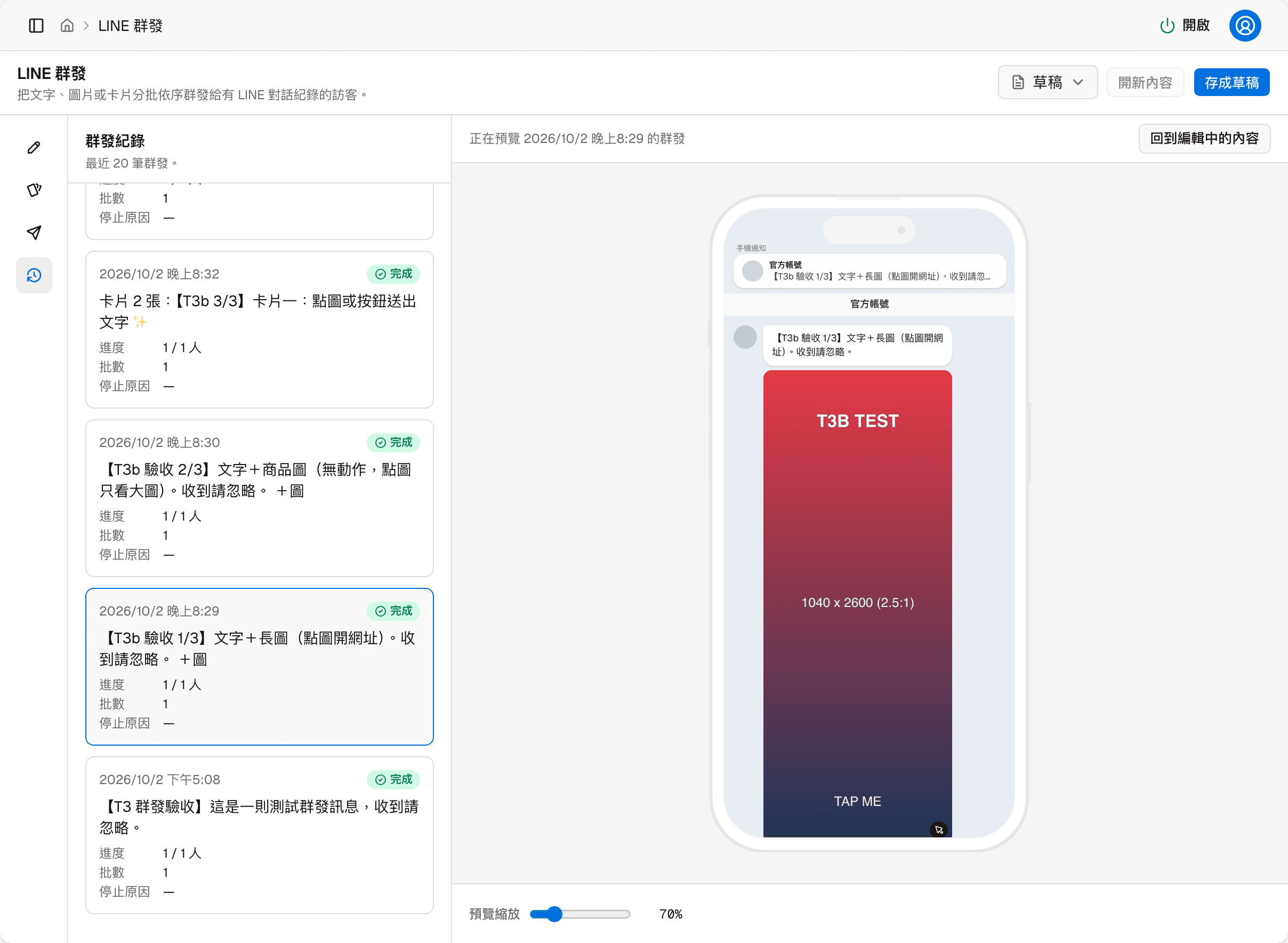
The last 20 broadcasts, each with the time, status, a summary of the message, and:
| Field | Description |
|---|---|
| Progress | Sent so far / total recipients |
| Batches | How many batches it was sent in |
| Stop reason | Why it did not finish, for example the monthly quota was used up. Shows "—" when it finished normally |
Click any item and the right side previews the content that was sent, with "Previewing the broadcast from …" at the top. "Back to what I'm editing" returns to the message you are editing.
Drafts
The three buttons on the right of the header:
| Button | Description |
|---|---|
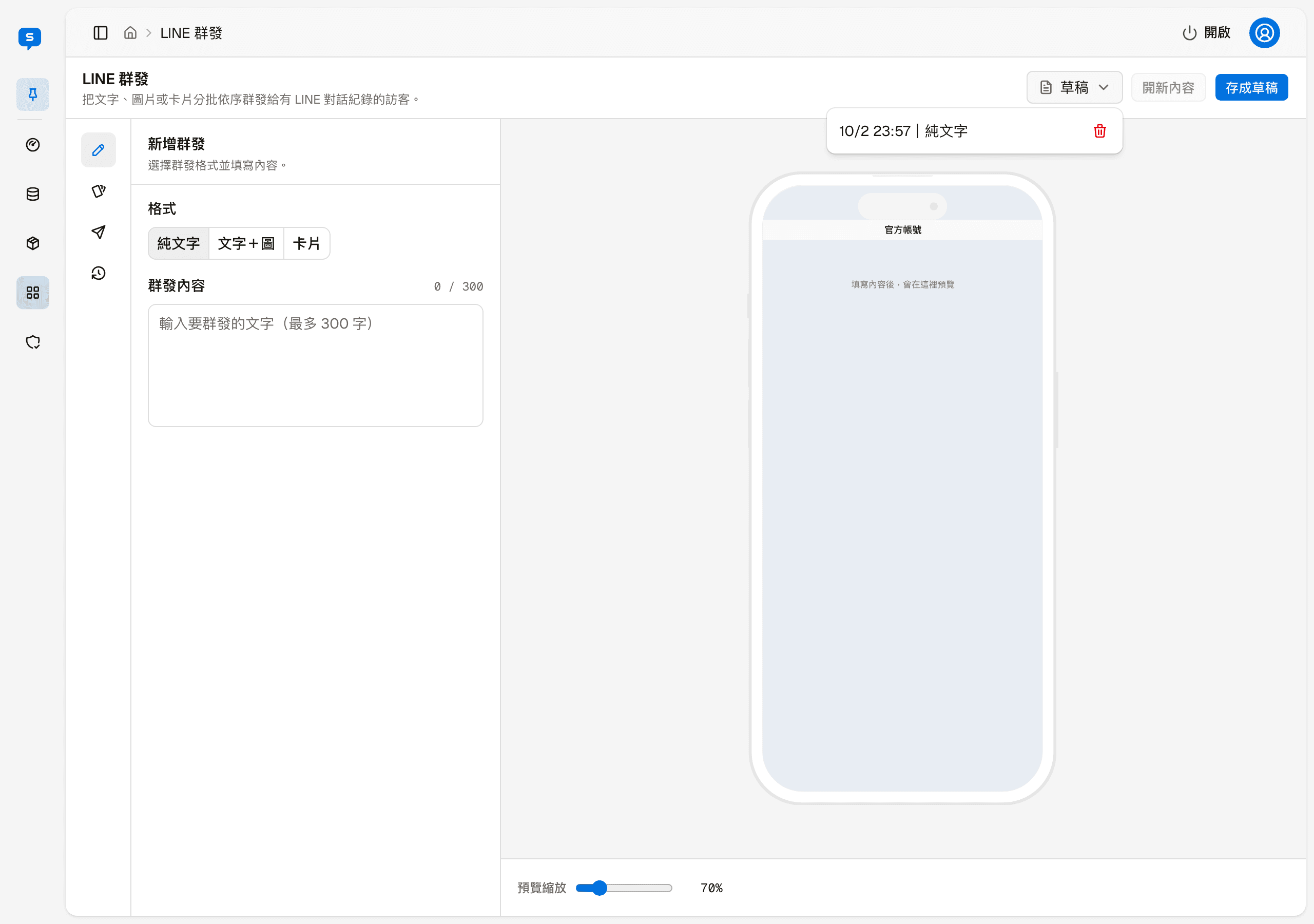
| Drafts | Opens the list of saved drafts; click one to load it into the editor. The trash icon next to each deletes that draft |
| New content | Clears the editor so you can start a new message |
| Save as draft | Saves what you are editing so you can continue or send it later |
When what you are editing has not been saved as a draft, "Unsaved" is shown next to the buttons.
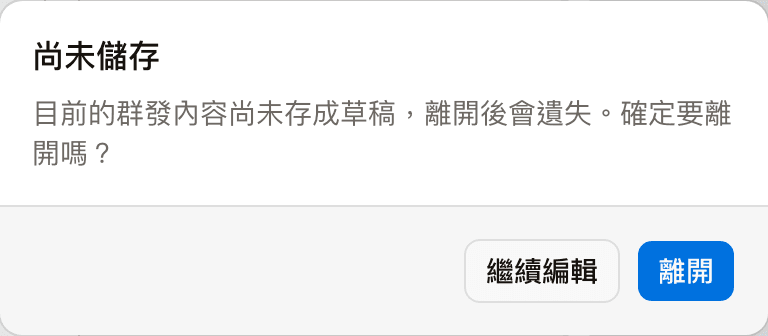
If you click "New content" or load another draft before saving, an "Unsaved changes" reminder appears first. Choose "Keep editing" to stay, or "Leave" to discard the current content.
AI-generate beautified image
Generating a background image for a rich menu with AI — the generation settings, the template catalog you can apply directly, and how to apply the result to the menu
Overview
Register which websites can embed the chat widget — anonymous embed, member embed with a secret per site, code snippets and default language, and the chat widget visitors see