AI-generate beautified image
Generating a background image for a rich menu with AI — the generation settings, the template catalog you can apply directly, and how to apply the result to the menu
Open it with "AI-generate beautified image" at the top of the editor. The system uses the icons and labels set in the "Buttons" section as the composition, adds the Style and Theme you enter, and generates a beautified image for this menu. "Back to editor" at the top right returns to the editor.
Please note
AI-generated beautified images are a service that costs extra. Before using it, make sure your subscription plan and credit allowance are enough for this feature.
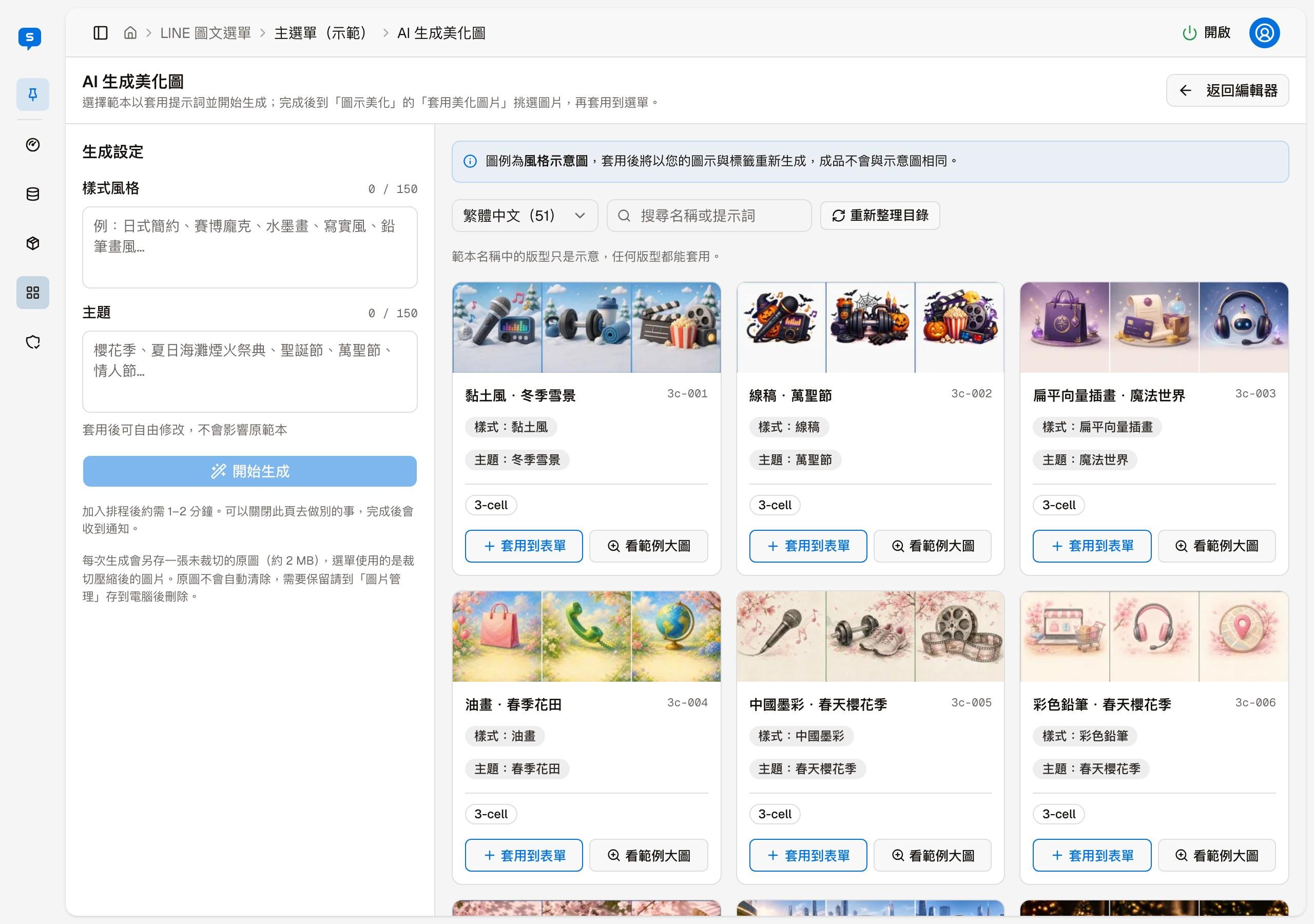
Generation settings
| Field | Description |
|---|---|
| Style | The art style, for example Japanese minimalism, cyberpunk, ink wash, photorealistic or pencil sketch; up to 150 characters |
| Theme | The scene or occasion, for example cherry blossom season, a summer beach fireworks festival, Christmas, Halloween or Valentine's Day; up to 150 characters |
After filling in both, click "Start generating". "Check before generating" appears first, listing four conditions:
| Condition | Meaning |
|---|---|
| Usage quota | How many generations have been used this period and the limit; you cannot generate once the limit is reached |
| Storage | The remaining storage; at least 4 MB is needed |
| Icon/Label | The button icons and labels must have been edited; generation is not possible while they are still at their default state |
| Model support | Whether your current plan supports image generation |
"Generate" can only be clicked when all four conditions pass; generation only actually starts after you click it. Conditions that are not met show the reason directly, for example "limit reached" or "at least 4 MB required".
Generation is queued and takes about 1–2 minutes; you can close this page and do something else, and you will be notified when it is done.
Generated images are not applied automatically
Generated images are only added to the library. Go back to "Beautify" in the editor and use "Select from image library" to pick one and apply it; see Apply beautify image.
Each generation also stores an uncropped original image (about 2 MB); the menu uses the cropped and compressed image. Original images are not cleaned up automatically; if you want to keep them, save them to your computer from Image management and then delete them.
About cloud storage space, and original versus applied images
To make good use of cloud storage, download the original images from earlier generations to your computer before or after generating, then delete them to free up the space they use.
After each generation, the system automatically produces a resized and compressed image (JPG) from the original, named ai-raw-*, to meet LINE's official limits and the layout size. The original (named ai-original-*) is also kept in image storage, so ideally keep at least 4 MB of free space for each image you generate.
Template catalog
If you are not sure what to write for Style and Theme, pick from the template catalog on the right. The catalog is a set of "Style + Theme" combinations, each with an example image, labeled with its name, number, style, theme and the layout of the example image (for example "3-cell").
"Template language" at the top left switches the language of the templates; each option shows how many templates that language has, for example "English (10)". When you open the page, the admin interface language is selected, so an English admin shows the English templates first. Templates for each language are made separately, not translations of one set, so their number and content differ; templates in other languages can be applied to the form just the same.
Next to it you can search by template name or prompt; "Refresh catalog" loads the latest templates.
| Button | What it does |
|---|---|
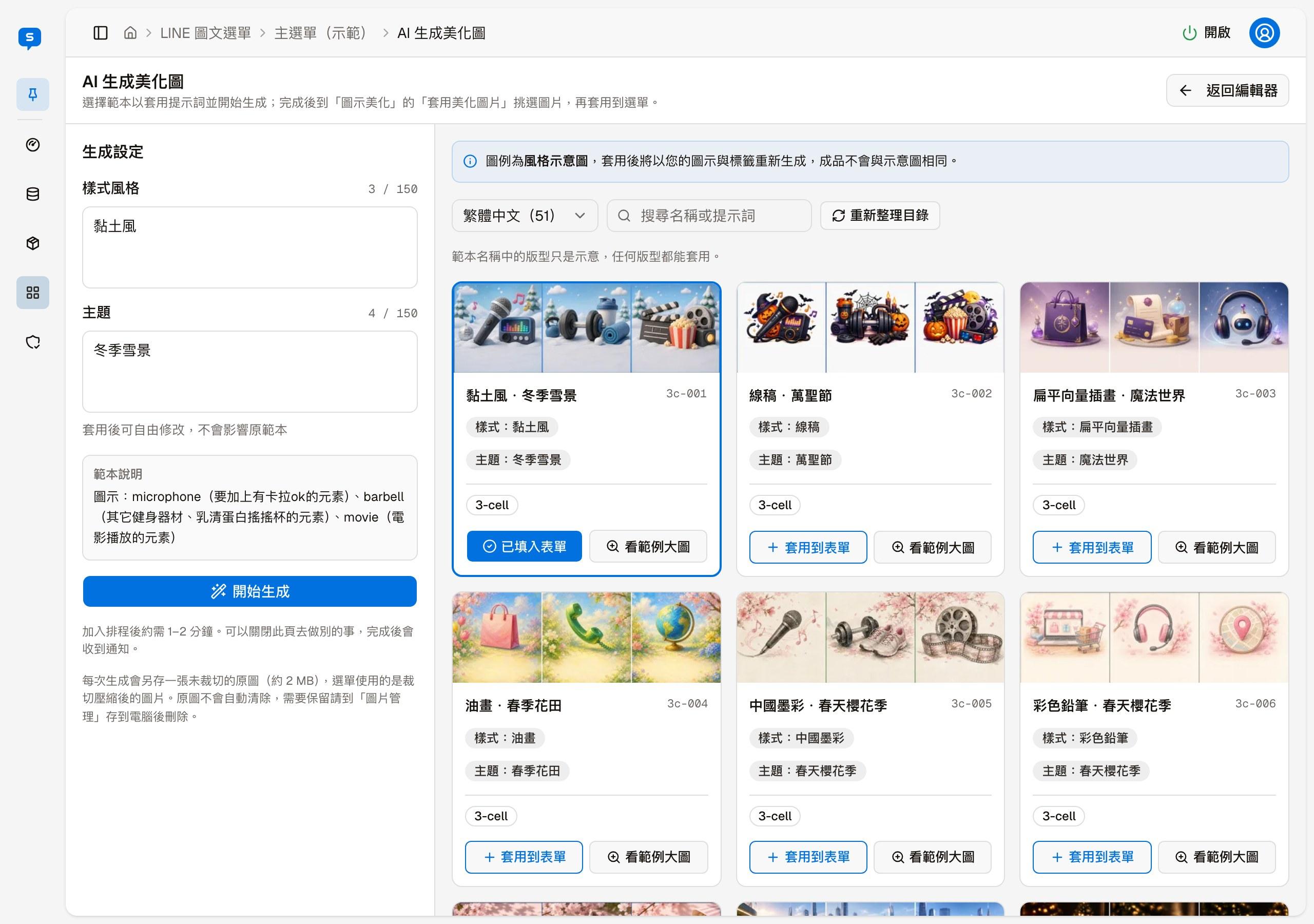
| Apply to form | Fills this template's style and theme into the form on the left; the button changes to "Applied to form", and this template's notes are shown below the form. You can edit freely after applying; the original template is not affected |
| View full example | Opens this template's large image and details |
The "View full example" window has the large example image, style, theme, notes, tags and update time; "Open image in new tab" opens the original image in a new tab, and "Apply to form" works the same as the button of the same name on the catalog card.
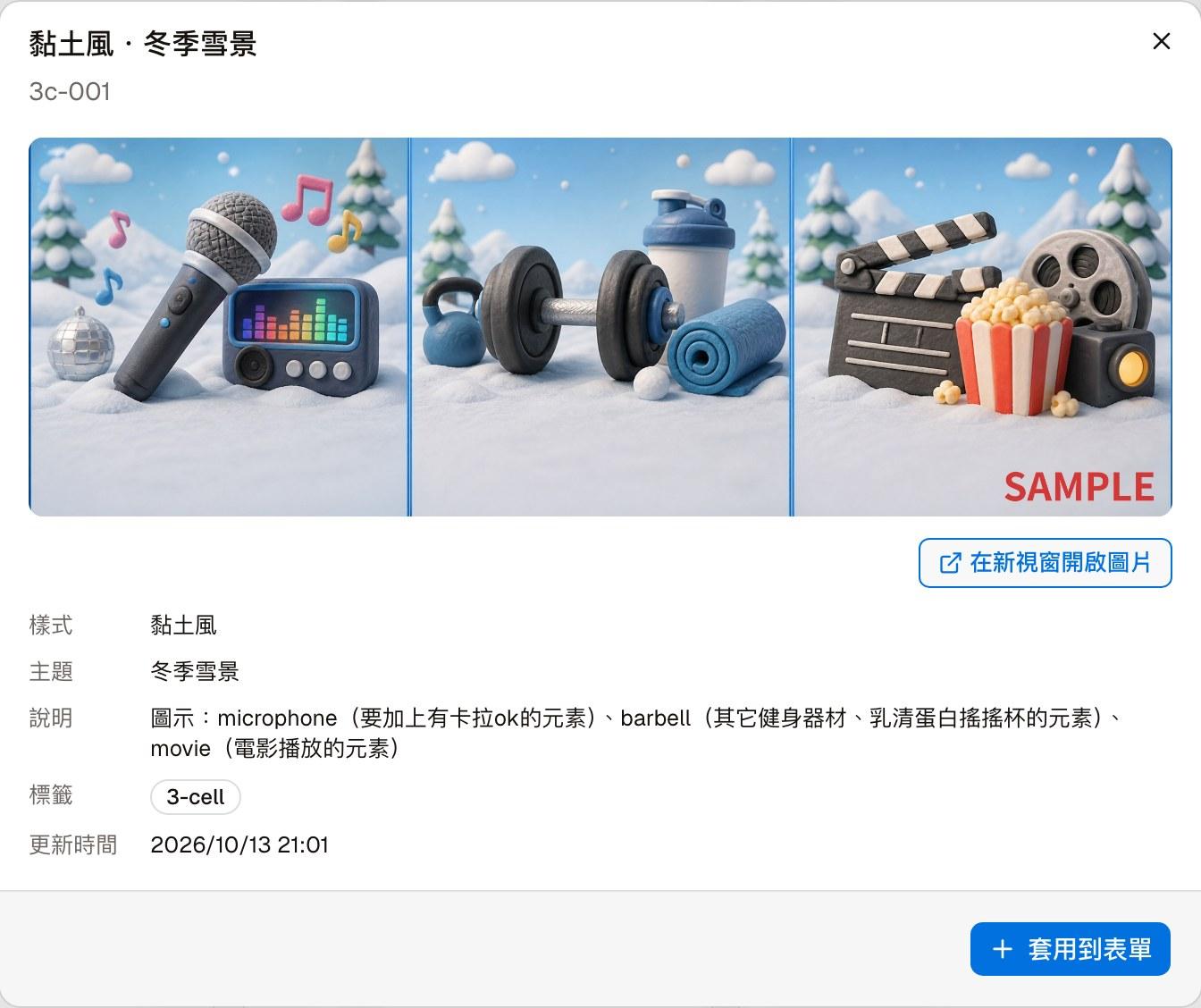
A template's example image is only a style preview. After applying, the image is regenerated with your own menu's icons and labels, so the result will not match the preview.
Why the templates are all 3-cell
The template catalog lets you see first what kind of style a "Style + Theme" combination produces, and the example images are mostly 3-cell (the tag shows "3-cell"). Other layouts give similar results, so you can apply a template whether your menu has six, four or three cells.
3-cell images are more stable and better aligned. Layouts with evenly divided cells (for example 3 cells in a row, or 6 cells in 3×2) also usually work better. That said, AI generation does not guarantee a satisfying result every time.
If this is your first time, start with a 3-cell menu
If you have not used AI-generated beautified images before, try a 3-cell menu (3 cells in a row) first, which gives the most stable results, then move on to other layouts once you are familiar with it.
Template notes
Some templates come with "Template notes", shown below the form on the left after applying, and also visible in "View full example". They list which icons the example image used, with each icon's illustration idea in parentheses.
To get a result close to the example image, refer to the template notes, and in the editor's "Buttons" section choose similar icons and enter similar illustration ideas.
Other factors that affect the result
It is not only Style and Theme; the settings in the "Buttons" section also affect the result. The AI uses this menu's icons and settings in the "Buttons" section as the composition, so the same Style and Theme with different button settings produce different results.
| Factor | Effect |
|---|---|
| Icon position | Where the icons are placed decides the composition. Remember to leave space for the menu label text added later |
| The icon chosen | The icon name itself has meaning, so different names produce different images. For example, Shopping Cart and Shopping Bag give two different results |
| Illustration idea | The AI refers to each button's "Illustration idea" field as the final illustration content; if empty, the icon name is used |
"Illustration idea" gives the same icon different variations. For example, with a Shopping Cart icon, entering "a shopping cart full of fresh flowers" or "a shopping cart full of Christmas presents" makes the generation follow that idea. The interface suggests: enter a short description close to the chosen icon.
Icons, positions and illustration ideas are all set in the "Buttons" section of the editor.
Editor
The buttons at the top of the page, what each of the four sections sets, and the live preview and final preview
LINE broadcast
Send text, an image or cards to every visitor with a LINE conversation history — content, cards, the quota and recipients before sending, and broadcast history and drafts