LINE
Connecting a LINE Official Account — the Webhook URL, the two keys, testing the connection, the add friend QR code, and button postbacks, thread rotation and advanced settings
LINE is the only one of the three tabs you fill in yourself. Once connected, the card title shows the Official Account name and ID, with the connection status and "Test LINE connection" next to it. "Last saved" at the top right is the last time the settings on this page were saved.
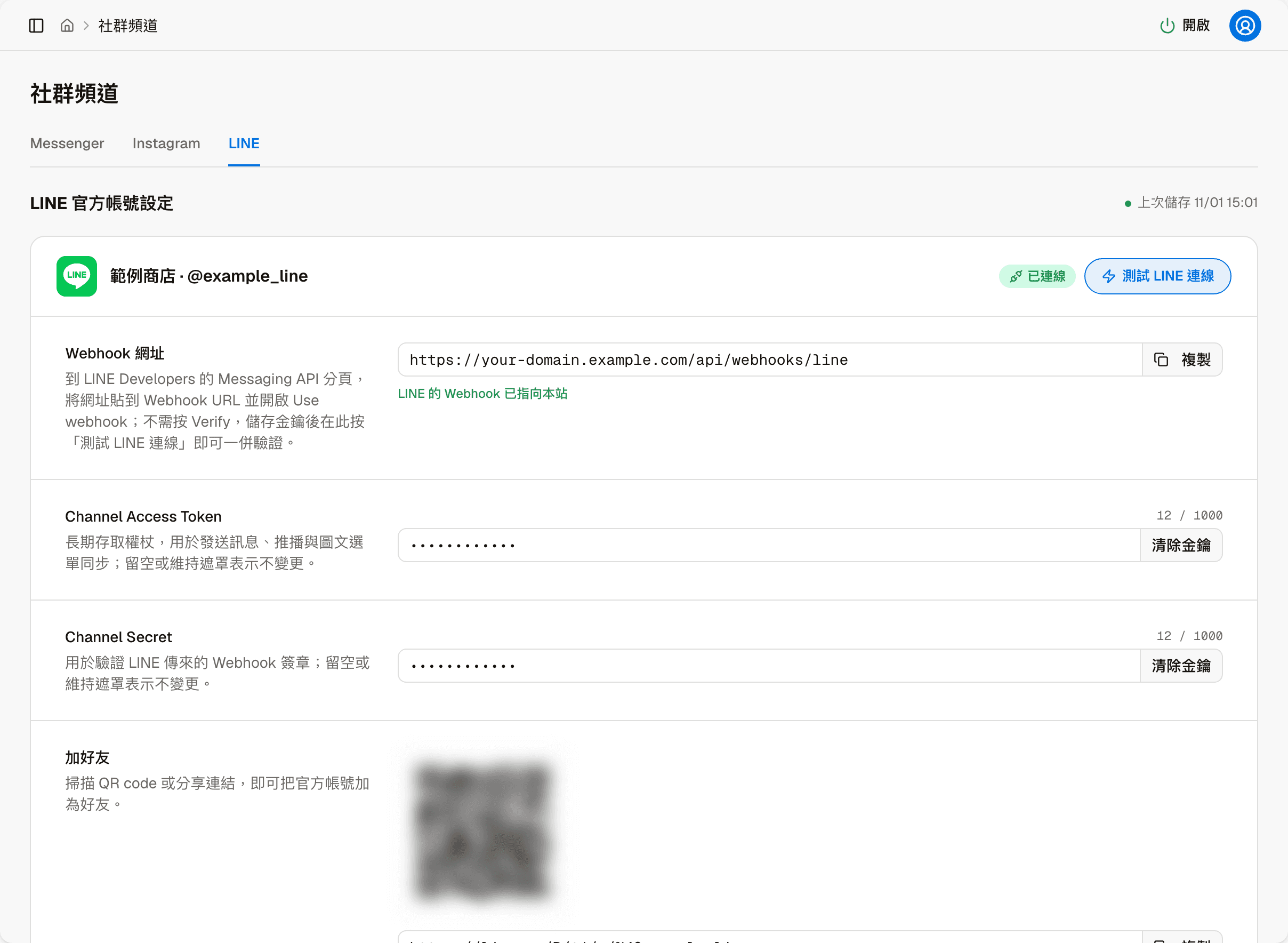
Once set up, click "Test LINE connection" here once
After pasting the Webhook URL on the LINE side, you do not need to click Verify in LINE Developers. Once both keys are saved, come back here and click "Test LINE connection"; it checks the keys and the webhook in one go.
Before you start
If you need help with this step
If you run into problems applying for a LINE Official Account, or setting up and testing the keys, watch the video on the application and setup steps, or contact our technical support staff.
If you do not have a LINE Official Account yet, you need to apply for one first. You need an existing LINE account to apply; no business or personal identity documents are required, and the application is completed as soon as you submit the form on the LINE website.
After applying, you get the two keys (the access token and the signing secret) only once all of the following are done:
| Step | What to do | Where |
|---|---|---|
| 1 | Apply for a LINE Official Account | entry.line.biz |
| 2 | Create a provider and get the two keys | LINE Developers Console |
| 3 | Enable the Messaging API | LINE Official Account Manager |
For detailed steps, follow LINE's official guide: Get started with the Messaging API.
Webhook URL
When LINE receives a customer's message, it forwards it to this URL so the system can reply. Click "Copy" to copy the URL, then in the Messaging API tab of LINE Developers, paste it into Webhook URL and turn on Use webhook.
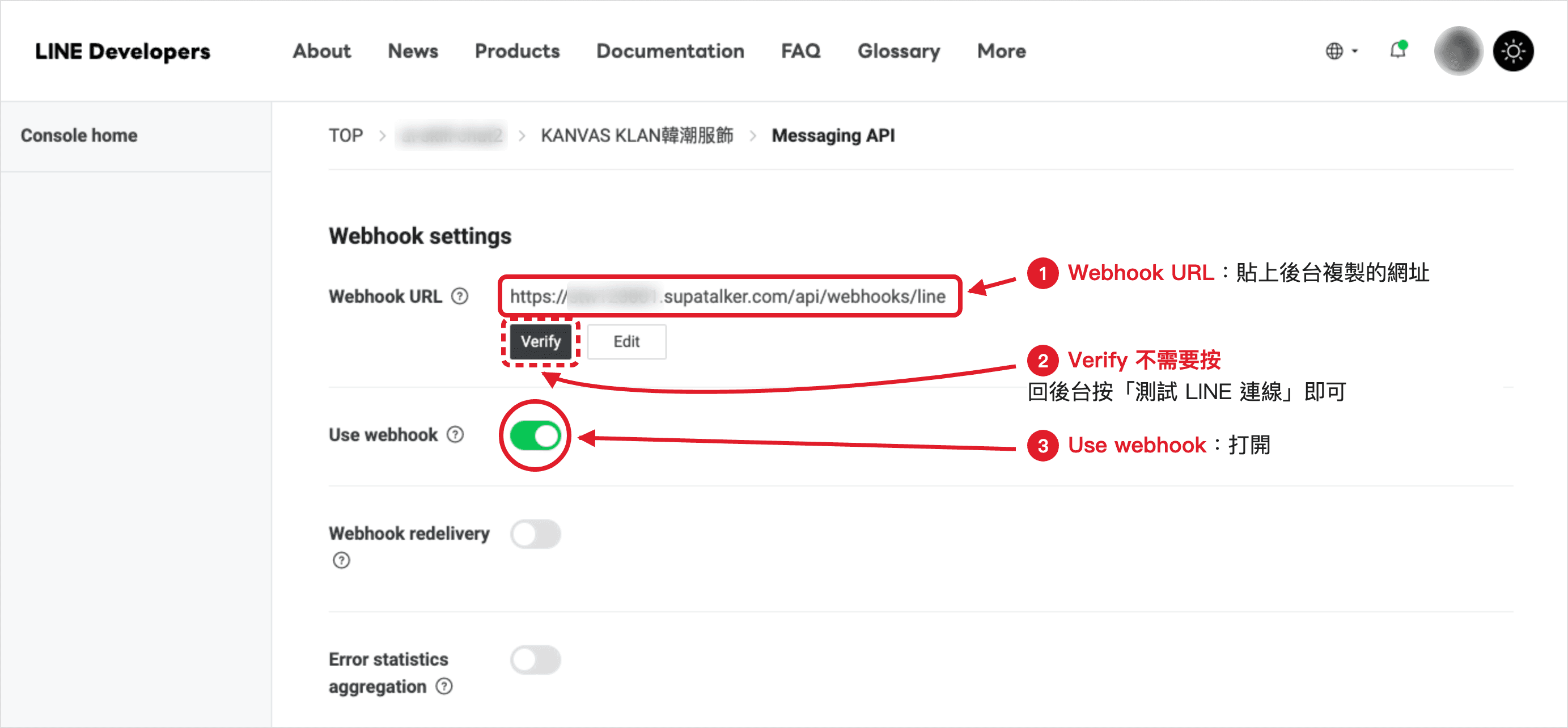
The screenshot above is the LINE Developers Console (Webhook settings in the Messaging API tab), not this system's admin: click "Edit" next to Webhook URL to paste the URL, and turn on Use webhook; you do not need to click "Verify" next to it.
The current status is shown below the URL, for example "LINE's webhook points to this site".
The two keys
| Field | Used for |
|---|---|
| Channel Access Token | A long-lived access token that lets the system send messages and pushes on behalf of your Official Account, and sync rich menus |
| Channel Secret | Verifies that messages from LINE really come from LINE |
Keys that are already set are not shown in full; the screen shows a mask. Leaving a field empty or keeping the mask means no change. To replace a key, paste the whole value again.
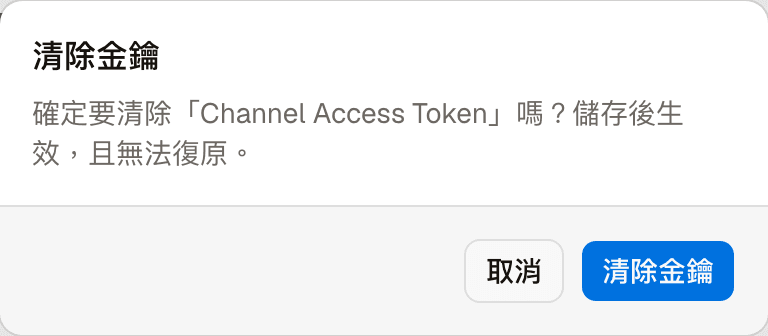
Each field has a "Clear secret" button next to it. It asks for confirmation first, and after confirming you still need to save for it to take effect; it cannot be undone.
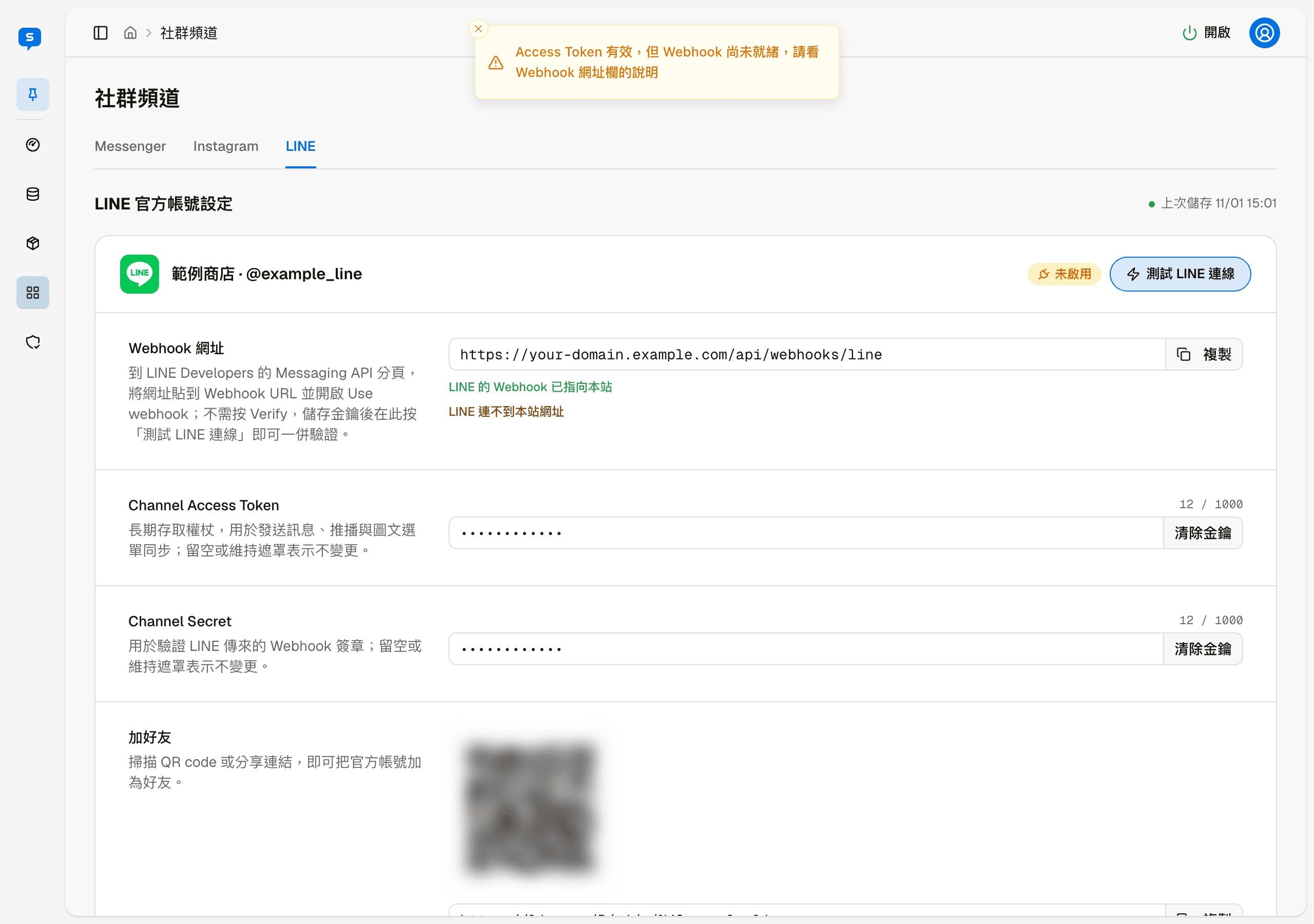
Test LINE connection
"Test LINE connection" actually connects to LINE once. On success, "Connection successful!" appears with the Official Account name, and below the Webhook URL it shows "The test event reached this site and the Channel Secret matches", meaning both the keys and the webhook are set up correctly.
Add friend
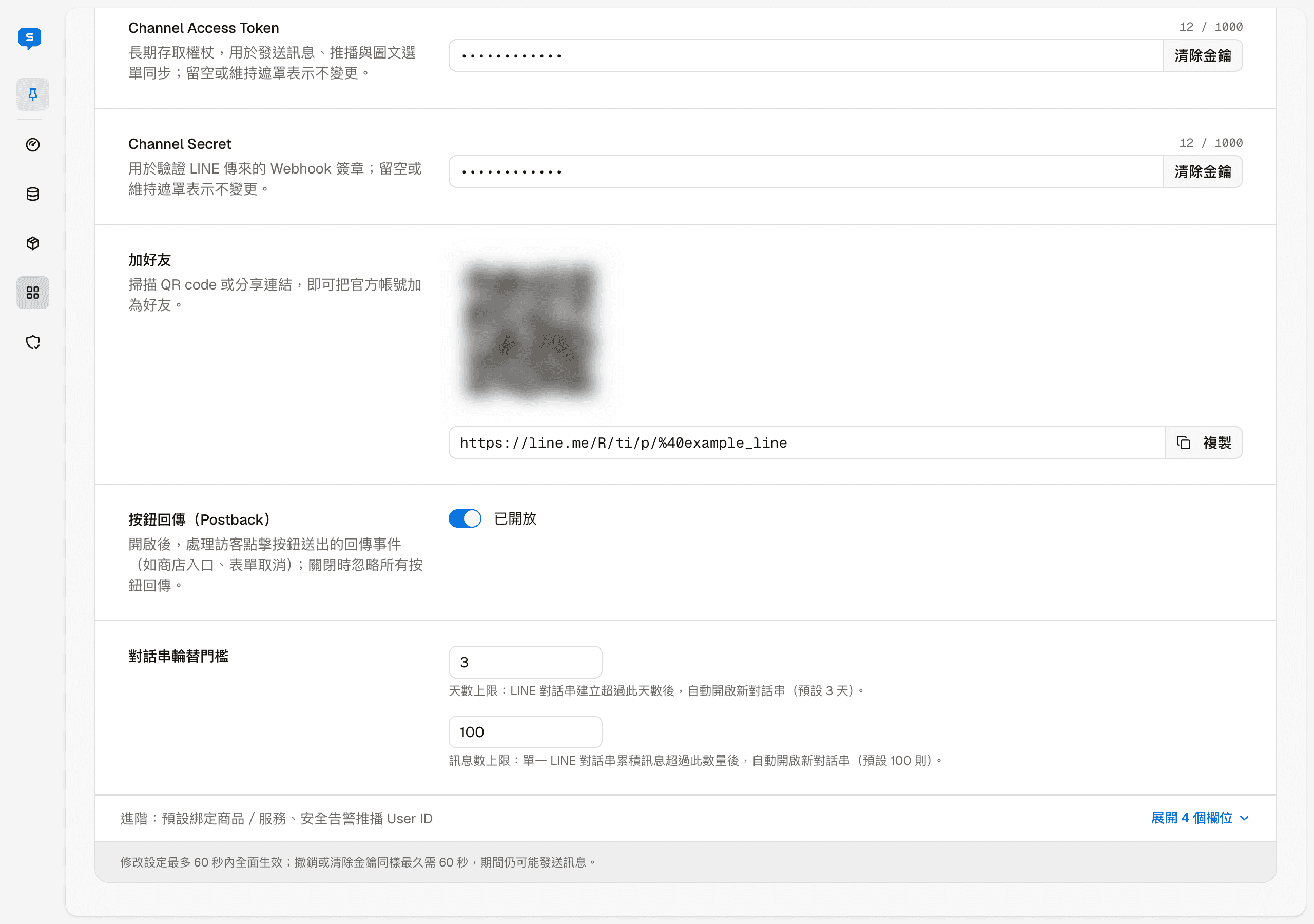
The Official Account's add friend QR code and share link. Customers scan the QR code or open the link to add the Official Account as a friend. "Copy" copies the share link.
Button postbacks
When customers tap buttons in messages (such as the store entry or canceling a form), LINE sends back a postback event. With this switch on, the system handles these events; with it off, nothing happens when customers tap buttons. If you are not sure what it is for, keep it on.
Thread rotation thresholds
Decides when a LINE conversation counts as a new round. The two conditions are independent:
| Field | Default |
|---|---|
| Maximum days | 3 days |
| Maximum messages | 100 messages |
Once either is exceeded, later messages are recorded in a new thread.
The most common reason for a new segment is 30 minutes idle
When a customer has not sent a message for 30 minutes, the conversation ends; this is not set on this page. So when you see one customer's conversation split into several in Conversations, it is usually because of idle time, not these thresholds.
Advanced settings
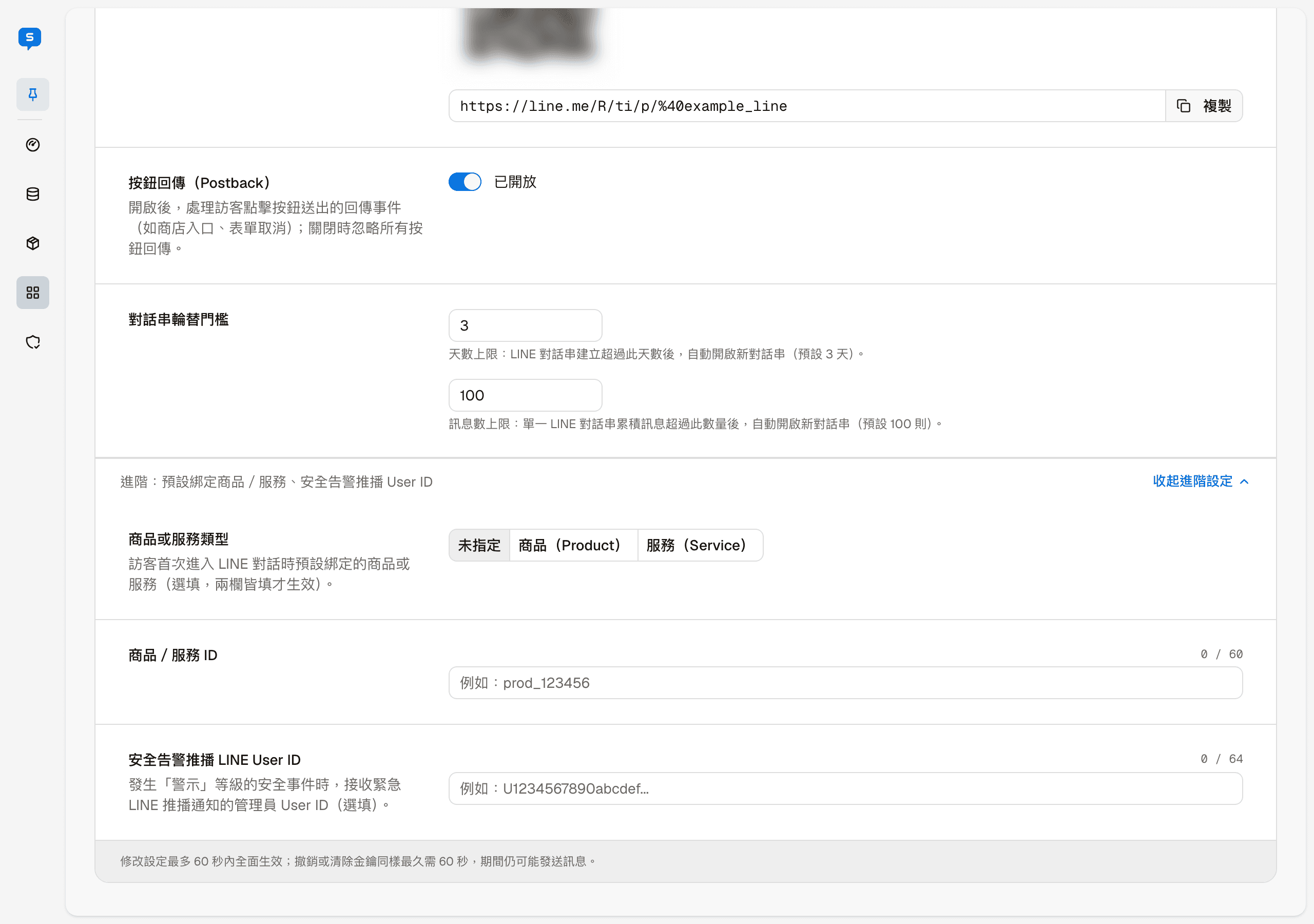
The collapsed advanced area has three optional fields:
| Field | Description |
|---|---|
| Product or service type | Unset / Product / Service |
| Product or service ID | The product or service bound by default when a visitor first enters the LINE conversation |
| Security alert LINE User ID | The admin who receives urgent LINE push notifications when an "Alert" level security event occurs |
The first two only take effect when both are filled in. If you are not sure what these are for, keep the defaults.
When changes take effect
After clearing a key, messages may still be sent for up to 60 seconds
Changes take up to 60 seconds to take full effect. Revoking or clearing keys also takes up to 60 seconds, during which the bot may still send messages; it does not stop instantly.