Messenger and Instagram
What social channels are; connecting, checking and removing Messenger and Instagram, and the persistent menu in their chats
"Channels" decides which social platforms the AI is connected to, so customers can chat with you directly in the apps they already use. The page has three tabs: Messenger, Instagram and LINE.
Three tabs, two ways to connect
- Messenger and Instagram — click the button to go to the platform's authorization; once you authorize, you are connected. After connecting, you can set up the chat's persistent menu
- LINE — you apply for an Official Account yourself and set up the Webhook URL and two keys; see LINE
The chat window on your website is not on this page; it is managed in Host sites.
This page covers Messenger and Instagram. The two tabs work exactly the same way; the only difference is whether you connect a Facebook Page or an Instagram professional account.
Before you start
| Channel | You need first |
|---|---|
| Messenger | A Facebook Page on which you have permission to manage messages |
| A professional account (business or creator) |
If you are not ready yet, take care of it on the platform first: Switch to an Instagram professional account.
Connection status
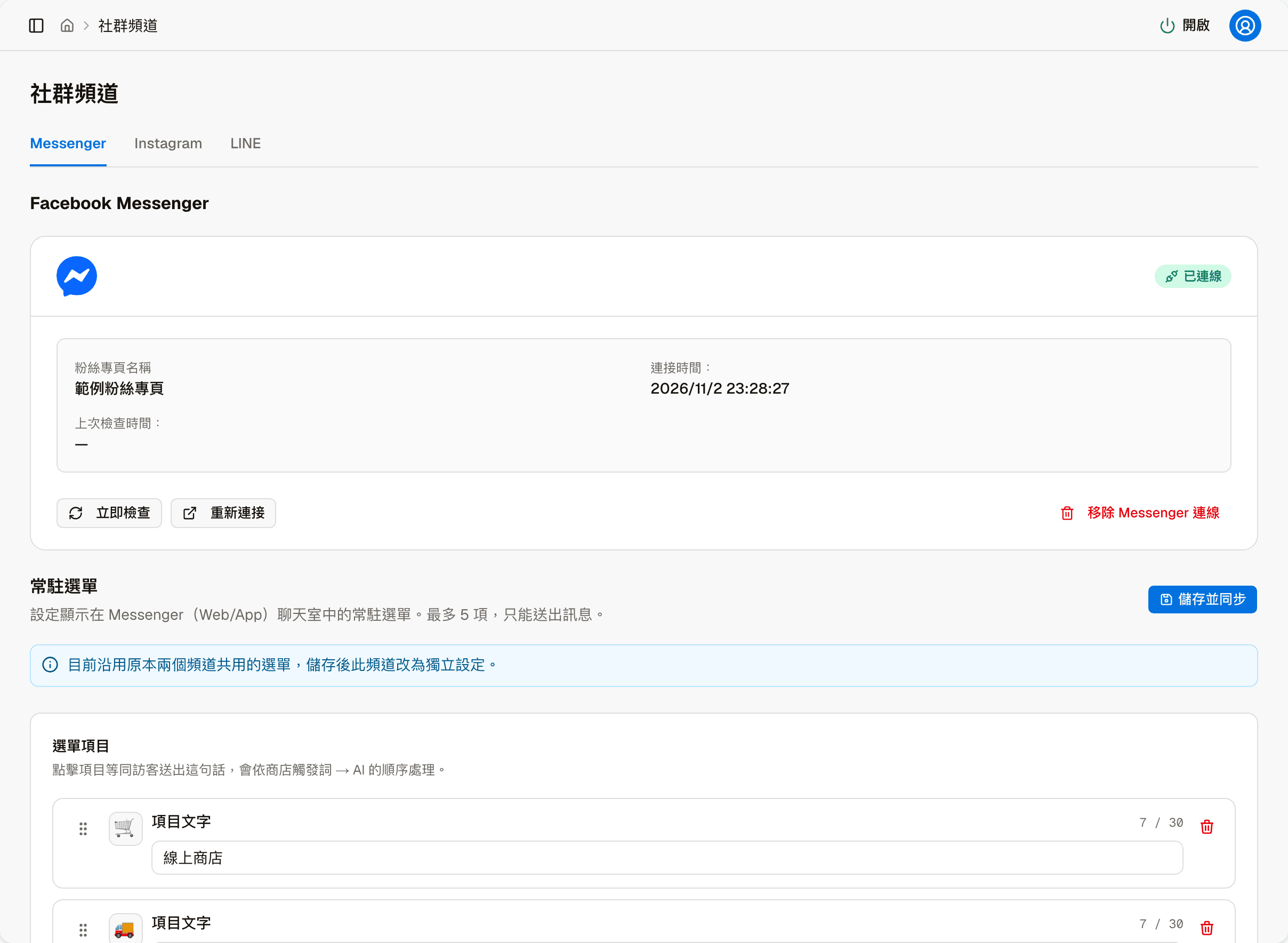
Once connected, the screen shows the connection status, the Page or account name, the time it was connected, and the time and result of the last connection check.
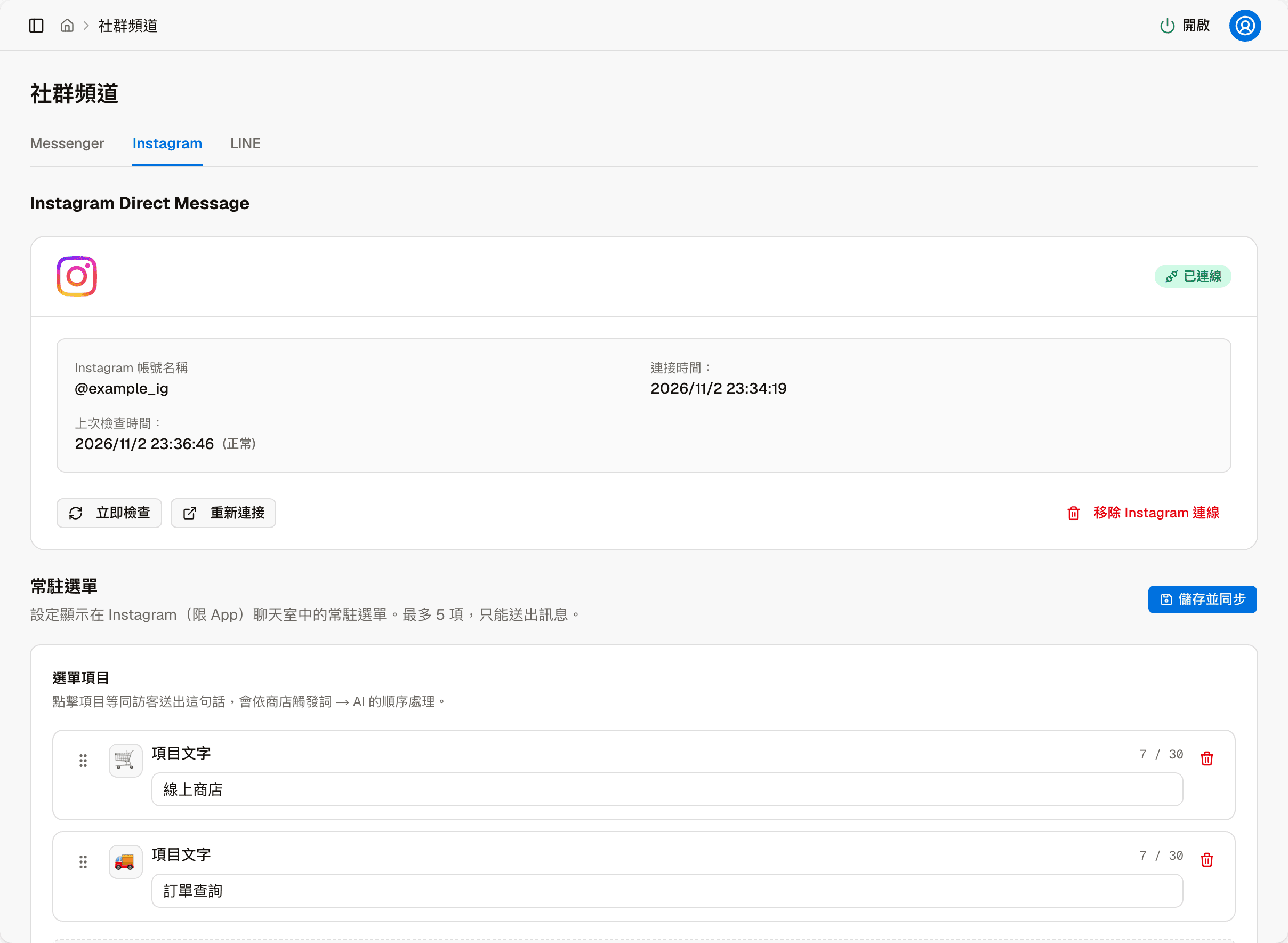
| Action | When to use it |
|---|---|
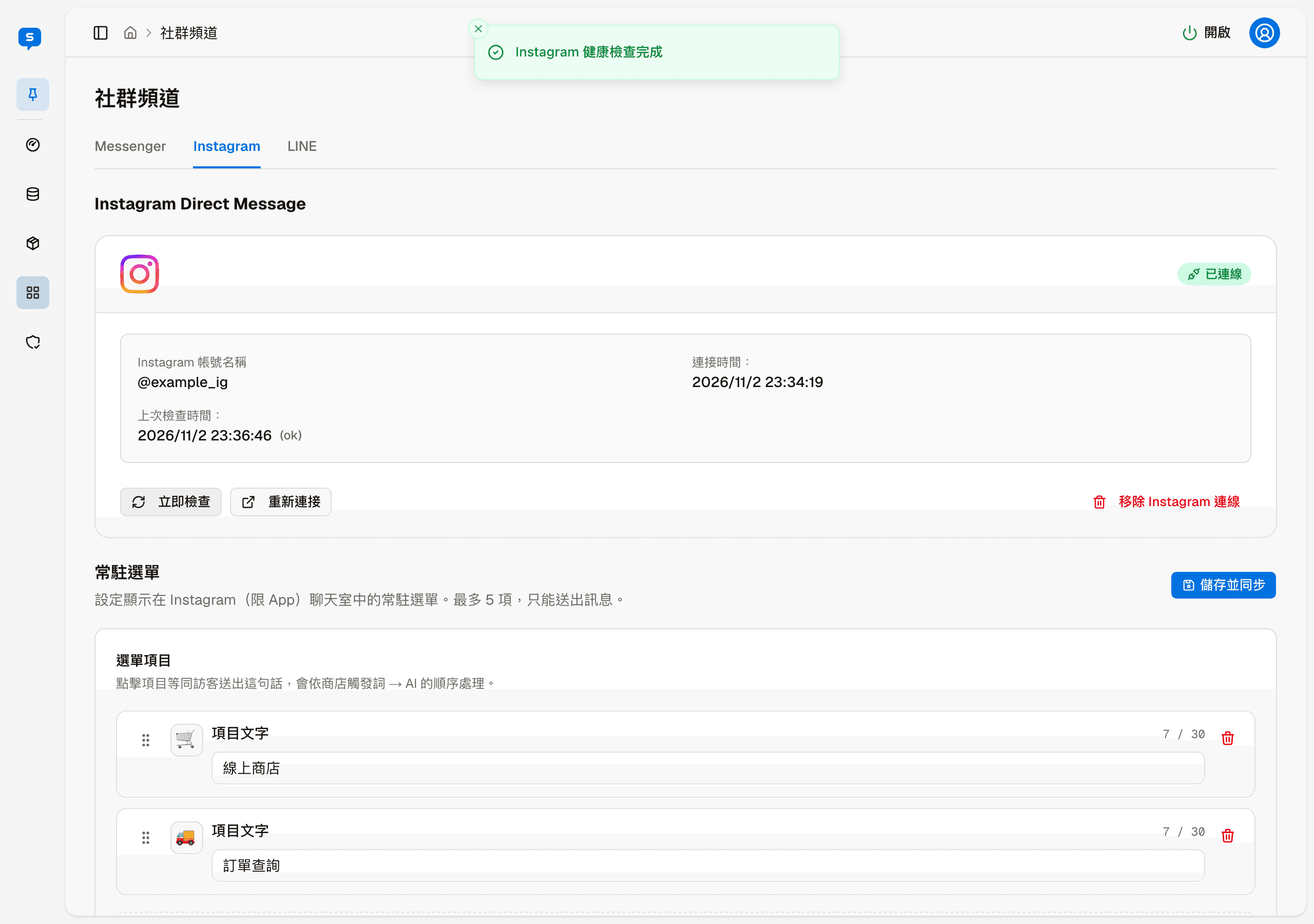
| Check now | Checks with the platform whether the connection is working; when done, a result message appears and "Last checked" is updated. Shows "—" if it has never been checked. You do not normally need to click it |
| Reconnect | Goes through the platform authorization again when the connection has become invalid |
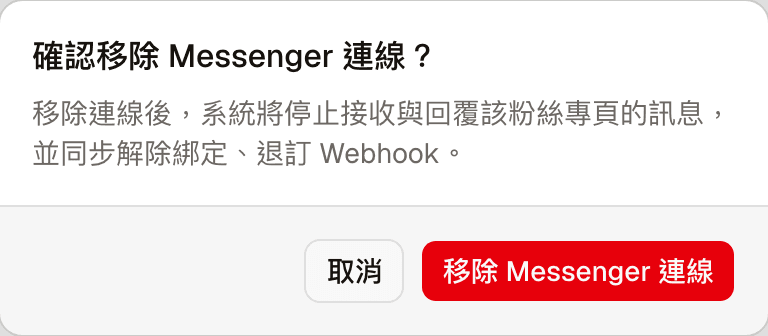
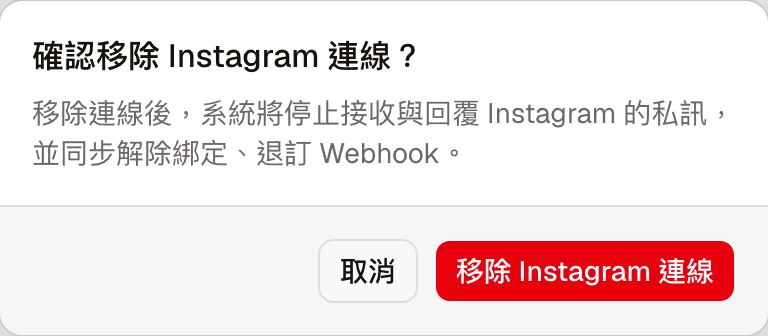
| Remove Messenger connection / Remove Instagram connection | Stops using this Page or account. Asks for confirmation first |
When the connection becomes invalid (for example, the platform authorization has expired), a red "Connection invalid" notice appears above the card explaining why, and the status becomes "Failed". The AI cannot reply to direct messages in this state. Click "Reconnect" to authorize again.
After removing the connection, the system stops receiving and replying to messages for that Page or account and unbinds it; to use it again, you need to authorize again.
Persistent menu
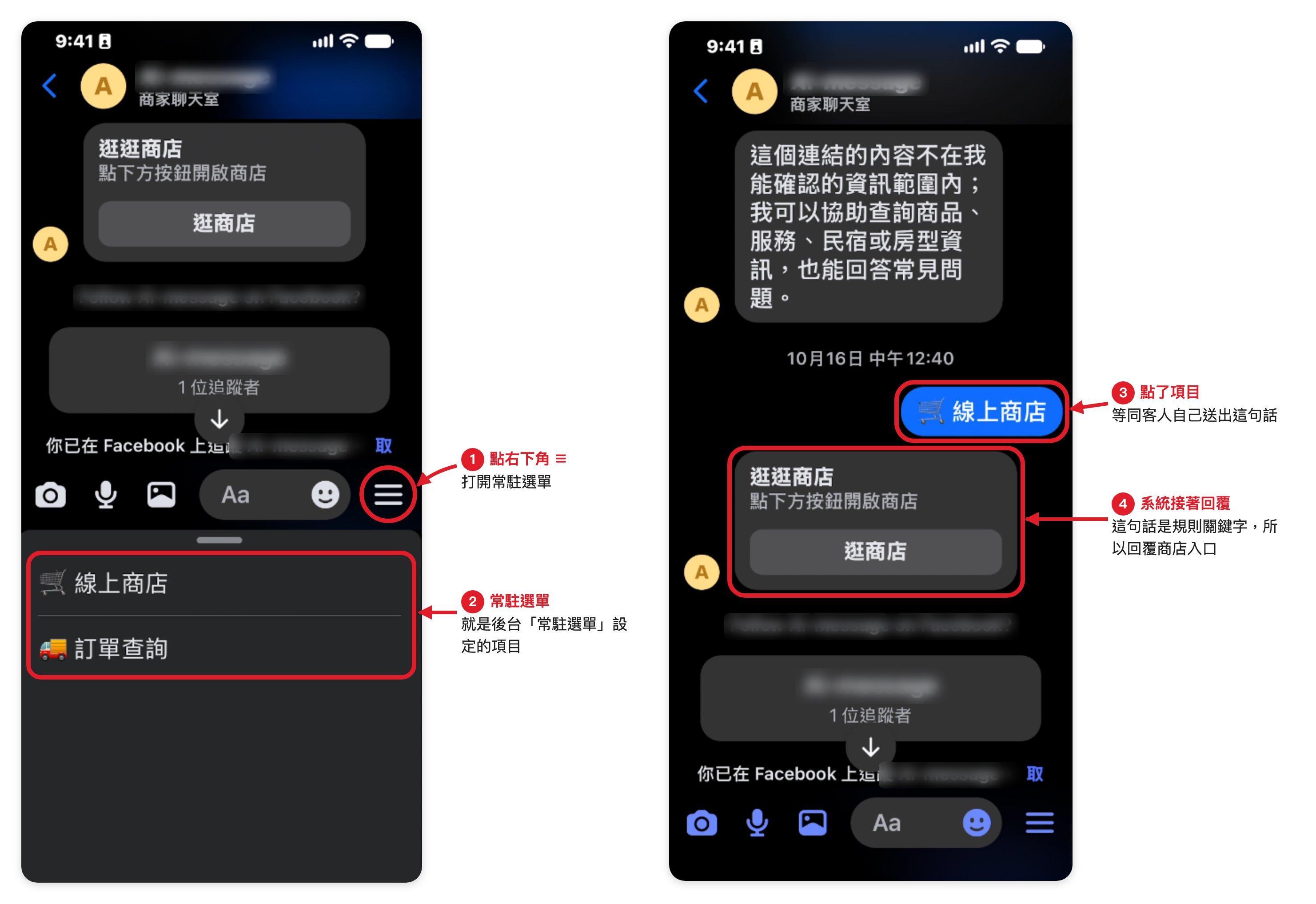
The persistent menu is a fixed menu shown in the chat. Customers tap an item to send a sentence without typing it.
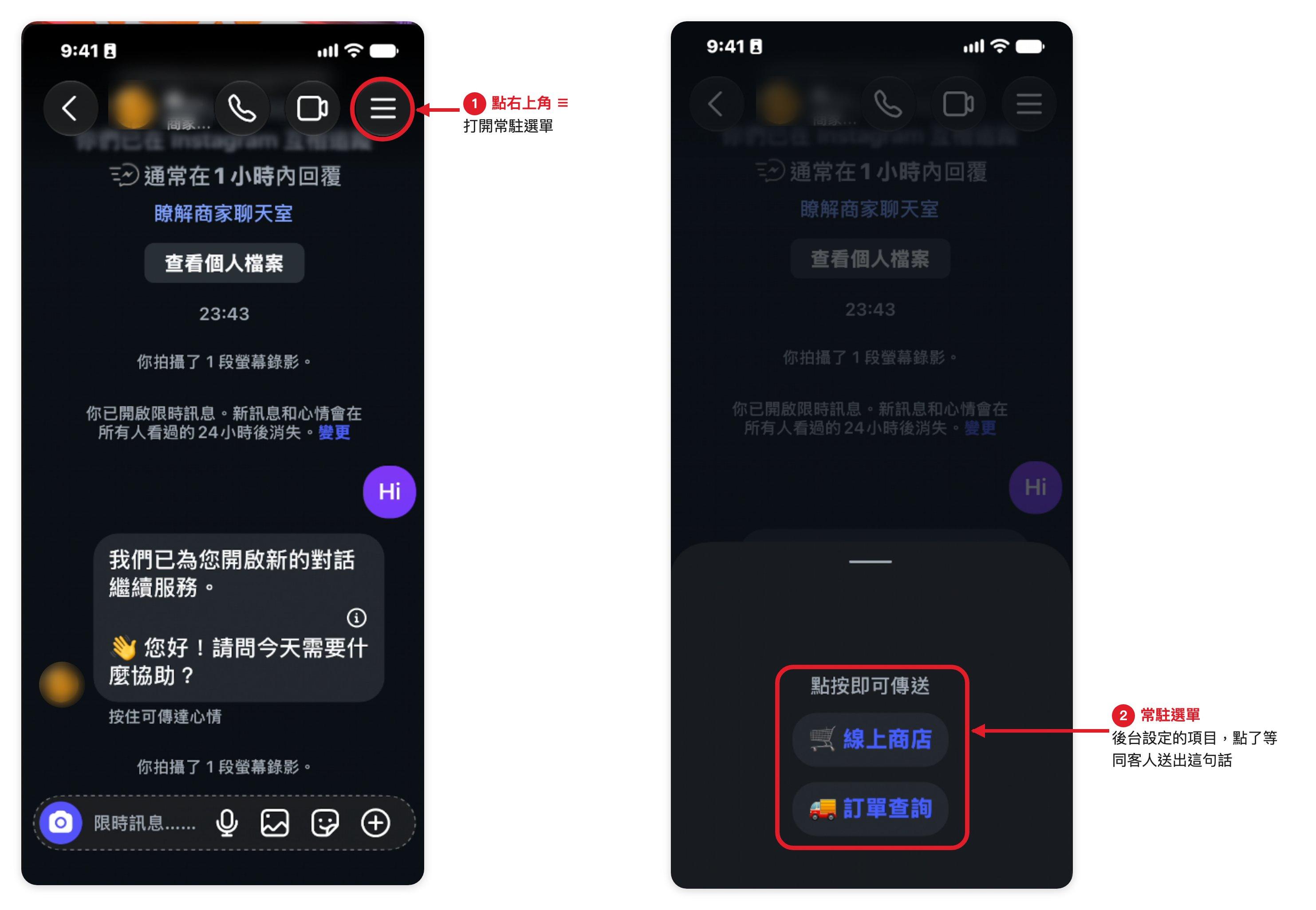
The Instagram persistent menu is only visible in the mobile app
| Platform | Where customers open it | On the web |
|---|---|---|
| Messenger | ≡ (three lines) to the right of the input box | Available on both the web and the mobile app |
| ≡ (three lines) at the top right of the conversation | Mobile app only; not visible on the web |
In Messenger, for example, the customer taps ≡ at the bottom right to open the persistent menu, and tapping an item is the same as sending that sentence:
In Instagram, they tap ≡ at the top right of the conversation (mobile app only):
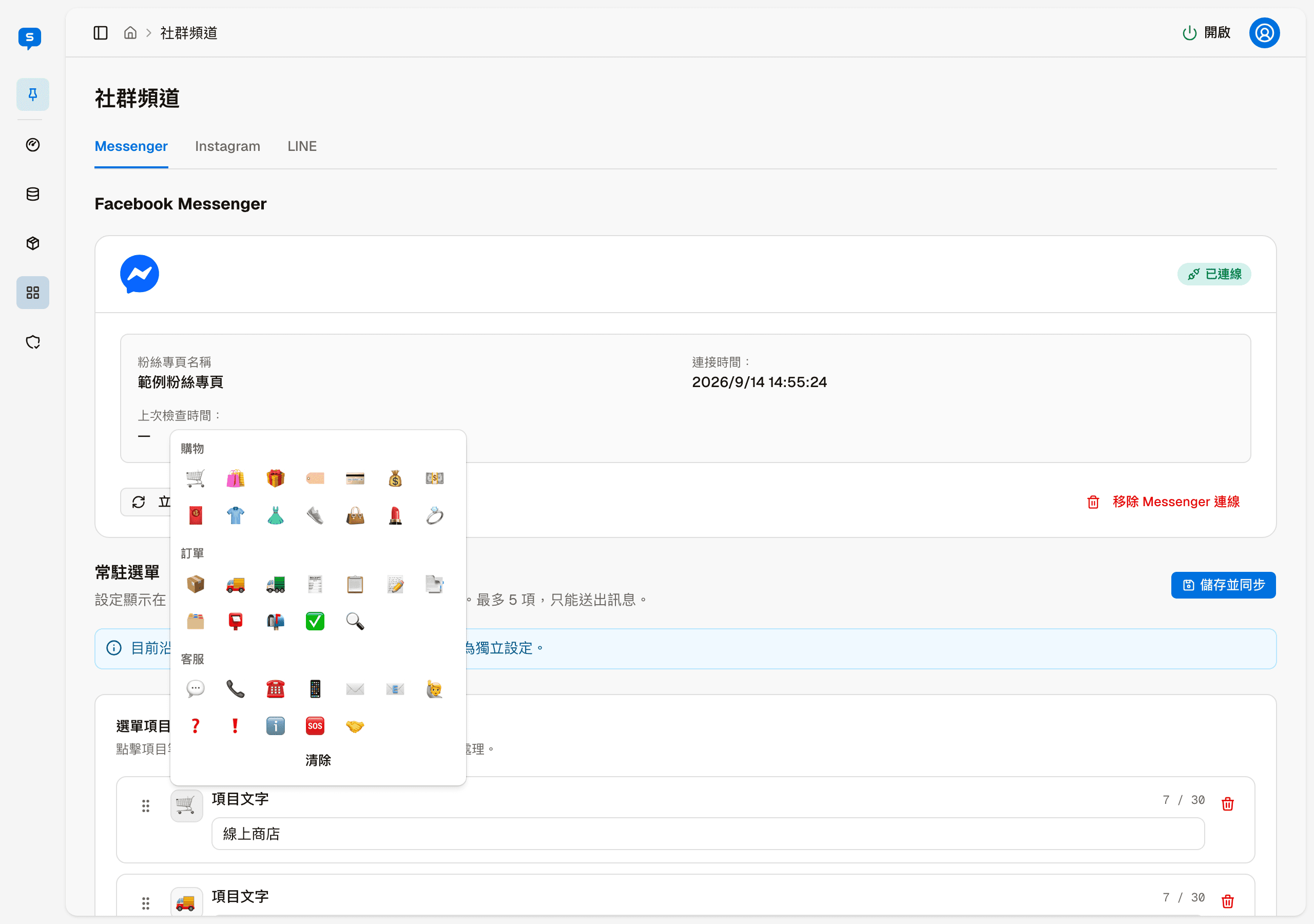
The settings screen in the admin:
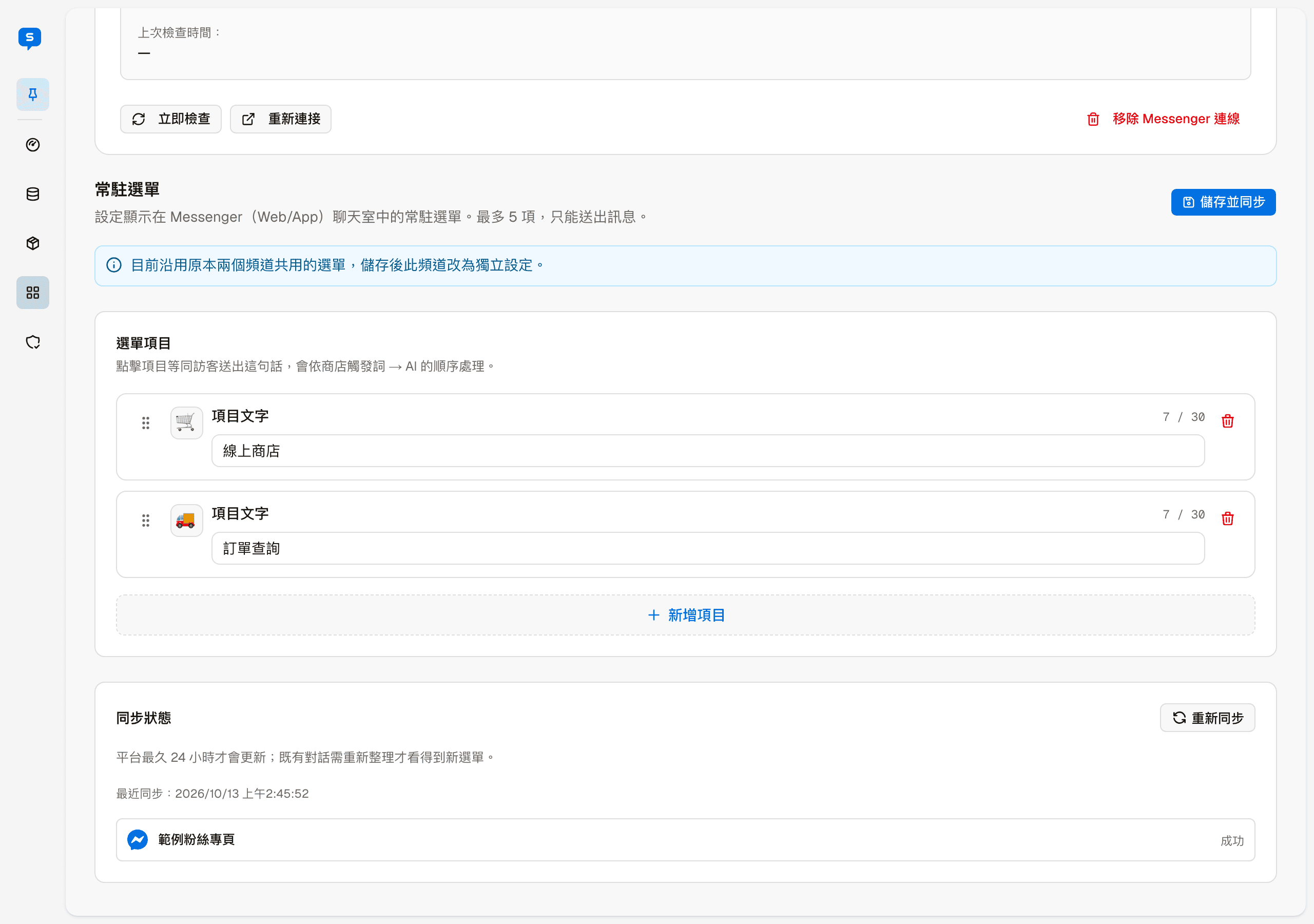
Each channel can have up to 5 items, each with an emoji and "The sentence sent when tapped". Tapping an item is the same as the customer sending that sentence: the system first checks it against the store's store keywords, and only if none match does the AI answer. For example, if an item's text is a store keyword, tapping it gives the customer the store entry.
| Action | Description |
|---|---|
| Drag the handle on the left | Changes the order of items |
| Tap the emoji | Choose an icon from a category (Shopping, Orders, Service, Store, Food, Promo, Faces, Symbols), or clear it |
| Delete icon | Deletes the item |
| Add item | Adds an item, up to 5 |
| Save and sync | Saves the menu and syncs it to Messenger or Instagram |
Messenger and Instagram originally share one menu. If the screen says "This channel is using the menu that both channels used to share", clicking "Save and sync" on this tab gives this channel its own independent menu.
Sync status
"Sync status" below the menu shows the time of the last sync and the result (Success or Failed) for each account. "Resync" syncs the currently saved menu again.
The menu does not appear immediately after syncing
Platforms may take up to 24 hours to update the menu; conversations customers already have open need to be refreshed to see the new menu.
Store page
The store page customers see — how they get there, Home, Products, Categories, product pages, the member center and the cart, and which admin setting controls each part
LINE
Connecting a LINE Official Account — the Webhook URL, the two keys, testing the connection, the add friend QR code, and button postbacks, thread rotation and advanced settings