Store page
The store page customers see — how they get there, Home, Products, Categories, product pages, the member center and the cart, and which admin setting controls each part
This page describes the store page customers see, and which part of the admin sets each part of the screen. It is not a guide for customers; it lets admins know what customers will see once a setting is changed.
Customers enter the store from a conversation
- When a customer sends a store keyword in a conversation (for example "shop"), they receive a store entry link, valid for 30 minutes
- Opening it takes them to the store page, where they browse and order as themselves; their orders and support requests are recorded under that customer
- The preview on the right of "Store settings" in the admin is the same store page, except that customer-only features such as Member, Cart and Ask cannot be clicked in the preview
The store page is phone-sized, with five fixed navigation items at the bottom: Home, Products, Categories, Member and Cart. The number on Cart is the number of items in the cart.
Home

At the top are the store logo and name and the search box, followed by sections such as promo banners, product lists, the photo gallery, order rules, the brand introduction and coupons. The content and order of the sections are set in Home page layout; the logo, name and brand introduction are in Profile.
Products
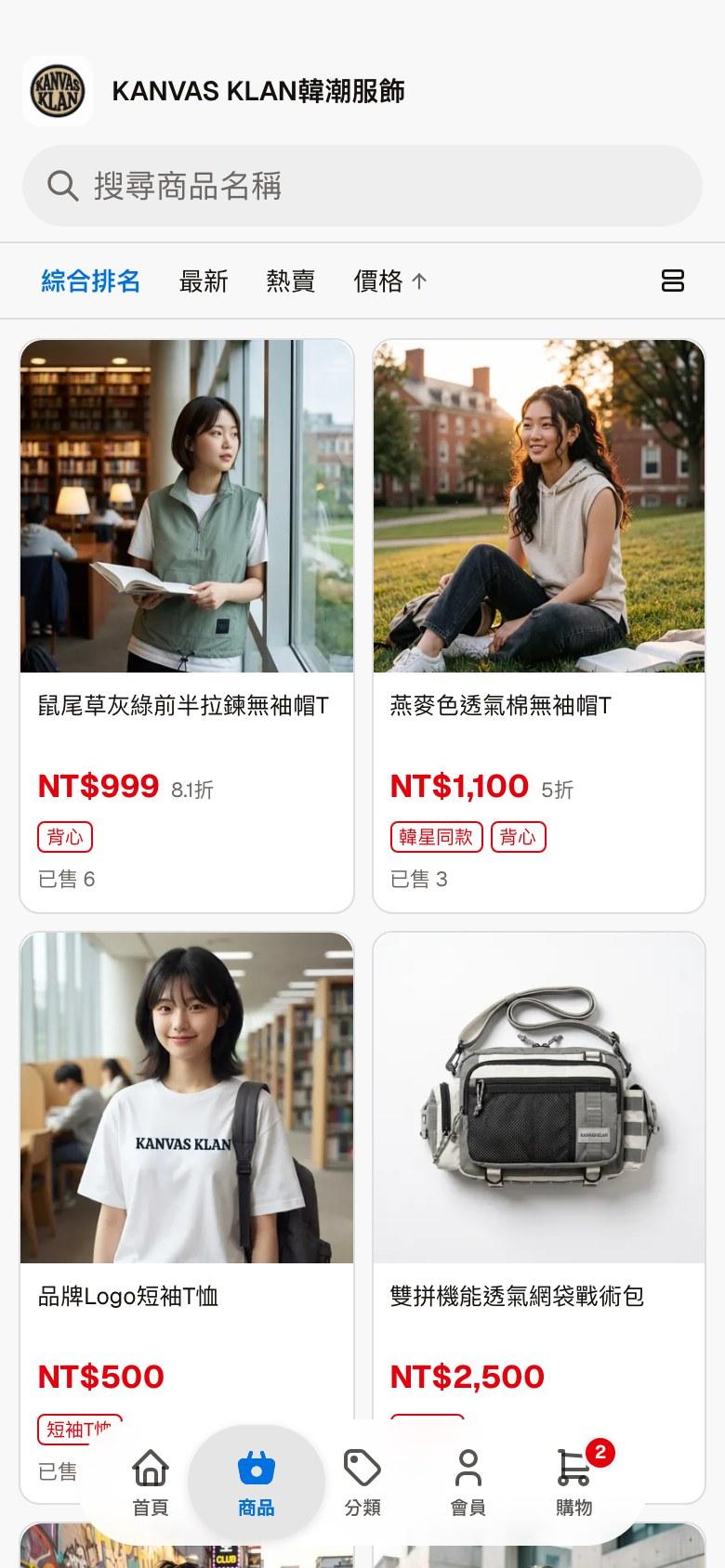
Lists the store's products, which can be sorted by Overall, Latest, Best sellers and Price; the top right switches between two products per row and one per row. Each product card shows the price, discount, tags and number sold; the order of tags follows Tags and store categories.
Categories
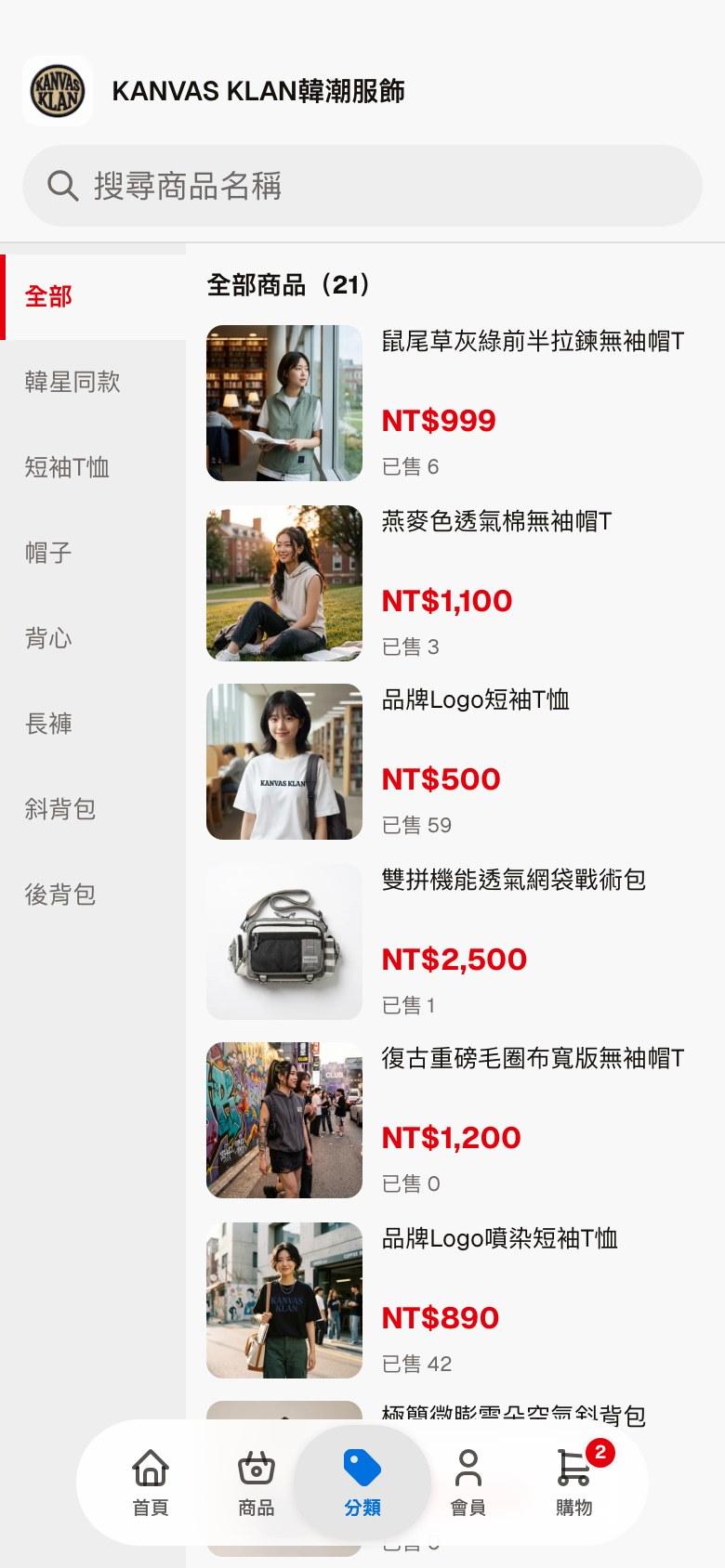
The left side is the list of categories: the tags with "Show as a store category" turned on in Tags and store categories, in the same order. Tap a category to list the products with that tag on the right.
Product page
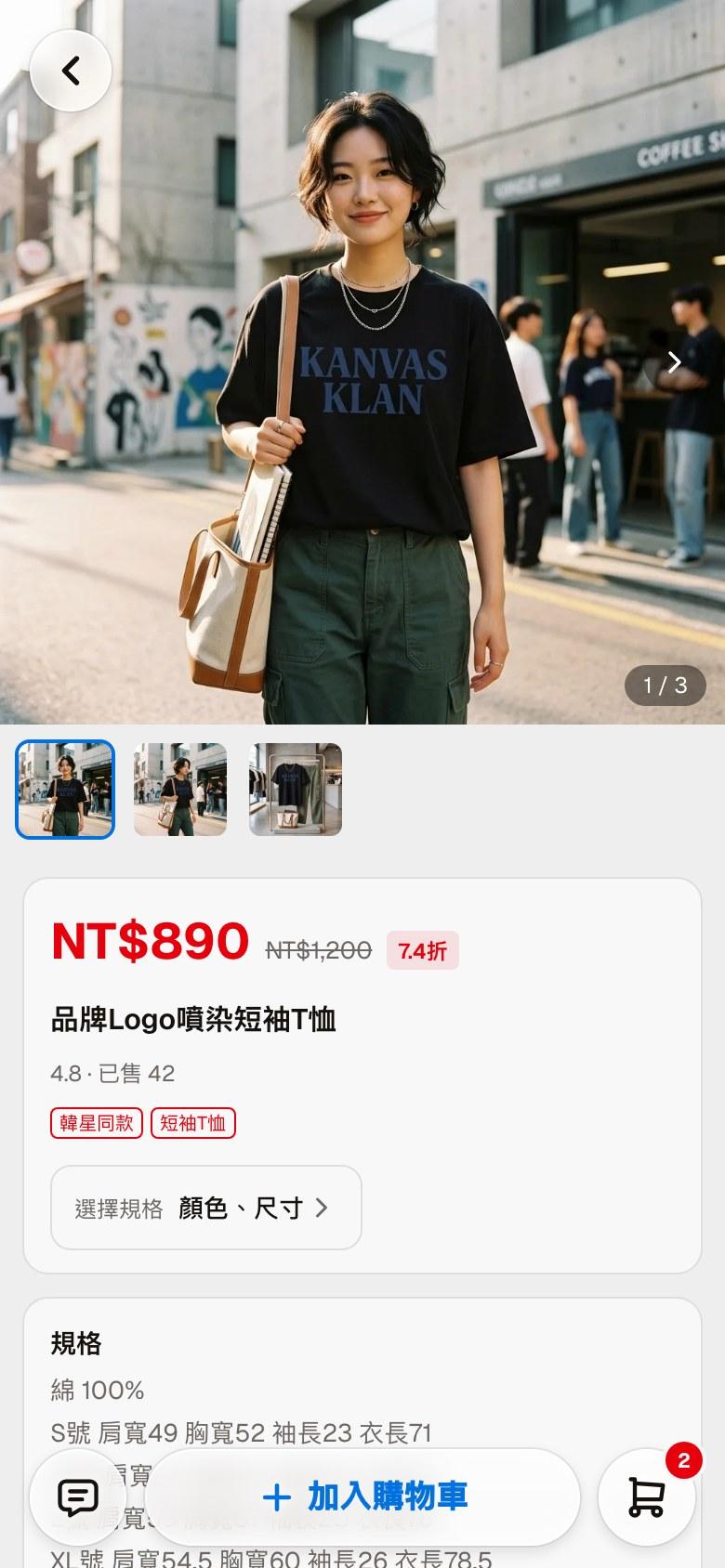
Tapping any product opens its product page: product photos, sale price and list price, discount, rating and number sold, tags, and "Specifications" and "Product description". All of this comes from the product editor.
| Position | What it does |
|---|---|
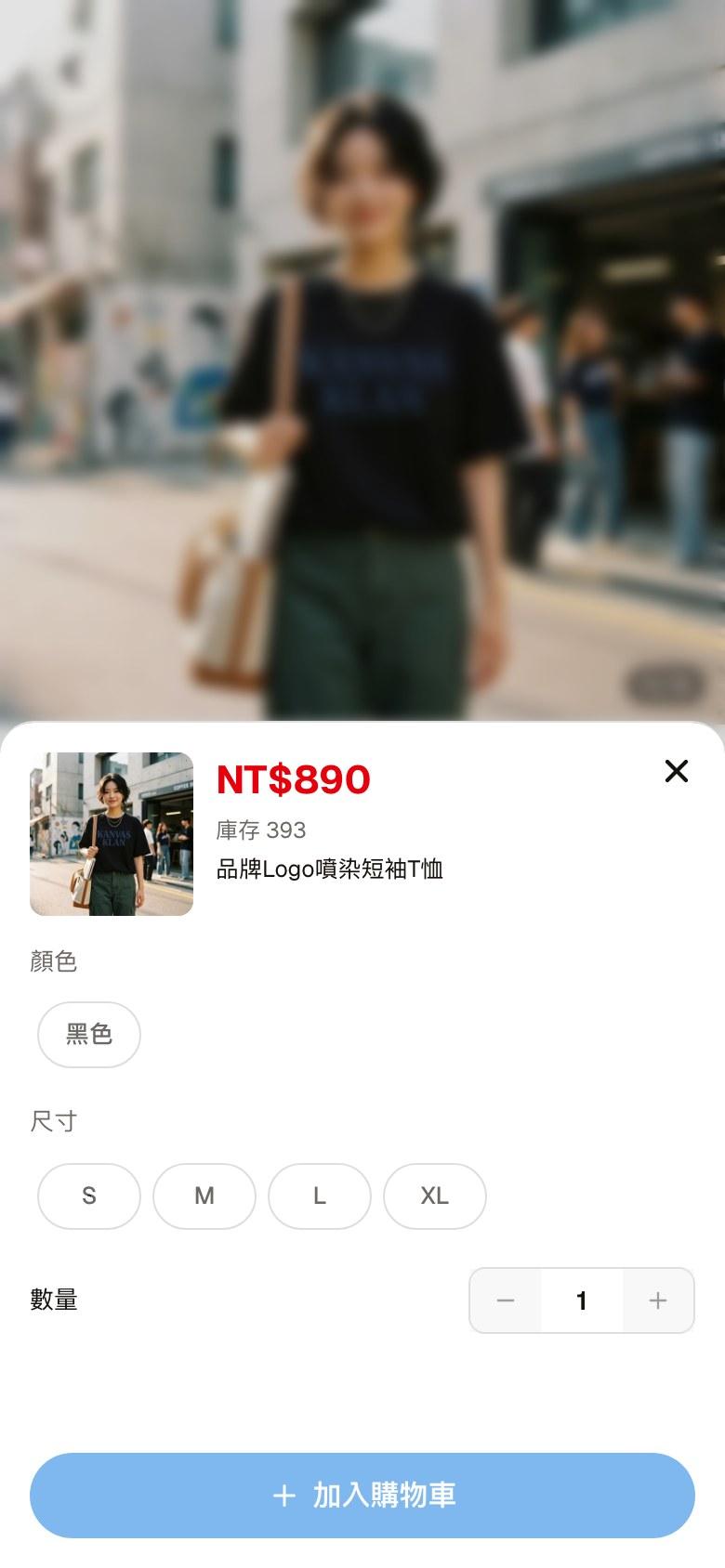
| Select options | Opens the options panel to choose color, size and other options and the quantity, showing stock |
| Chat icon at the bottom left | "Ask": ask a question about this product |
| Add to cart | Puts the product in the cart |
| Cart at the bottom right | Opens the cart |
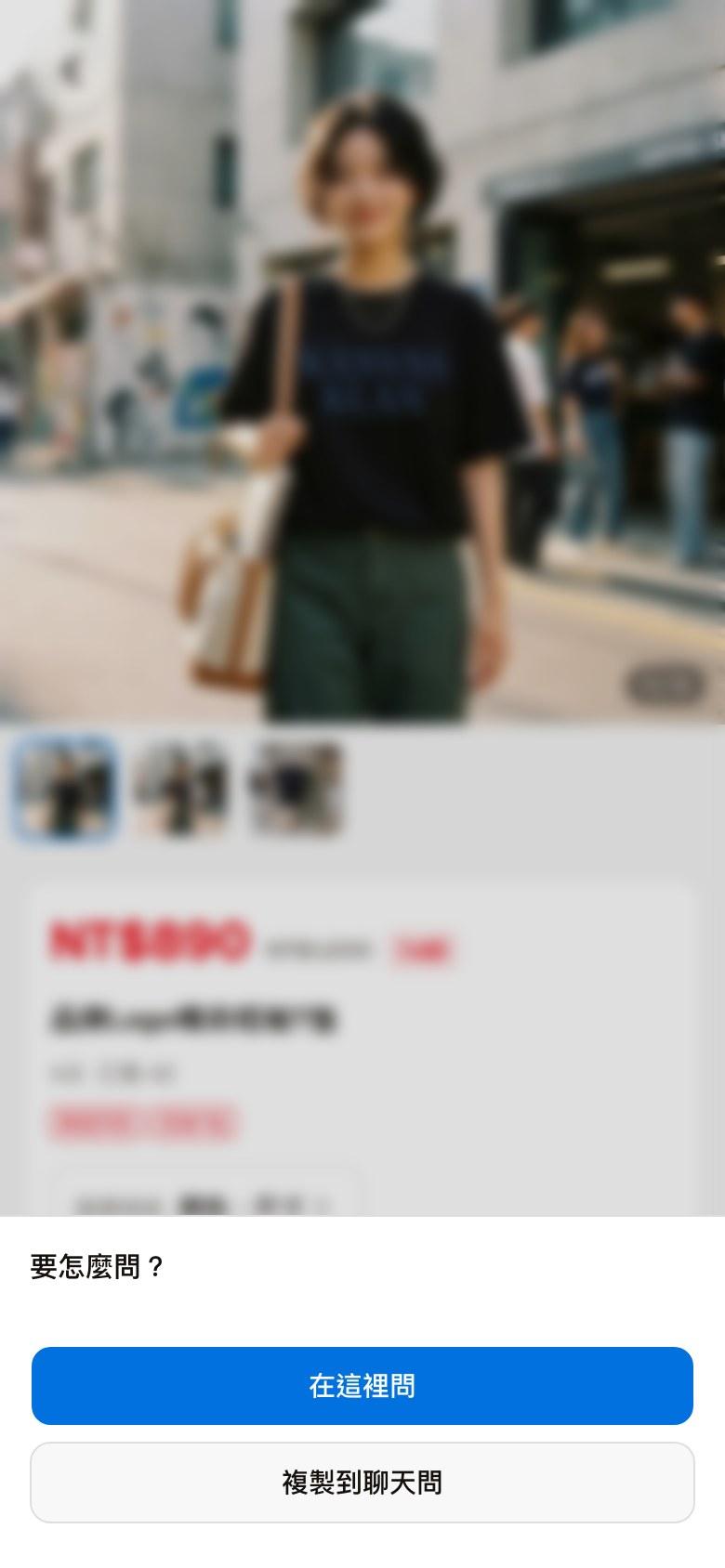
"Ask" has two options:
| Option | What it does |
|---|---|
| Ask here | Opens a chat within the store page, with a sentence saying they have a question about this product filled in automatically |
| Copy to chat and ask | Copies the same sentence so they can paste it into the original conversation and ask there |
Member center
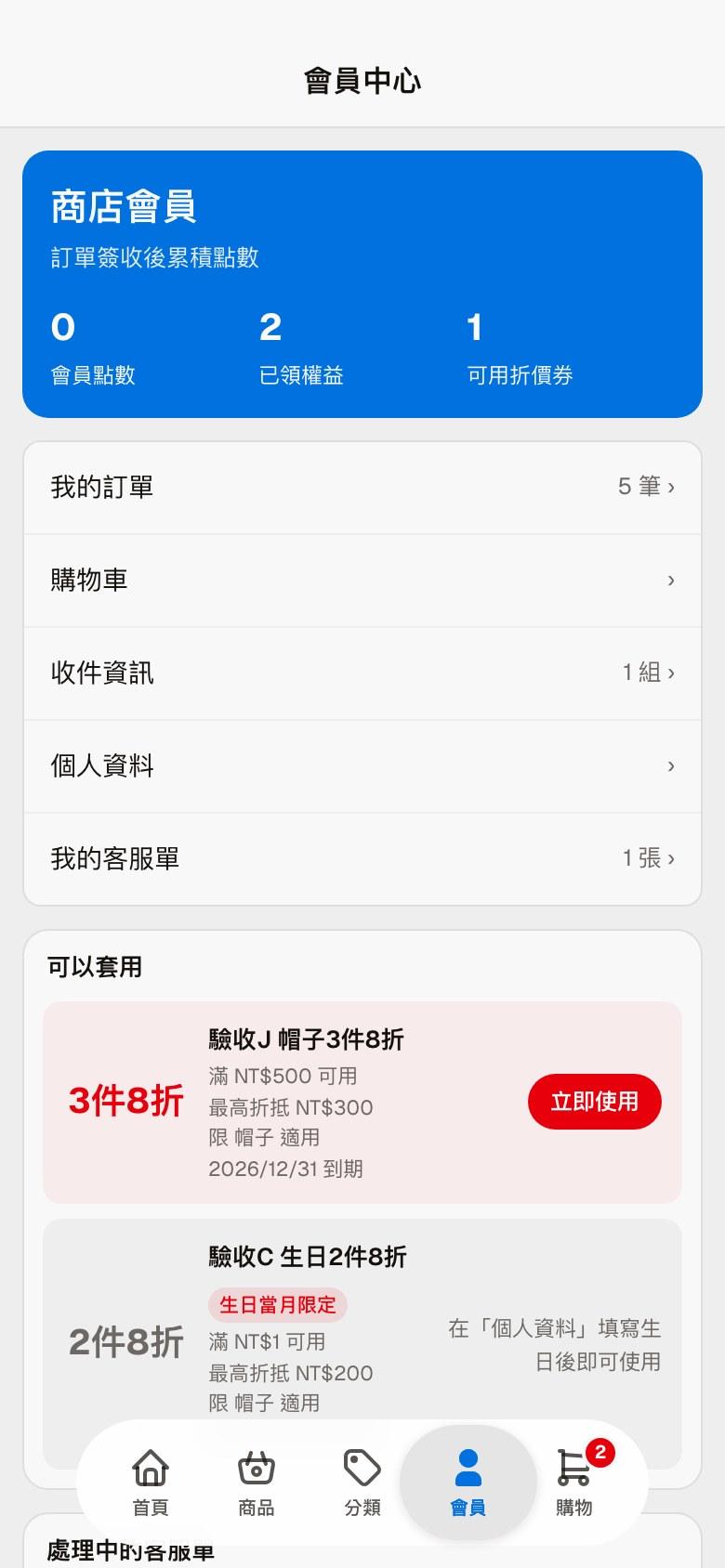
At the top are the member points, benefits claimed and the number of coupons available; member points are earned after an order is received. Below is the customer's own information:
| Item | Shows |
|---|---|
| My orders | All of the customer's orders and their status; tap one to see its content |
| Cart | Opens the cart |
| Shipping details | The shipping addresses used at checkout; can be added, edited and deleted |
| Profile | Name, phone, email and birthday |
| My support requests | The support requests the customer has raised; new support requests can also be raised here |
Further down are the coupons "Ready to use", and the support requests in progress. Coupons with conditions say so; for example, a birthday coupon tells the customer "Add your birthday in "Profile" to use it".
My orders, My support requests
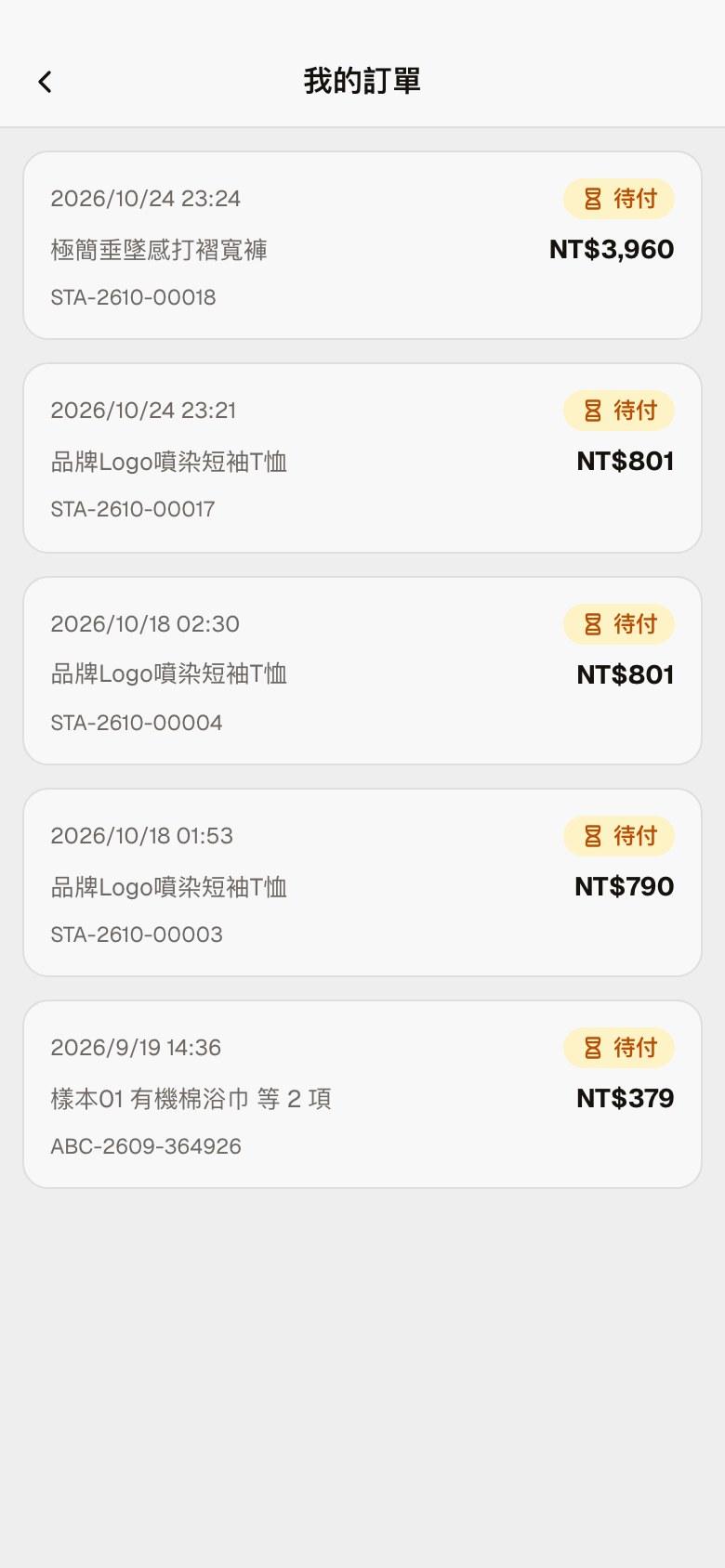
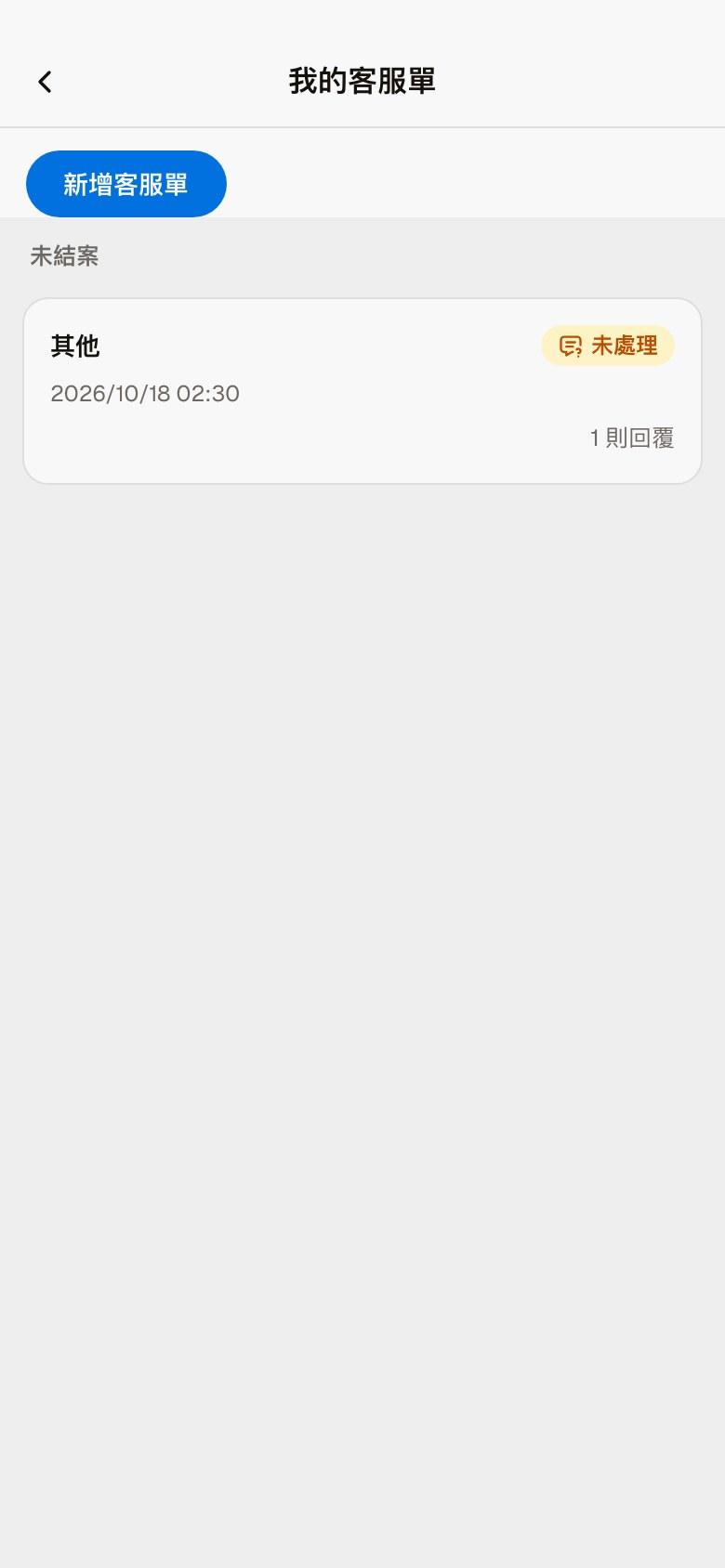
What these two pages show is that customer's records in Store orders and Support requests in the admin.
Cart
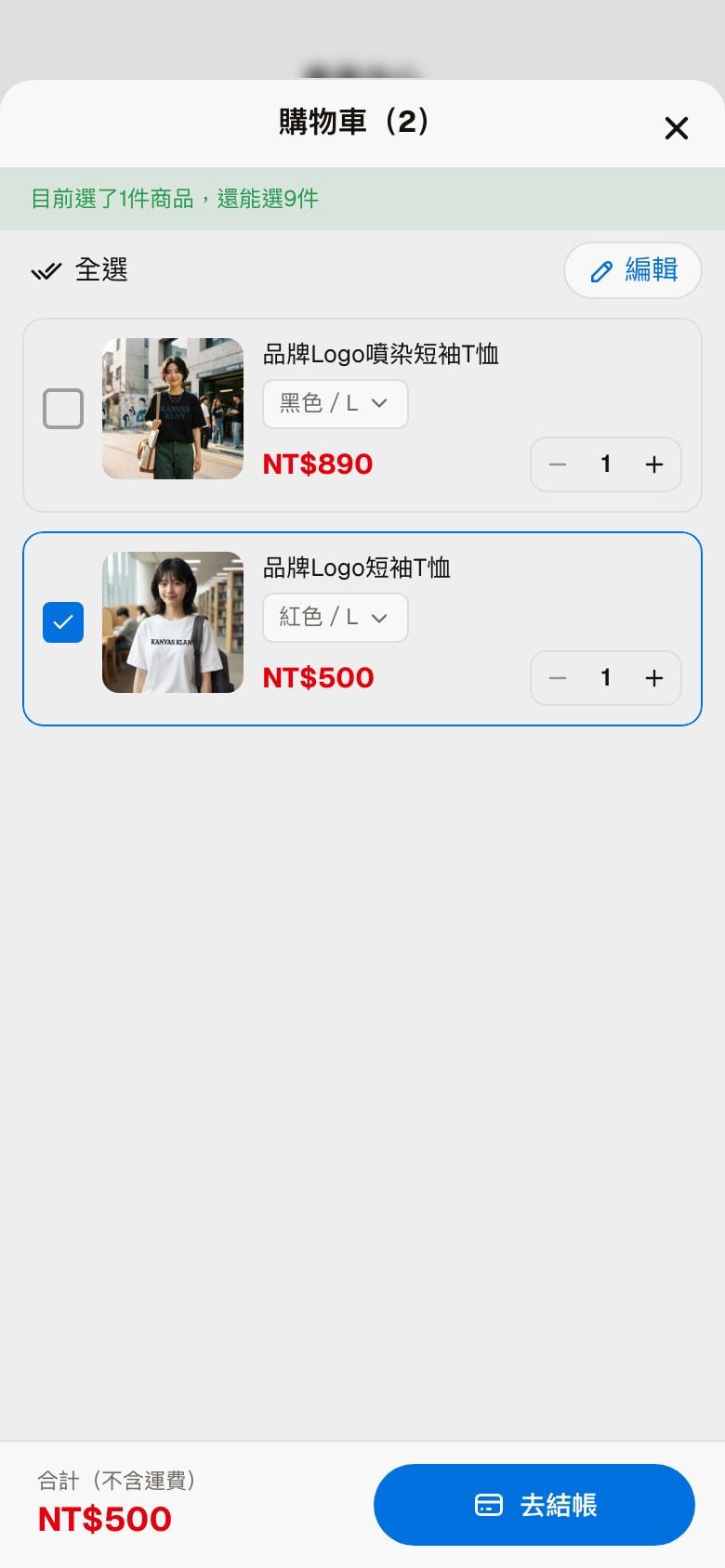
Customers check the items to pay for this time, and can change options or quantities, or remove items. At the top is a hint about how many more items can be chosen this time; at the bottom is the subtotal (excluding shipping). "Checkout" goes to checkout.
The quantity and amount limits, and the shipping and payment methods available at checkout, are all set in Order rules.
Store keywords
Which messages a visitor sends in a conversation get a store entry link in reply — the three keyword groups Enter store, Check orders and Check support requests
Messenger and Instagram
What social channels are; connecting, checking and removing Messenger and Instagram, and the persistent menu in their chats