Overview
Where the store page's content and appearance are set — the screen layout, the difference between Save and preview and Publish, and the operations switches
The store page is what customers see after opening the store entry in a conversation: they can browse products, add them to the cart, check out and look up orders; see Store page. This page sets all the content and appearance of the store page, and also manages the operating status of the whole store.
This page only appears on store sites.
Edit on the left, preview on the right, and Publish to go live
- Left: icons switch between ten setting sections; each section is described on the other pages in this group
- Right: a live preview of the store page, showing the draft
- Top right: "Save and preview" only saves a draft; the store page customers see changes only after you click "Publish"
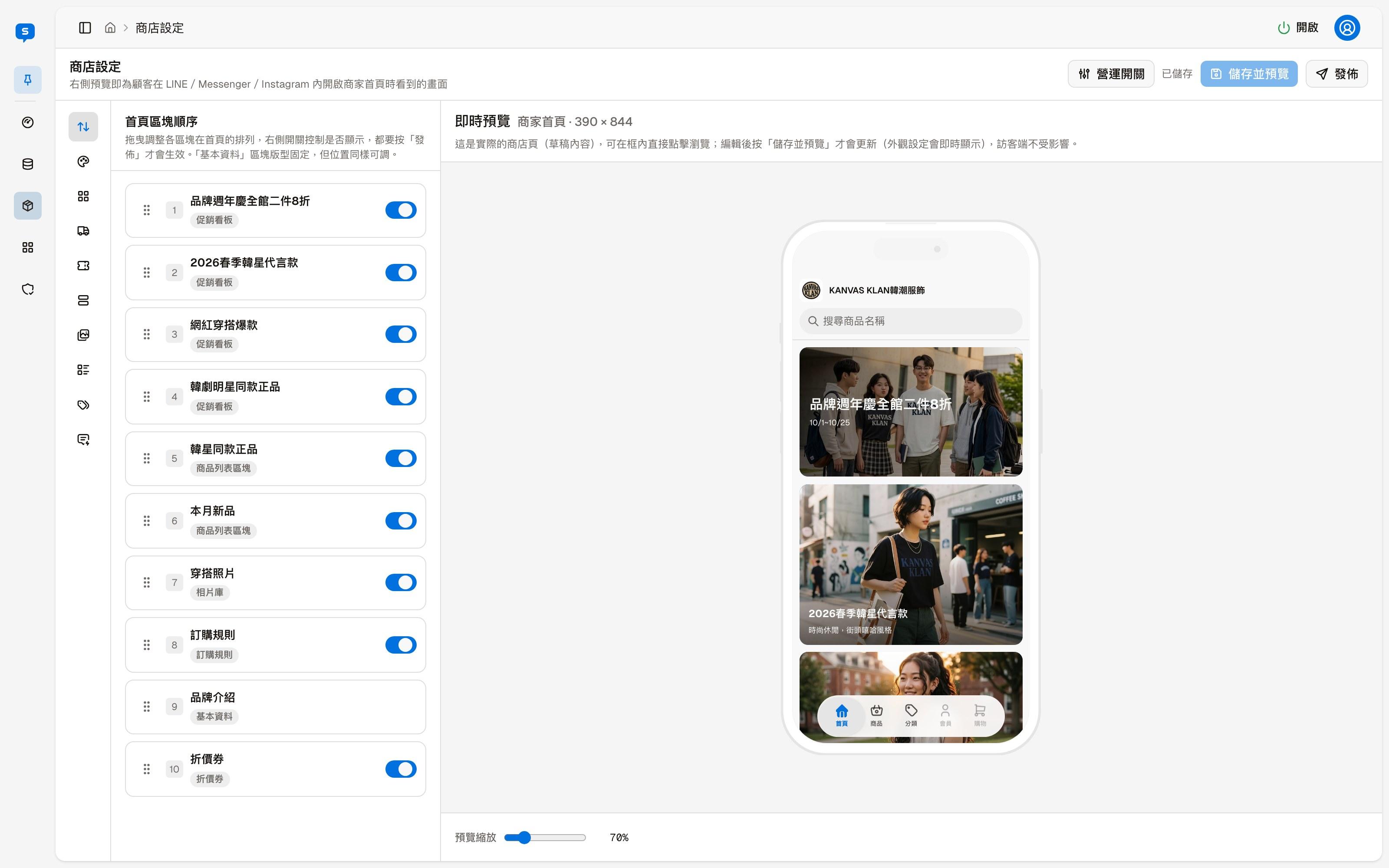
Screen layout
Setting sections
The column of icons on the left corresponds, from top to bottom, to ten sections. Click an icon to switch to that section:
| Icon order | Section | Described on |
|---|---|---|
| 1 | Section order | Home page layout |
| 2 | Appearance | Appearance |
| 3 | Profile | Profile |
| 4 | Order rules | Order rules and coupons |
| 5 | Coupons | Order rules and coupons |
| 6 | Promo banners | Home page layout |
| 7 | Photo gallery | Home page layout |
| 8 | Product lists | Home page layout |
| 9 | Tags and categories | Tags and store categories |
| 10 | Store keywords | Store keywords |
Live preview
The right side is a live preview of the store home page, at the size of a phone screen (390 × 844). It is the actual store page, so you can click and browse inside the frame; it shows the draft, and customers are not affected.
After making changes, click "Save and preview" to update the preview with the latest draft; only the colors in "Appearance" show in the preview immediately as you adjust them. "Preview zoom" below changes the display size of the preview frame.
Save and preview, and Publish
| Button | What it does |
|---|---|
| Save and preview | Saves your changes as a draft and updates the preview on the right. Only the admin can see the draft. The status next to the button shows "Draft not saved" when there are unsaved changes, and "Saved" once they are saved |
| Publish | Puts the draft live; only then does the store page customers see change |
Payments and shipping are published here too
Changes on the Payments & Shipping page are also drafts. Check the payment and shipping methods to offer in the Order rules section, then click "Publish" here for them to go live.
When publishing, the system first reviews the merchant name, contact address, closed-day notes, and new or renamed tags with AI; content that reads like instructions to the AI is blocked and cannot be published. See the Profile and Tags and store categories pages for details.
Operations switches
"Operations" at the top right opens a menu that manages the operating status of the whole store:
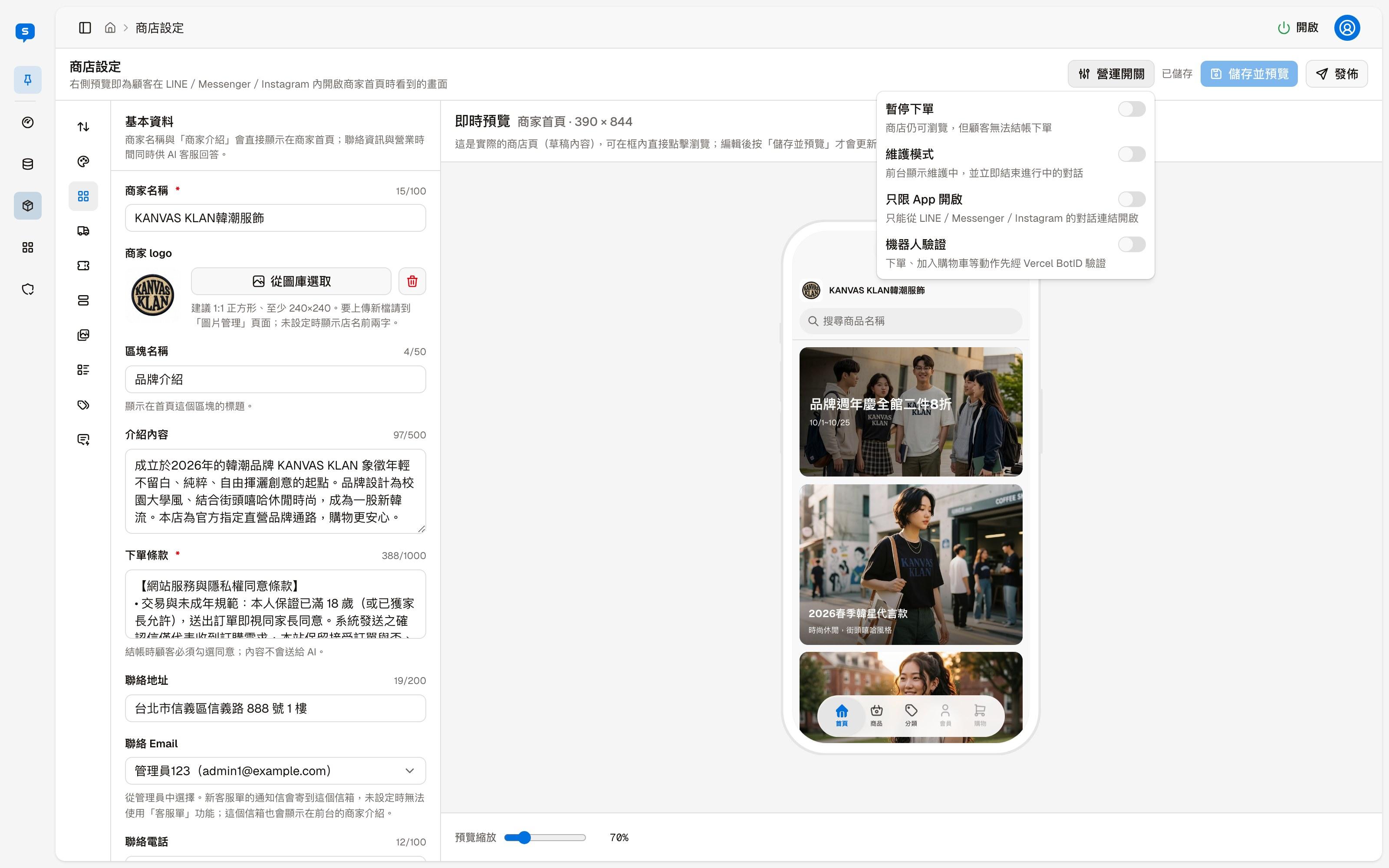
| Switch | When turned on |
|---|---|
| Pause orders | The store can still be browsed, but customers cannot check out |
| Store maintenance | The store page shows a maintenance notice and ongoing conversations end immediately |
| App only | The store page can only be opened from chat links in LINE, Messenger or Instagram |
| Bot check | Actions such as placing orders and adding to the cart go through a bot check first, to block automated programs |
Store maintenance immediately ends every ongoing conversation
Turning on store maintenance does not just close the store page; conversations in progress end as well. If you only want to stop taking orders for a while, use "Pause orders".
Payments & Shipping
The payment and shipping methods customers can choose at checkout — setting up cash on delivery, ATM transfer and LINE Pay, and shipping fees, free shipping and limits
Home page layout
The order and on/off switches of the store home page sections, and the settings for the three content sections — promo banners, photo gallery and product lists