Order rules and coupons
Currency, the free shipping threshold, the shipping and payment methods to offer, order amount and quantity limits, member email and confirmation emails, and adding and managing coupons
This page covers two sections: Order rules decide how customers order and what is checked at checkout; Coupons set the discounts customers can apply at checkout.
Payments and shipping are checked here, and go live after publishing
The Payments & Shipping page only sets up each method's details. For them to appear when customers check out, check them in "Order rules" and click "Publish". Adding, disabling and deleting coupons also take effect only after publishing.
Order rules
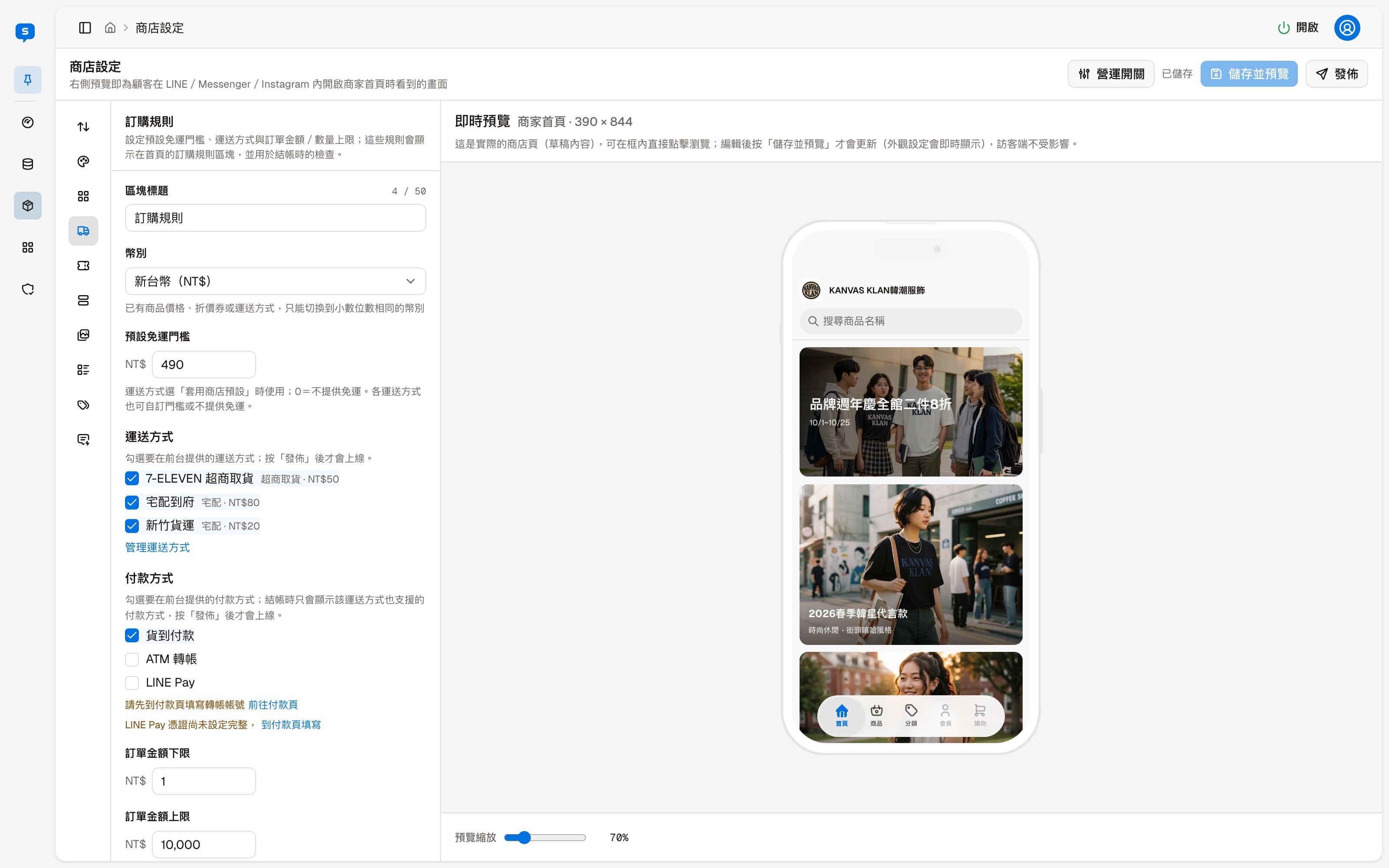
These rules are shown in the "Order rules" section on the home page and are also used for checks at checkout.
| Field | Description |
|---|---|
| Section title | The title of this section on the home page |
| Currency | New Taiwan Dollar, Chinese Yuan, US Dollar, Japanese Yen, Korean Won. Once product prices, coupons or shipping methods exist, you can only switch to a currency with the same number of decimal places |
| Default free shipping threshold | Used when a shipping method's free shipping is set to "Use store default"; 0 means free shipping is not offered |
| Shipping methods | Check the shipping methods to offer customers. "Manage shipping methods" goes to the Shipping tab of Payments & Shipping |
| Payment methods | Check the payment methods to offer customers. At checkout, only payment methods also supported by the customer's chosen shipping method are shown |
Payment methods that are not fully set up yet (for example, ATM transfer without an account number, or incomplete LINE Pay credentials) cannot be checked; a link appears next to them that goes to Payments & Shipping to fill them in.
Order limits and member email
| Field | Description |
|---|---|
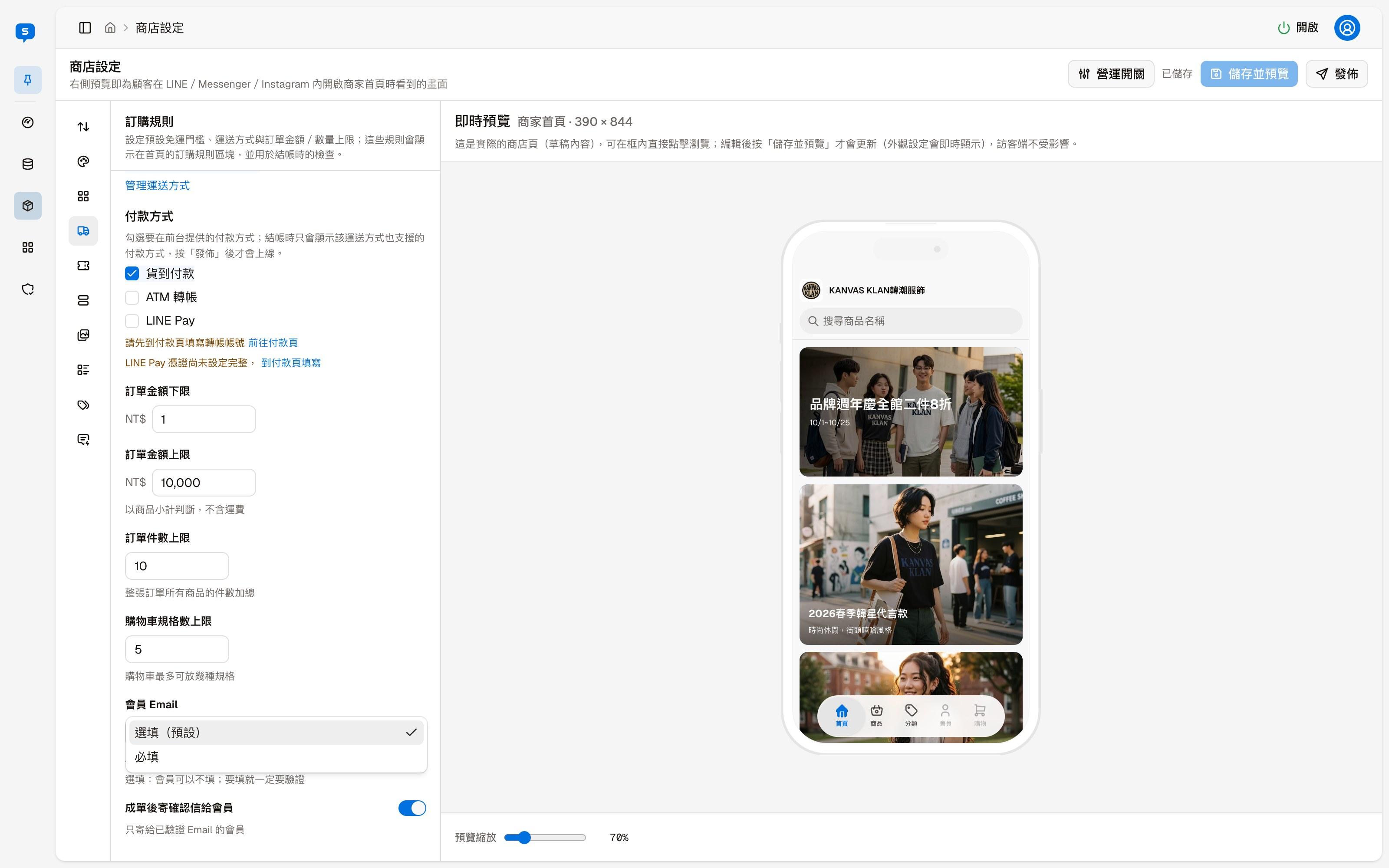
| Order amount minimum, maximum | Compared against the product subtotal, excluding shipping |
| Order quantity limit | The sum of all product quantities in the whole order |
| Cart line limit | The maximum number of distinct variants the cart can hold |
| Member email | Optional (default): members may leave it blank, but if they enter one it must be verified. Required: members without a verified email cannot check out |
| Send a confirmation email after an order is placed | When turned on, a confirmation email is sent to the member when an order is placed. Only sent to members with a verified email |
Coupons
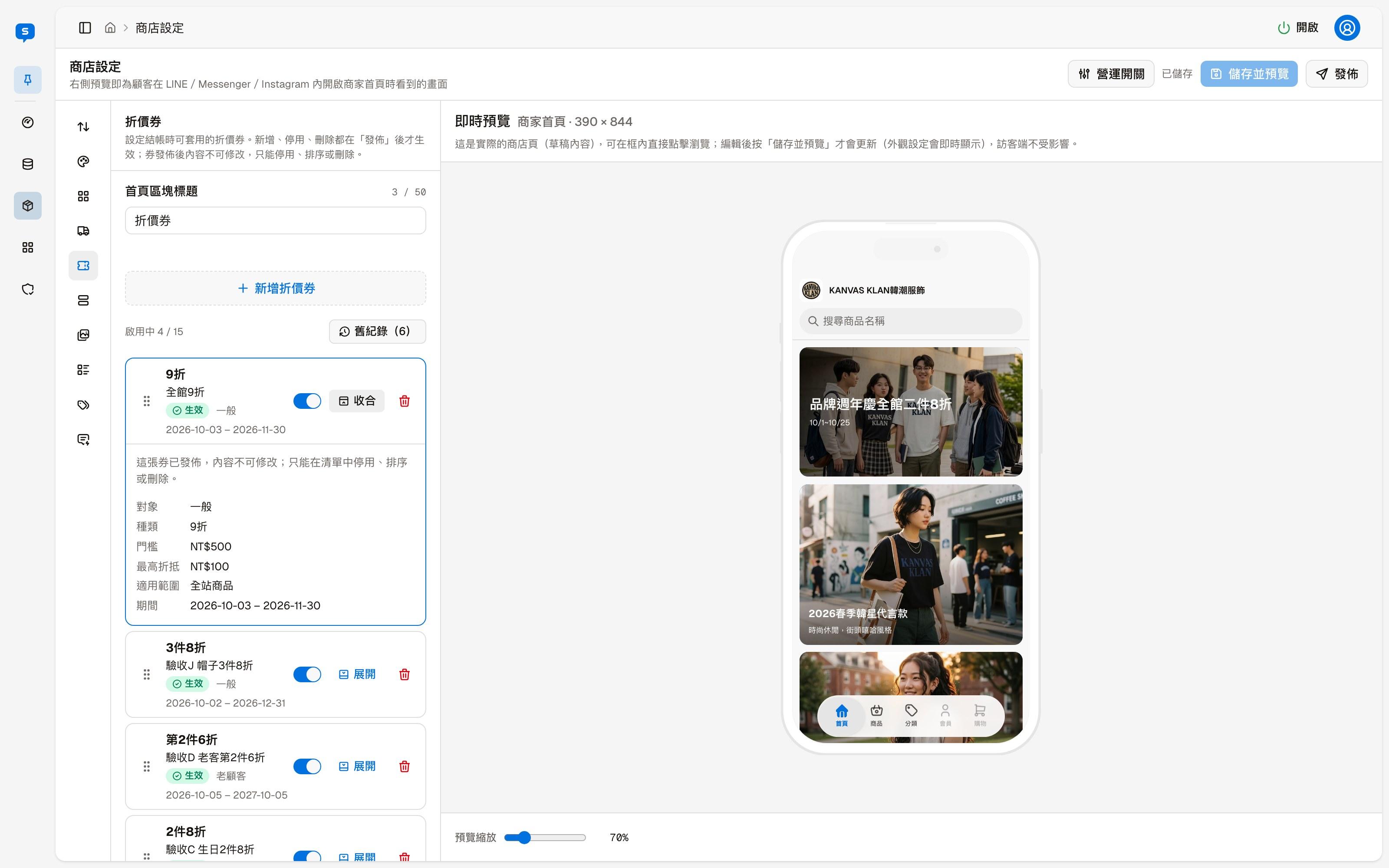
The list shows enabled coupons, up to 15; "Enabled 4 / 15" shows the current count and the limit. "Home section title" is the title of the coupon section on the home page.
When collapsed, each coupon shows the discount, its name, its status ("Active" once published, "Draft" before), the audience and the period:
| Action | Description |
|---|---|
| Drag the handle on the left | Changes the order of the coupons |
| Switch | Enables or disables this coupon |
| Expand | Shows this coupon's content |
| Delete icon | Deletes this coupon after a confirmation dialog |
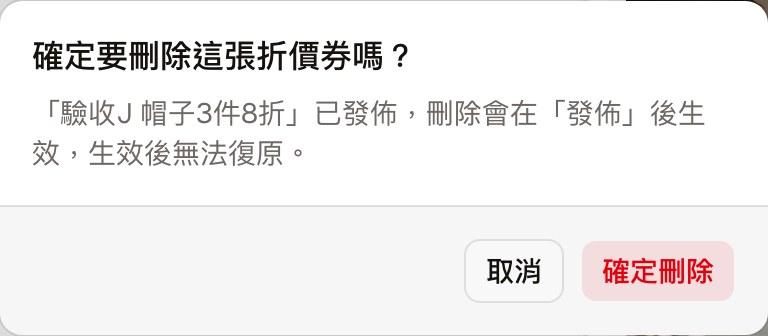
A published coupon does not disappear immediately when deleted: its status changes to "Deleted" with the note "Pending deletion; takes effect on publish" below, and "Restore" cancels the deletion. It is only truly deleted after you click "Publish"; after that it cannot be restored and only appears in "History".
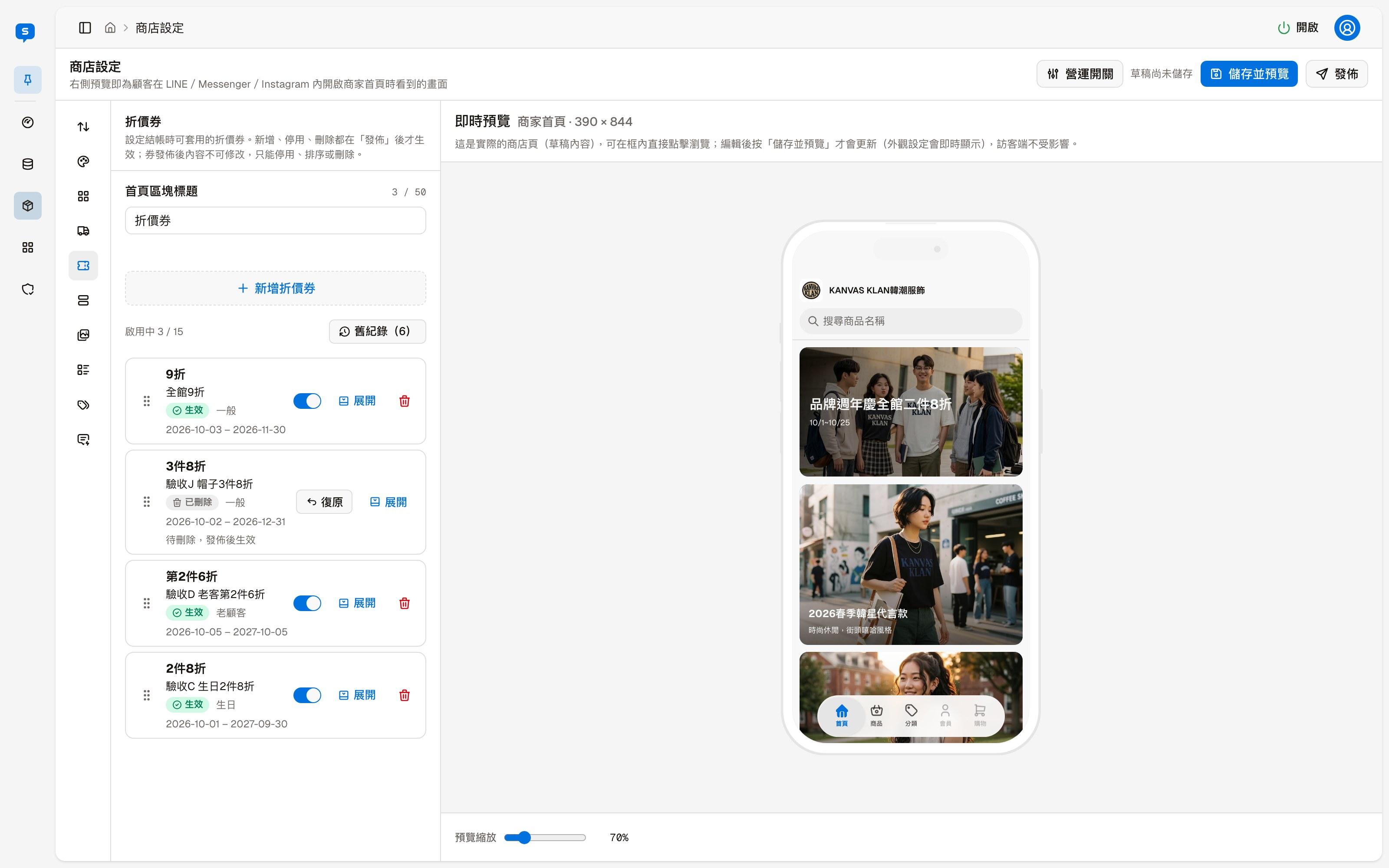
A coupon's content cannot be changed after it is published
A published coupon can only be disabled, reordered or deleted; its discount, minimum subtotal, period and other content can no longer be changed. To change the conditions, add a new coupon and then disable or delete the old one.
Add coupon
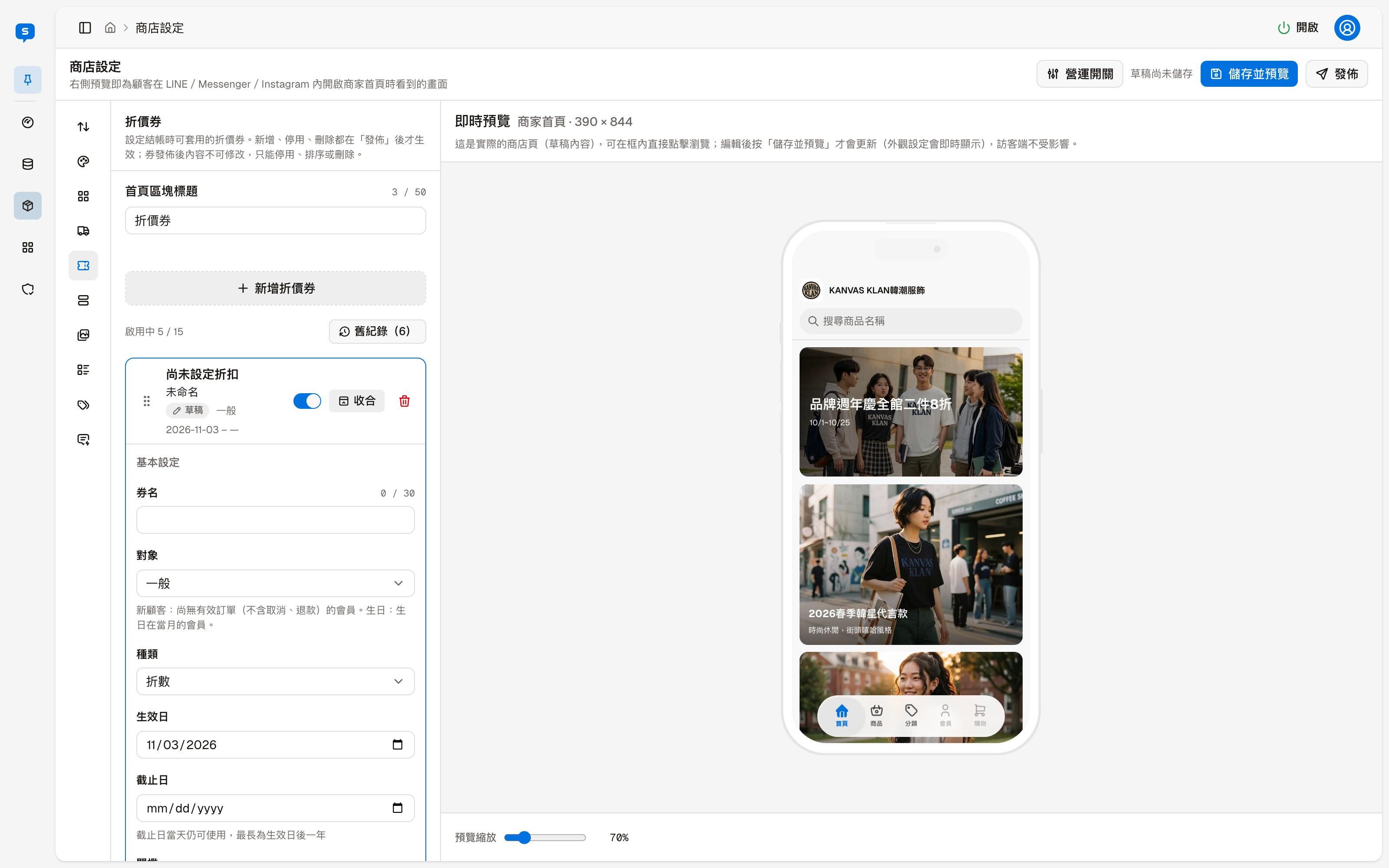
Click "Add coupon", and a coupon in the Draft state appears at the top of the list. Expand it and fill it in:
| Field | Description |
|---|---|
| Name | The coupon's name, for example "10% off everything" |
| Audience | Everyone, New customers, Returning customers, Birthday. New customers are members with no valid orders (cancelled and refunded orders excluded); Birthday means members whose birthday is in the current month |
| Type | Rate, Amount, 2 items ○% off, 3 items ○% off, 2nd item ○% off |
| Start date, End date | The coupon can still be used on the end date; the period can be at most one year after the start date |
| Minimum subtotal | The whole order's product subtotal before discounts must reach this amount for the coupon to be used |
| Applies to | All products, or one specific tag so that only products with that tag qualify |
| Discount | Filled in according to the type. A rate is 1.0 to 9.9 (the share of the price the customer pays, in tenths), and you can also pick from "Common rates" |
| Maximum discount | The most this coupon can take off one order |
History
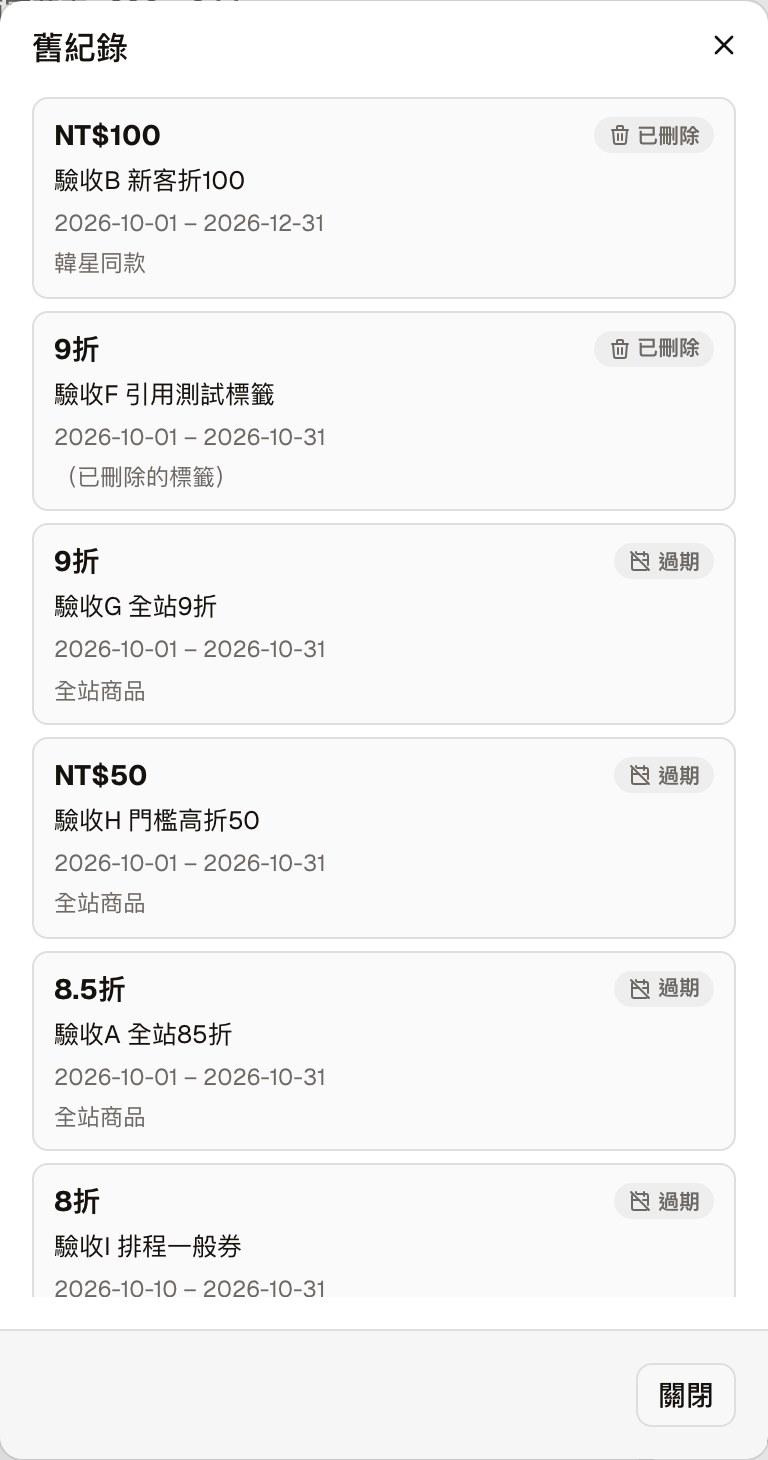
"History" lists coupons that have expired or been deleted, marked "Expired" or "Deleted" at the top right; they can only be viewed. When a tag a coupon applied to is later deleted, it shows "(deleted tag)".
Profile
The merchant name, logo, introduction, order terms, contact information, opening hours, and the help categories for the store page chat
Tags and store categories
Managing tags and store categories together — adding, renaming, deleting and reordering, and whether to show a tag as a store category