Store orders
Orders customers place on the store page — the list and filters, order details, changing the status and tracking number, notifying customers, exporting and printing, and the order number format
Store orders holds every order customers place on the store page. Here you can view an order's content, update its status and tracking number, and notify the customer.
This page only appears on store sites.
What to know when handling an order
- After changing the order status or tracking number, click "Save changes" to save them
- Notifying the customer is manual: "Send LINE notice" only works for orders placed from LINE; "Send email notice" only works for paid or shipped orders
- Only cancelled or refunded orders can be deleted. Every action is kept in the order's audit log
Order list
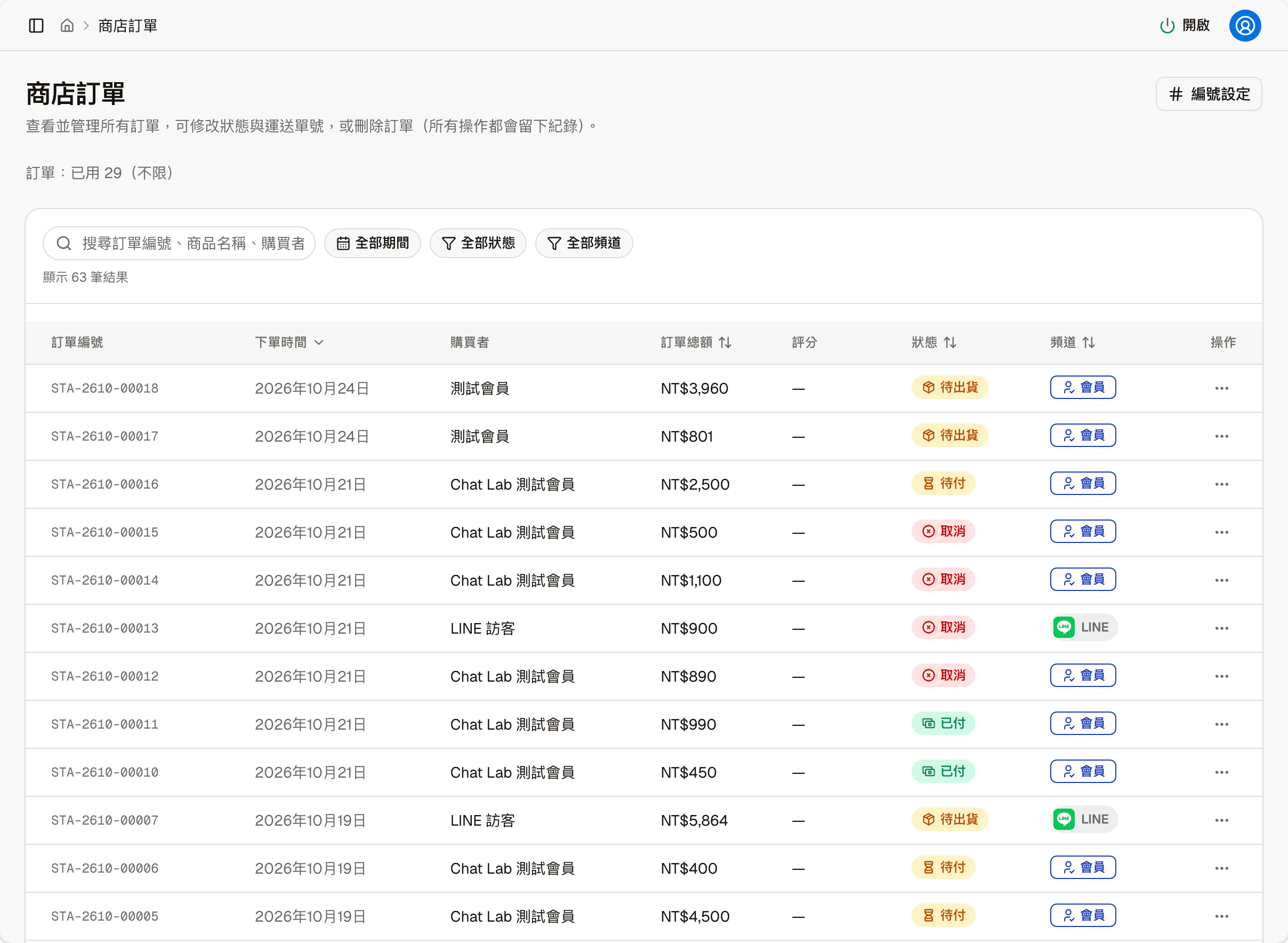
"Orders: N used" above the list relates to your plan's order limit; see Subscription.
| Column | Shows |
|---|---|
| Order No. | The number generated by the "Order number" setting |
| Ordered at | The date the order was placed |
| Buyer | The visitor who placed the order |
| Order total | The amount including shipping and discounts |
| Rating | The customer's rating of this order; "—" if there is none |
| Status | The order's current status |
| Channel | The channel the customer entered the store from: Anonymous, Member, LINE, Messenger, Instagram |
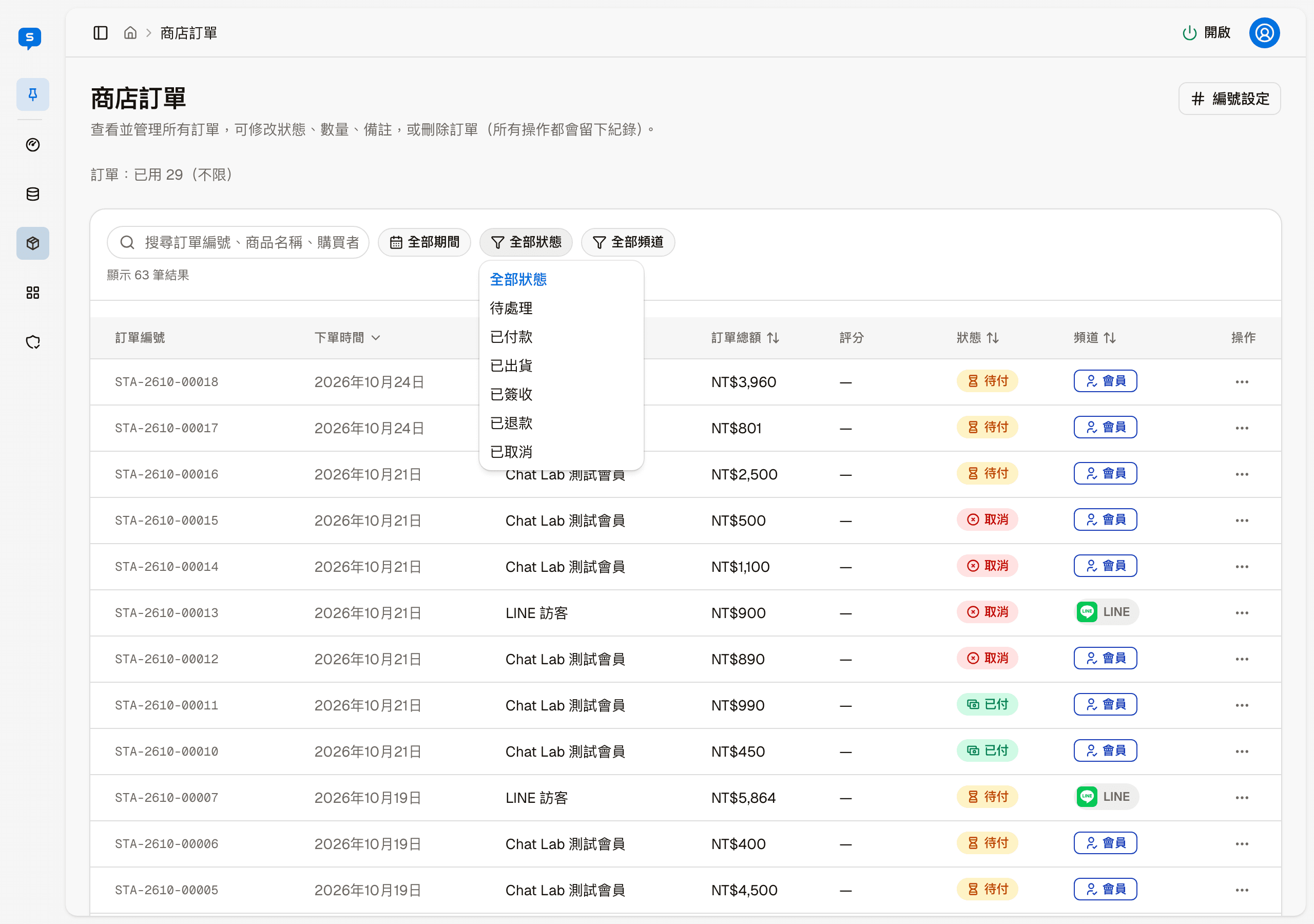
At the top you can search by order number, product name or buyer, and filter by period, status and channel. Ordered at, Order total, Status and Channel can be sorted. "More actions" on each row only has "View details", which opens that order's details page.
There are six order statuses: Pending, Paid, Shipped, Received, Refunded and Cancelled. The status tags in the list and details page use short labels: a pending cash-on-delivery order shows "Awaiting shipment", and a pending ATM transfer or LINE Pay order that has not been paid shows "Pending".
Order details
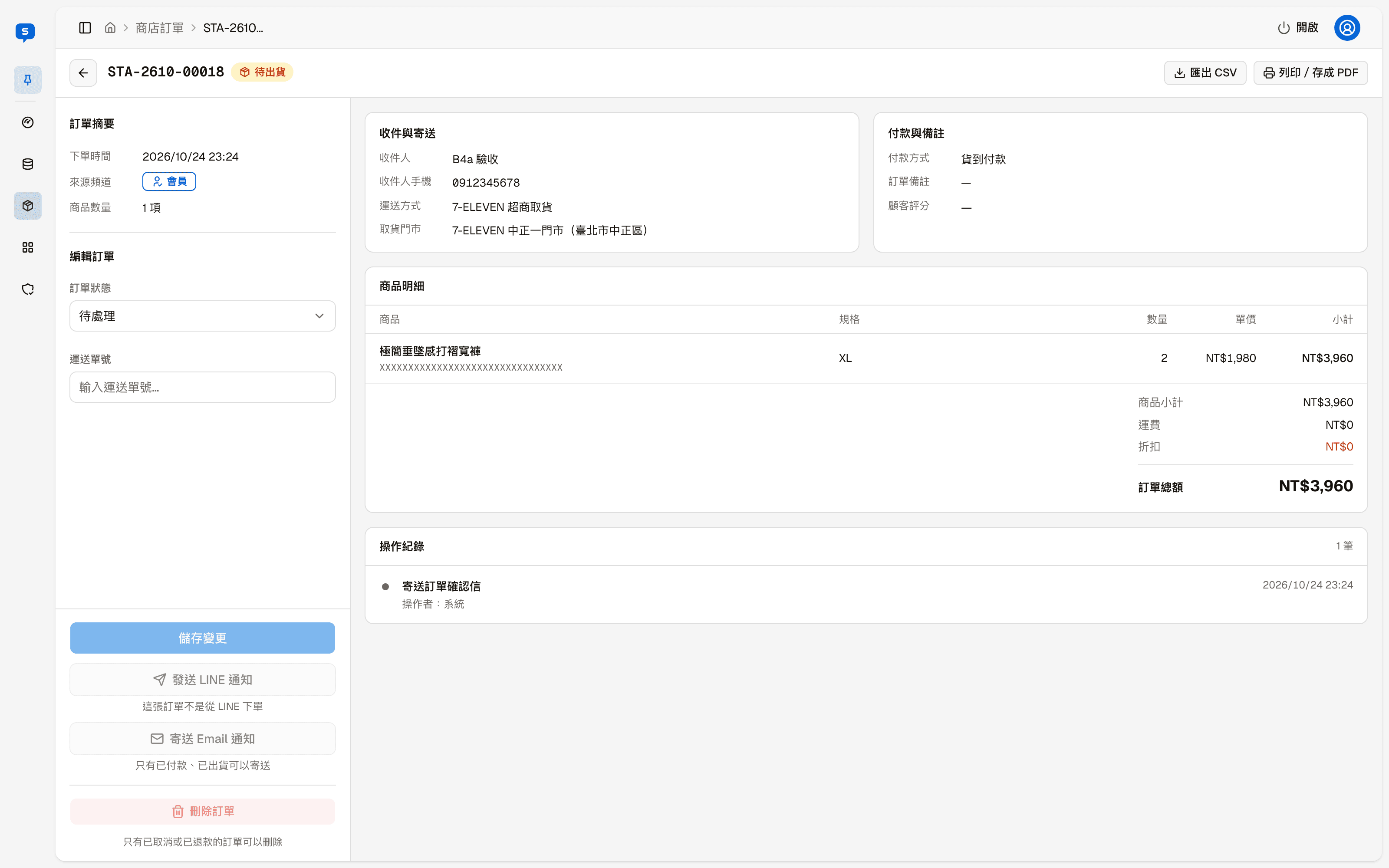
The header shows the order number and status; the arrow at the top left goes back to the order list. There are two buttons at the top right:
| Button | What it does |
|---|---|
| Export CSV | Exports this order as a CSV file |
| Print / Save as PDF | Opens this order's print page, where you can print it or save it as a PDF from the browser |
The left side has the order summary (ordered time, channel, number of items) and what you can change:
| Item | Description |
|---|---|
| Order status | Change it to Pending, Paid, Shipped, Received, Refunded or Cancelled |
| Tracking No. | Enter the shipping tracking number |
| Save changes | Saves changes to the two items above |
| Send LINE notice | Notifies the customer about this order with a LINE message. Not available for orders not placed from LINE |
| Send email notice | Emails the customer. Only available for paid or shipped orders |
| Delete order | Deletes this order. Only cancelled or refunded orders can be deleted |
When a button cannot be used, the reason is shown below it.
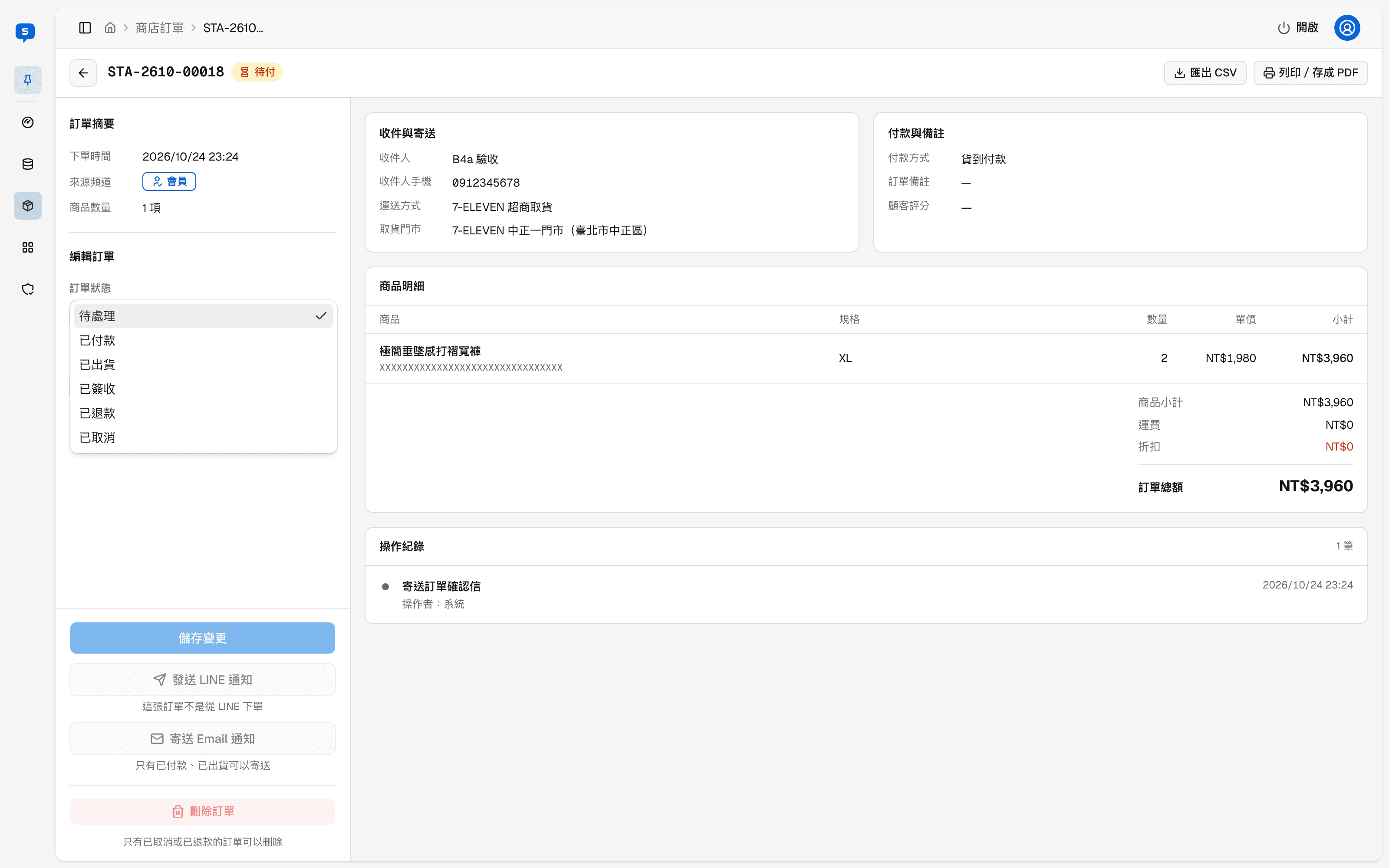
The right side is the order content:
- Recipient & shipping: the recipient, mobile number, shipping method, and the pickup store or delivery address
- Payment & notes: the payment method, the customer's order notes, and the customer's rating
- Items: each item's specification, quantity, unit price and subtotal, plus shipping, discounts and the order total
- Audit log: what has happened to this order, such as sending the order confirmation email, and who did what and when
Print page
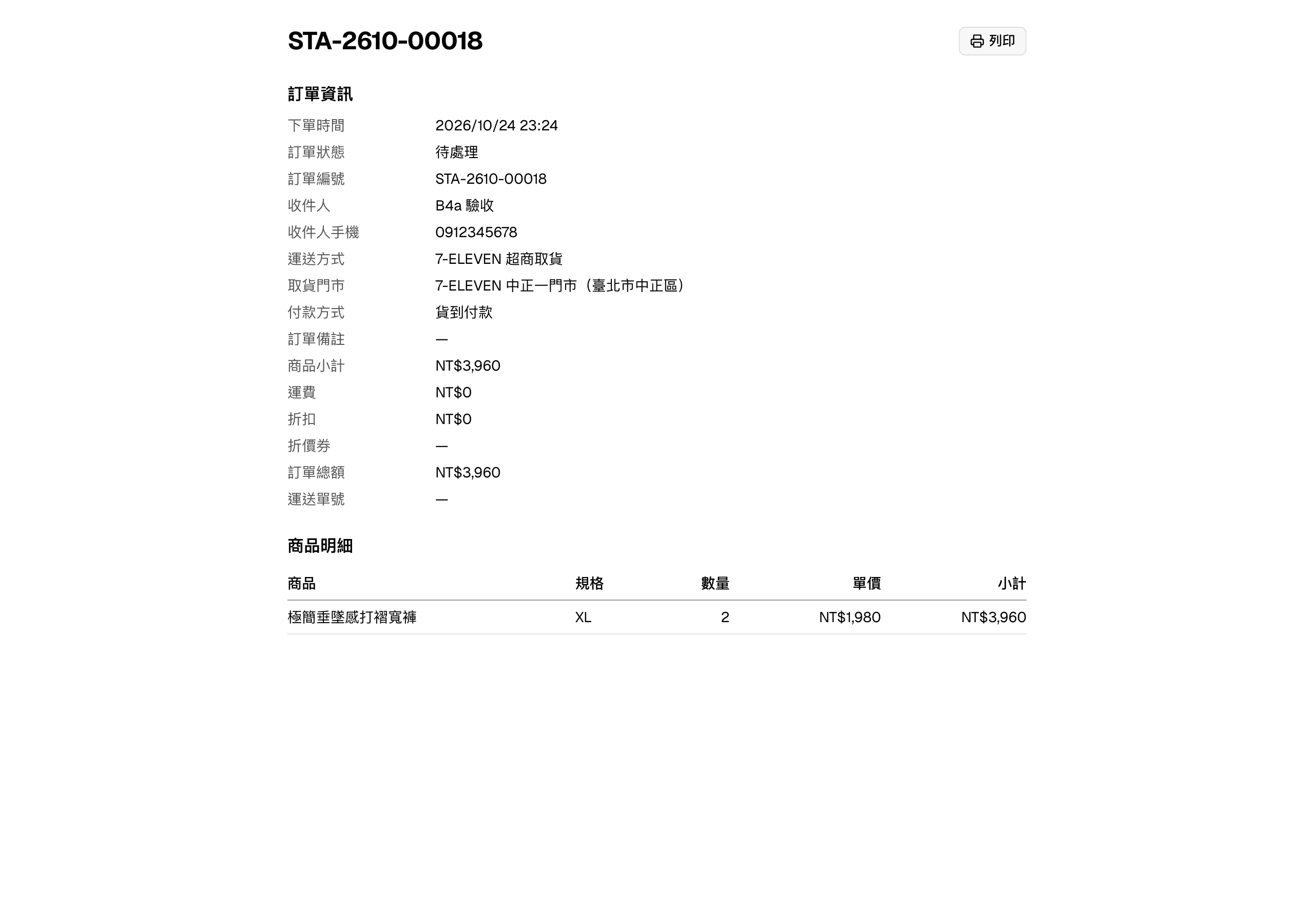
The print page lays out the order information and items. Click "Print" at the top right to open the browser's print dialog.
Order number format
Click "Order number" at the top right of the list to set the format of order numbers from now on:
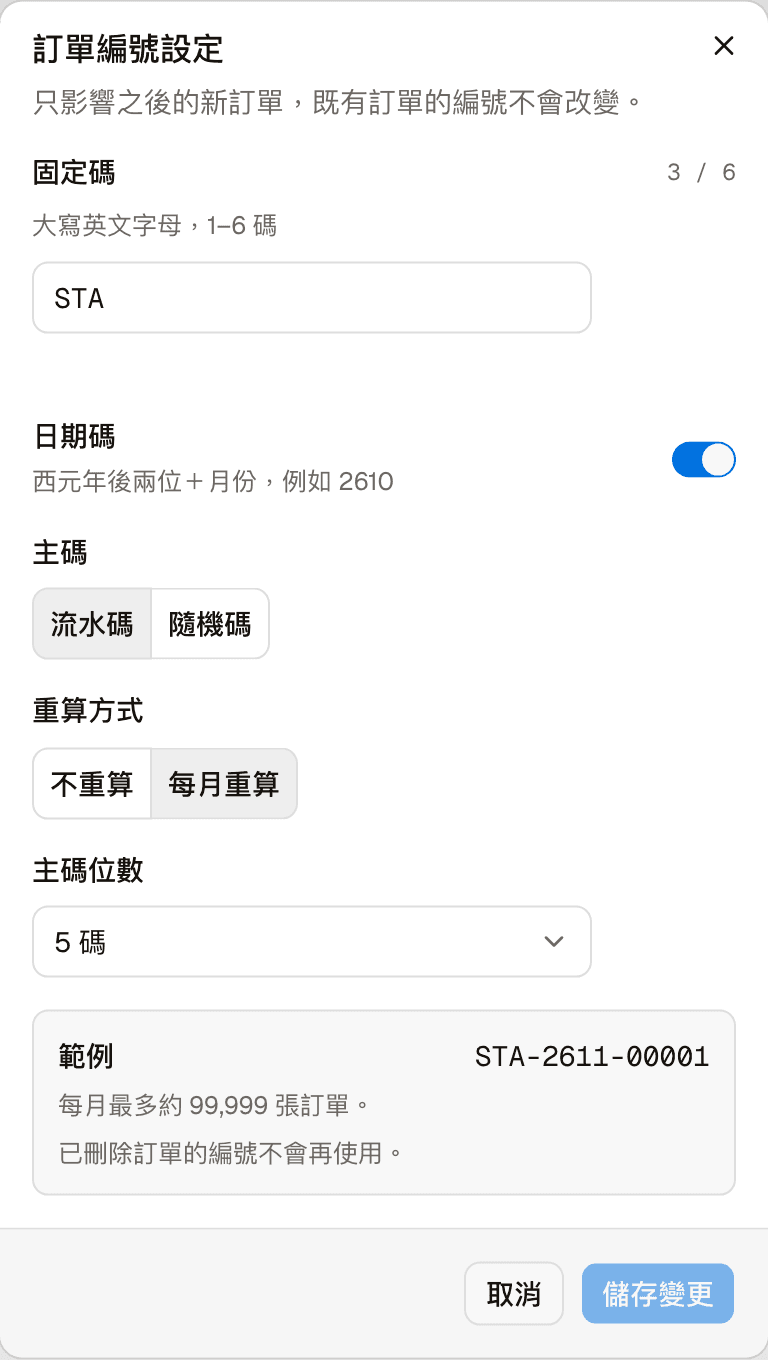
| Setting | Description |
|---|---|
| Prefix | 1–6 uppercase letters at the start of the number |
| Date code | The last two digits of the year plus the month, for example 2610 |
| Number | Sequential (counting up) or Random |
| Reset | Whether the sequential number restarts each month: Never or Monthly |
| Number length | The length of the number; it decides how many orders you can have each month |
"Example" below shows a number generated with the current settings. Click "Save changes" to apply.
The format only affects new orders from now on
Existing order numbers do not change, and the numbers of deleted orders are never reused.