Payments & Shipping
The payment and shipping methods customers can choose at checkout — setting up cash on delivery, ATM transfer and LINE Pay, and shipping fees, free shipping and limits
This page sets the payment and shipping methods customers can choose at checkout on the store page. It has two tabs: "Payments" and "Shipping".
On store sites it is called "Payments & Shipping"; guesthouse sites only have payments, and it is called "Payments".
What you save here is a draft; it goes live only after you check it and publish in Store settings
Changes to payments and shipping do not go live directly. After setting them up here, go to "Order rules" in Store settings, check the payment and shipping methods to offer, and click "Publish" before customers can see them. "Go to store settings" on the page takes you straight there.
Payments
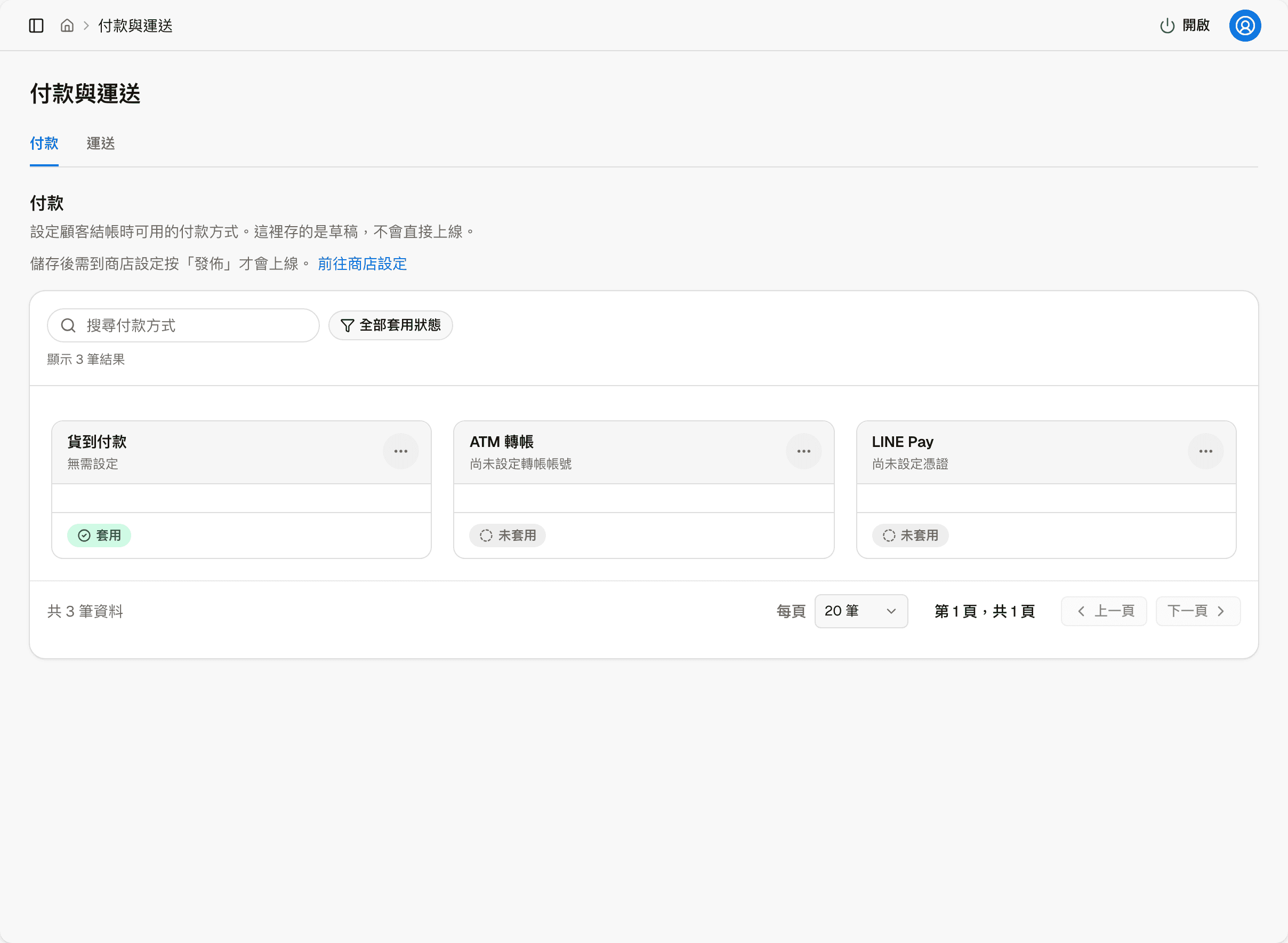
There are currently three payment methods. Each row shows its setup status (for example "Transfer account not set up") and whether it is applied (checked in Store settings). You can filter by apply status at the top. "More actions" on each row only has "Edit", which opens that payment method's settings page.
| Payment method | What to set up |
|---|---|
| Cash on delivery | Nothing; check it in "Order rules" in Store settings to enable it |
| ATM transfer | The bank account to transfer to |
| LINE Pay | The credentials of your LINE Pay merchant account |
The settings page has "Discard changes" and "Save changes" at the top right.
ATM transfer
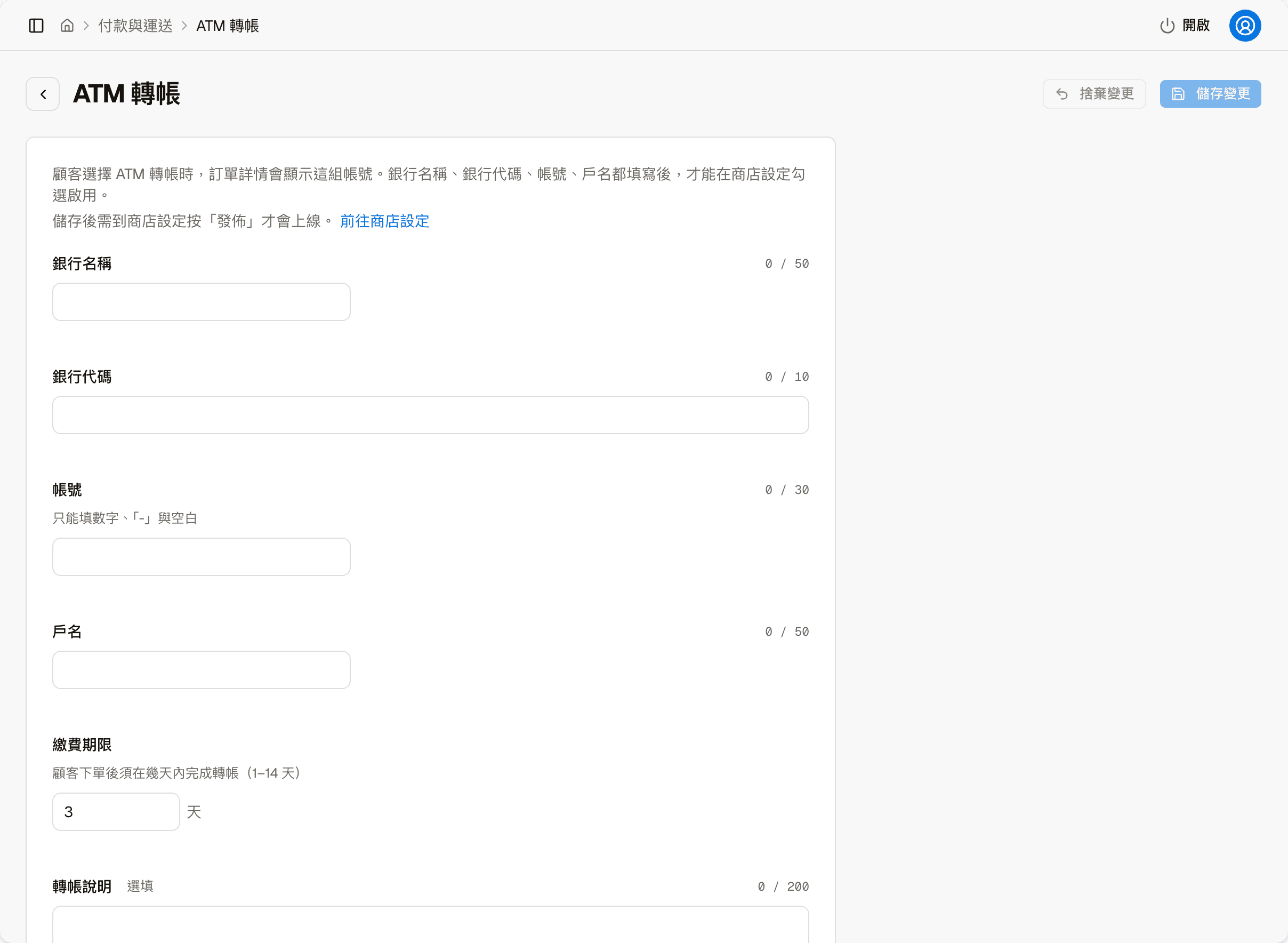
When a customer chooses ATM transfer, the order details show this account.
| Field | Description |
|---|---|
| Bank name, Bank code | The receiving bank |
| Account number | Only digits, "-" and spaces |
| Account holder | The name on the receiving account |
| Payment deadline | How many days the customer has to make the transfer after ordering, 1–14 days |
| Transfer note | Optional; extra instructions for the customer |
Only after Bank name, Bank code, Account number and Account holder are all filled in can you check it in Store settings to enable it.
LINE Pay
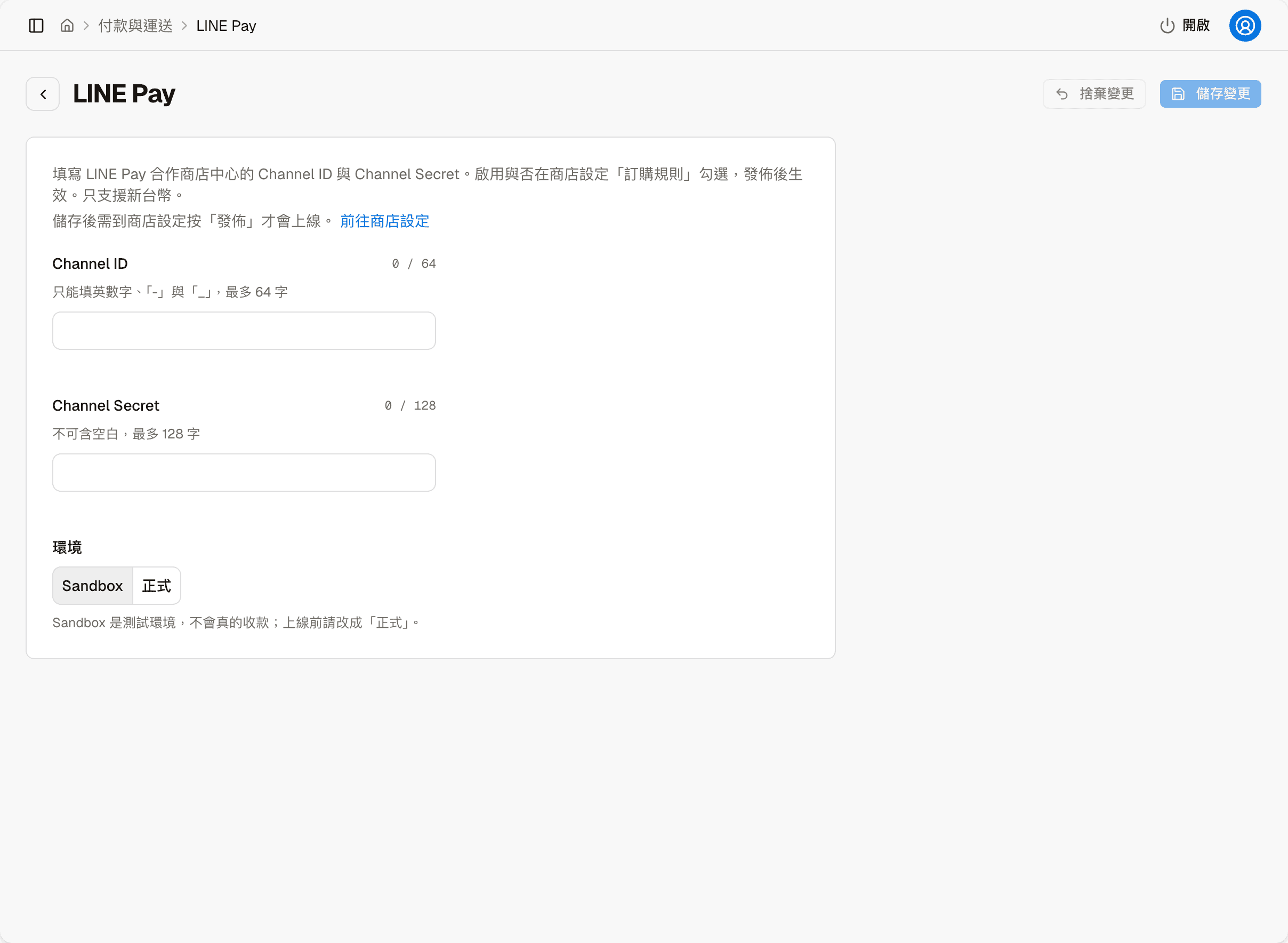
| Field | Description |
|---|---|
| Channel ID, Channel Secret | The two credentials provided by the LINE Pay merchant center |
| Environment | Sandbox is LINE Pay's test environment and does not actually collect money; Production collects real payments |
LINE Pay only supports New Taiwan dollars. Get the Channel ID and Channel Secret from the LINE Pay merchant center; if you are not a LINE Pay merchant yet, apply to LINE Pay first.
Cash on delivery
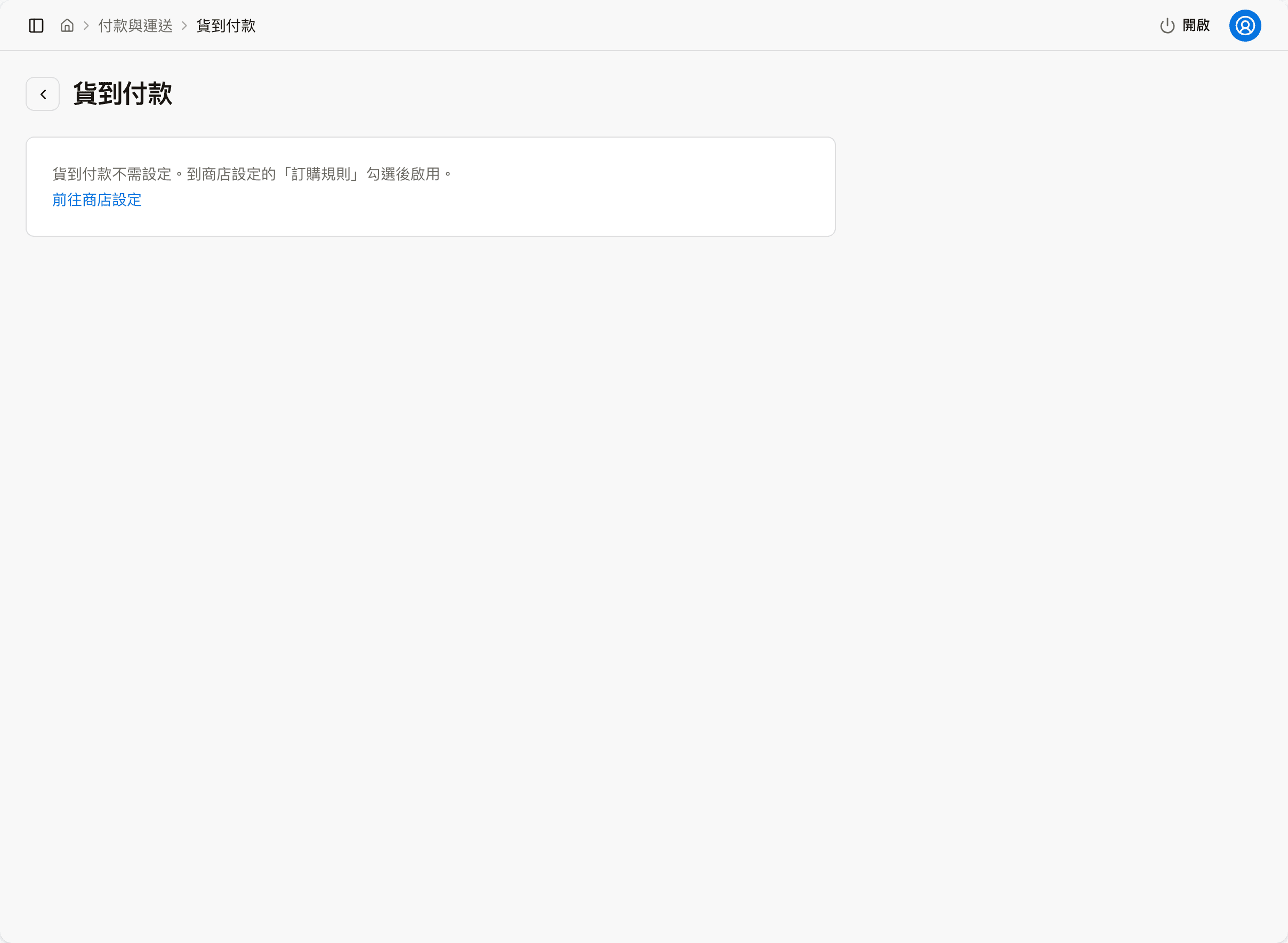
Cash on delivery has no fields to set up; the page only has "Go to store settings".
Shipping
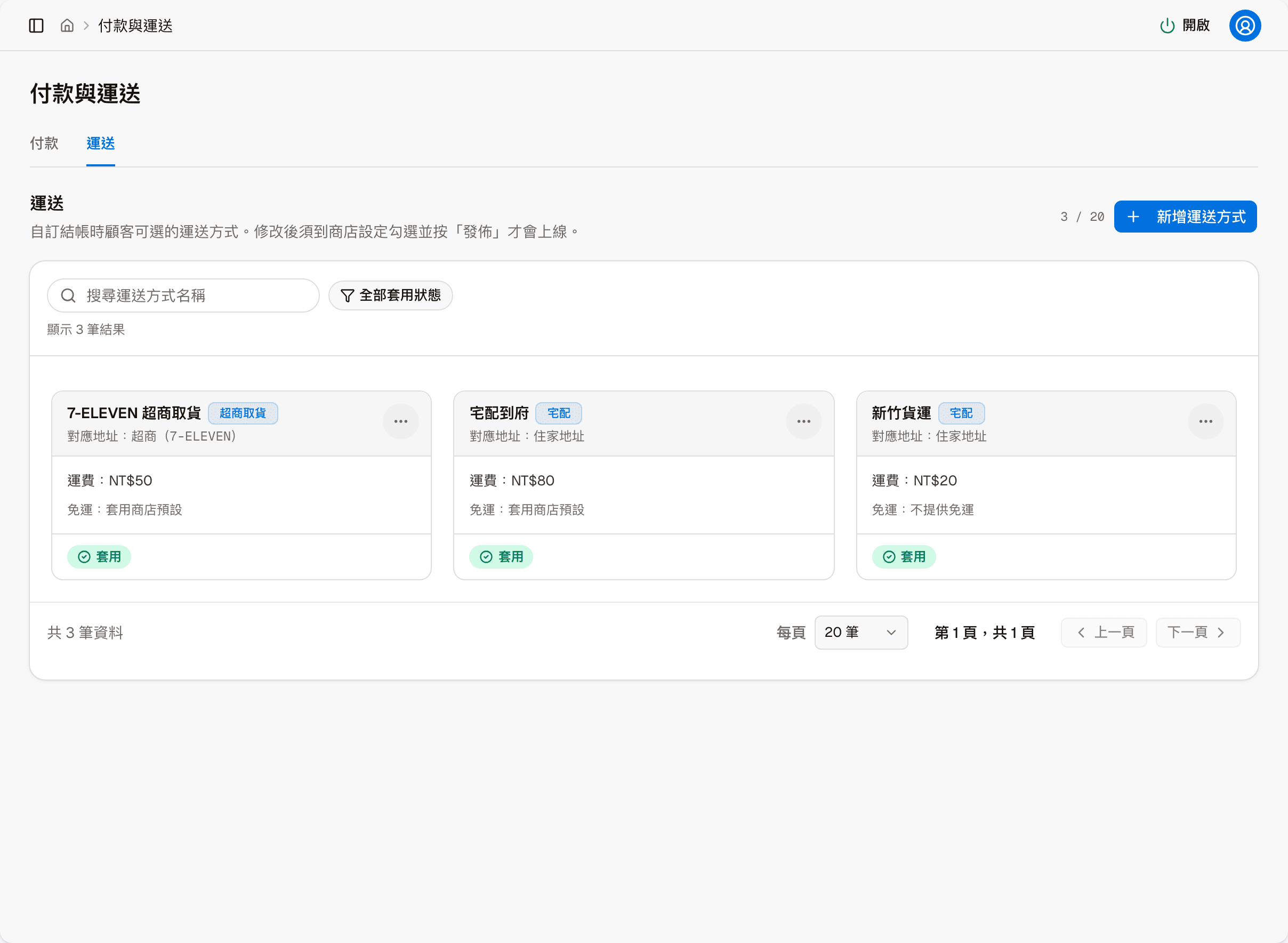
Each row is one shipping method: its name, logistics type (home delivery or convenience store pickup), the matching address type, the fee, the free shipping condition and the apply status. "Add shipping method" at the top right adds one. "More actions" on each row has four items:
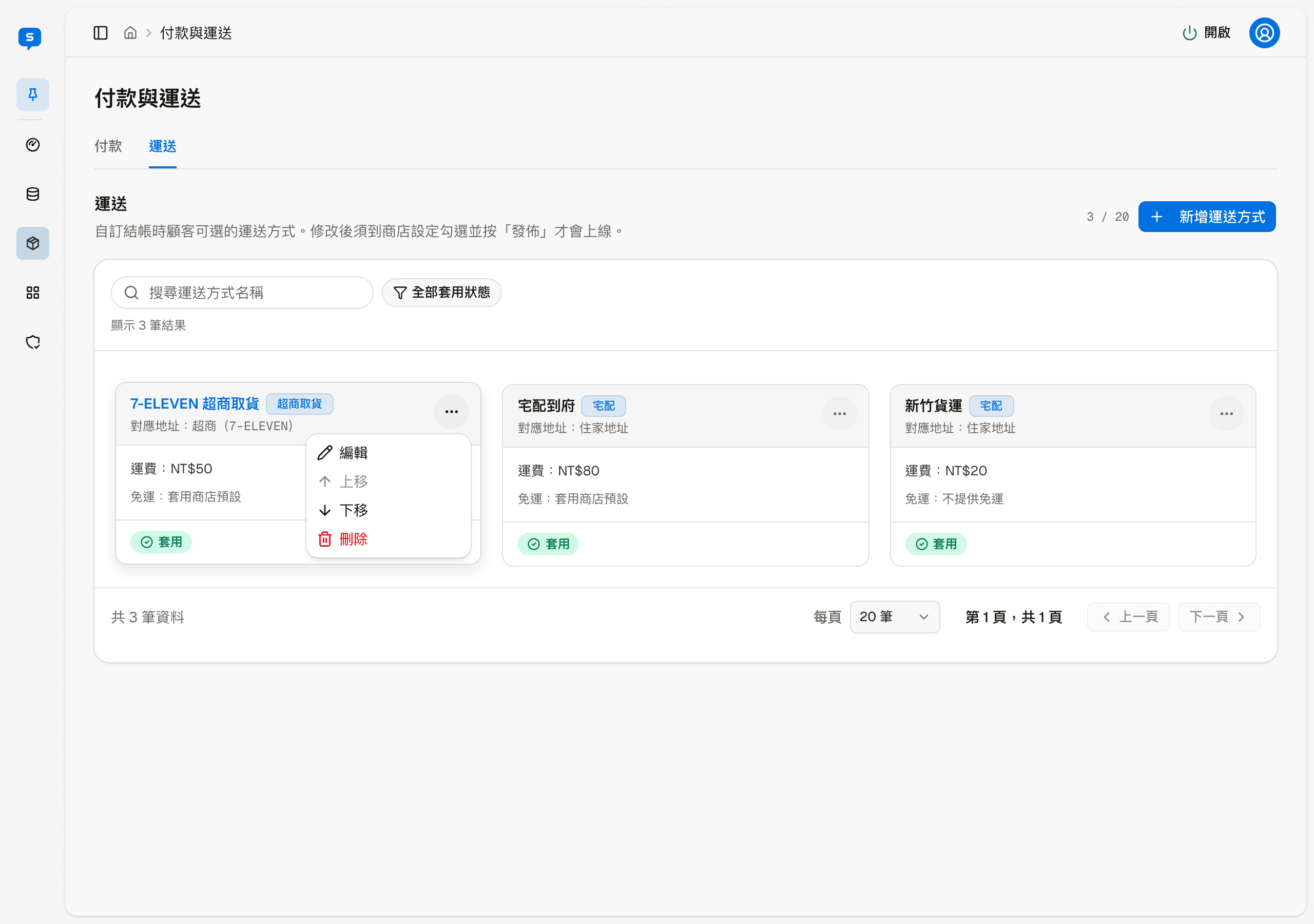
| Item | What it does |
|---|---|
| Edit | Opens this shipping method's settings page |
| Move up, Move down | Change the order of the shipping methods |
| Delete | Deletes this shipping method |
Shipping method settings
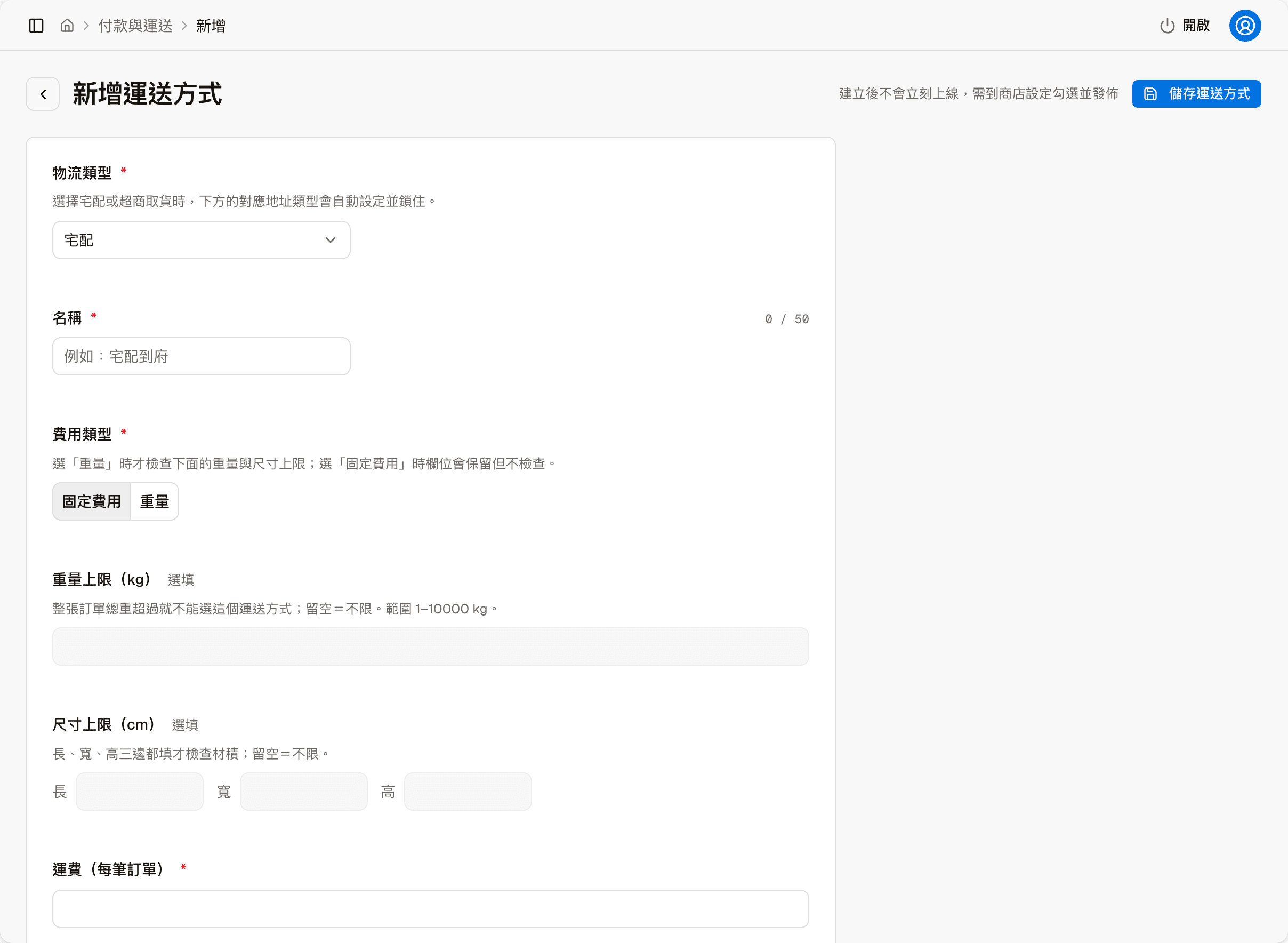
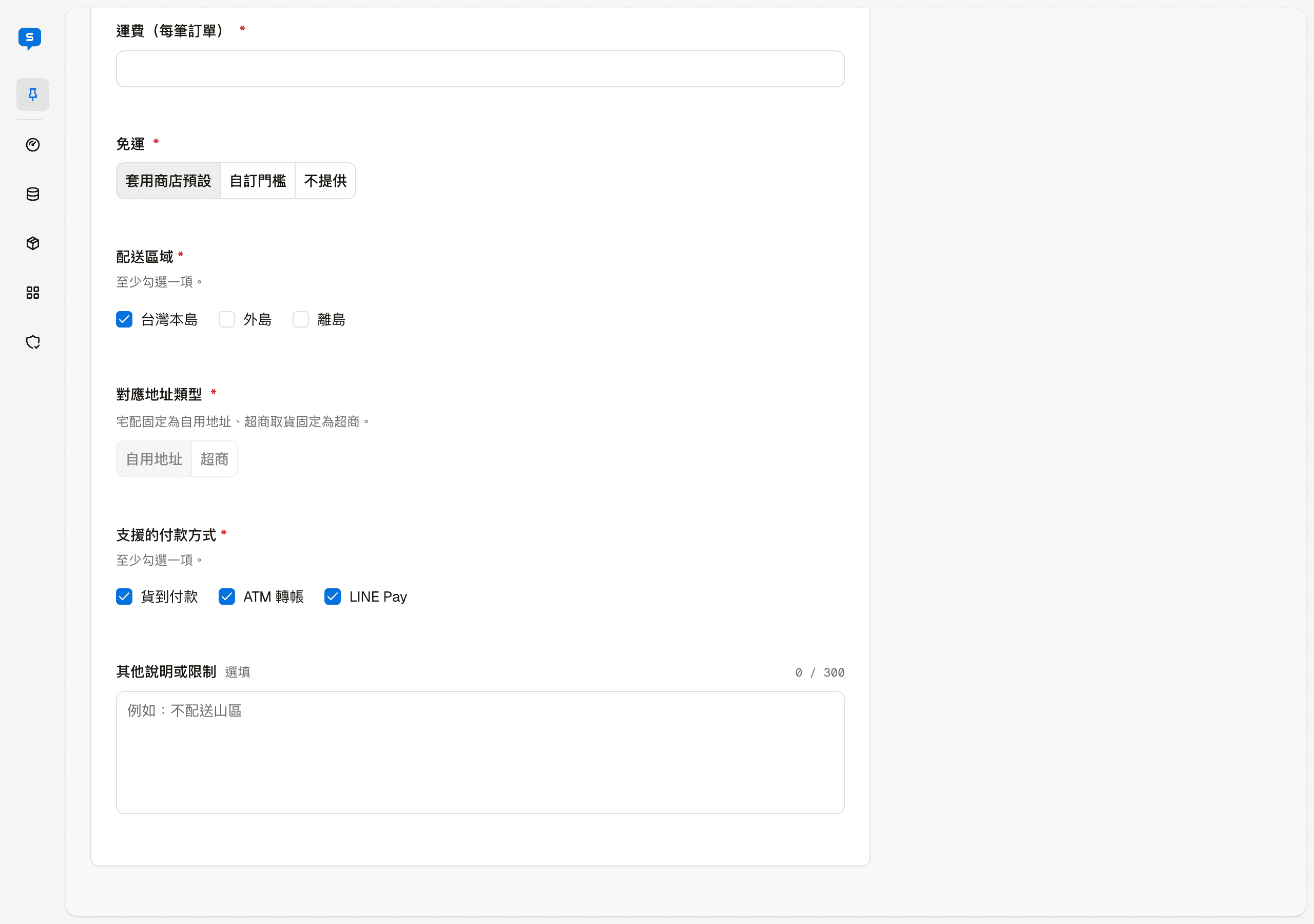
Adding and editing use the same screen. A new shipping method does not go live right away either; check it in Store settings and publish.
| Field | Description |
|---|---|
| Logistics type | Home delivery or Convenience store pickup. Once chosen, "Address type" below is set automatically and locked |
| Name | The name customers see at checkout, for example "Home delivery" |
| Fee type | Flat fee or Weight. The weight and size limits below are checked only when you choose "Weight" |
| Weight limit, Size limit | Optional. When the order's total weight or volume exceeds them, customers cannot choose this shipping method; leave empty for no limit |
| Fee (per order) | The shipping fee charged per order |
| Free shipping | Use store default (the default free shipping threshold from "Order rules" in Store settings), Custom threshold, or None |
| Delivery regions | Taiwan main island, Outlying islands, Offshore islands; check at least one |
| Address type | Home address or Convenience store, decided by the logistics type. Convenience store pickup also needs a convenience store brand |
| Supported payment methods | Which payment methods can be used with this shipping method; check at least one |
| Other notes or restrictions | Optional, for example "No delivery to mountain areas" |
Product weight and size are filled in under "Shipping specs" in the product editor.
Support requests
Issues members raise on the store page — the list and filters, viewing a request, replying to the member with an email notice, and updating the status
Overview
Where the store page's content and appearance are set — the screen layout, the difference between Save and preview and Publish, and the operations switches