Editor
A product's four sections — Basic details, Photo gallery, Options & Inventory and FAQ — and the read-only and edit modes
Open it from the product list with "More actions → Edit". The screen has three columns: the left switches between the four edit sections and shows the current status, the middle shows the section's content, and the right is the store page preview, which shows the saved content.
A listed product must be unlisted before it can be changed
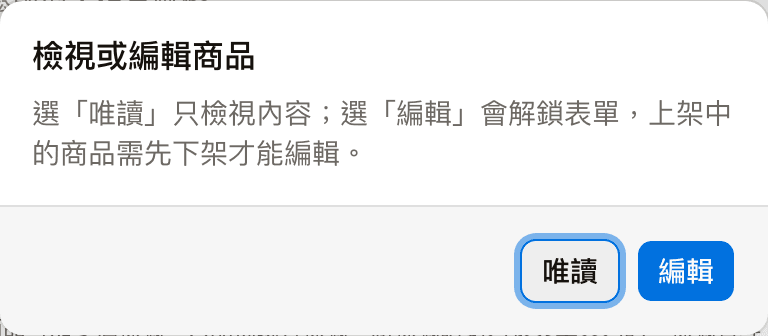
- When you open the editor, you are asked whether you want "Read-only" or "Edit": Read-only only shows the content; Edit unlocks the form
- A listed product must be unlisted before it can be edited. After making changes, list it again so the store page and the AI see the new content
- If you chose Read-only and then want to make changes, click "Unlock and edit" at the top right
Current status at the bottom left lists the visibility (Listed / Unlisted), the sync status (whether the content the AI uses has been synced), the number of tags, available and total stock, and the last saved time, created time and product ID.
Basic details
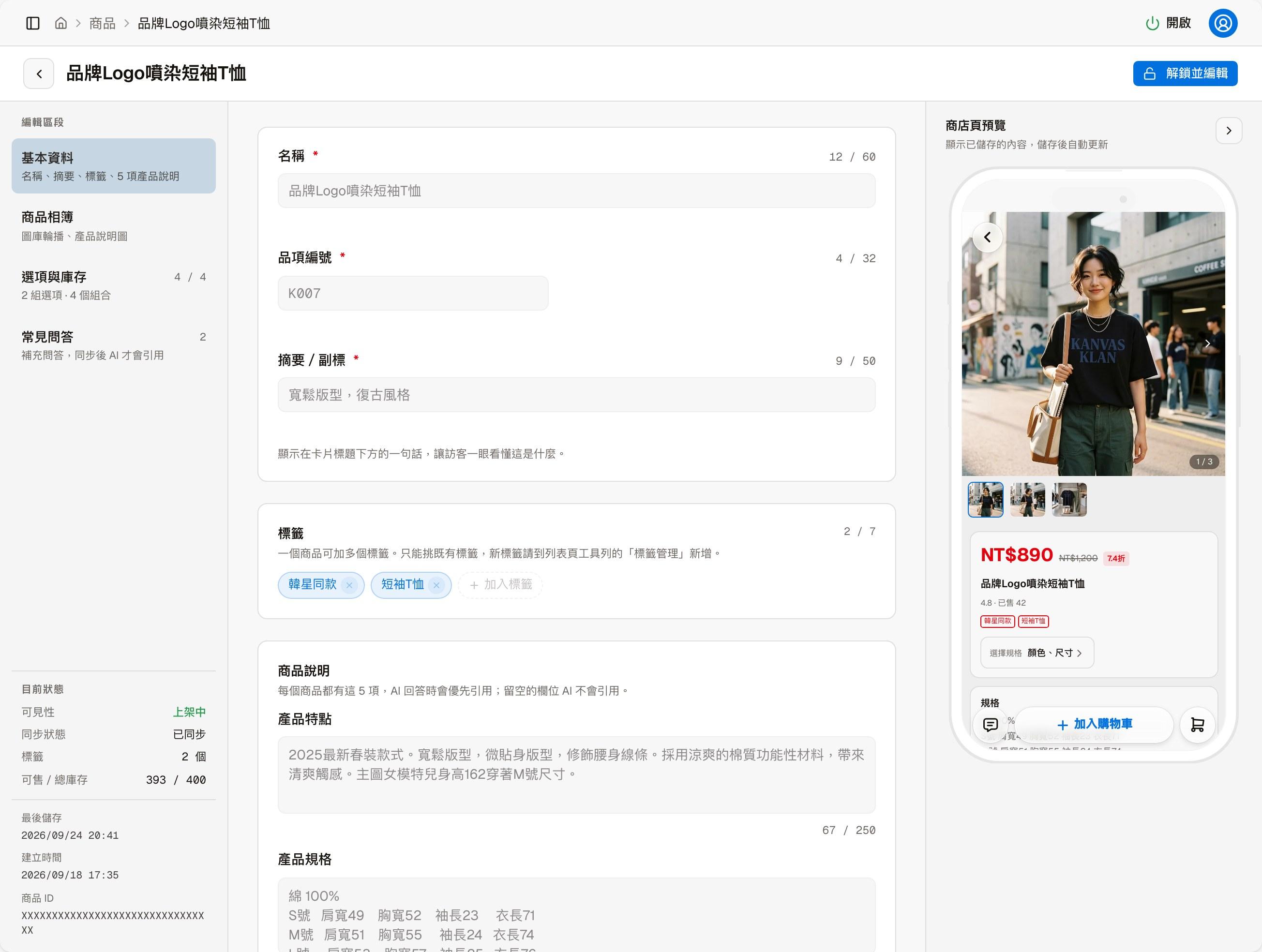
| Field | Description |
|---|---|
| Name | Required, up to 60 characters |
| Item code | Required; your own product code, for example K007 |
| Summary / subtitle | Required; one sentence shown under the product card's title so visitors understand at a glance what it is |
| Tags | Up to 7 tags per product. Only existing tags can be chosen; add new tags in "Tags and store categories" in Store settings |
| Product description | Product features, Product specs, Usage, Precautions and Shelf life, up to 250 characters each |
The product description is the AI's main source
The AI prioritizes these 5 product description fields when answering, and does not use the ones left empty. Write what visitors often ask about into the matching field.
Photo gallery
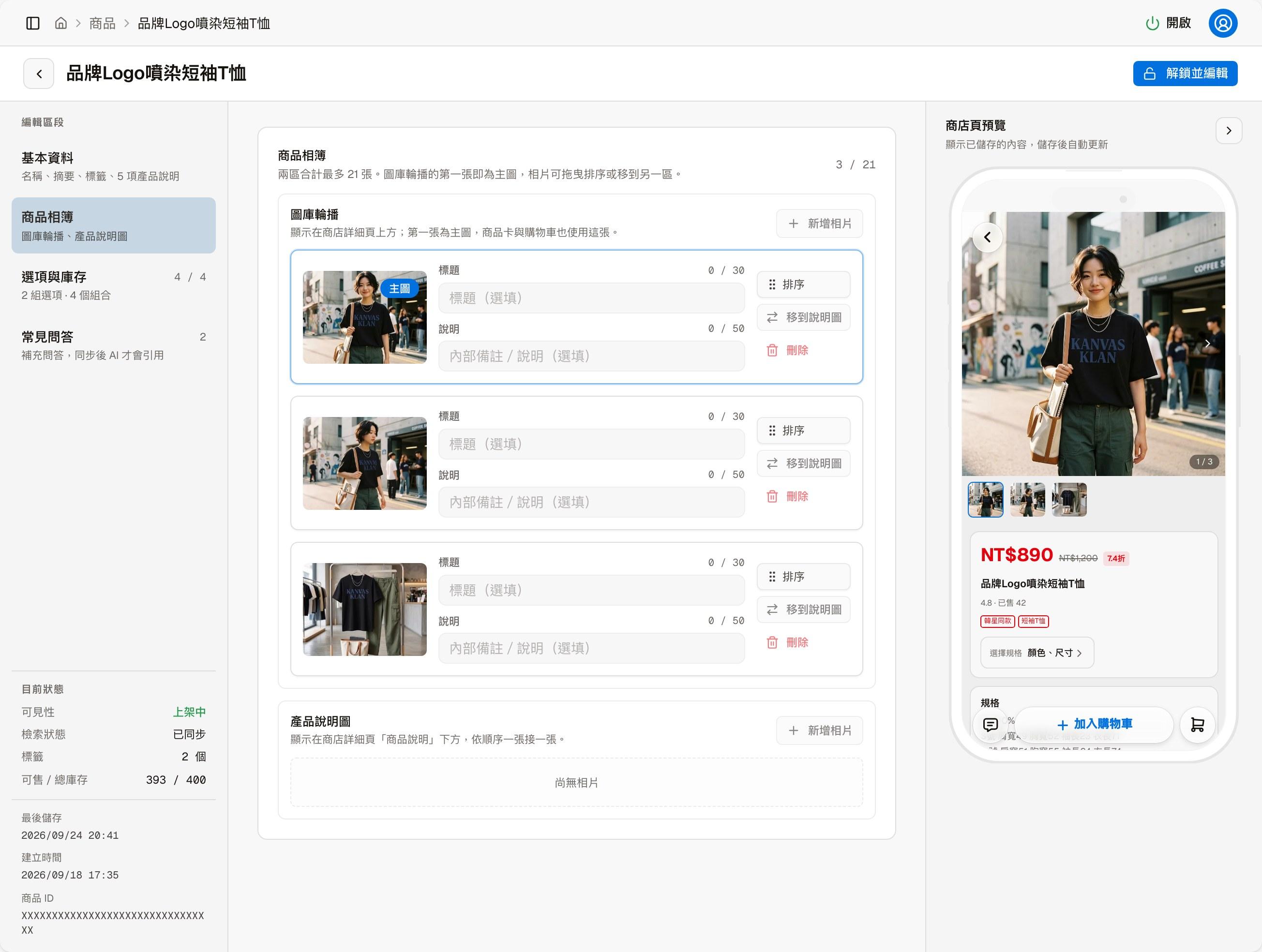
The gallery has two areas, with up to 21 photos in total:
| Area | Where it appears |
|---|---|
| Carousel gallery | The carousel at the top of the product details page. The first photo is the main image, also used for the product card and the cart |
| Description photos | Below "Product description" on the product details page, one after another in order |
Click "Add photos" to add photos. Each photo can have a title and description, be dragged to reorder, be moved to the other area, or be deleted.
Options & Inventory
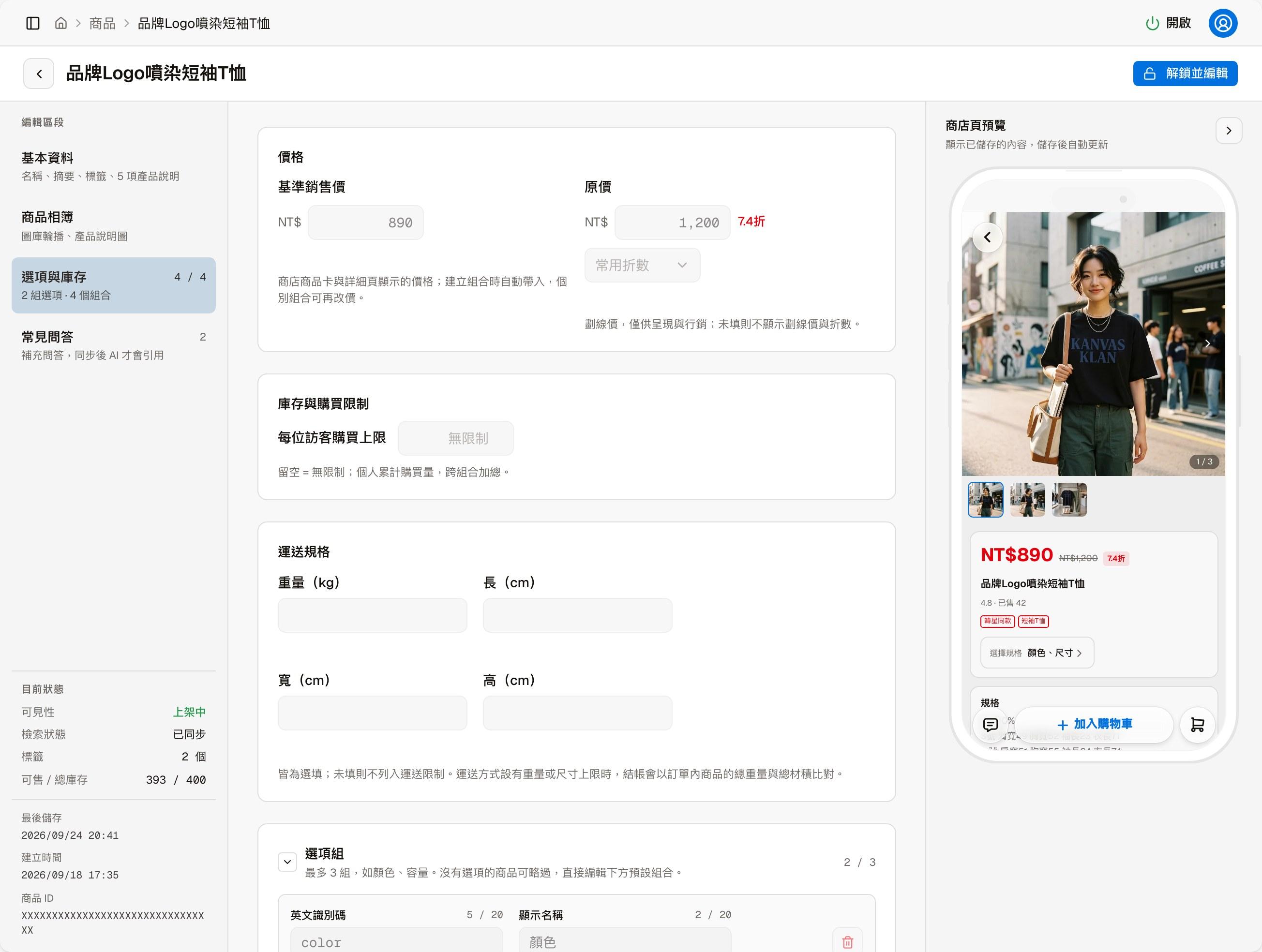
| Block | Description |
|---|---|
| Price | Base sale price is the price shown on the product card and details page, and is filled in automatically when combinations are created. List price is the struck-through price, only used to show the discount; it is not shown if left empty |
| Stock & purchase limit | Per-visitor purchase limit: how many items each person can buy in total, across all combinations; leave it empty for no limit |
| Shipping specs | Weight and length, width and height, all optional. When a shipping method has a weight or size limit, checkout compares it with the total weight and volume of the products in the order |
| Option groups | For example color and size; up to 3 groups, with up to 10 values each. Products without options can skip this |
| Combination price & stock | Each combination produced by the option groups (for example "Black / L") has its own SKU code, unit price, total stock, sold count, and whether it is on sale |
After changing the option groups, click "Rebuild combinations". Existing combinations keep their prices and stock; removed combinations stop being sold automatically after you save.
Listing has a few conditions, and the screen tells you when one is not met: a base sale price must be set, at least one combination must be on sale, every combination on sale must have a price, and the price of at least one combination on sale must equal the base sale price.
FAQ
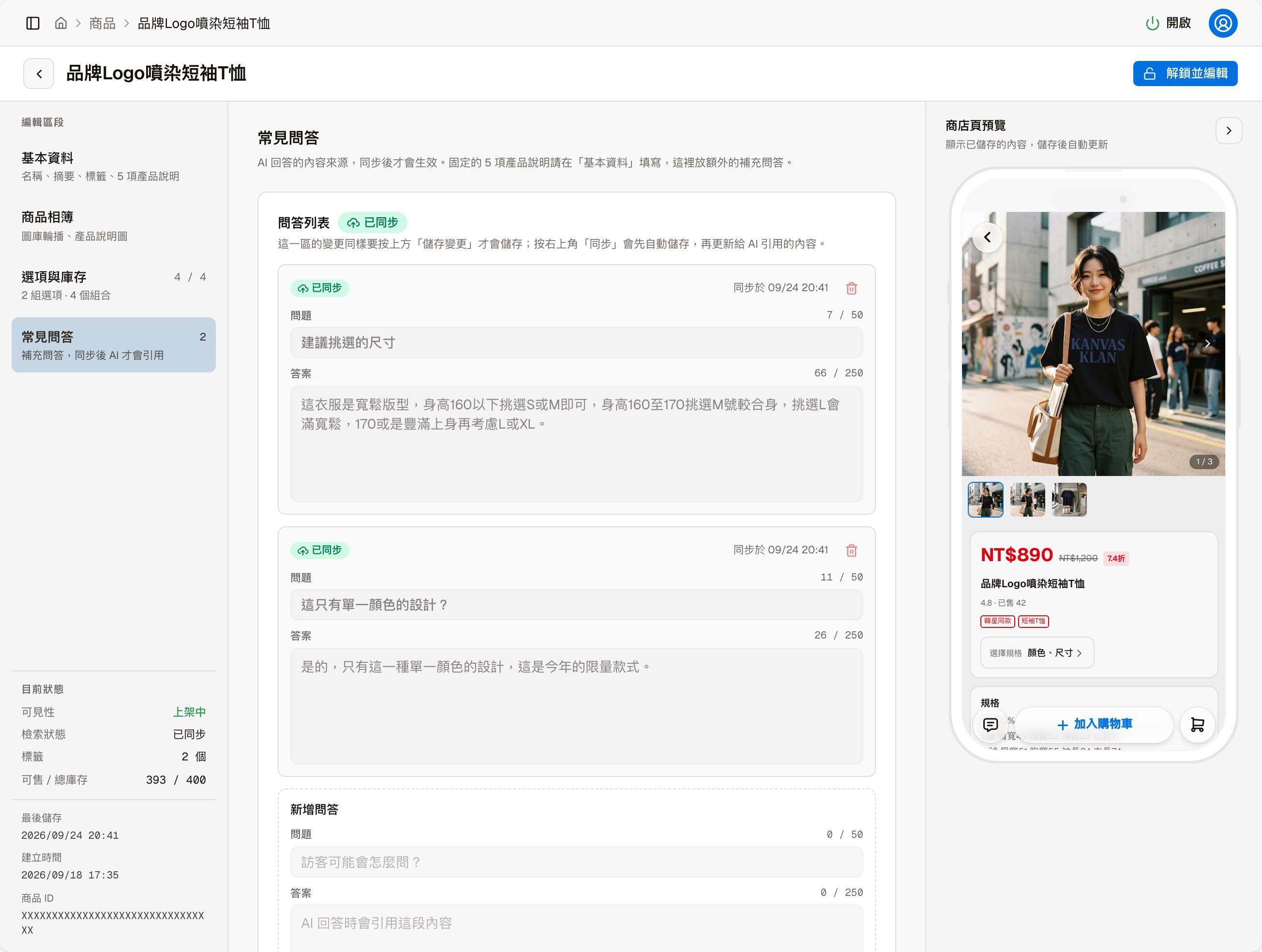
Besides the 5 fixed product description fields, you can add questions visitors often ask that do not fit those fields as question-and-answer pairs here, for the AI to answer from. Each one shows whether it has been synced and when. In "Add Q&A" below, fill in the question and answer and click "Add draft".
The AI uses FAQ entries only after they are synced
Changes in this section are saved only when you click "Save changes" above; clicking "Sync" at the top right saves automatically first, then updates the content the AI uses.
When syncing and listing, the system first reviews the product content with AI: sentences that read like instructions to the AI are blocked, for example asking the AI to overstep and list other people's data, or to use a certain tone or play a role. Passwords and personal data may also be blocked.
List
The products the store sells — the list, filters, listing and unlisting, deleting, and adding products
Store orders
Orders customers place on the store page — the list and filters, order details, changing the status and tracking number, notifying customers, exporting and printing, and the order number format