List
The products the store sells — the list, filters, listing and unlisting, deleting, and adding products
Products are what the store page sells, and they are also what the AI answers product questions from: listed products are included in general Q&A, so when visitors ask about prices, specifications or sizes, the AI answers from the product's content.
This page only appears on store sites.
New products start out unlisted
- A new product starts out unlisted. Once its content is filled in and you list it in the editor, the store page and the AI can see it
- A listed product must be unlisted before its content can be changed
Product list
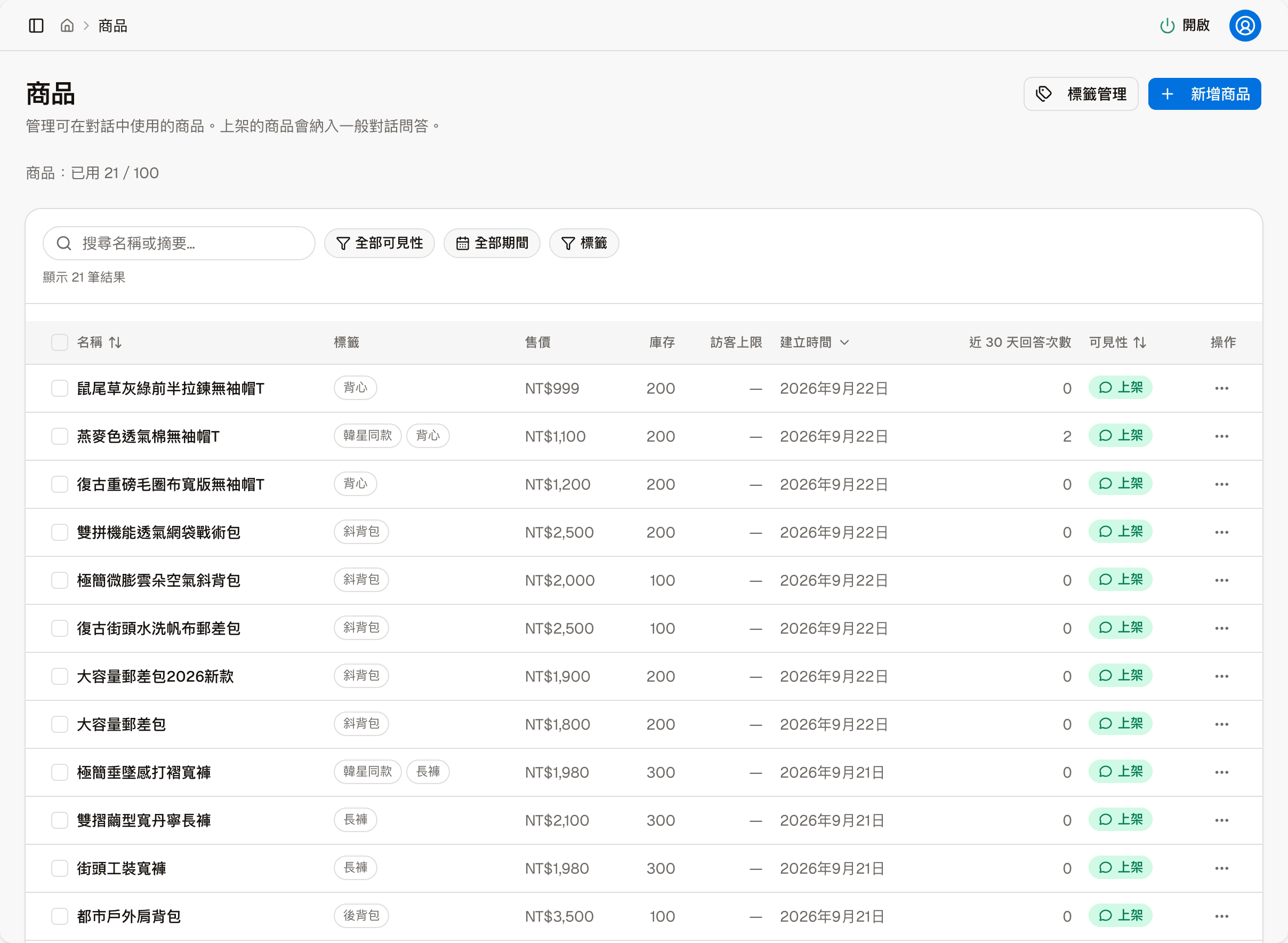
"Products: N / limit used" above the list is your plan's product limit; see Subscription.
| Column | Shows |
|---|---|
| Name | The product name |
| Tags | The product's category tags |
| Price | The base sale price |
| Stock | The total stock across all combinations |
| Visitor limit | The most each visitor can buy; "—" means no limit |
| Created | The date it was created |
| Answers (30 days) | How many times in the last 30 days the AI used this product to answer in conversations |
| Visibility | Listed or Unlisted |
At the top you can search by name or summary, and filter by visibility (Listed / Unlisted), period and tags. Name, Created and Visibility can be sorted. The bottom has paging and a per-page setting.
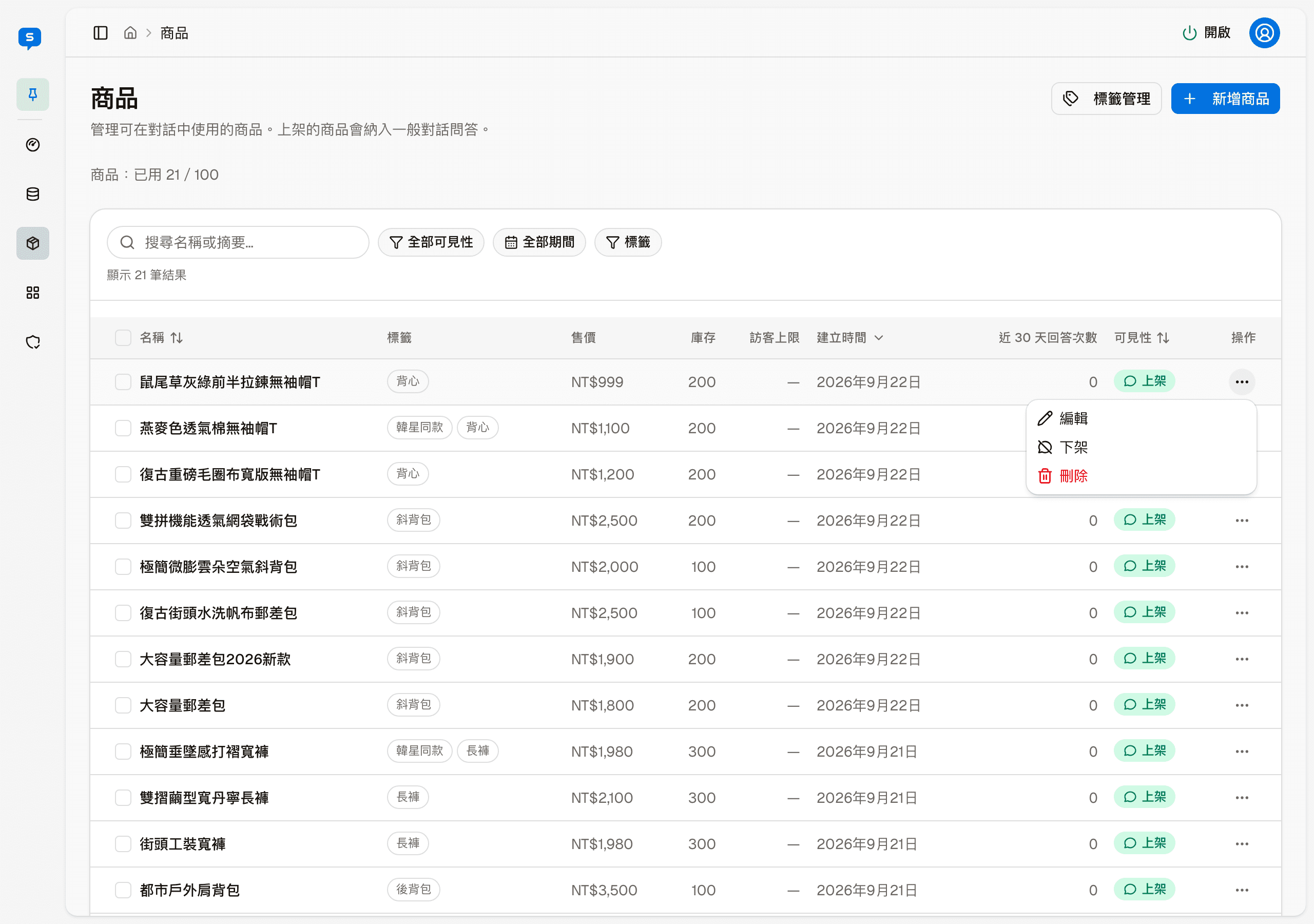
"More actions" on the right of each row has three items:
| Item | What it does |
|---|---|
| Edit | Opens this product's editor |
| Unlist | Removes the product from the store page and from AI answers; the data is kept |
| Delete | Deletes this product |
The two buttons in the header
| Button | What it does |
|---|---|
| Manage tags | Goes to "Tags and store categories" in Store settings to add or adjust tags |
| Add product | Opens the screen for adding a product |
Tags must be created in Tags and store categories first; products can only pick from existing tags.
Add product
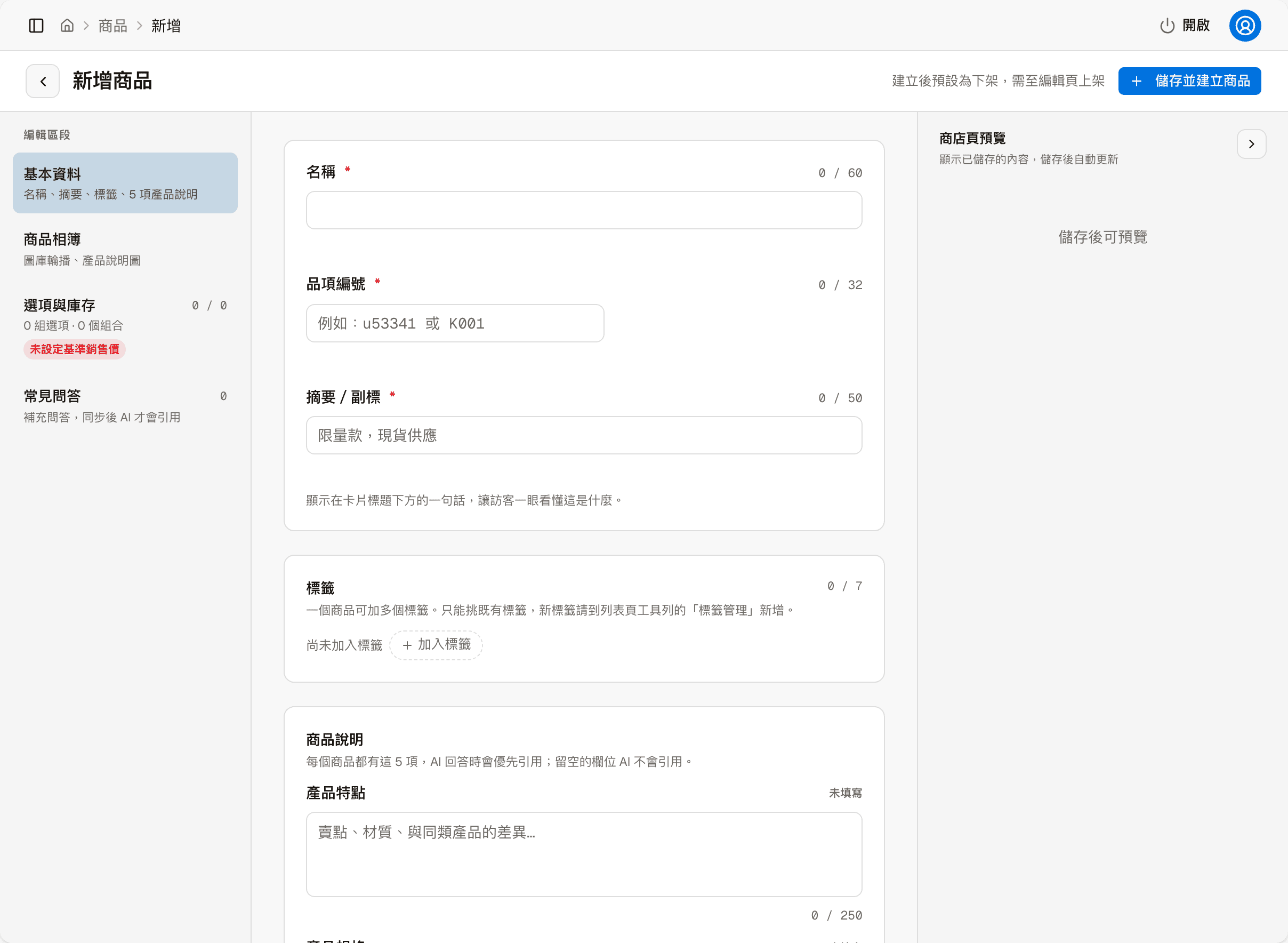
The add product screen is the same as the editor, split into four sections: Basic details, Photo gallery, Options & Inventory and FAQ. Fill in the required Name, Item code and Summary / subtitle first, click "Save and create product" at the top right, and then fill in the rest in the editor before listing it. The store page preview on the right appears only after you save.