MCP API keys
Let external AI tools connect and manage the knowledge base — creating keys, limiting the allowed tools, connection settings, and revoking
This page issues keys for external AI tools. AI tools such as Claude Code, Codex and claude.ai can connect to this platform over MCP to manage the knowledge base, and they need a key issued here to connect. Each key is a pass for one external tool, and you can limit which features it can use.
It works in the opposite direction from "MCP connectors" on the Skills page: a connector is this platform connecting out to use someone else's service; a key lets an external tool connect in.
What is currently available
Only knowledge base management and operations are available for now; management and operations for other parts of the platform will follow.
Two things to know first
- Only Owners can see this page, the same as Admin accounts
- Whatever is checked in the allowed tools is everything the other side can do to your knowledge base
Key list
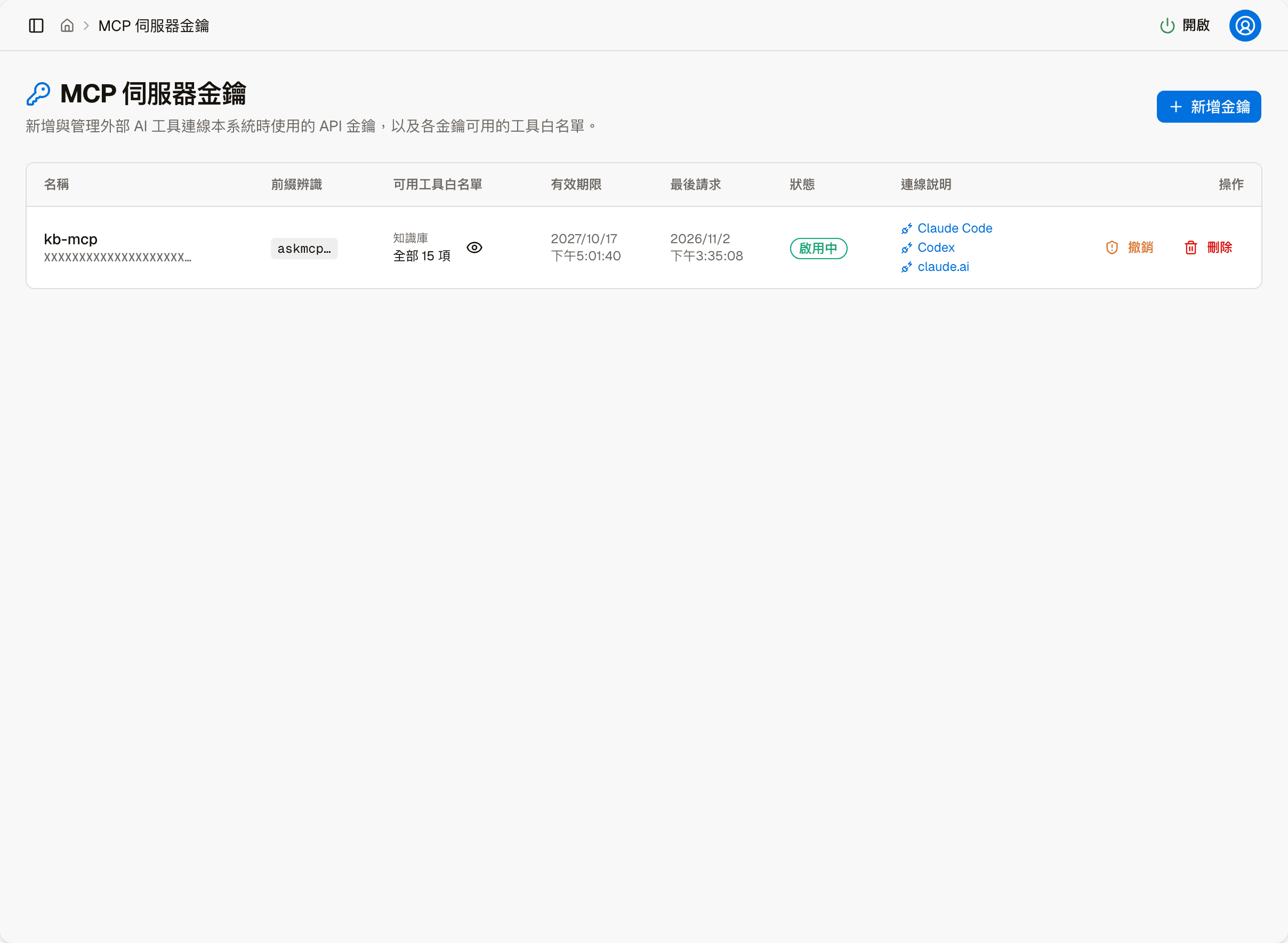
| Column | Shows |
|---|---|
| Name | The name you gave it, with the key's identifier on the line below (not the key itself) |
| Prefix | The first few characters of the key, for matching which key a tool is using |
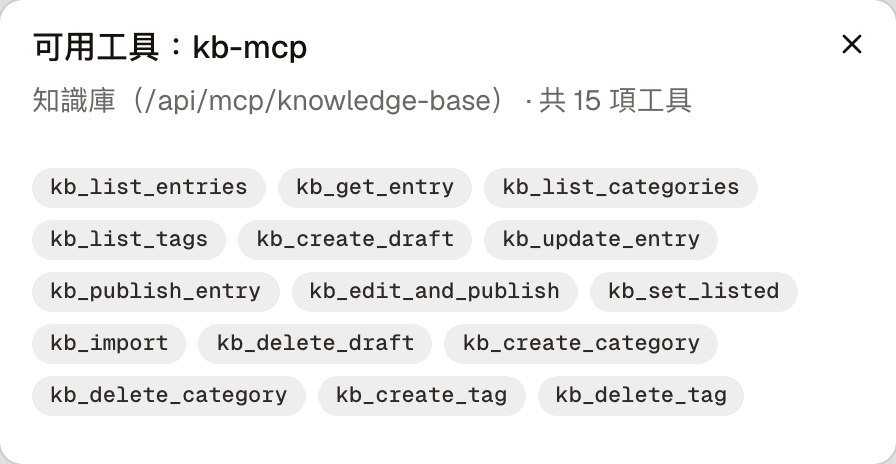
| Allowed tools | Where the key connects to (for example "Knowledge base") and how many tools it can use; click the eye icon to see the full list |
| Expires at | When it expires |
| Last request | The last time it was used; "Never used" if it has not been used yet. Helps you tell whether a key is still in use |
| Status | Enabled or Revoked |
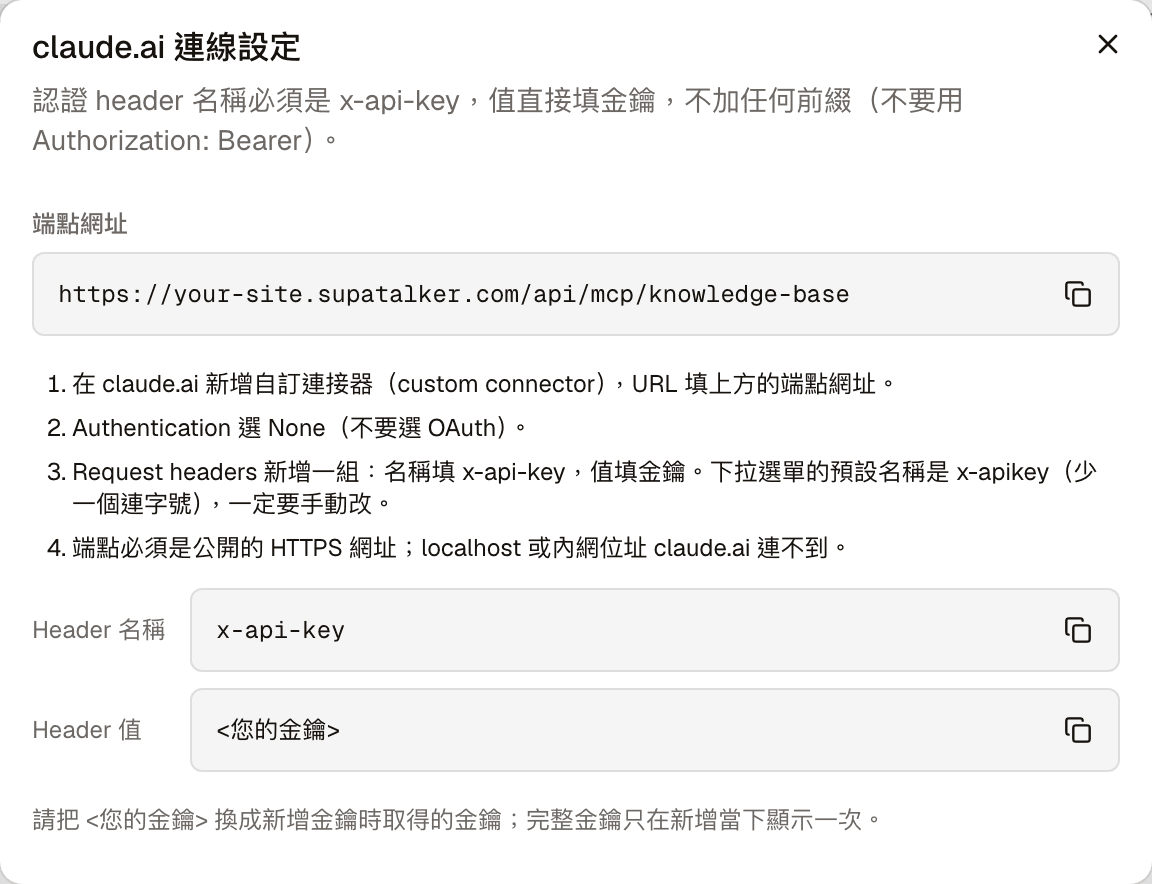
| Connect | Connection settings for three tools: Claude Code, Codex and claude.ai (see "Connection settings" below) |
| Actions | Revoke and Delete; for a revoked key, "Revoke" becomes "Restore" |
Create key
Click "Create key" at the top right:
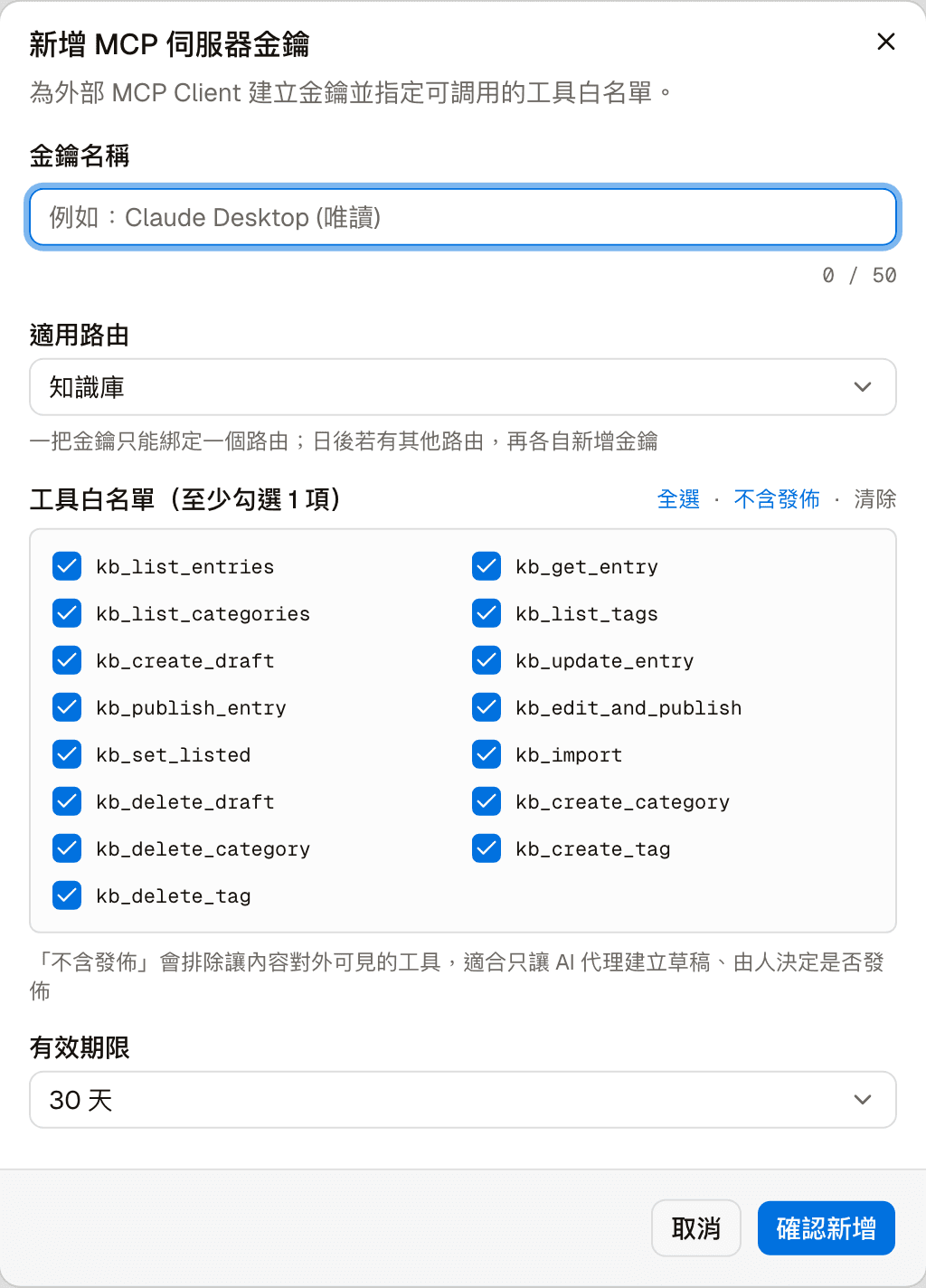
| Field | Description |
|---|---|
| Key name | Up to 50 characters. Make it clear who it is for, for example "Claude Desktop (Read-only)" |
| Route | Where the key can connect to. Currently only "Knowledge base"; each key is bound to one route |
| Allowed tools | All checked by default; at least one must stay checked. Next to it are "Select all", "Without publishing" and "Clear all" |
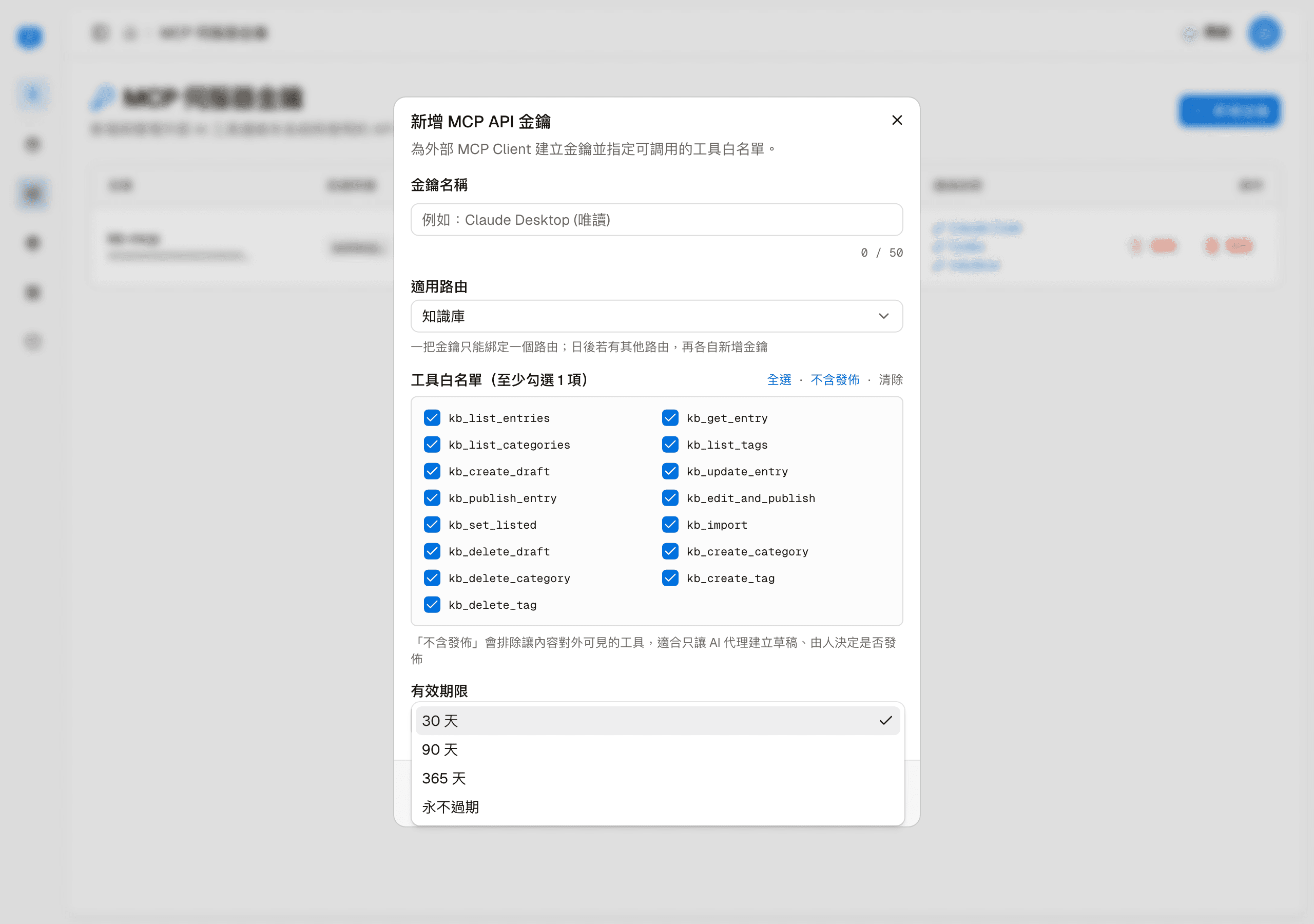
| Expiration | 30 days, 90 days, 365 days, or Never expires |
Click "Create key" in the dialog to create the key.
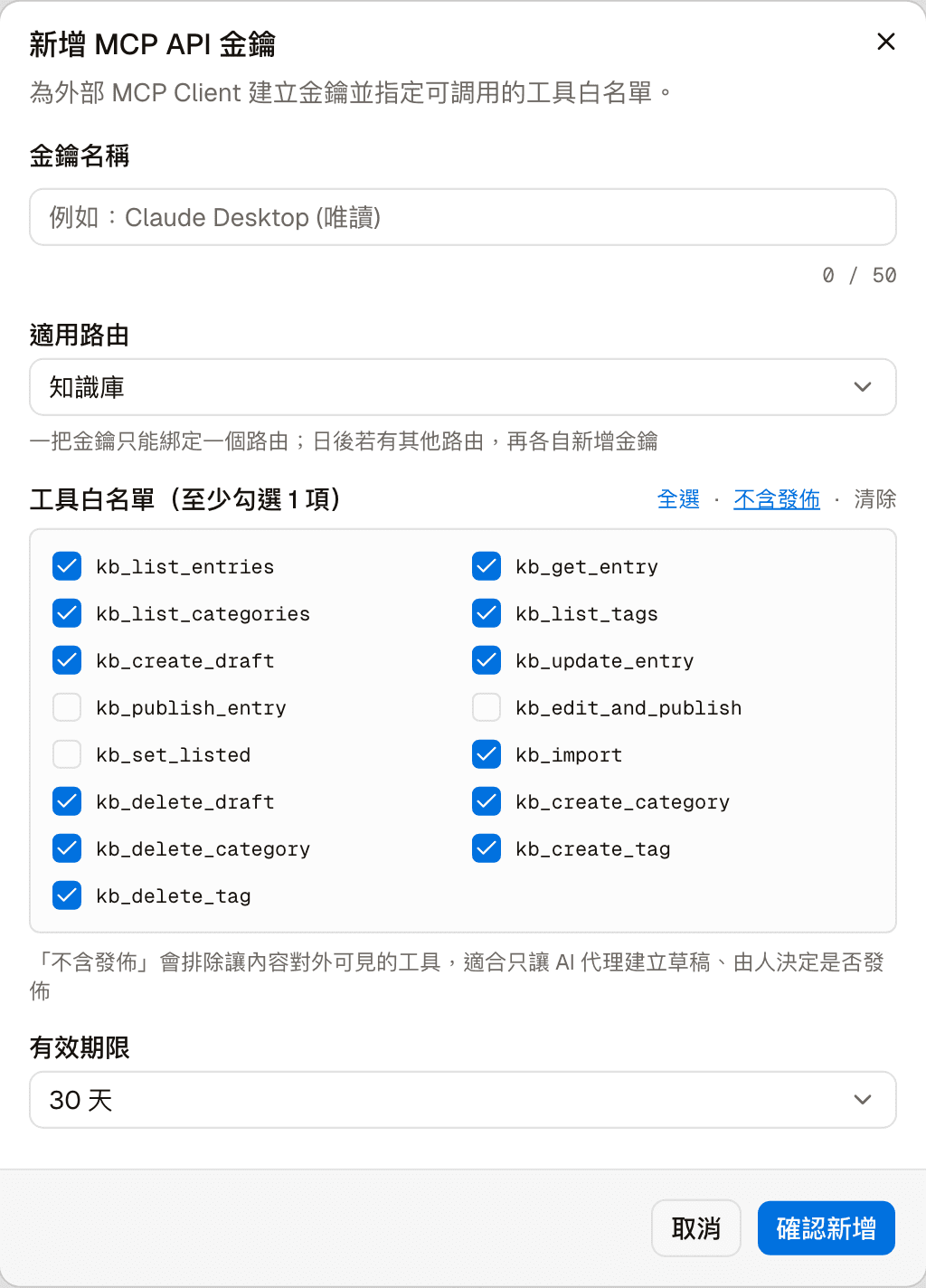
"Without publishing" removes the three tools that make content take effect publicly (publish, edit and publish, list and unlist). It suits letting an AI tool only create drafts, while a person decides whether visitors see them:
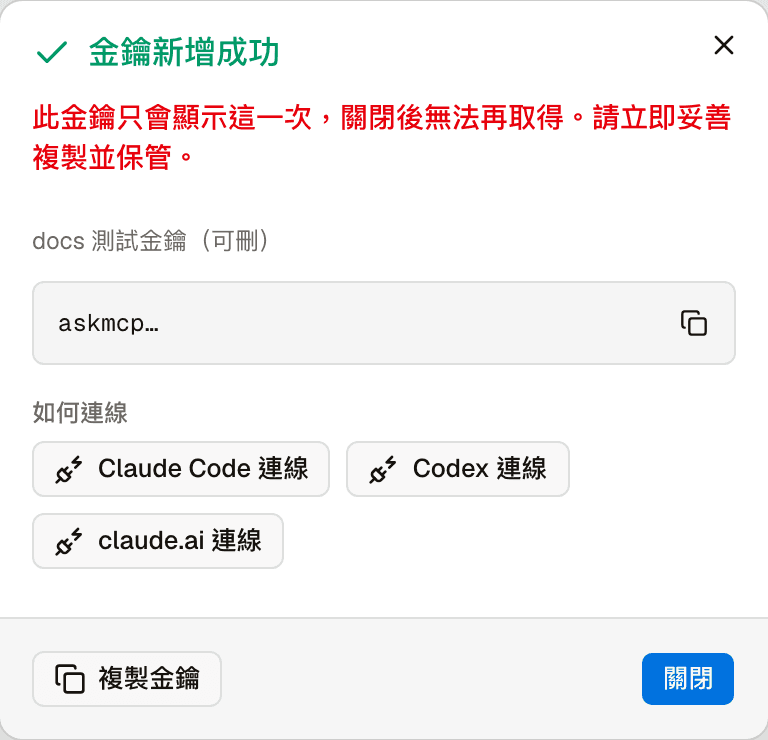
The key is shown only once
Once you close the dialog, you can never see this key again
After the key is created, it is shown on the screen. Copy it right away and keep it somewhere safe.
After closing, only the prefix is visible in the list, and there is nowhere to look up the full key again. If you lose it, the only option is to revoke the old key and issue a new one.
In the "API key created" dialog, click "Copy key" to copy it; the three buttons under "How to connect" open each tool's connection settings. Click "Close" only after you have stored the key safely:
Which tools can be allowed
There are currently fifteen, all related to the knowledge base:
| Type | Tools |
|---|---|
| Read | kb_list_entries, kb_get_entry, kb_list_categories, kb_list_tags |
| Create and edit (do not take effect publicly) | kb_create_draft, kb_update_entry, kb_import, kb_delete_draft, kb_create_category, kb_delete_category, kb_create_tag, kb_delete_tag |
| Publish and list/unlist (take effect publicly) | kb_publish_entry, kb_edit_and_publish, kb_set_listed |
Checking only the four read tools gives you a read-only key. Before giving an external tool write access, think about whether it really needs it — once a key is handed over, everything on its allowed list is what the other side can do. Content published through a key also goes through the knowledge base's content review before syncing.
Connection settings
The three buttons in the "Connect" column open the connection settings for Claude Code, Codex and claude.ai. They include this site's Endpoint URL and setting examples you can copy directly. Replace "<your-key>" in the examples with the key you received when you created it.
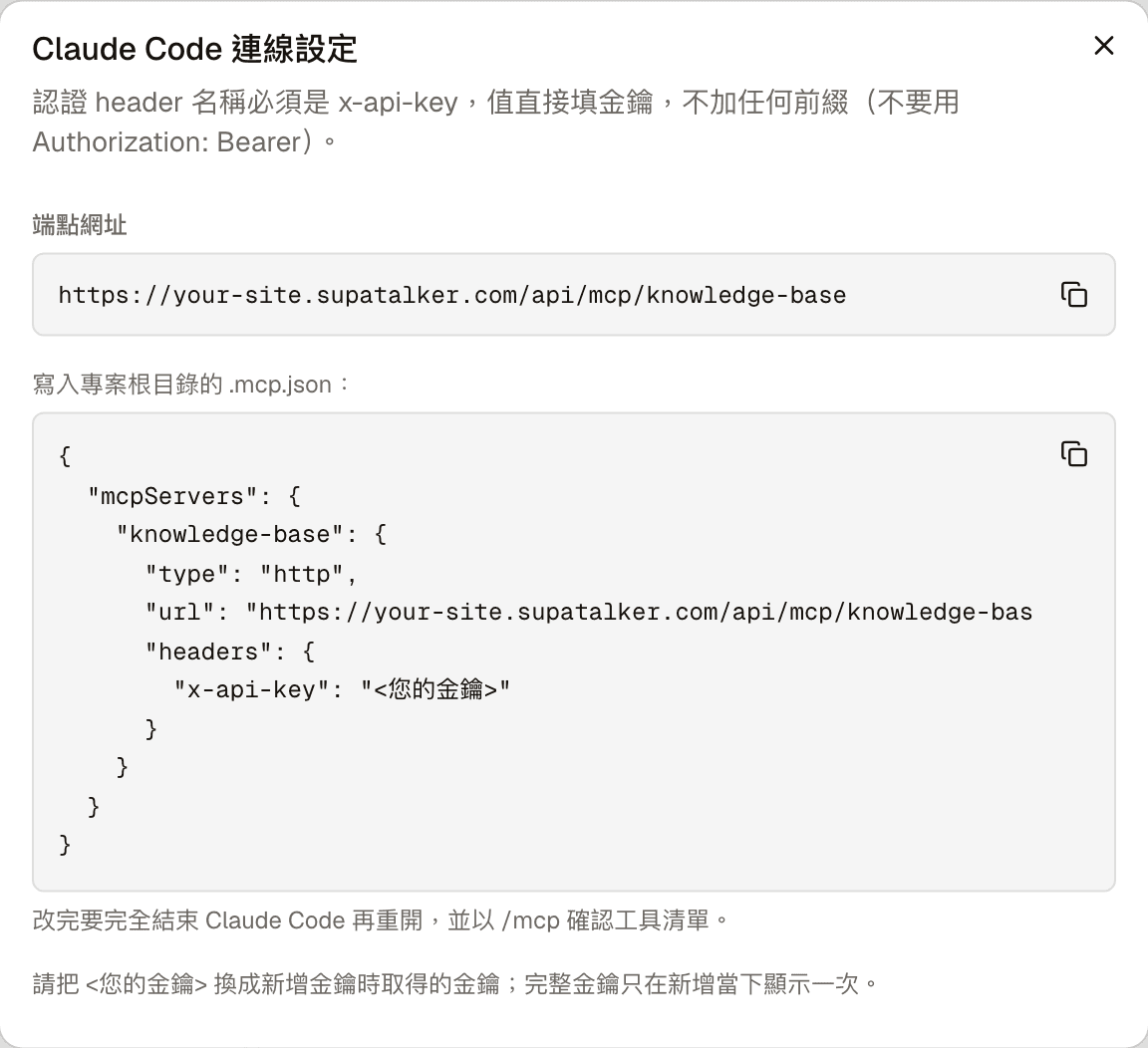
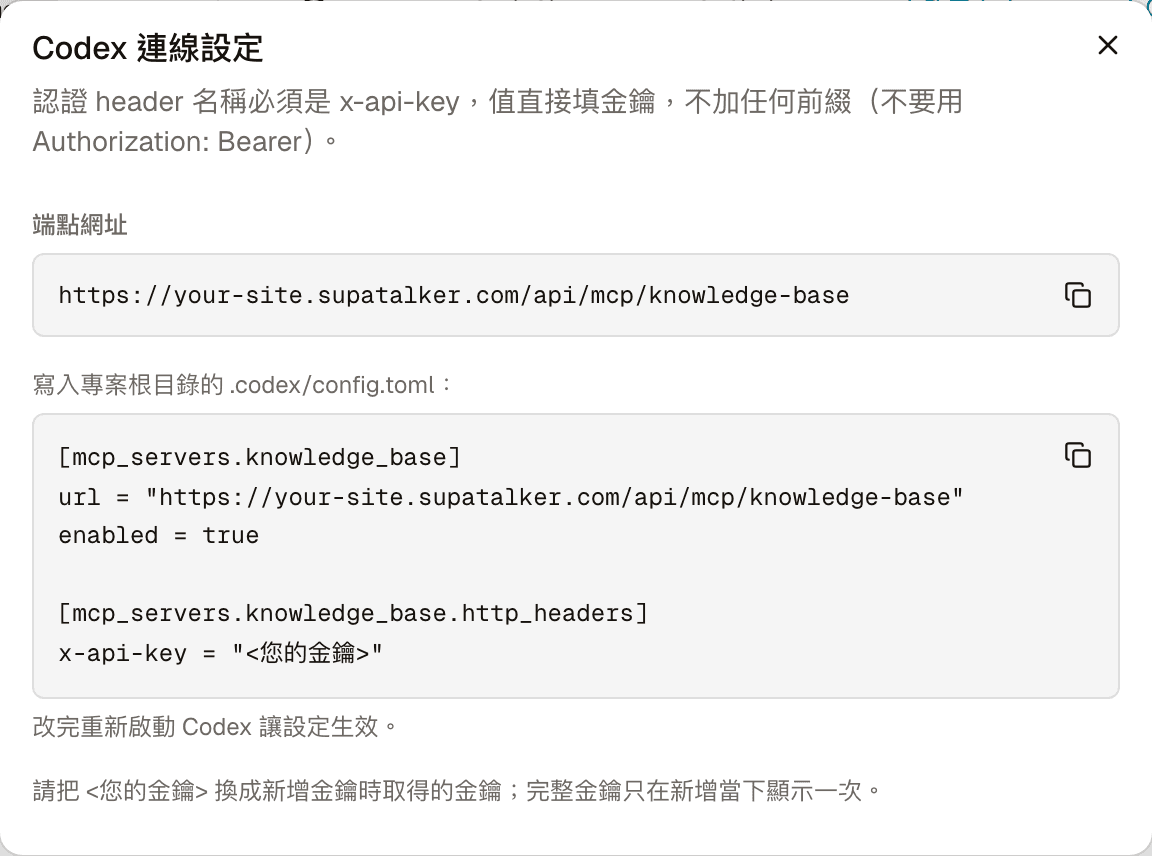
claude.ai connects over the internet, so the endpoint must be the site's public HTTPS URL:
For how to add the connection on the external tool's side, follow each tool's official documentation: Claude Code, Codex, claude.ai.
Revoke and delete
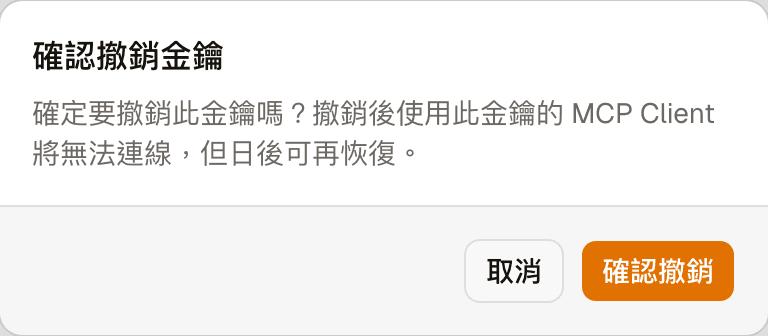
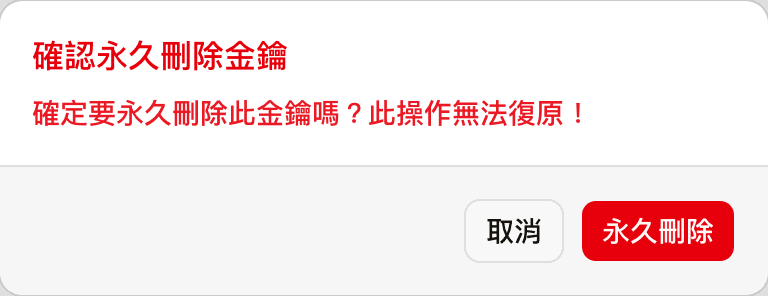
Both actions are at the right end of each row, and both ask for confirmation first.
| Action | Result | Can it be undone |
|---|---|---|
| Revoke | The key stops working and its status becomes "Revoked" | Yes, the button becomes "Restore" |
| Delete | Removes the record entirely | No, it is deleted permanently |
Either way, tools using this key can no longer connect, so before you do it, make sure no one is still using it — the "Last request" column helps you tell.