Skills
What the AI can handle — the Skills, Data sources and MCP connectors tabs, and the enabled status and channels you can adjust
A skill is a kind of question the AI can handle, for example answering questions about the business, looking up orders, or telling the time. When a visitor sends a message, the system decides from its content which skill should answer.
Skills, data sources and MCP connectors cannot currently be added or deleted
- Adding and deleting are not currently available. The content of a skill itself (its skill details and routing trigger phrases) is defined by the system; what you can adjust is some access and channel settings: enabled or disabled, Channel restriction and Minimum authentication level
- A new skill is part of a custom plan; contact your service provider
- The skills, data sources and MCP connectors built into each site depend on its industry template and subscription plan, so your screen will not match the screenshots below; it is normal to have no data sources or MCP connectors at all
The screen has three tabs: Skills, Data sources and MCP connectors. The screenshots below come from a test site and only illustrate what is on the screen.
Skills
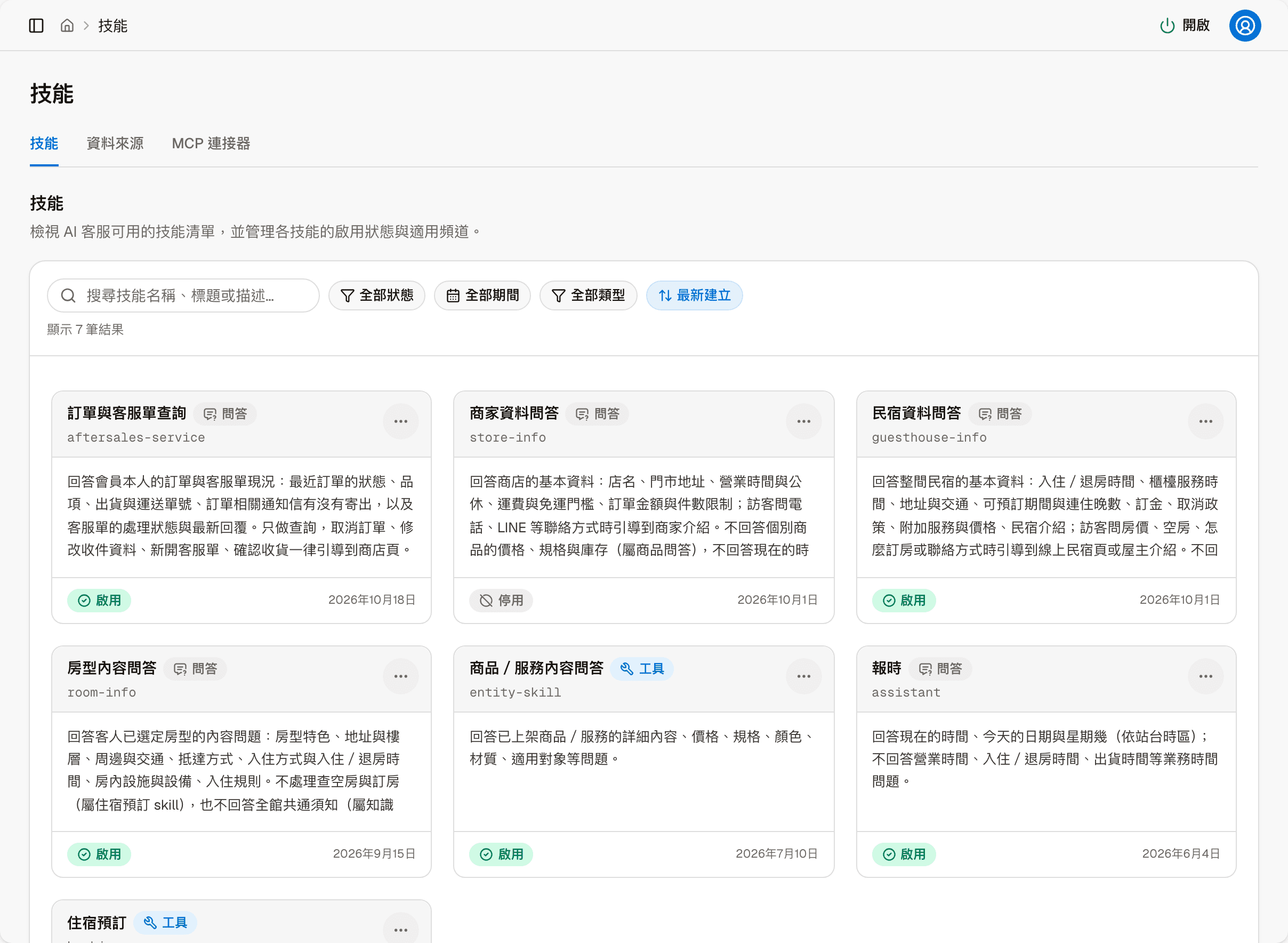
Each card is one skill:
| Item | Shows |
|---|---|
| Title | The skill's name, with its English code on the line below |
| Type | Q&A: answers from the skill's own settings; Tool: looks up data in the system before answering, for example checking room availability |
| Description | What this skill answers and what it does not |
| Status | Enabled or Disabled |
| Date | The date it was created |
At the top you can search by skill name, title or description, and filter by status, period and type. Sorting on the right offers Newest first, Oldest first, Name A→Z and Enabled first. The bottom has paging and a per-page setting.
"More actions" at the top right of each card has two items: Edit, and Disable (or Enable for a disabled skill).
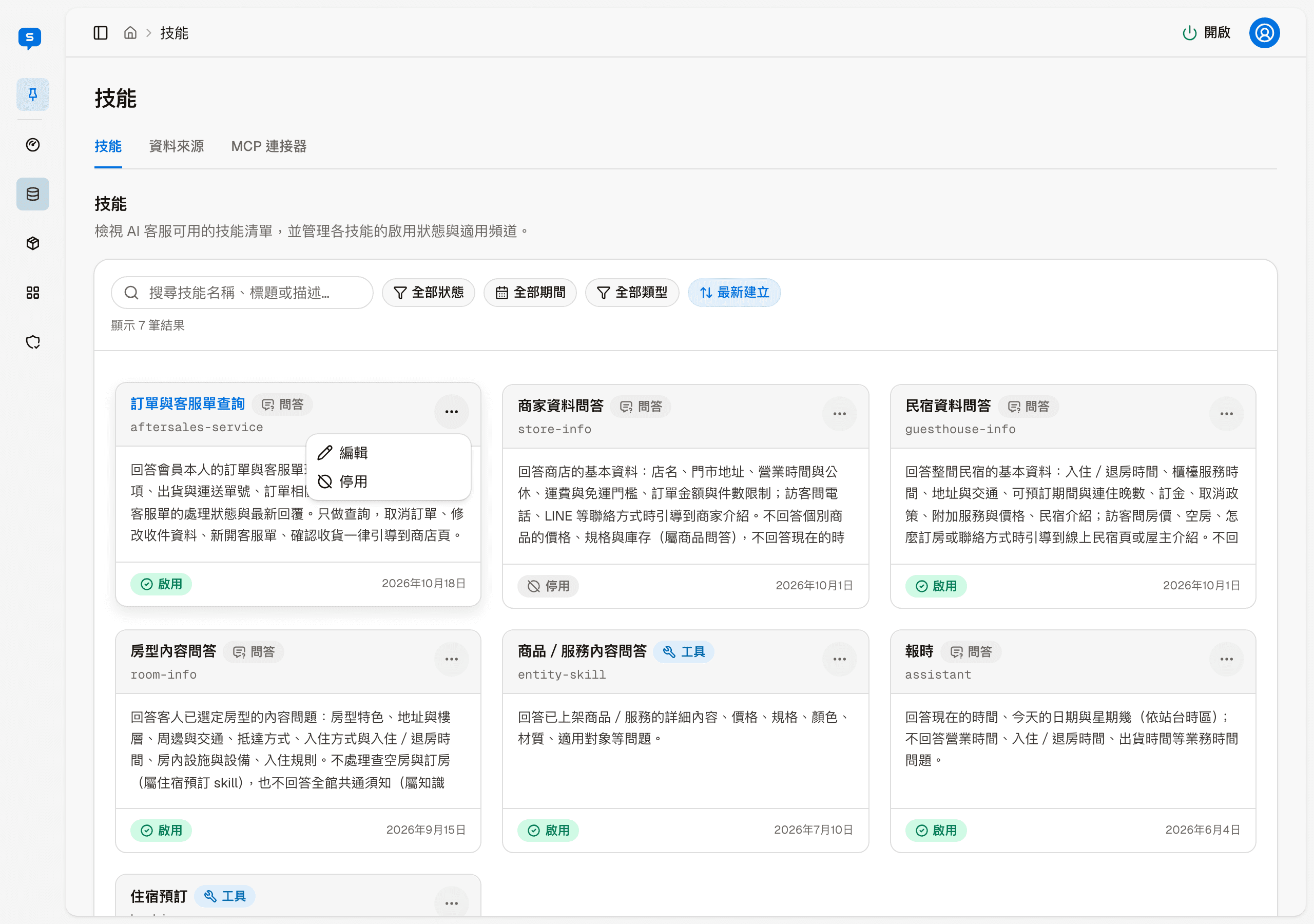
Skill settings
Click "Edit" to open "Skill settings":
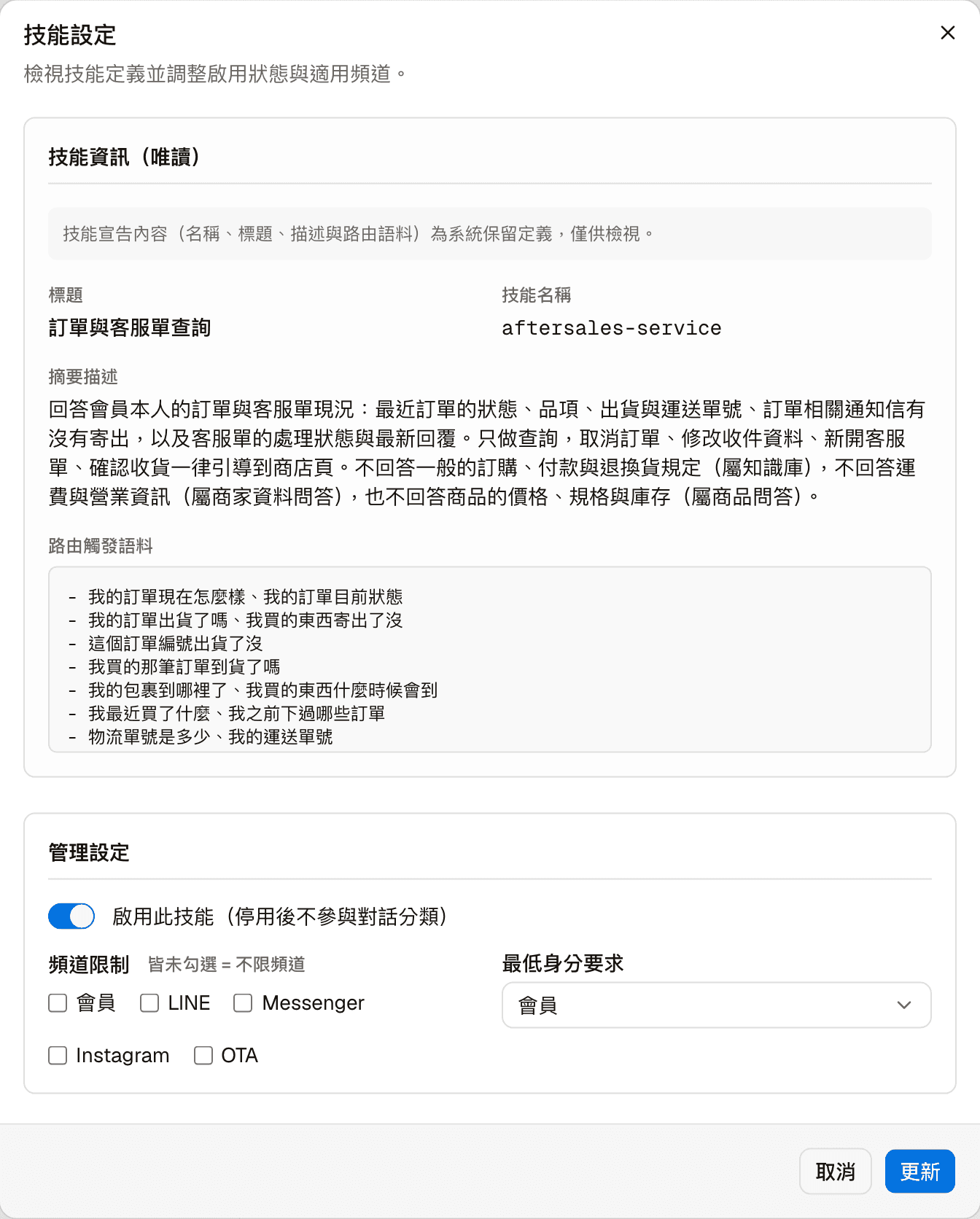
Skill details (read-only) in the upper half is defined by the system and can only be viewed:
| Item | Description |
|---|---|
| Title, Skill name | The skill's name and English code |
| Description | What this skill is responsible for and what it is not |
| Routing trigger phrases | Common ways visitors phrase their questions. The system uses them to decide whether a message should go to this skill |
Management settings in the lower half is what you can adjust; click "Update" when you are done:
| Setting | Description |
|---|---|
| Enable this skill | When turned off, the skill no longer takes part in the decision, and visitors' questions are not sent to it |
| Channel restriction | Only the checked channels can use this skill: Member, LINE, Messenger, Instagram, OTA. Leaving all unchecked means all channels |
| Minimum authentication level | Member: the usual choice. Anonymous visitors on your website can only use the knowledge base anyway, so they never reach skills. Internal: reserved for the system's own use; no visitor, member or admin reaches it. Setting it to Internal hides the skill from every channel, so even Chat test cannot test it |
Skills unrelated to your industry have no effect even when enabled
Whether a skill can be used also depends on the site's industry setting. For example, guesthouse skills on a store site are simply skipped by the system; enabling them here does nothing.
Data sources
A live site may have no data sources, or only sites with certain industry templates have them; you cannot add your own. The screenshots below come from a test site.
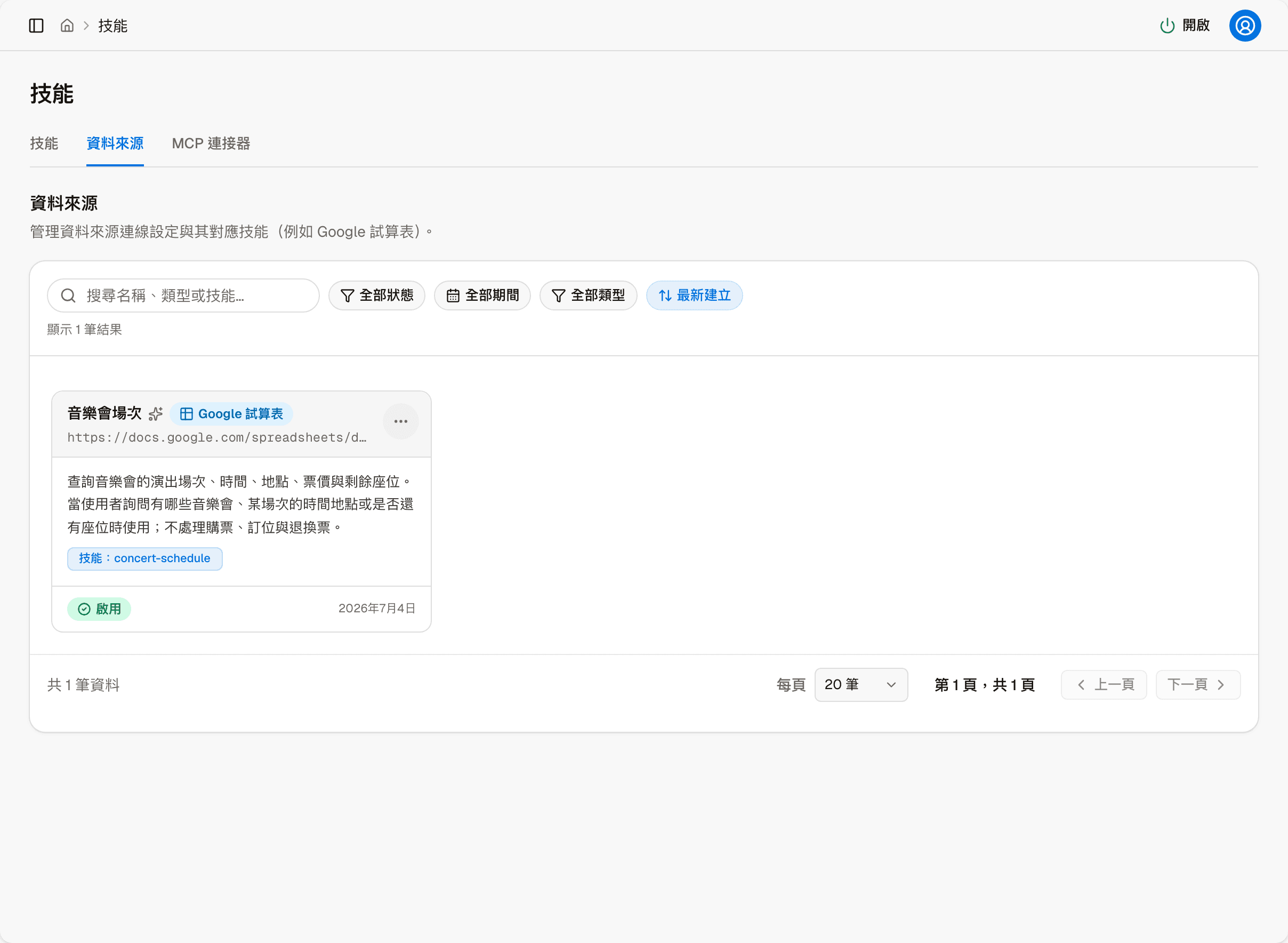
A data source is a skill that lets the AI look up external data, for example concert dates from a public Google Sheets spreadsheet. Each card shows the name, type, data URL, description, the code of the skill it belongs to, status and created date. Searching, filtering and sorting at the top work the same as on the Skills tab.
"More actions" on each card has Edit and Disable.
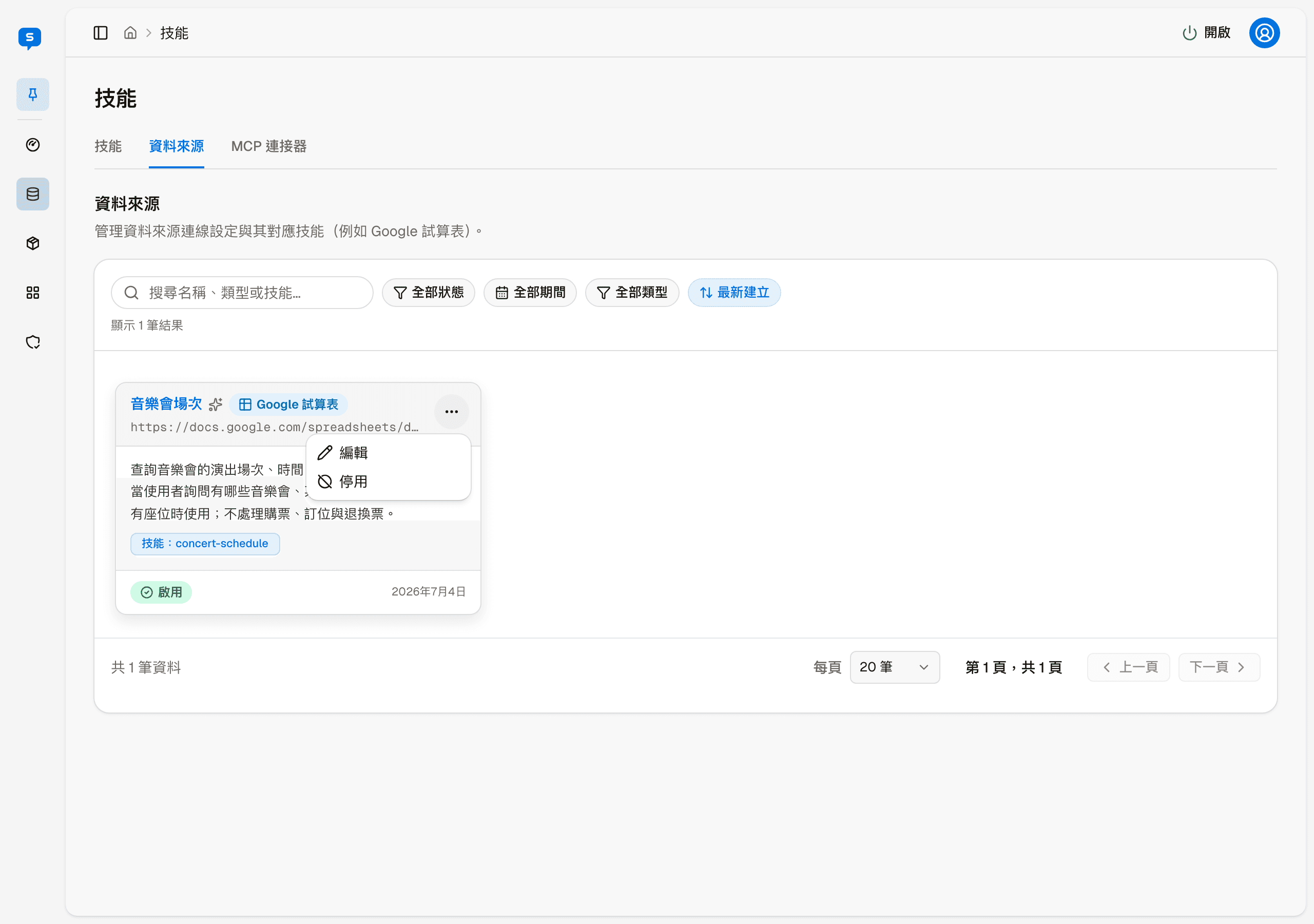
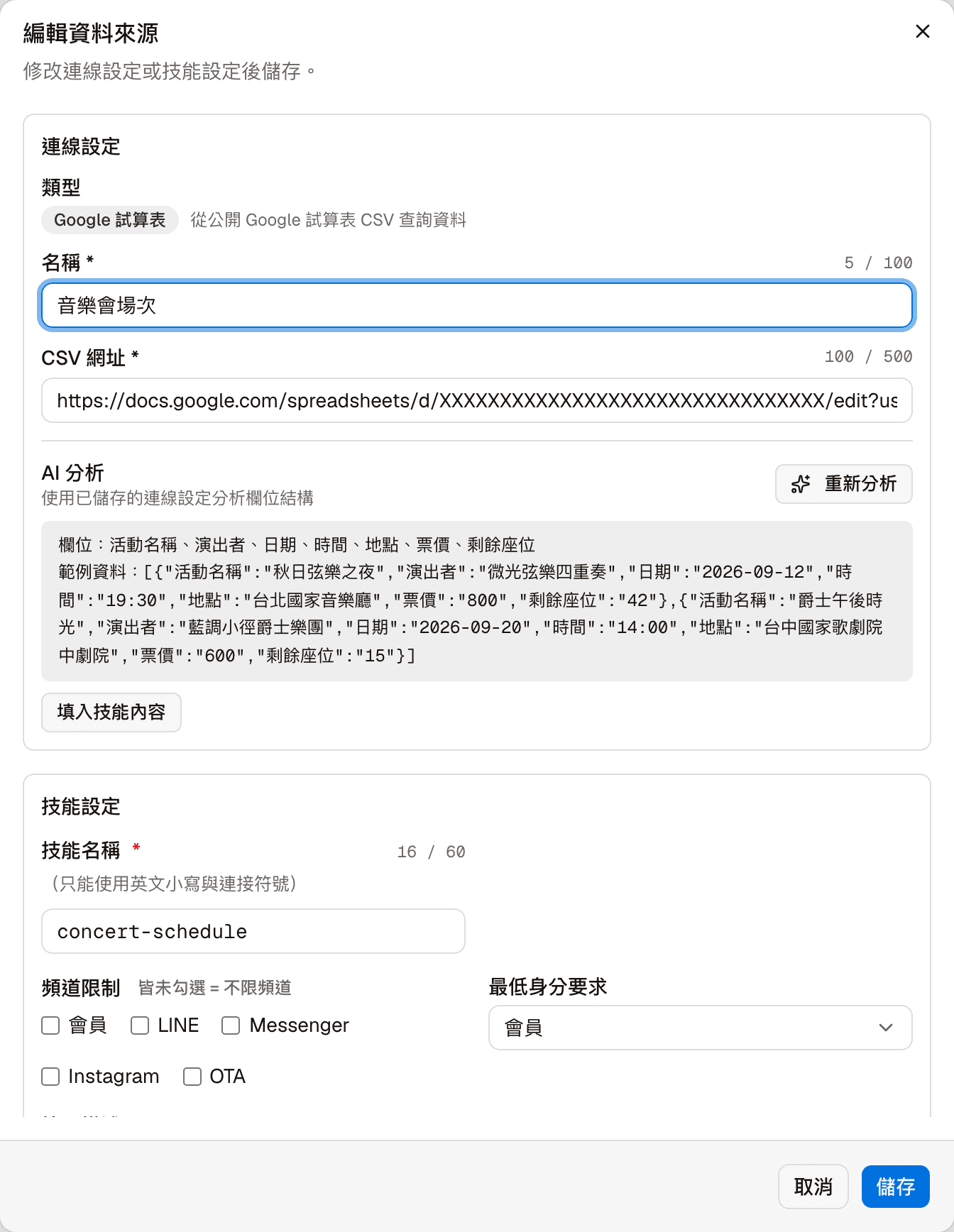
The screen "Edit" opens is split into Connection settings (where the data comes from), AI analysis (the fields and examples the system worked out after reading the data) and Skill settings (what this skill is responsible for and which channels it is open to). The only things you can adjust are Channel restriction and Minimum authentication level under Skill settings, which mean the same as in "Skill settings" above; leave the other fields as they are.
MCP connectors
A live site may have no MCP connectors, or only sites with certain industry templates have them; you cannot add your own. The screenshots below come from a test site.
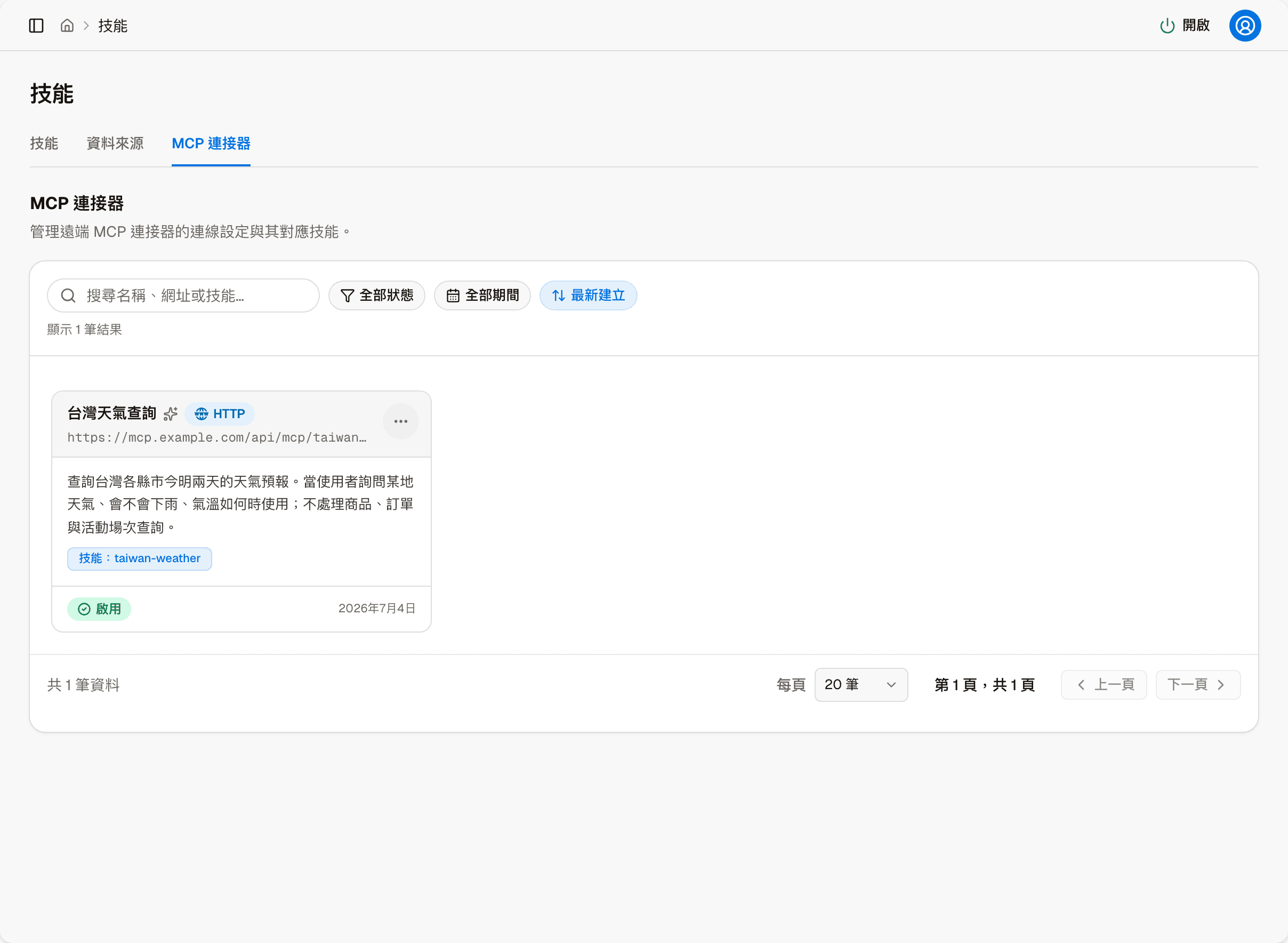
An MCP connector lets the AI connect out and use features provided by an external service, for example a weather forecast lookup. The cards and actions are the same as for data sources. In the edit screen, the connection settings are the external service's URL and credentials, and again the only things to adjust are Channel restriction and Minimum authentication level.
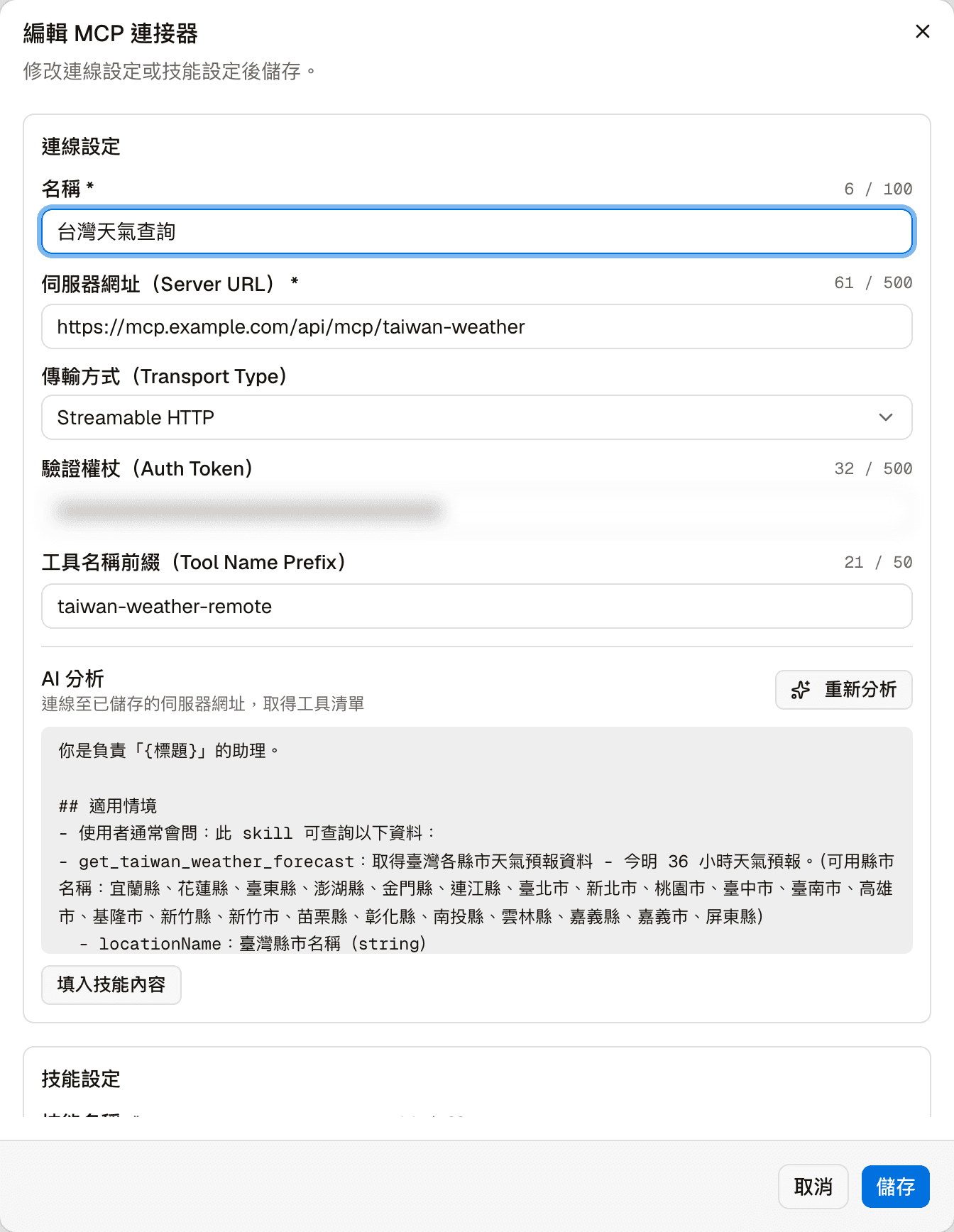
MCP connectors work in the opposite direction from MCP API keys: a connector is this platform connecting out to use someone else's service; a key lets an external AI tool connect in and manage your knowledge base.
Data sources and MCP connectors: leave everything except channels and authentication level as it is
Connection settings and skill content involve technical and security details, and changing them may stop the feature from working; contact your service provider if something needs adjusting.
To stop using one for now, choose "Disable".