Tags and store categories
Managing tags and store categories together — adding, renaming, deleting and reordering, and whether to show a tag as a store category
Tags group products. The same set of tags is used in several ways:
- Shown as store categories, so customers can browse by category on the store page's Categories tab
- Labeled on product cards
- The home page product lists fill in products by tag
- Promo banners can link to a tag, and coupons can be limited to a tag
Tags are added and managed here, then chosen for each product in the product editor. "Manage tags" on the product list also brings you to this section.
The order here is the order on the store page, and takes effect after publishing
The order here is the order of tags on the store page's Categories tab and on product cards. Adding, renaming, deleting and reordering all take effect only after you click "Publish".
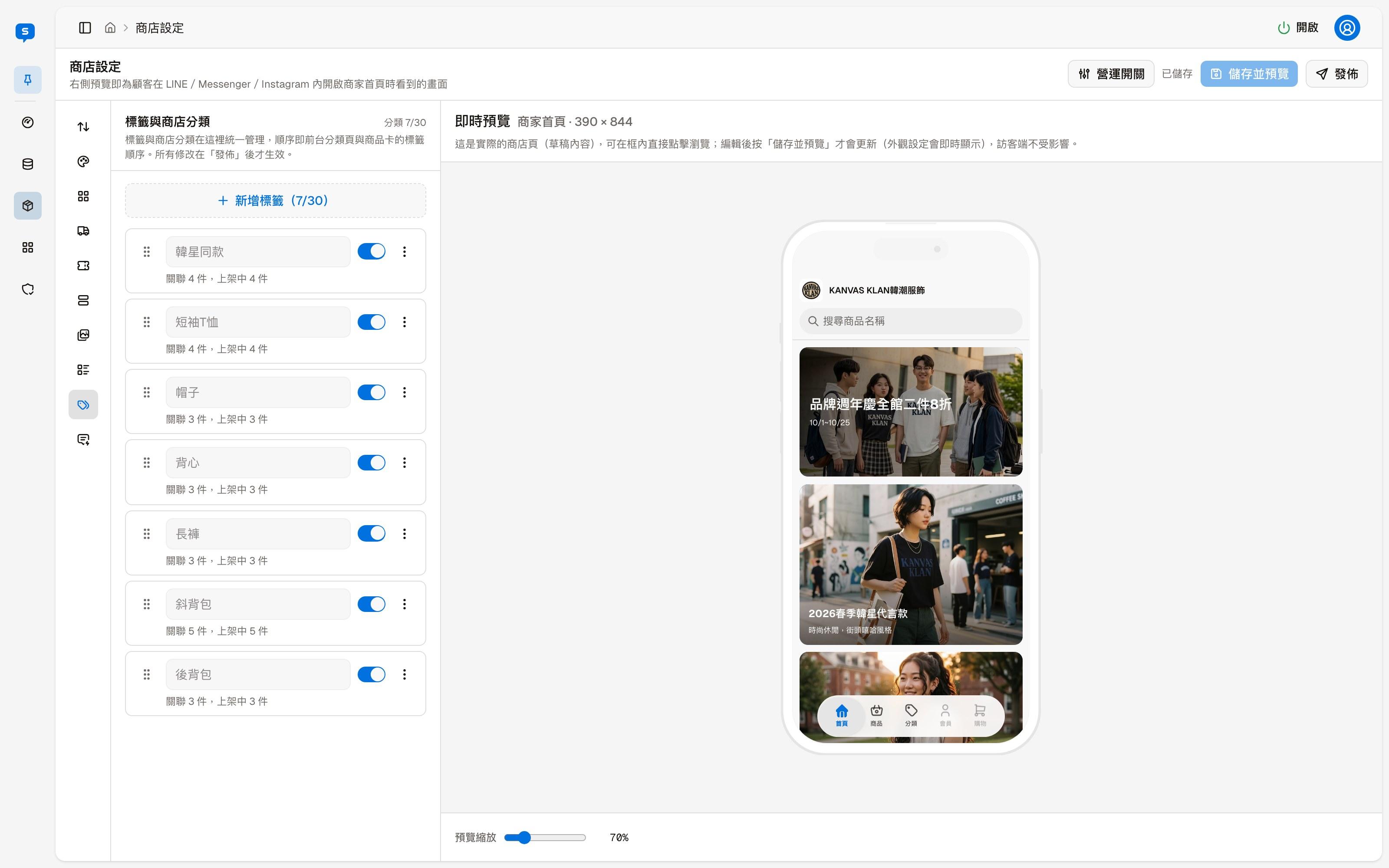
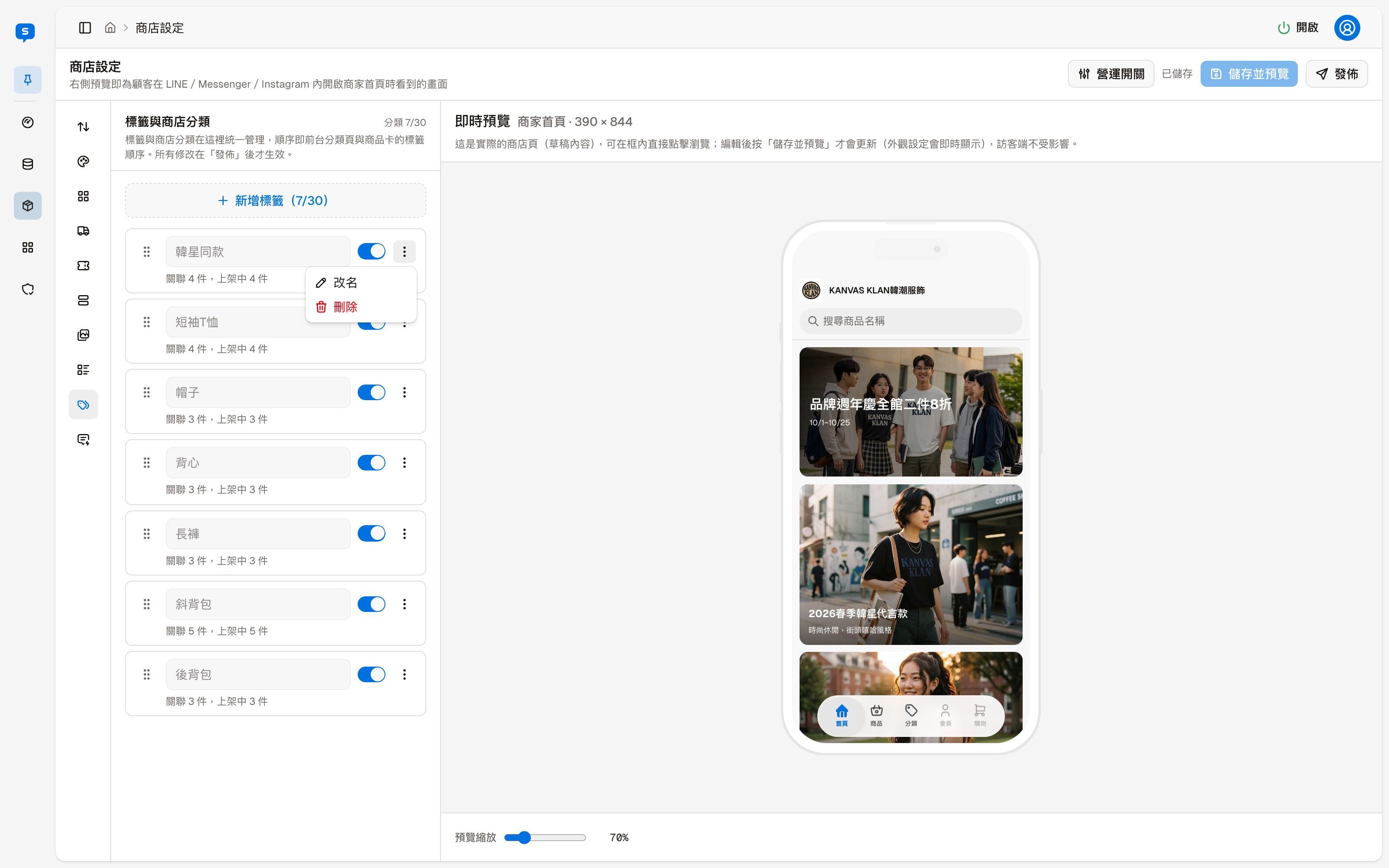
"Add tag" adds a tag; the parentheses show the current count and the limit, for example "7/30". Each row is one tag:
| Item | Description |
|---|---|
| Drag the handle on the left | Changes the order of the tags |
| Tag name | The name cannot be edited directly in the row; rename it from "More actions" |
| Linked, listed | The number of products with this tag, and how many of them are listed |
| Show as a store category | Tags with this turned on are listed as store categories on the store page's Categories tab |
| More actions | Rename, Delete |
New or renamed tags are reviewed when publishing
Tag names are given to the AI for reference, so when you click "Publish", the system first reviews new or renamed tags with AI. Names that read like instructions to the AI are blocked and cannot be published, for example asking the AI to overstep and list other people's data, or to use a certain tone or play a role. Passwords and personal data may also be blocked.
Order rules and coupons
Currency, the free shipping threshold, the shipping and payment methods to offer, order amount and quantity limits, member email and confirmation emails, and adding and managing coupons
Store keywords
Which messages a visitor sends in a conversation get a store entry link in reply — the three keyword groups Enter store, Check orders and Check support requests