Security
Set detection rules for messages and behavior, review security events, and manage the blocklist
This page decides whether messages and behavior from visitors are stopped, and what happens once they are.
What each of the three tabs is for
- Protection rules — what counts as a hit, and what to do on a hit
- Security events — the record of hits, including the admin's own actions
- Blocklist — who is currently blocked; add entries manually or lift a block early
Protection rules
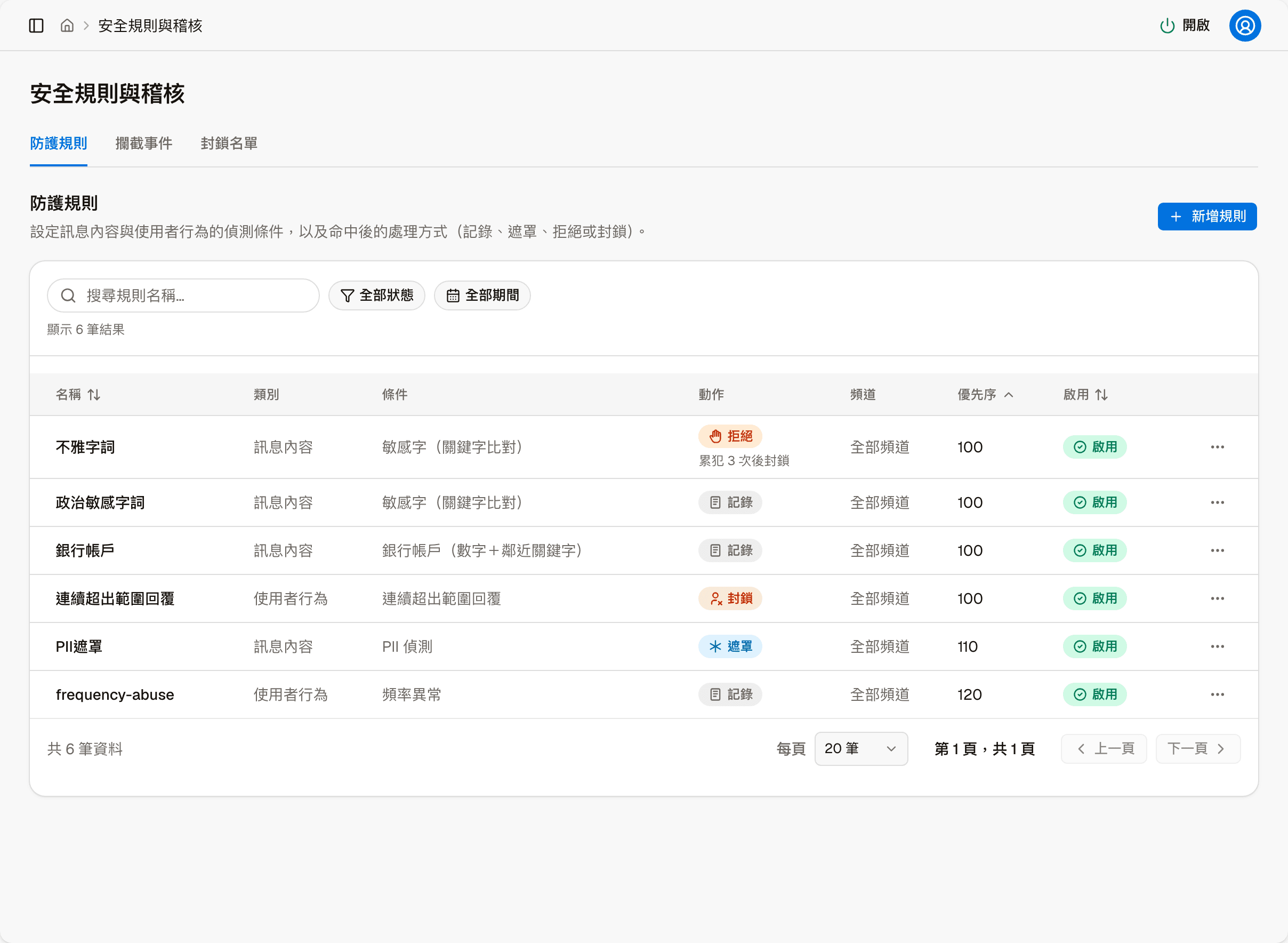
A rule has four parts: what counts as a hit (the condition), what to do on a hit (the action), which channels it applies to, and its priority.
The system comes with a few built-in rules. Like rules you add yourself, they can be edited (including the rule name), disabled or deleted.
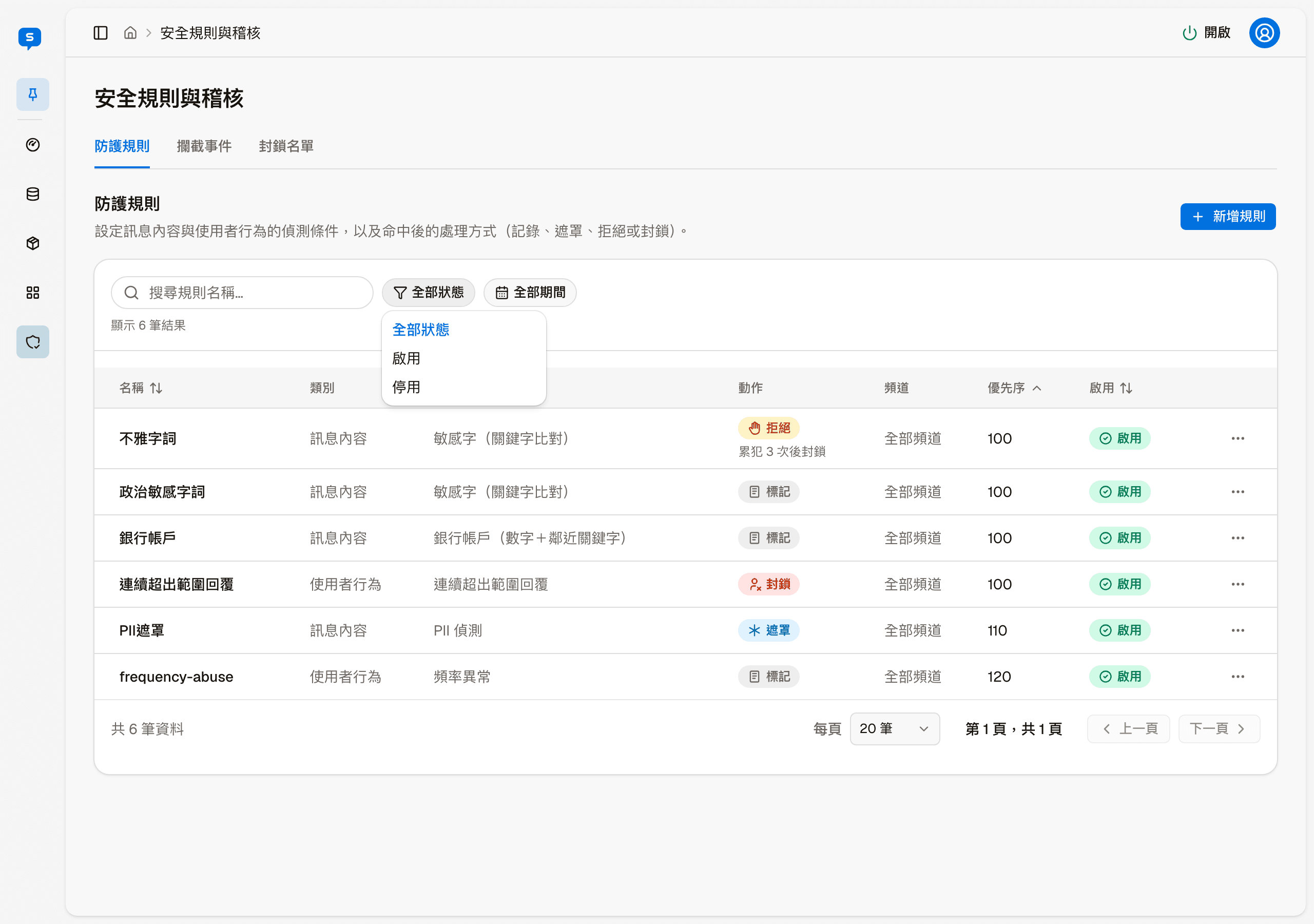
Besides the action itself, the "Action" column also marks repeat-offense rules, for example "Reject · Block after 3 repeat offenses". Above the list you can search rule names and filter by status (enabled, disabled) or created period; Name, Priority and Enabled can be sorted.
What you can do with each rule
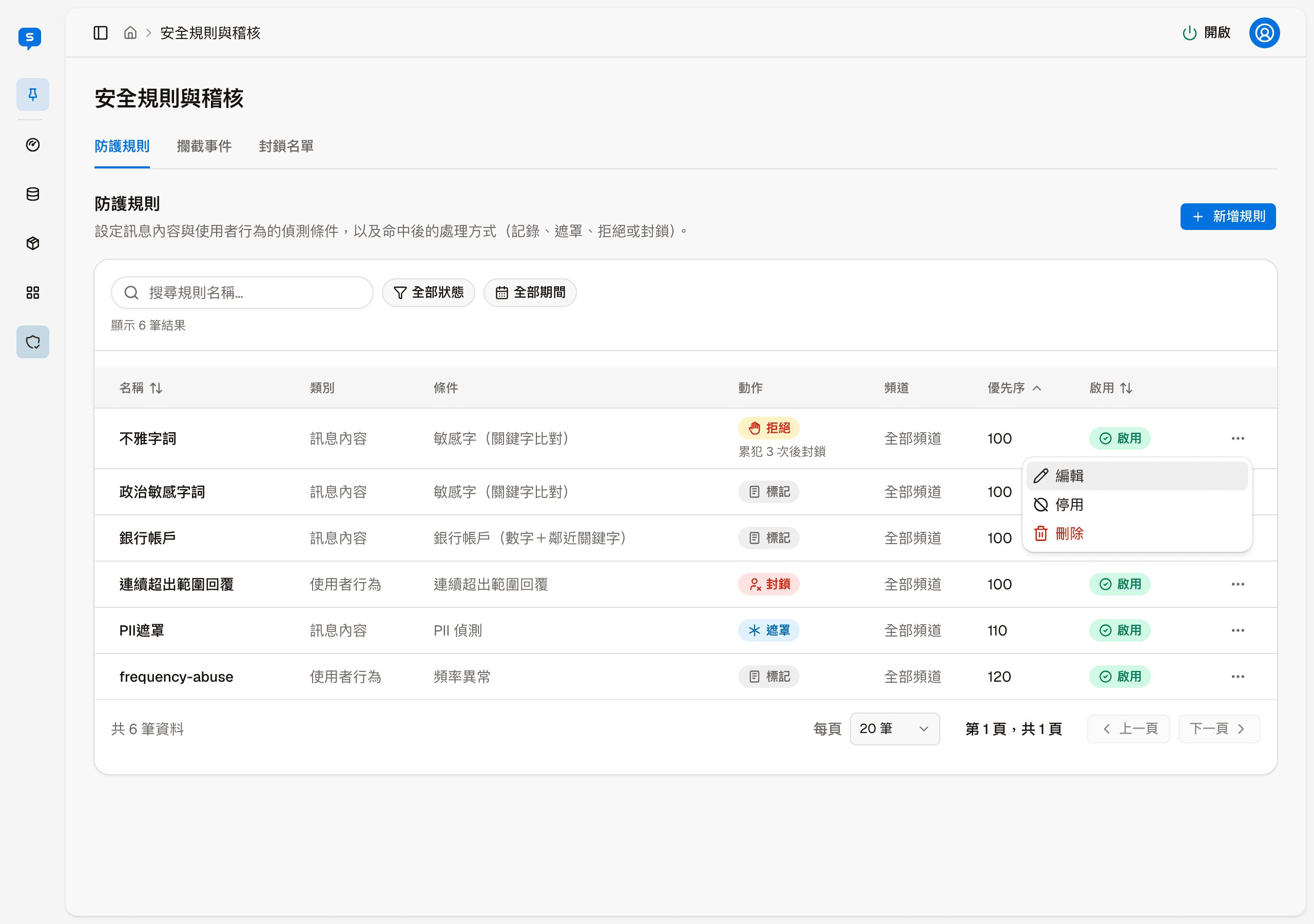
Open "More actions" on the right of each row:
| Action | Description |
|---|---|
| Edit | Opens "Edit rule", with the same fields as adding a rule |
| Disable | Temporarily stops the rule from working. For a disabled rule, this option becomes "Enable" |
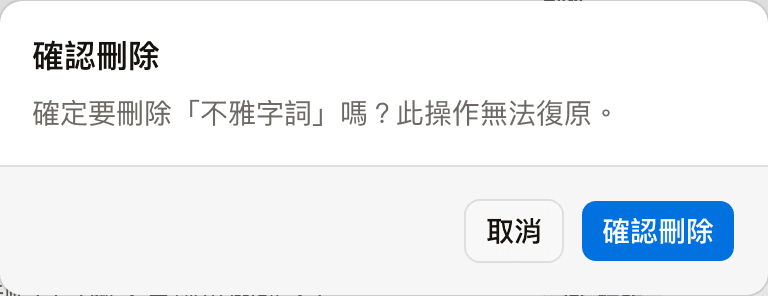
| Delete | Asks for confirmation first; once deleted, it cannot be undone |
Condition types
When adding a rule, first choose the condition type. There are two groups:
| Group | Condition type | Detects |
|---|---|---|
| Message content checks | Sensitive words (keyword match) | Words you list appearing in a message |
| Length limit | Messages that are too long | |
| PII detection | Messages containing personal data | |
| Bank account (digits + nearby keyword) | Messages that look like they contain a bank account number | |
| User behavior patterns | Rate anomaly | The same visitor sending too many messages in a short time |
| Repeated message spam | The same message being sent again and again | |
| Per-thread message limit | The number of messages in one conversation exceeding the limit | |
| Consecutive out-of-scope replies | The visitor keeps asking about things unrelated to the business |
The "Category" column in the list shows whether a rule is "Message content" or "User behavior".
Actions on a hit
The available actions depend on the condition type, and the screen only lists the compatible options:
| Shown in the list | Name in the menu | Applies to | Result |
|---|---|---|---|
| Log only | Log only (message unaffected / user unaffected) | Both groups | Only leaves a record in Security events; the message is handled as usual |
| Reject | Reject this message (will not be sent to the AI) | Message content | The message is not sent to the AI; a rejection message is sent instead |
| Mask | Mask (PII only) | PII detection | Masks the personal data, then continues |
| Block | Block user (temporary block, all subsequent messages will be blocked) | User behavior | Adds this visitor to the Blocklist |
Channels and priority
Channels can be All channels, Anonymous only, Identified members only, LINE only, Messenger only, Instagram only or OTA only.
Priority is a number; lower numbers are evaluated first, and new rules default to 100.
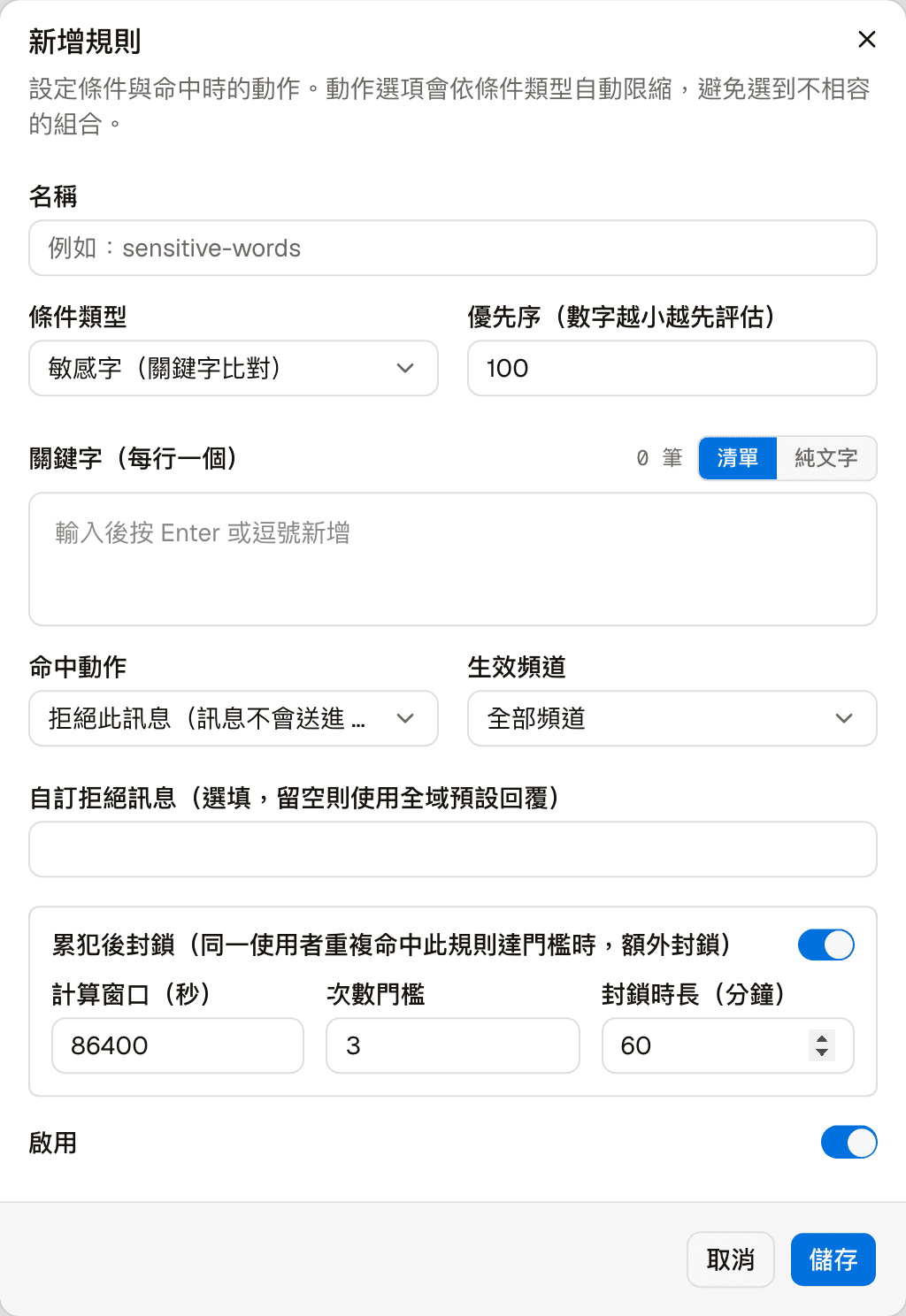
What to fill in when adding a rule
Name, condition type, priority, keywords (one per line), action on hit, channels, and whether the rule is enabled. The keywords field can switch between a list input and a plain text input.
When the action on hit is "Reject this message", a few more fields appear:
- Custom rejection text (optional): if left empty, the "violation reply" text in Settings is used
- Block after repeat offenses: when the same visitor hits this rule repeatedly and reaches the threshold, they are also blocked. The counting window (seconds), violation threshold and block duration (minutes) below decide how many hits within how long, and how long the block lasts. If you are not sure what these are for, keep the defaults
Security events
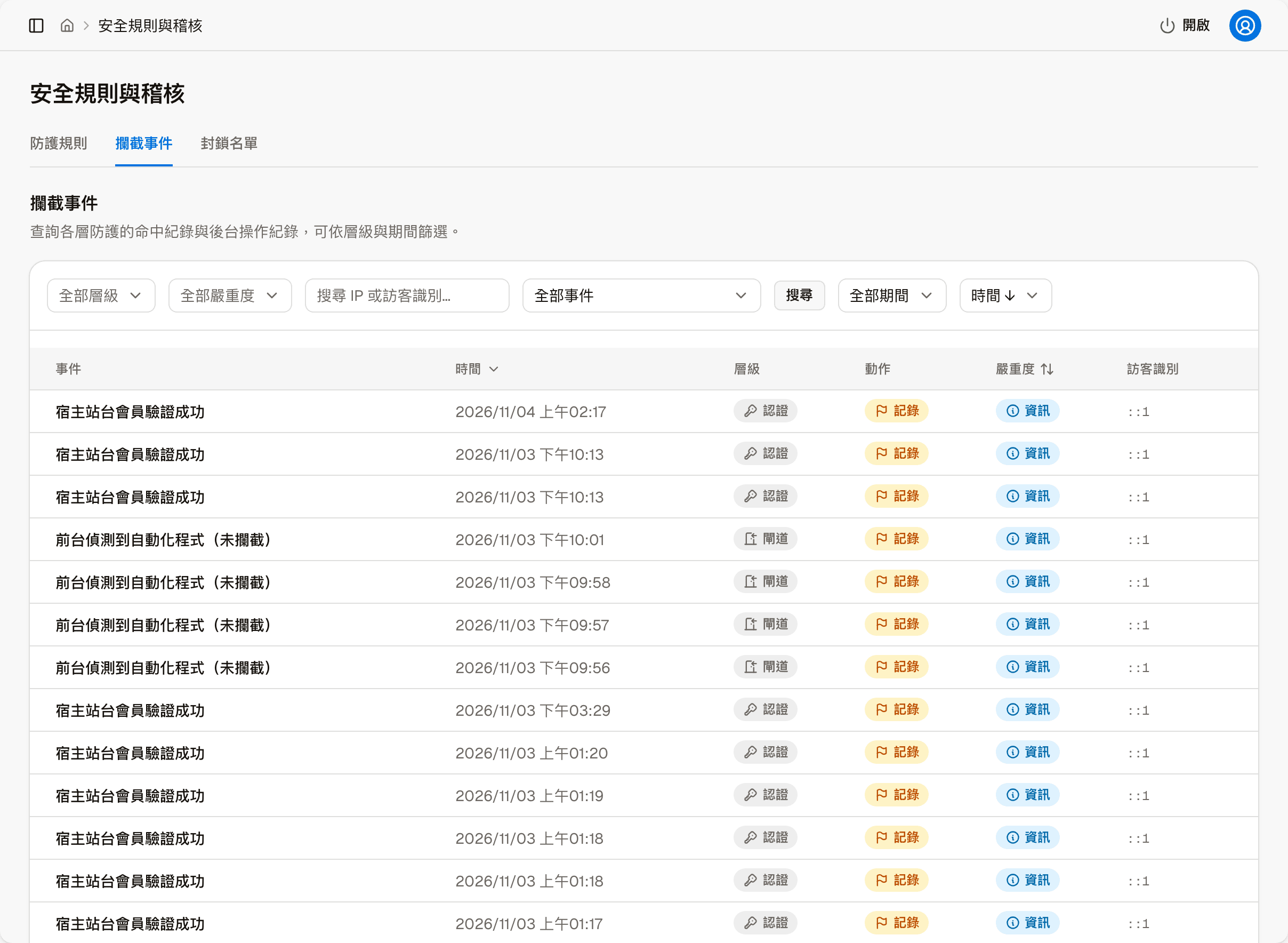
Hits from every protection layer are recorded here. Each entry shows the event name, time, layer, action, severity, and the visitor key (an IP or a visitor code).
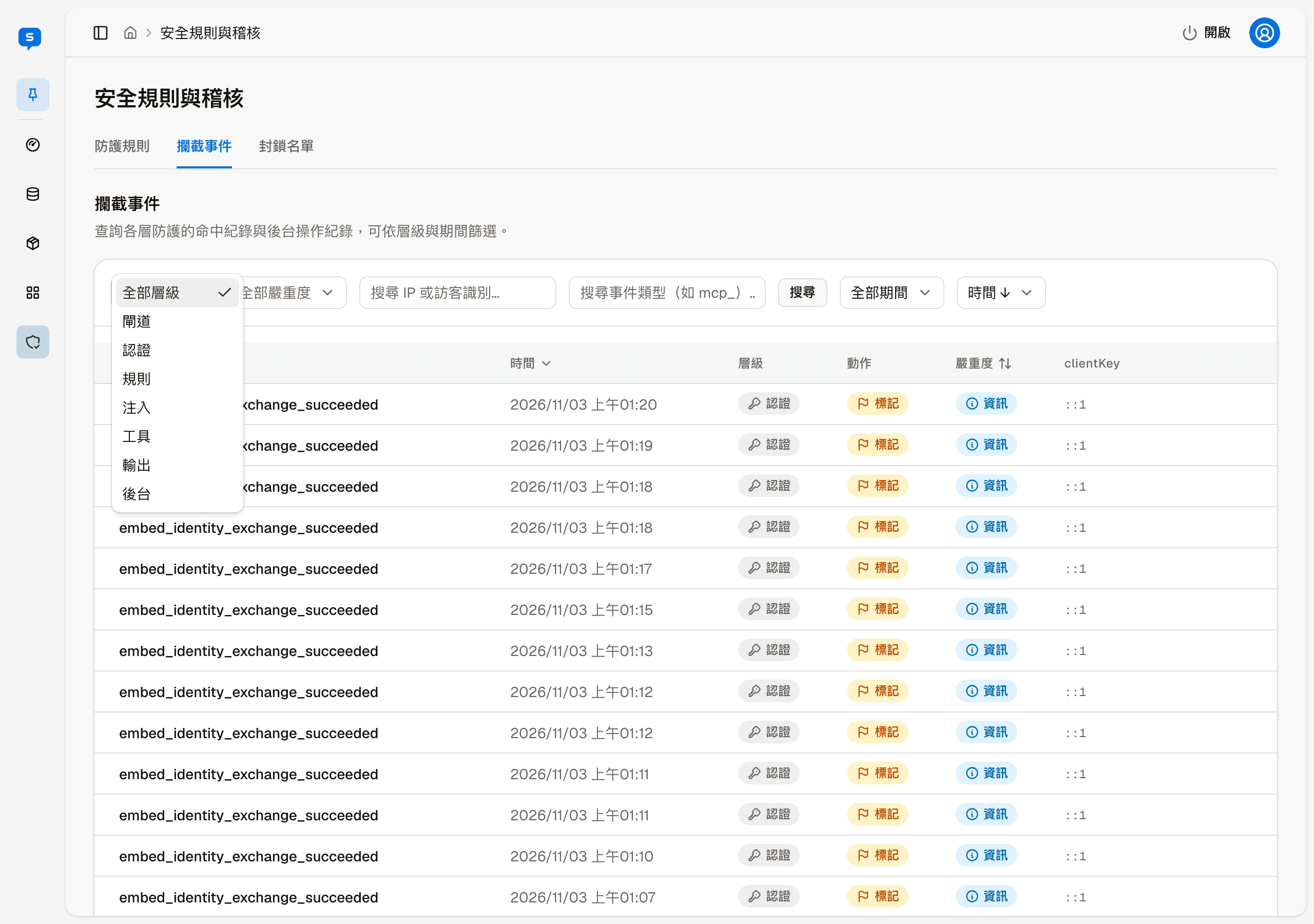
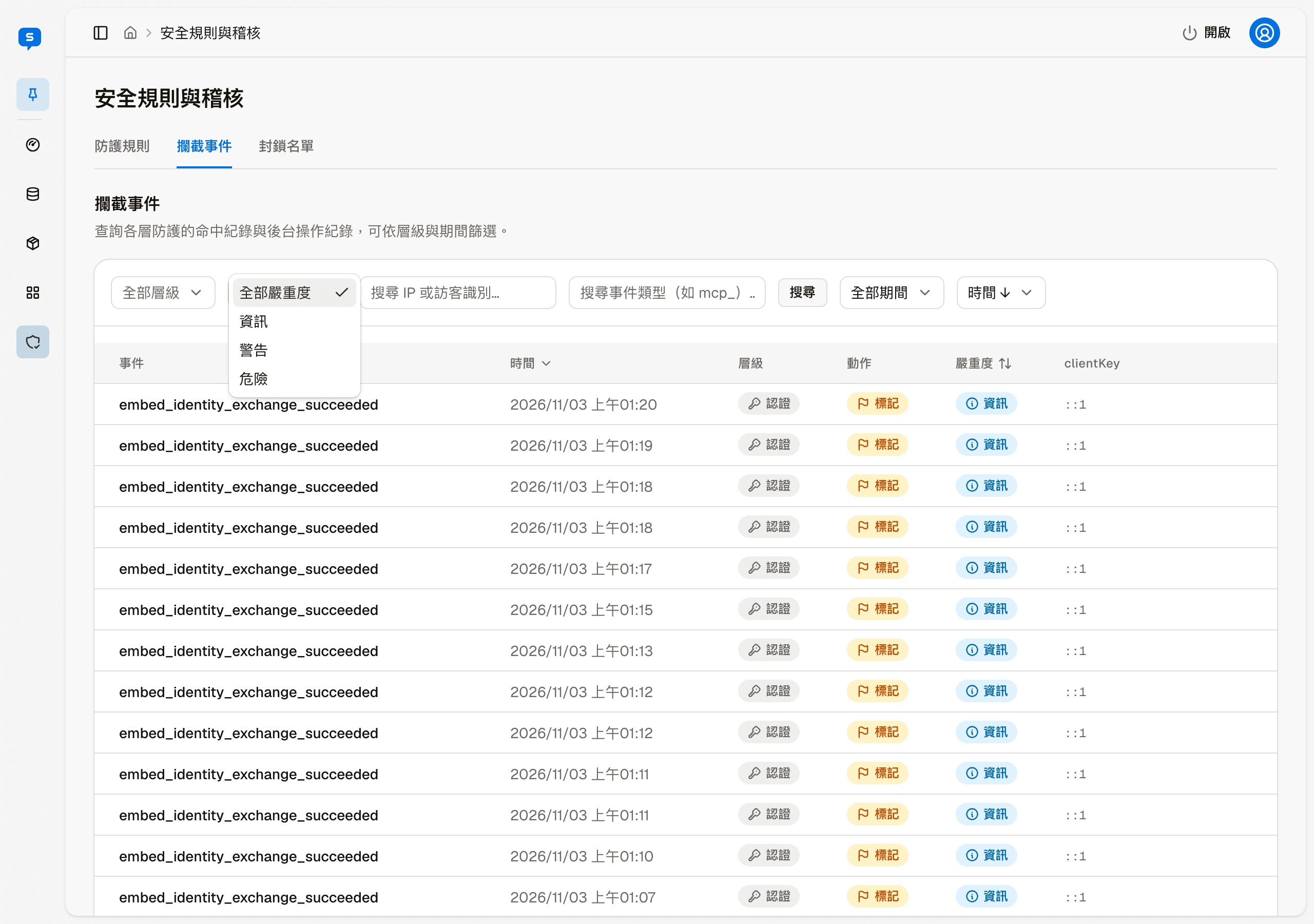
The filters above the list:
| Filter | Options |
|---|---|
| Layer | Gateway, Authentication, Rules, Injection, Tools, Output, Admin |
| Severity | Information, Warning, Alert |
| Search by IP or visitor | Finds records by visitor key |
| All events | Filters by event. "Search events" at the top of the menu lets you find an event by its name or code, and choosing one filters right away |
You can also filter by period, and sort by time or severity.
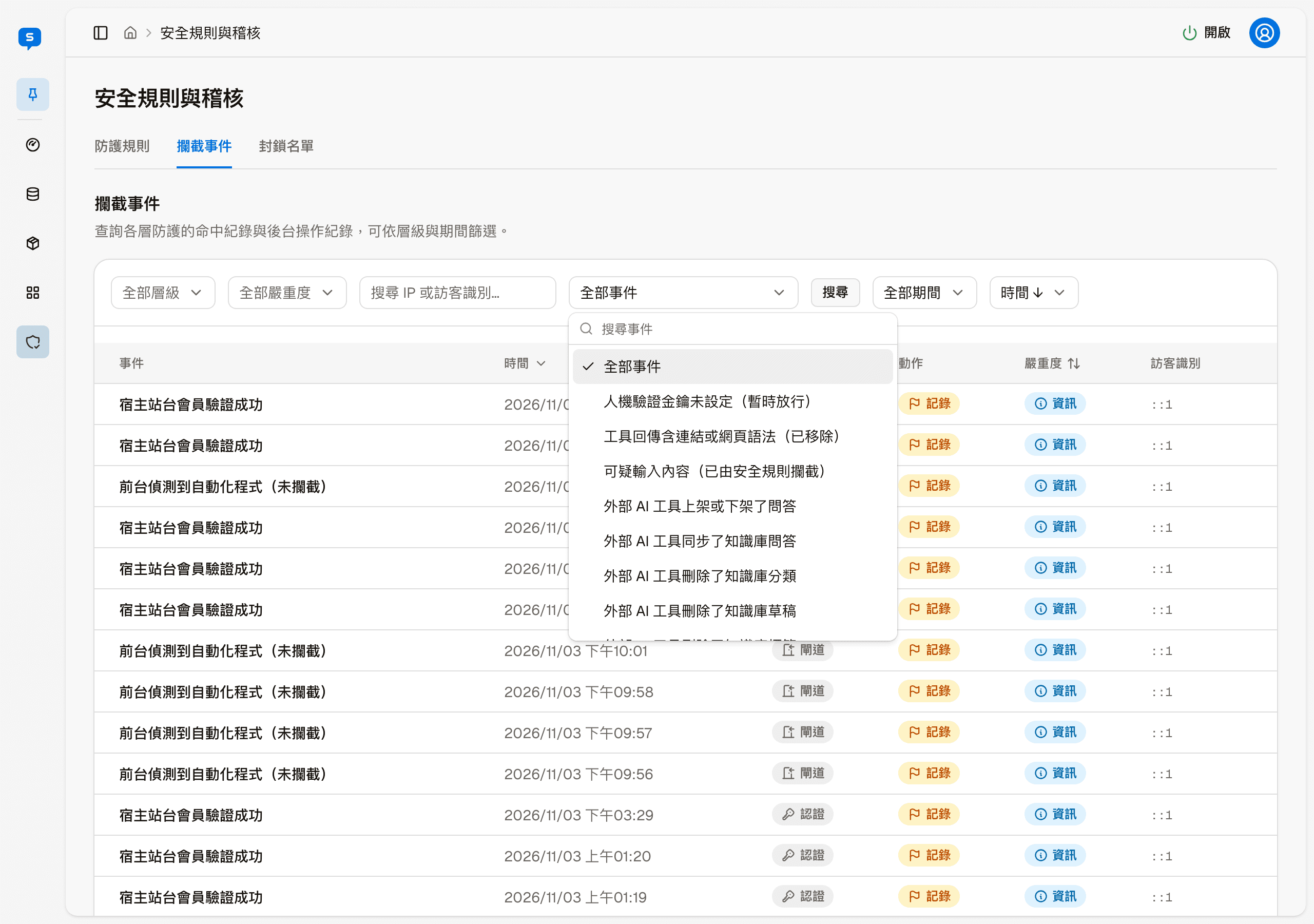
This page also records the admin's own actions
Adding admins, setting passwords, creating or deleting keys, reading a host site's secret, and changing security settings are all recorded here at the "Admin" layer. So what you see is not only blocks on the visitor side, but also a record of admin actions.
Blocklist
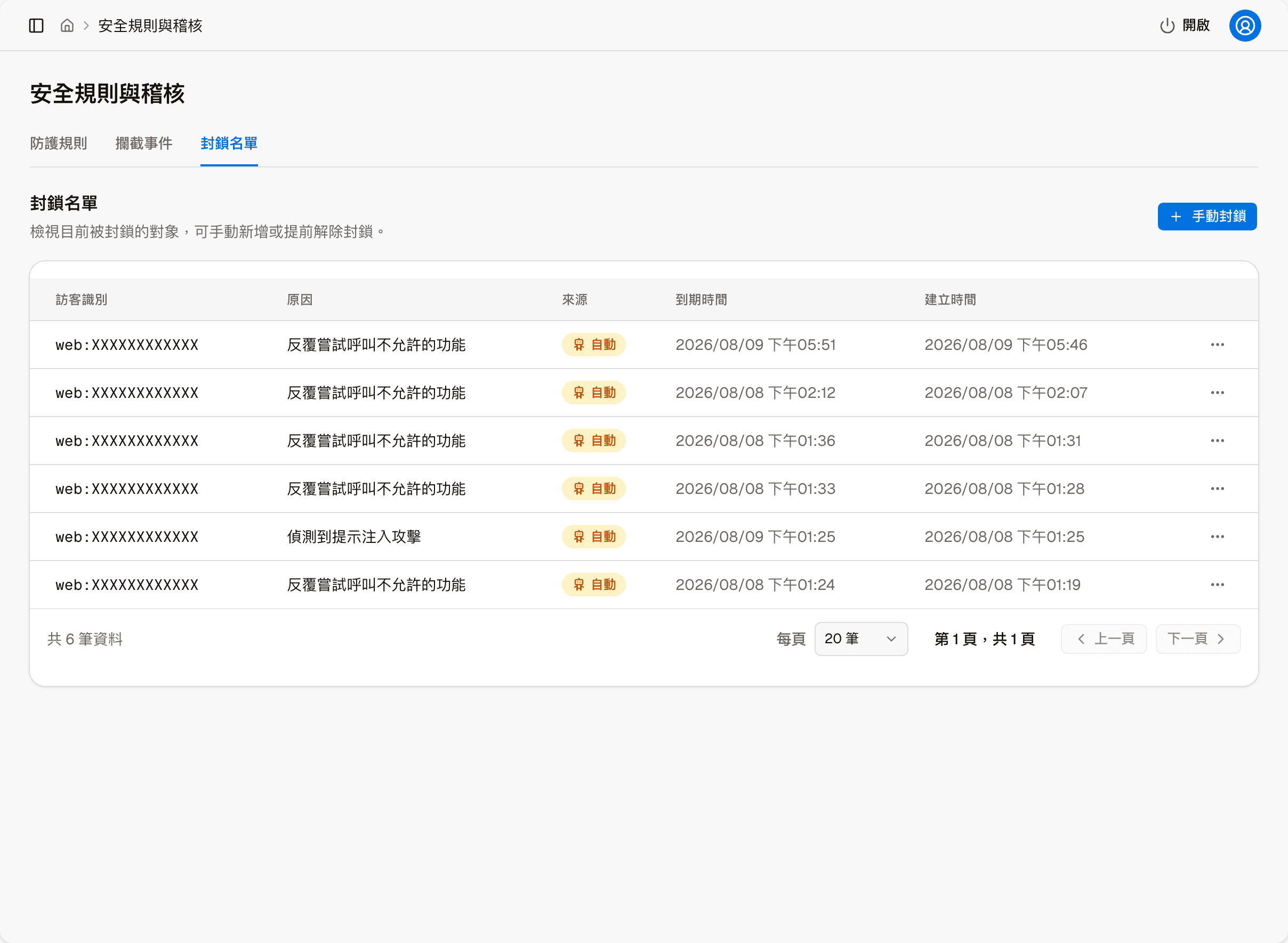
Everyone currently blocked is listed here, each with the visitor key, reason, source, expiry time and created time. The source is "Auto" or "Manual": Auto entries are added by the system when a rule with "Block" is hit or after repeat offenses; Manual entries are ones you add on this page.
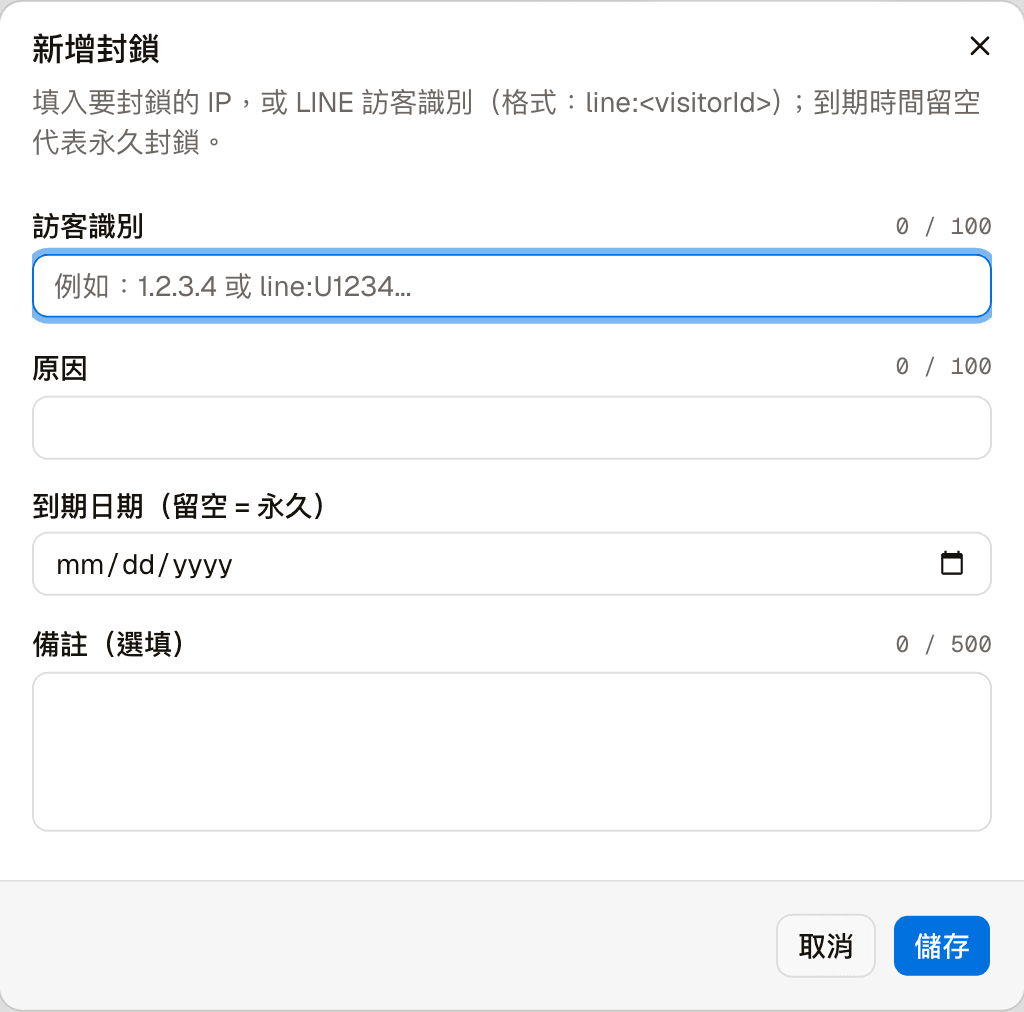
Click "Manual block" to add one yourself. In the visitor key field, enter the IP to block or a LINE visitor key (format: line:<visitorId>),
then enter a reason; you can also set an expiry date (leave it empty to block permanently) and notes.
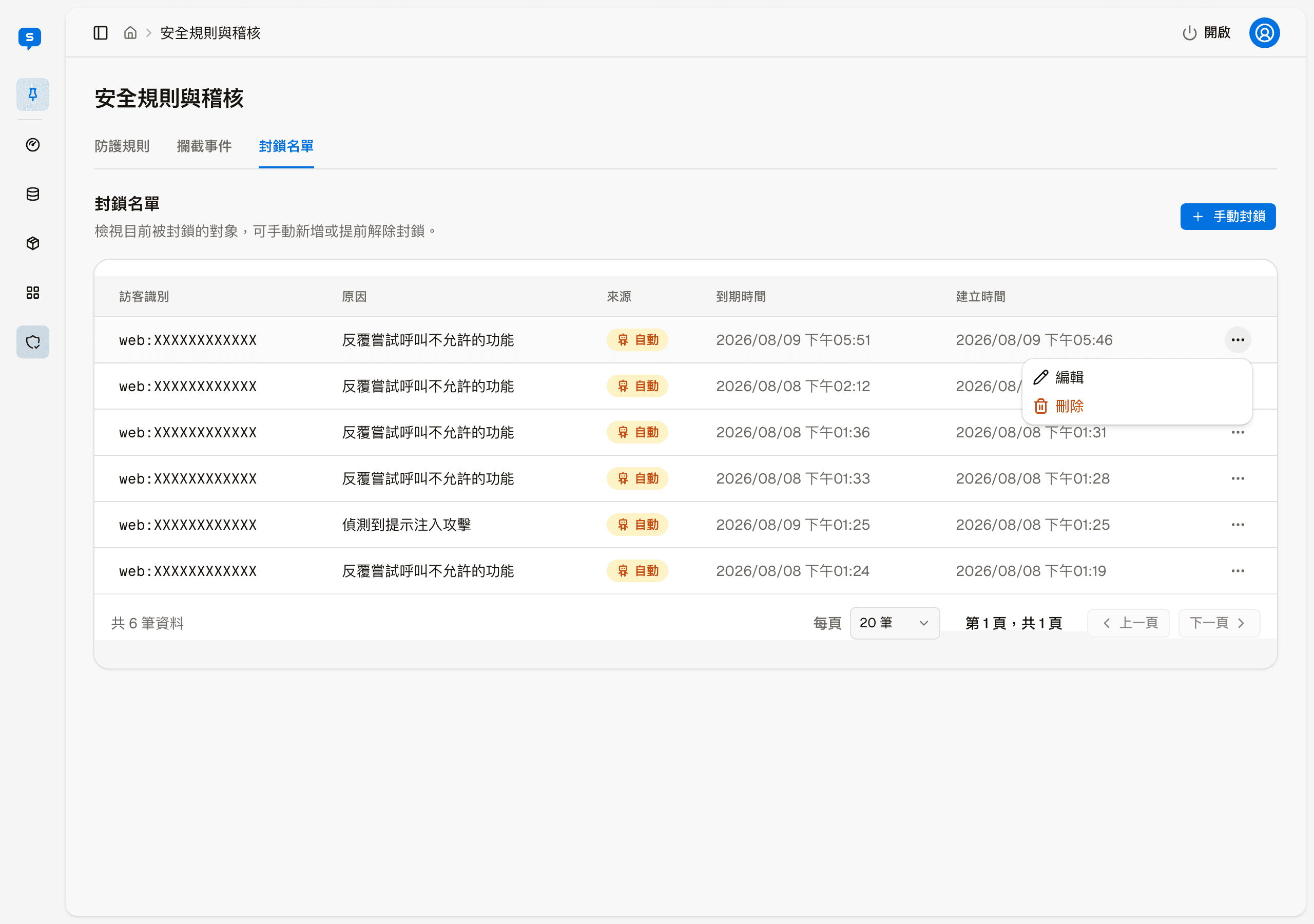
What you can do with each block
Open "More actions" on the right of each row:
| Action | Description |
|---|---|
| Edit | Changes the visitor key, reason, expiry date and notes; same fields as Manual block |
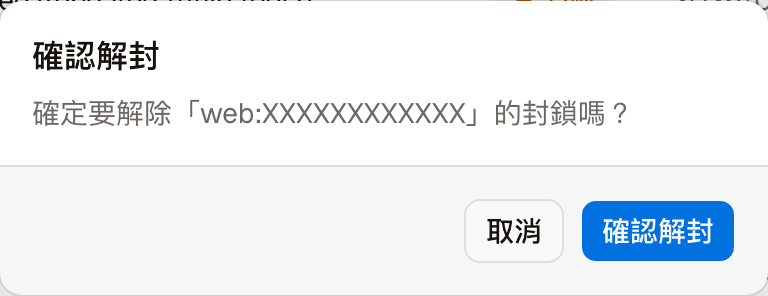
| Delete | Lifts this block without waiting for it to expire. Asks for confirmation first in a "Confirm unblock" dialog |
Code integration
For website developers — the one-line script for anonymous embed, the entry ticket and member data for member embed, the widget's language, and automatic translation of help articles
Settings
The AI's identity and tone, the default language, the chat widget's appearance, and the switches for the chat service, automatic reply texts, anonymous visitors and voice input