Cleanup & backup
Find old data that can be cleaned up, download a backup before deleting it, and download six kinds of data in full as CSV
Data builds up over time: anonymous visitors who never came back, conversations that ended months ago, cancelled orders. This page helps you find this old data, download a backup first, then delete it; you can also download the current data in full as CSV at any time to keep a copy.
Two tabs
- Cleanup wizard — finds five kinds of data that can be cleaned up based on a threshold in days; download a backup of the batch, then delete it
- Full backup — downloads six kinds of data in full as CSV, including the knowledge base, products and conversations
Only Owners can see this page.
Cleanup wizard
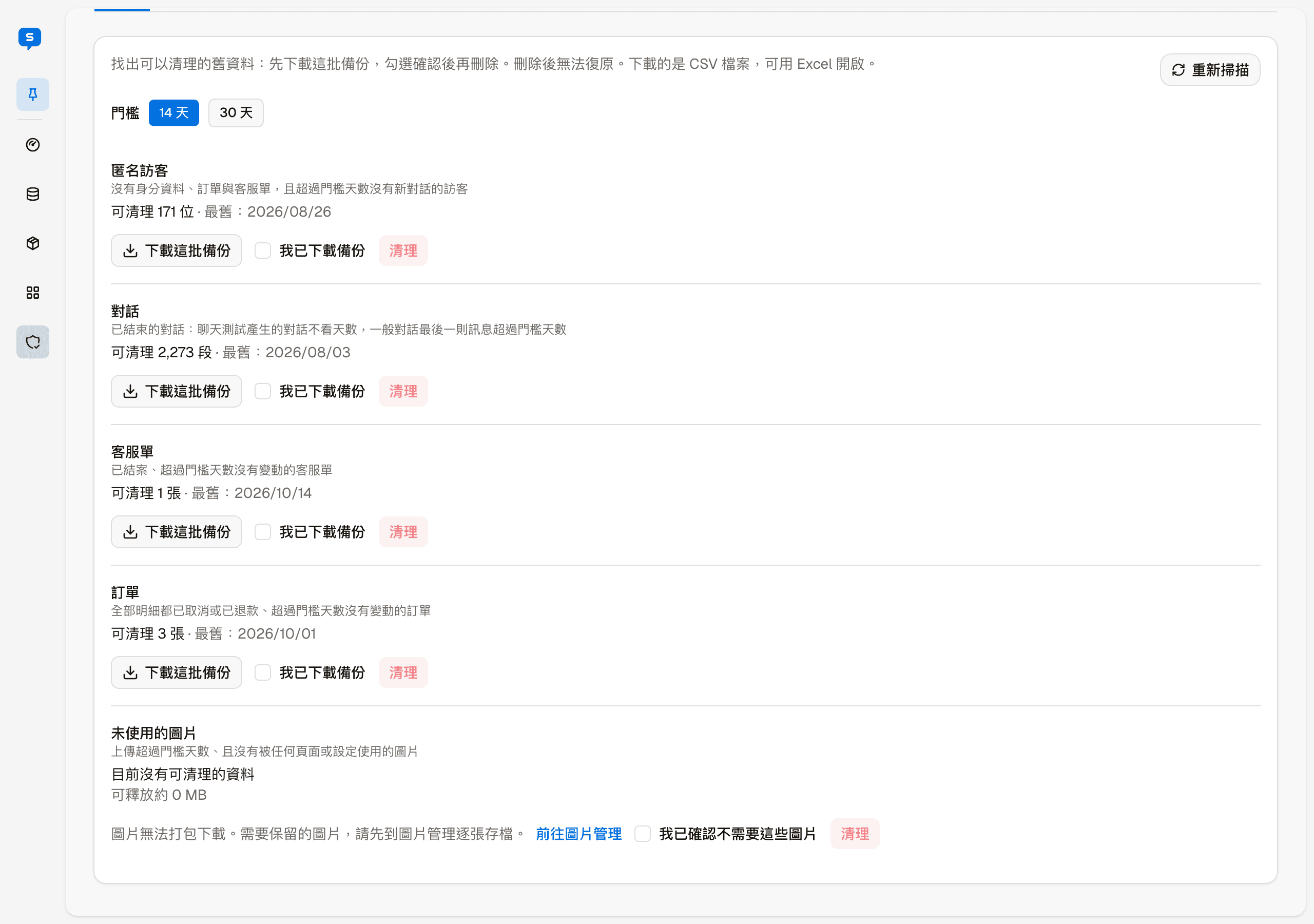
The Threshold at the top decides how long data must have been untouched to count as old: 14 days or 30 days. Changing the threshold or clicking "Rescan" recalculates how many items in each of the five kinds can be cleaned up, and shows the date of the oldest one.
| Kind | What gets cleaned up |
|---|---|
| Anonymous visitors | Visitors with no identity data, orders or support requests, and no new conversation within the threshold |
| Conversations | Ended conversations. Conversations from Chat test are included regardless of age; other conversations are included when their last message is older than the threshold |
| Support requests | Closed support requests with no change within the threshold |
| Orders | Orders whose lines are all cancelled or refunded, with no change within the threshold |
| Unused images | Images uploaded before the threshold and not used by any page or setting |
Cleanup steps
Each kind follows the same order:
- Click "Download this batch's backup" to download the data about to be deleted as CSV (it opens in Excel)
- Tick "I have downloaded the backup", and "Clean up" next to it becomes clickable
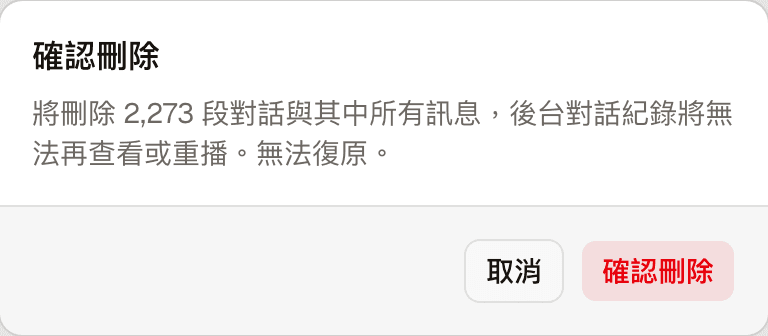
- Click "Clean up"; a "Confirm deletion" dialog explains what will be deleted this time
- Only clicking "Delete" in the dialog actually deletes it
While deleting, the progress is shown (deleted / total), with "Stop" next to it to stop partway; whatever has already been deleted is not restored, and the rest is kept.
Deletion cannot be undone
That is why you must download the batch's backup before cleaning up: afterwards, the CSV you downloaded is the only way to look up this data.
The confirmation dialog states what deletion means for each kind:
| Kind | After deletion |
|---|---|
| Anonymous visitors | Visitor data (including carts and addresses) is deleted. Their conversation history is kept but no longer linked to a visitor |
| Conversations | The conversations and all their messages are deleted, and can no longer be viewed or replayed in Conversations in the admin |
| Support requests | The support requests and their messages are deleted, and members no longer see them on the store page |
| Orders | Members no longer see them in "My orders"; the order numbers are permanently retired and never reused |
| Unused images | The images are deleted; the confirmation dialog shows how many and their total size |
Unused images
Unlike the other four kinds, images cannot be downloaded as a package, so there is no "Download this batch's backup"; instead you tick "I confirm these images are not needed". To keep any images, click "Open image management" first and save them one by one in Image management.
Full backup
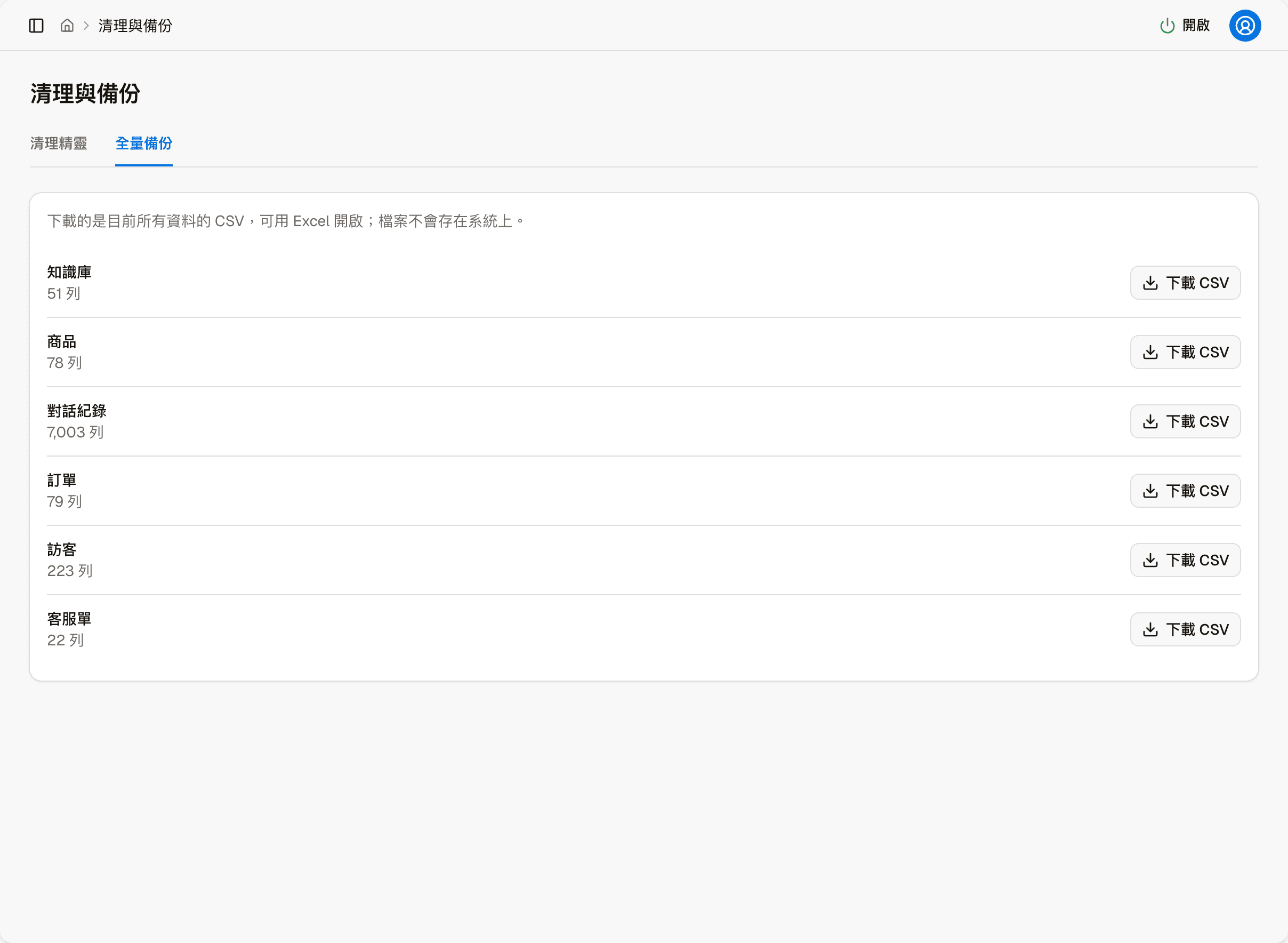
Downloads all current data as CSV, which opens in Excel. The file downloads straight to your computer and is not stored on the system.
Six kinds can be downloaded: Knowledge base, Products, Conversations, Orders, Visitors and Support requests. Each shows how many rows it currently has; click "Download CSV" to start downloading.