List
Browsing, filtering, single and batch actions, importing, and golden question templates
The list is the entry point to the knowledge base, at /knowledge-base.
External AI tools can also manage the knowledge base over MCP; see the knowledge base overview. Syncing goes through a content review first; see Working with the editor.
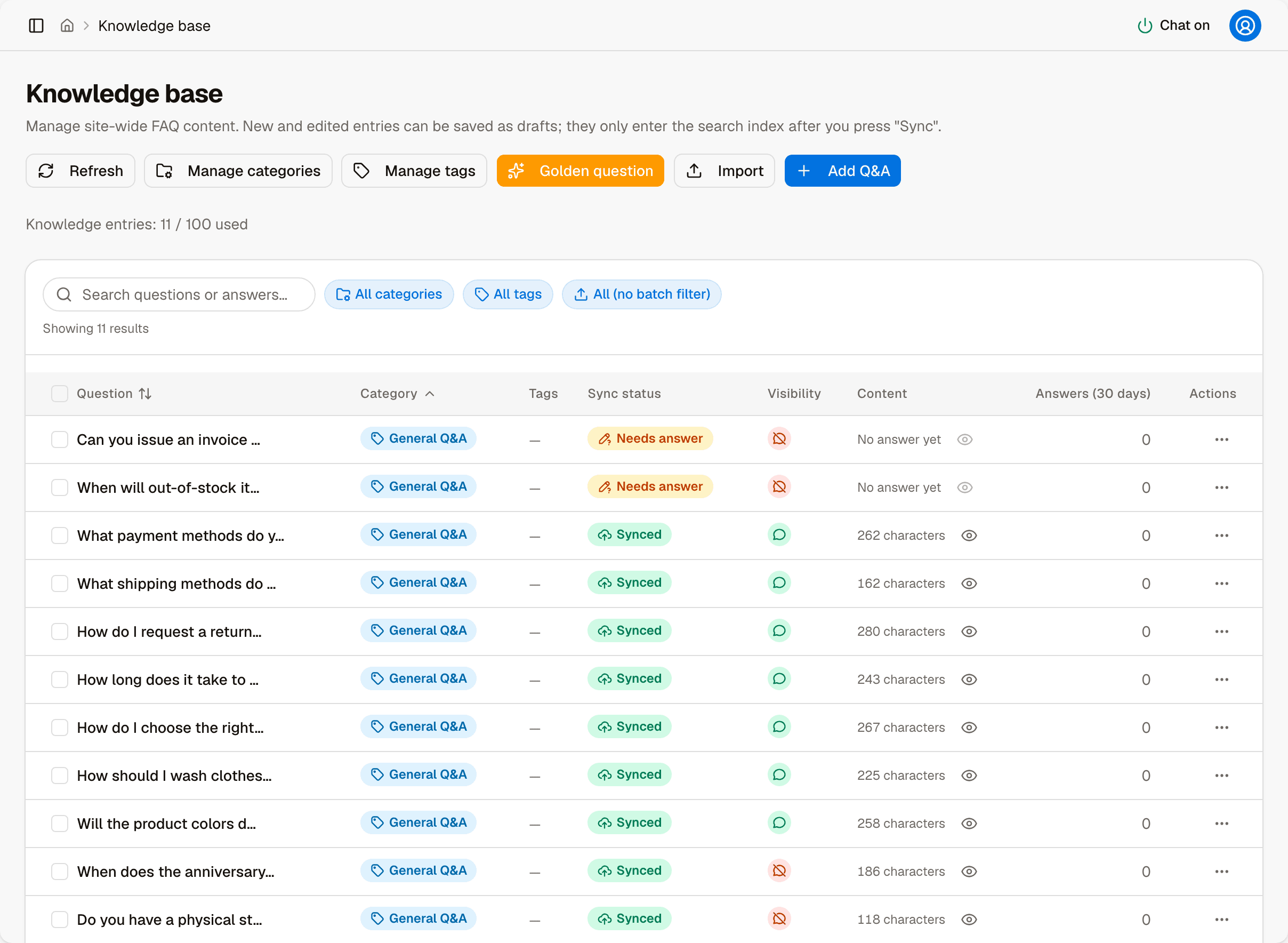
Toolbar
There are six buttons below the page title:
| Button | Used to |
|---|---|
| Refresh | Reload the list |
| Manage categories | Create, rename, reorder and delete categories. Categories must be created here first before you can choose them for a new entry |
| Manage tags | Create, rename and delete tags. Tags are only for finding entries in the admin and do not affect chat behavior |
| Golden question | Apply question templates the platform has already validated |
| Import | Import many entries at once from an .md or .csv file |
| Add Q&A | Open the page for a new entry |
"Knowledge entries: N / limit used" below the buttons is the current number of entries and your plan's limit; see Subscription.
Before deleting a category, move or delete the entries under it. Deleting a tag unbinds it automatically; the entries themselves are not affected.
Search and filters
The search box matches against Question, Answer and Category at the same time. There are also three filter menus, which can be combined:
- Category
- Tag
- Import batch — pick one import to see only the entries it brought in
You can sort by Category or by Question; click the column heading to switch between ascending and descending. When sorted by category, entries within a category are ordered by created time, newest first.
Table columns
| Column | Description |
|---|---|
| Question | Cut off after 25 characters; hover to see the full text |
| Category | |
| Tags | Only the first tag is shown and the rest are collapsed into +N; hover to see them all |
| Sync status | See the four states in the overview |
| Visibility | A green icon means Listed; a red icon with a slash means Unlisted |
| Content | The answer's character count; click the eye icon to open a read-only preview |
| Answers (30 days) | How many times the entry was used as an answer in the last 30 days. Always 0 for drafts |
| Actions | The ⋯ menu |
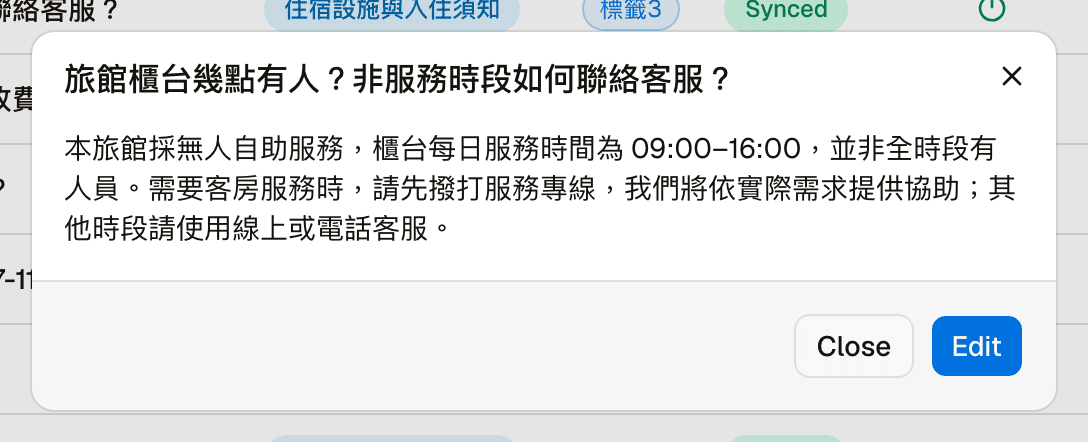
Click the eye icon in the Content column to see the full answer without opening the editor:
Single-entry actions
The ⋯ menu on each row changes with the entry's state; it does not always show every action.
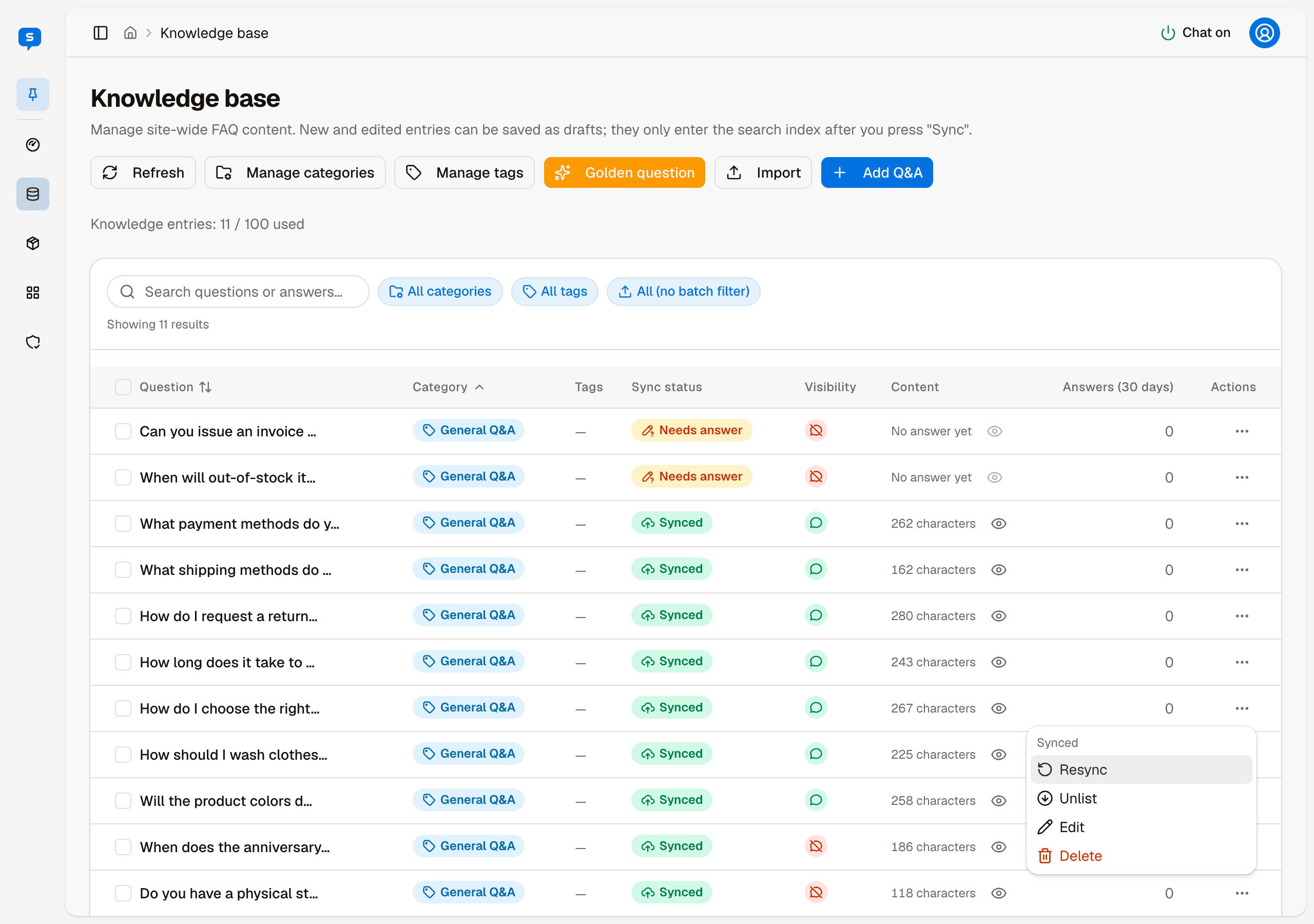
For a listed entry, the menu looks like this:
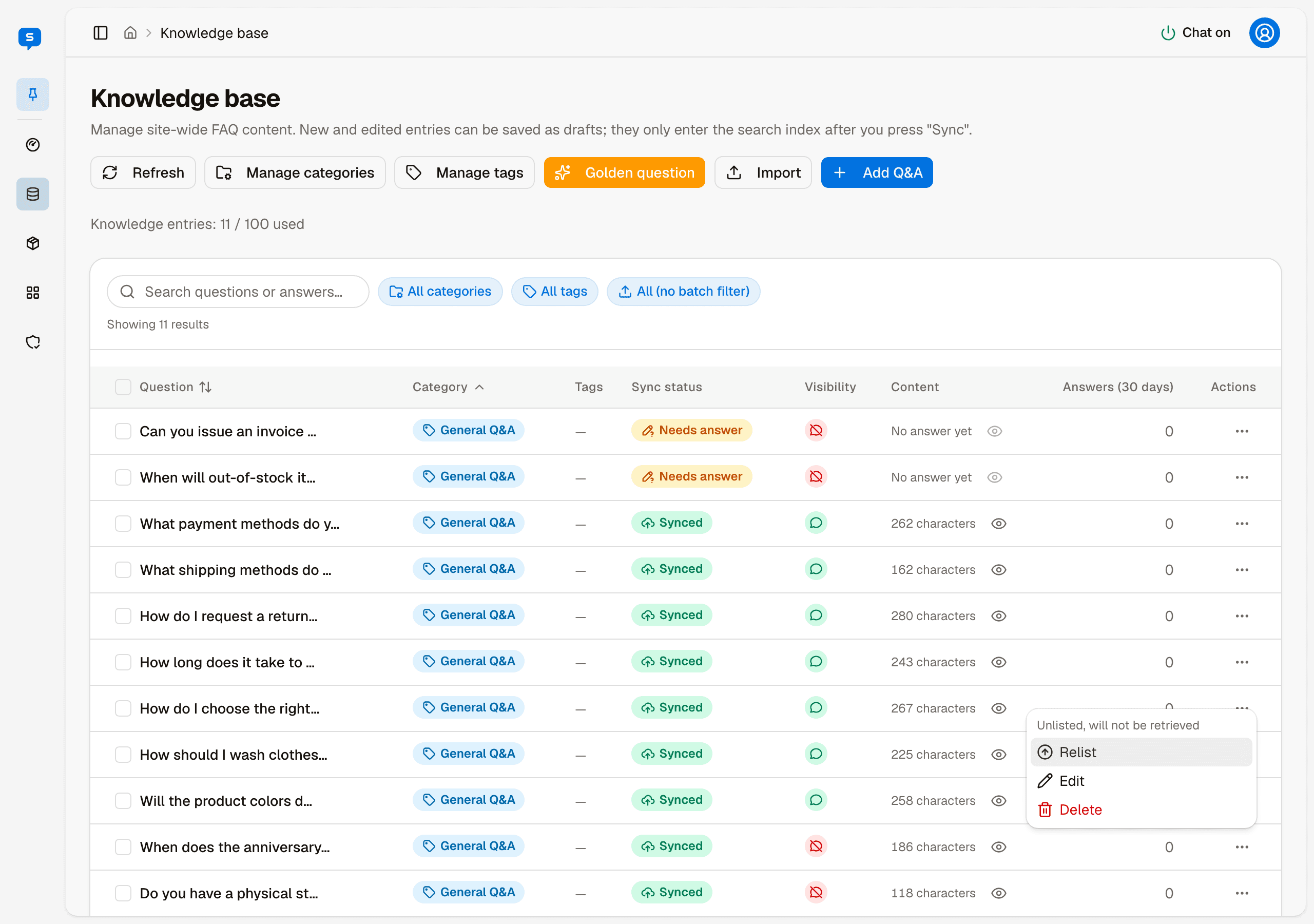
For an unlisted entry, "Unlist" becomes "Relist", and there is no Resync:
| Current state | Available actions |
|---|---|
| Unsynced / draft | Sync, Edit, Delete |
| Synced (content changed) | Resync, Unlist, Edit, Delete |
| Synced (content unchanged) | Resync, Unlist, Edit, Delete |
| Unlisted | Relist, Edit, Delete |
| Unsynced / indexed | Edit, Delete (plus a note you cannot click, saying the batch needs to be rerun) |
A line at the top of the menu describes the current state, for example "Draft, not yet indexed".
An entry with an empty answer cannot be synced
For an entry created from a golden question template whose answer has not been filled in yet, "Sync" is disabled with the hint "Fill in the answer before syncing".
When a sync is blocked by the duplicate check
Before syncing, the system runs a strict duplicate check. If it finds a highly similar existing entry, the sync fails and you are taken to the editor automatically, where the duplicate entries are shown so you can deal with them right there.
If similar entries are detected after a sync has succeeded, a purely informational dialog lists them. This does not affect the completed sync; whether to deal with them is up to you.
Batch actions
When you check the boxes on the left, a batch action bar appears at the bottom of the screen, where you can sync, relist or unlist in a batch.
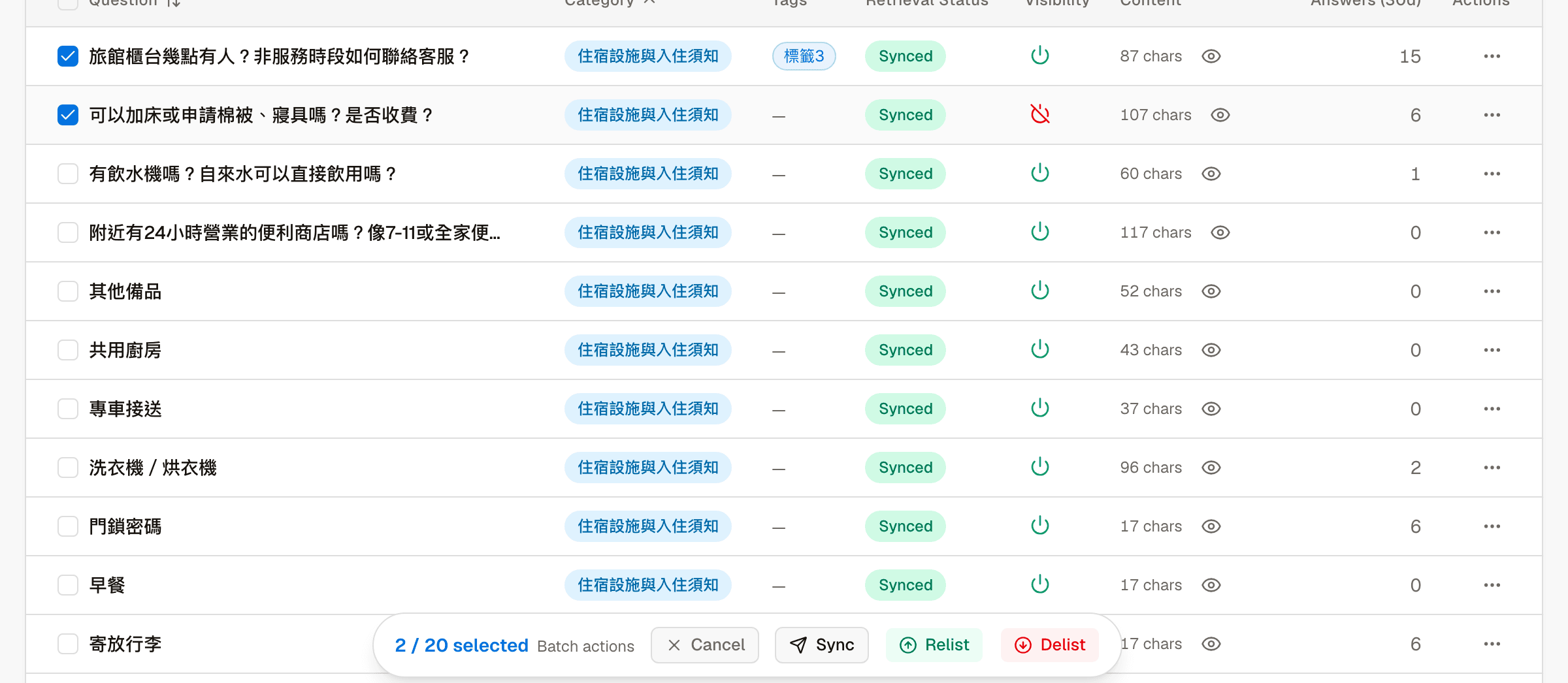
The limit is 20 entries at a time. Which entries can be selected is strictly limited:
| Action | Only for |
|---|---|
| Batch sync | Drafts and indexed entries |
| Batch relist | Unlisted entries |
| Batch unlist | Synced entries |
Indexed entries cannot be listed or unlisted in a batch
If an entry in the "Unsynced / indexed" state is included in a batch relist or unlist, the whole batch is blocked with the message "Staged entries cannot be batch listed/unlisted; please sync first". Sync those entries first.
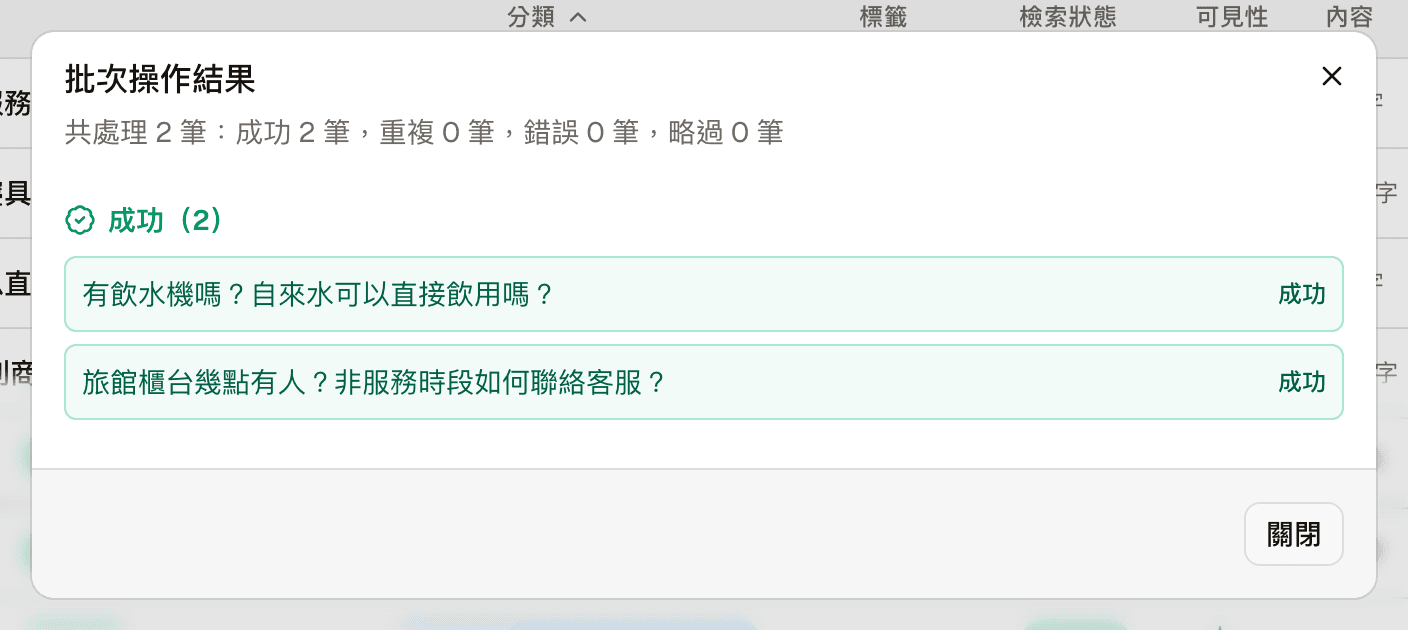
When the batch finishes, a results dialog sorts each entry into four groups:
- Success
- Duplicate detected — each entry has an "Optimize with AI" button that takes you straight to that entry's editor
- Failed
- Already in target state (skipped)
Import
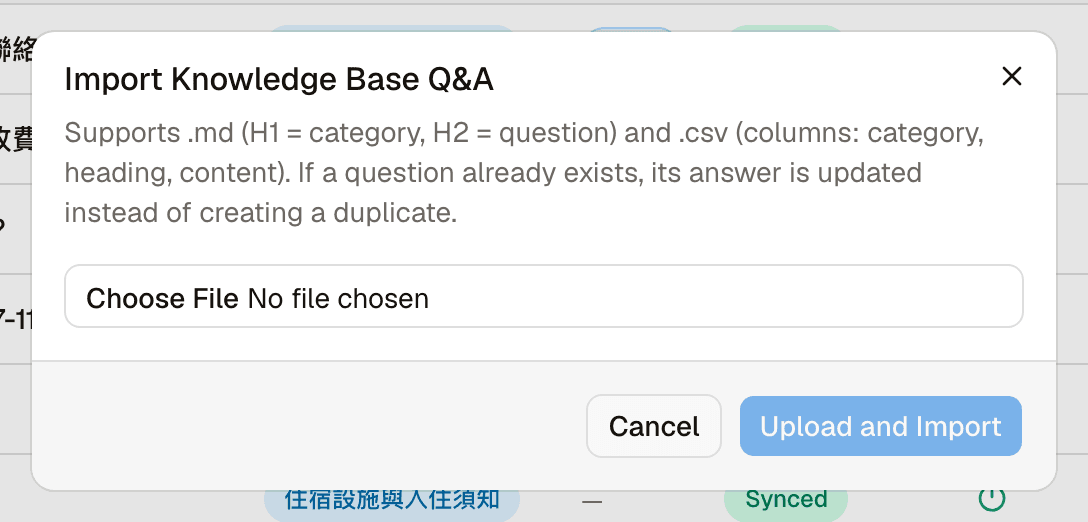
Two formats are supported:
.md— H1 is the category, H2 is the question.csv— columnscategory,heading,content
The result shows four numbers — Created, Updated, Skipped and Failed — and lists the reason for each failed line.
A question with the same text counts as an update
When the same question already exists, it is not created again; instead the existing entry's answer is updated. Those updated entries must be resynced one by one in the list before the change takes effect, and the draft-level change cannot be undone.
After the import, the list automatically switches to that batch's filter. A batch information row appears at the top with a "Clear unsynced drafts in this batch" button.
"Clear unsynced drafts in this batch" only deletes drafts that have not been synced. Entries from the same batch that have already been synced are not affected, and the result tells you how many were skipped.
Golden question templates
"Golden questions" are a set of questions the platform has already validated. Applying them creates drafts with only the question filled in and the answer pending; you can still edit the question afterwards.
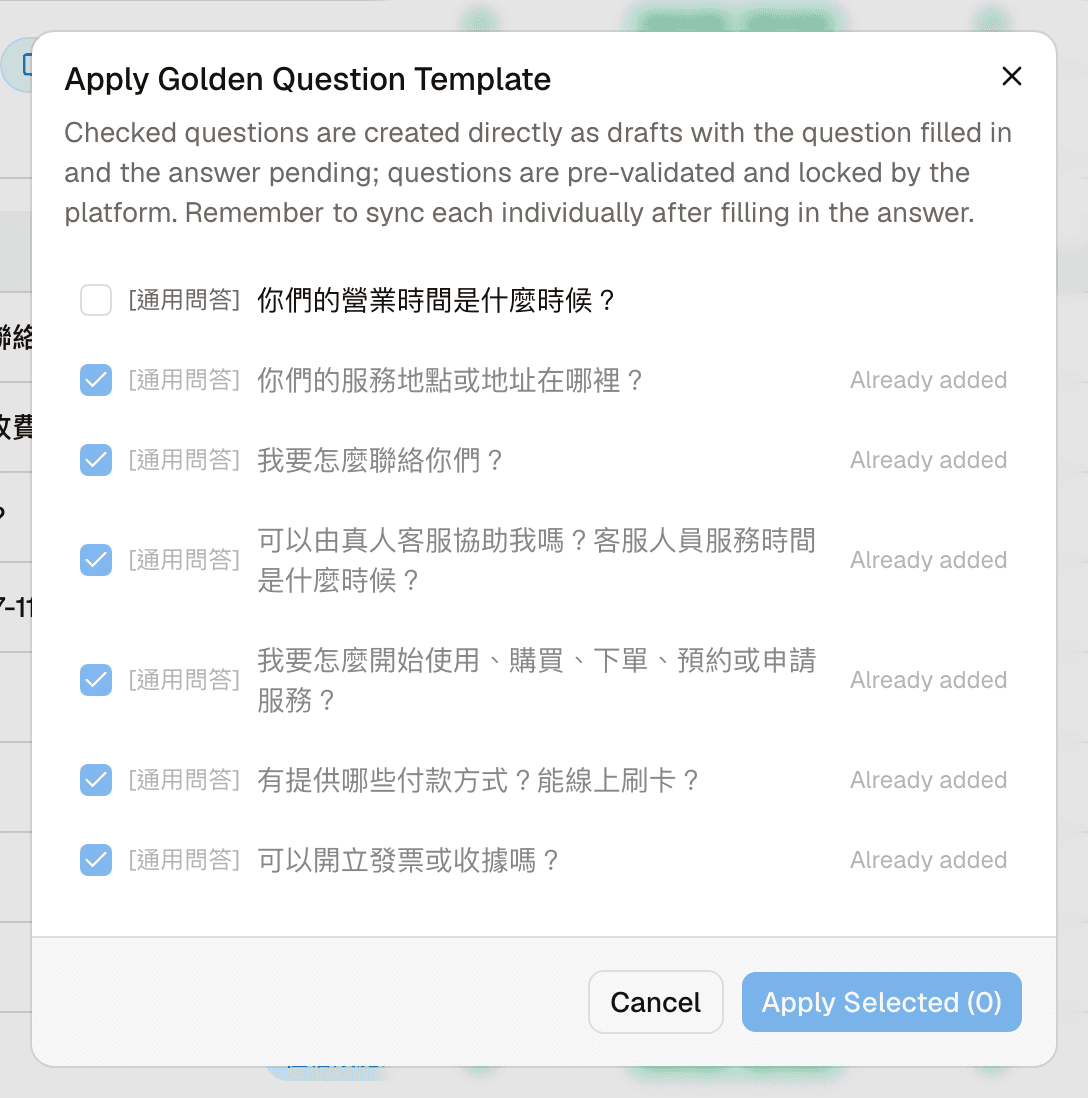
Check the questions to apply and confirm. The result shows three numbers: Created, Already exists (skipped), and Category deleted (skipped). If some questions are similar in meaning to existing entries, warnings are listed — those entries may be blocked by the duplicate check when you sync them.
After applying, remember to fill in each answer and then sync it.
Delete
Choosing Delete from the ⋯ menu opens a confirmation dialog. This cannot be undone.